COBBLESTONE SOFTWARE
Contract Insight — User Guide
Manage E-Signatures and PIN
Module: Document Collaboration Gateway › Document Collaboration Gateway Settings & Functionality (External Users) › Manage E-Signatures and PIN
Note: This article covers the Vendor/Client Gateway (external users). Gateway contacts follow Sections 3 and 4. Sections 5 and 6 are for Contract Insight administrators and begin at the Contract Insight homepage.
1. Overview
A Vendor/Client Gateway contact manages their own e-signature setup, including any signing PIN, from My Approval & Signature Settings. This page is in the Gateway menu's Electronic Documents group, next to My Assignments. It is the Gateway counterpart to the signature selector and signature placeholder mechanics that internal employees use (see E-Approvals & E-Signatures).
Administrators control whether these pages appear in the Gateway from Administration → Navigation Menu, using the Vendor/Client Gateway workspace. The external e-signature providers available across both the internal and Gateway signing flows (DocuSign, Adobe Acrobat Sign, SignNow, and DocJuris) are configured under Administration → External ESign.
2. Key Elements
- Gateway menu → Electronic Documents → My Approval & Signature Settings: where a vendor or client contact manages their own e-signature setup and PIN.
- Gateway menu → Electronic Documents → My Assignments: the contact's list of approval and signature steps assigned to them.
- Modules_DAC: the module tag on the Electronic Documents group. Its pages appear only where that module is available.
- The signing mechanics (placing a signature, choosing a signature, submitting it) match those used internally, scoped to the contact's own account.
- Administration → Navigation Menu (Vendor/Client Gateway workspace): where administrators check or change the Gateway menu.
- Administration → External ESign: where the DocuSign, Adobe Acrobat Sign, SignNow, and DocJuris integrations are configured.
3. Opening My Approval & Signature Settings (Gateway Contacts)
- Sign in to the Vendor/Client Gateway.
- In the Gateway menu, open Electronic Documents.
- Select My Approval & Signature Settings.
- Review or update your signature setup and signing PIN.
4. Viewing Your Assigned Signatures (Gateway Contacts)
- In the Gateway menu, open Electronic Documents.
- Select My Assignments to see the approval and signature steps waiting on you.
- Open a step to sign. When signing, place your signature, choose the signature to use, and submit it, the same way internal signers do.
5. Checking the Gateway Menu (Administrators)
- From the Contract Insight homepage, click the Administration icon and open Navigation Menu.
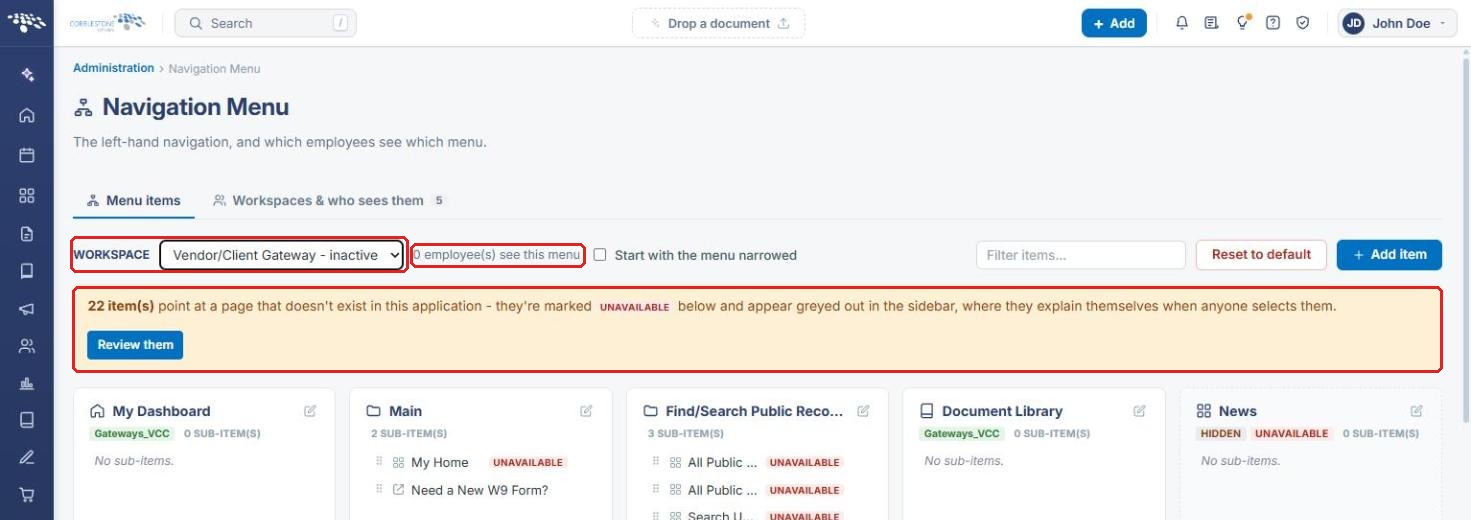
- In Workspace, select Vendor/Client Gateway. The label shows inactive if the Gateway menu isn't in use, and the count beside it shows how many people see the menu.
- If a banner says some items point at a page that doesn't exist in this application, those items are marked UNAVAILABLE. Click Review them to see the list.
- Scroll to the Electronic Documents card (tagged Modules_DAC). Confirm it contains My Assignments and My Approval & Signature Settings, and check whether either is marked UNAVAILABLE.
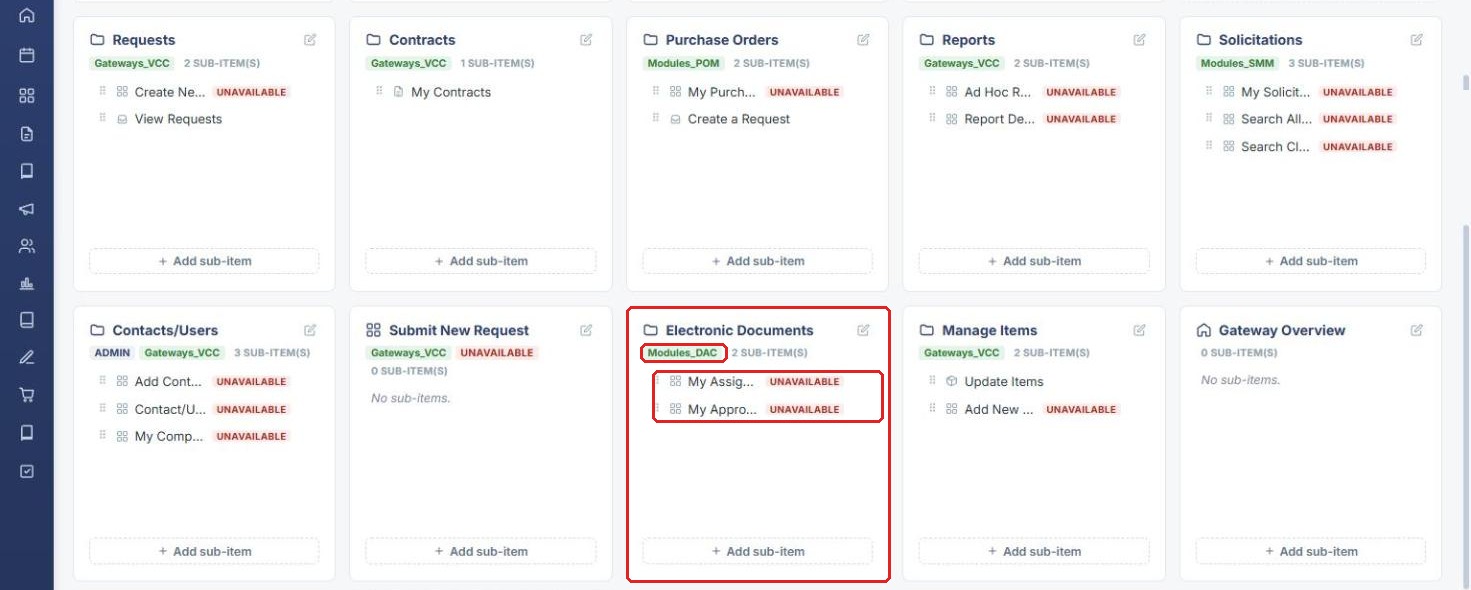
Note: Items marked UNAVAILABLE appear greyed out in the Gateway sidebar and explain themselves when a contact selects them. If My Approval & Signature Settings is unavailable, contacts can't reach their signature settings from the Gateway.
6. Configuring E-Signature Providers (Administrators)
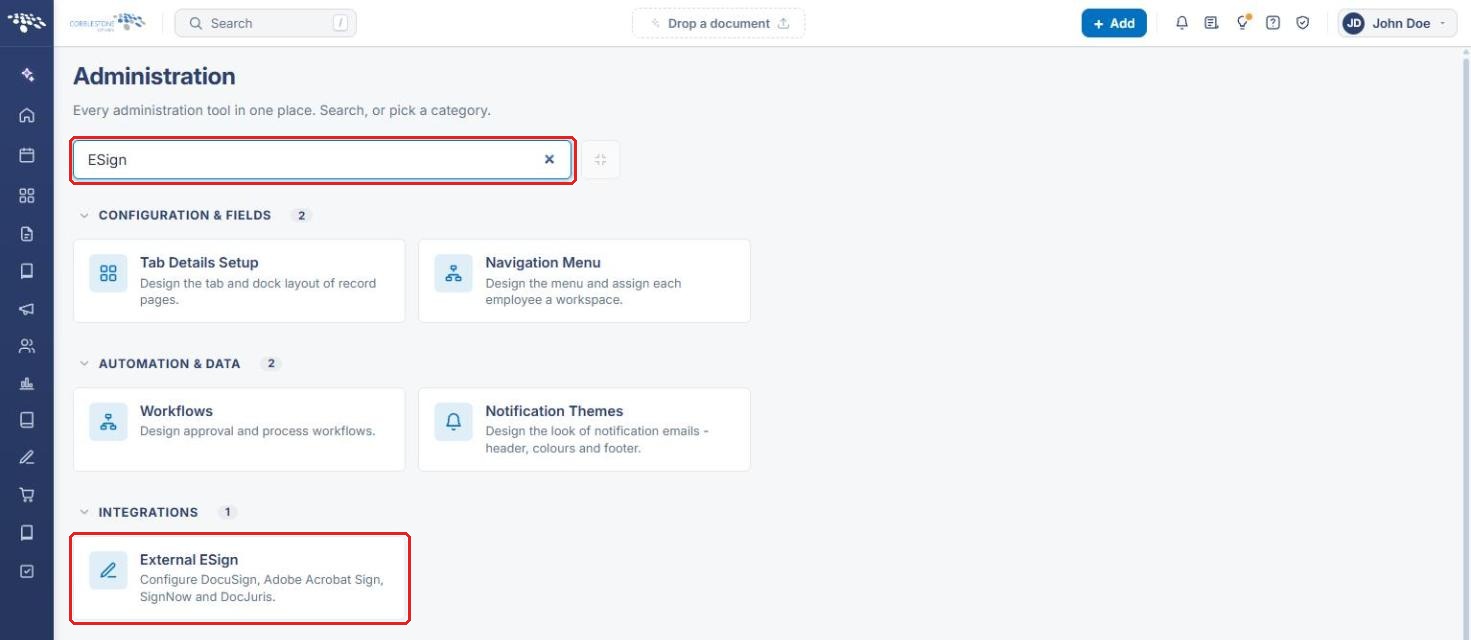
- Click the Administration icon. In Search administration, type ESign.
- Click External ESign (under Integrations).
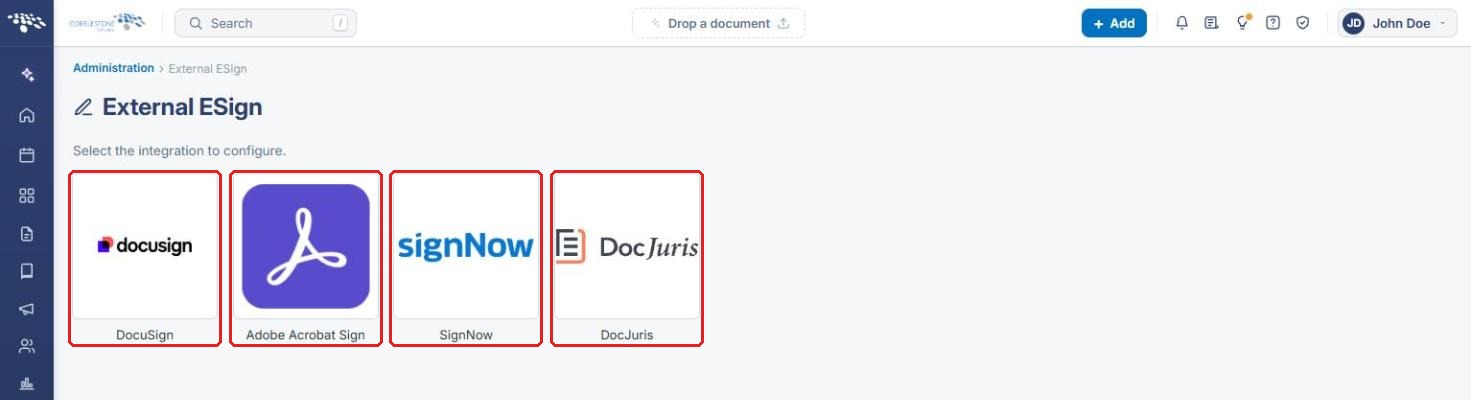
- Select the integration to configure: DocuSign, Adobe Acrobat Sign, SignNow, or DocJuris.
Note: The connection status of each provider (for example, credentials on file or not set up) is shown at the top of Approvals & Signatures → E-Signatures.
7. Quick Reference Summary
| Task | Where | Action |
|---|---|---|
| Manage your signature and PIN (Gateway contact) | Gateway → Electronic Documents | My Approval & Signature Settings |
| See signatures waiting on you (Gateway contact) | Gateway → Electronic Documents | My Assignments |
| Check the Gateway menu (admin) | Administration → Navigation Menu | Workspace = Vendor/Client Gateway |
| Find unavailable Gateway menu items (admin) | Navigation Menu banner | Review them |
| Configure e-signature providers (admin) | Administration → External ESign | Select DocuSign, Adobe Acrobat Sign, SignNow, or DocJuris |