COBBLESTONE SOFTWARE
Contract Insight — User Guide
Access E-Approval Signature Processes Assigned
Module: Document Collaboration Gateway › Document Collaboration Gateway Settings & Functionality (External Users) › Access E-Approval Signature Processes Assigned
Note: Section 3 is performed by a Gateway (vendor/client) user after signing in to the Gateway. Sections 4 and 5 are performed by a Contract Insight administrator and begin at the Contract Insight homepage. Menu labels, tags, and item order are configurable, so they may vary between environments.
1. Overview
A Gateway user's own approval and signature work sits under the Gateway menu's Electronic Documents group, which is tagged Modules_DAC. It mirrors the internal My Assignments page that employees use. When an approval or signature step is assigned to a vendor or client contact, it shows up there for them to open and act on. They don't need access to the internal Approvals & Signatures workspace.
2. Key Elements
- Electronic Documents → My Assignments lists the approval and signature steps assigned to the signed-in Gateway contact.
- Electronic Documents → My Approval & Signature Settings is where that contact manages their own signature setup.
- Modules_DAC tag: the Electronic Documents group carries this tag in the Navigation Menu configuration. This ties it to the Document Authoring/Collaboration (DAC) module.
- Vendor/Client Gateway workspace: the menu that Gateway users see. Administrators manage it under Administration → Navigation Menu.
- Internal equivalent: employees use the internal My Assignments page for the same kind of work.
3. Access Assigned Processes as a Gateway User
- Sign in to the Vendor/Client Gateway with your contact credentials.
- In the Gateway's left-hand menu, expand Electronic Documents.
- Select My Assignments to see the approval and signature steps waiting for you.
- Open a process to review its document and complete your step (approve, reject, or sign).
- To change how you sign, select Electronic Documents → My Approval & Signature Settings.
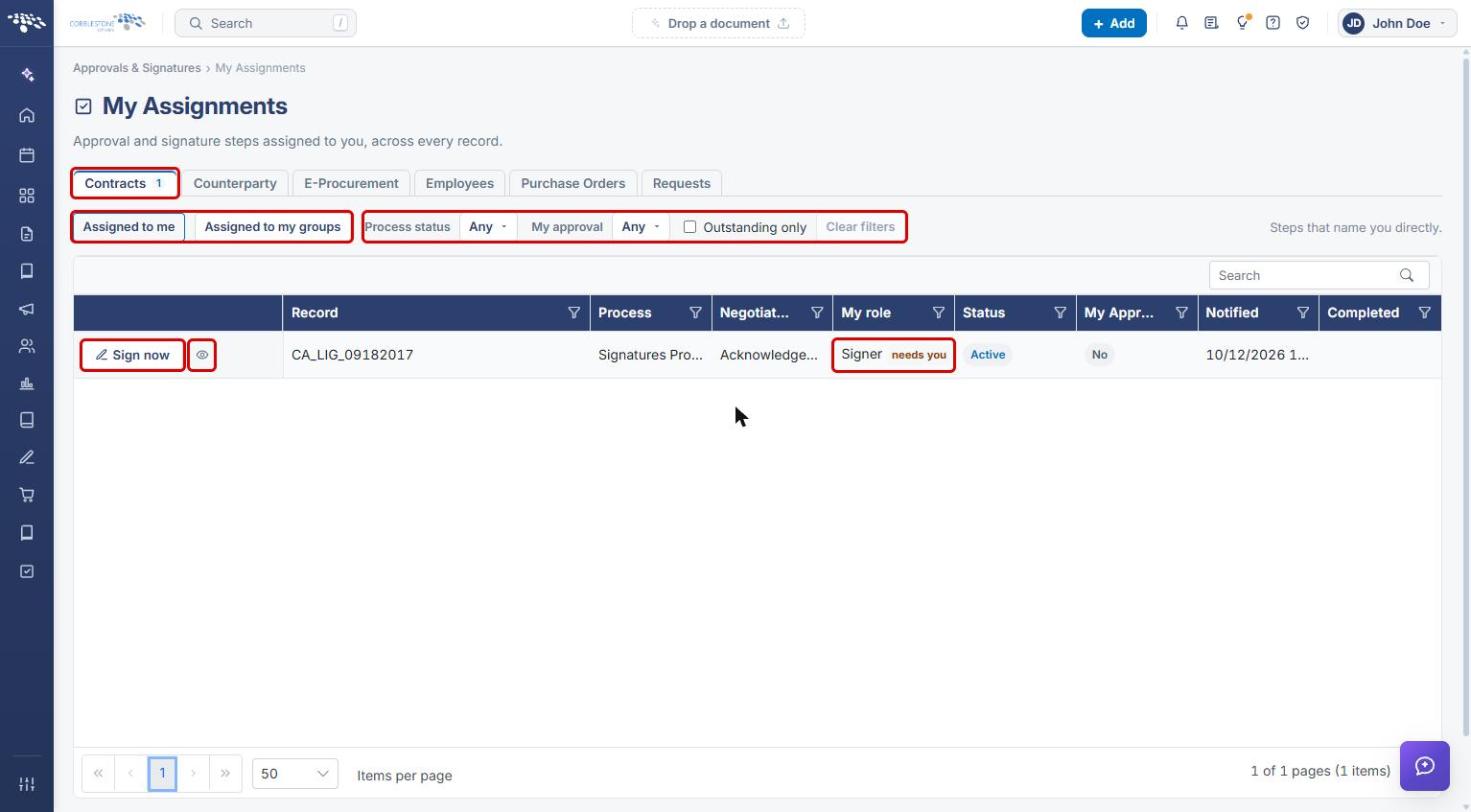
Note: The Gateway list works the same way as the internal My Assignments page shown below. Each row is a process step assigned to you, with its status and a link that opens the process.
4. Confirm the Gateway Menu Items (Administrators)
4a. Open the Gateway workspace menu
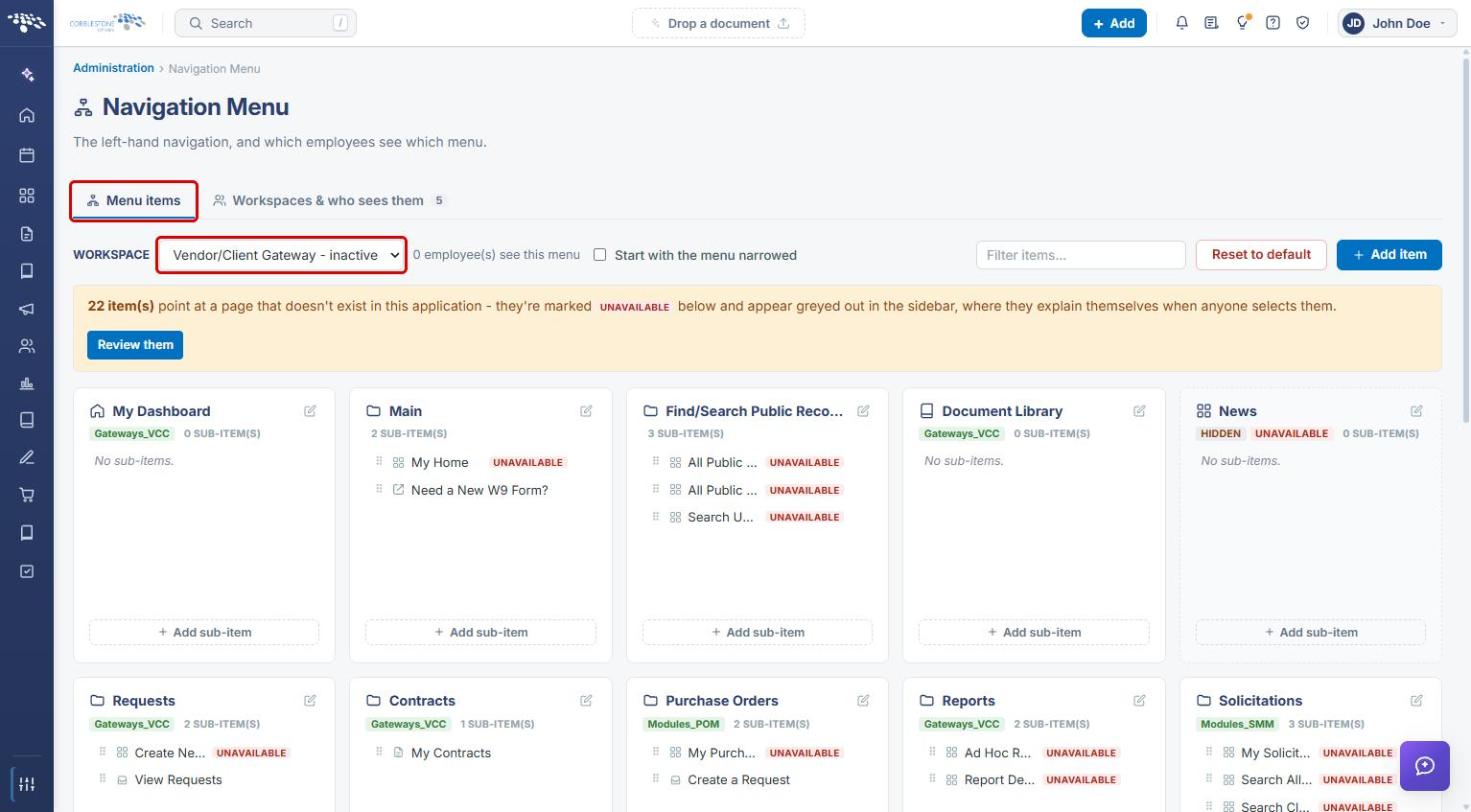
- From the Contract Insight homepage, open Administration and select Navigation Menu.
- Make sure the Menu items tab is selected.
- In the Workspace drop-down, choose Vendor/Client Gateway.
4b. Locate the Electronic Documents group
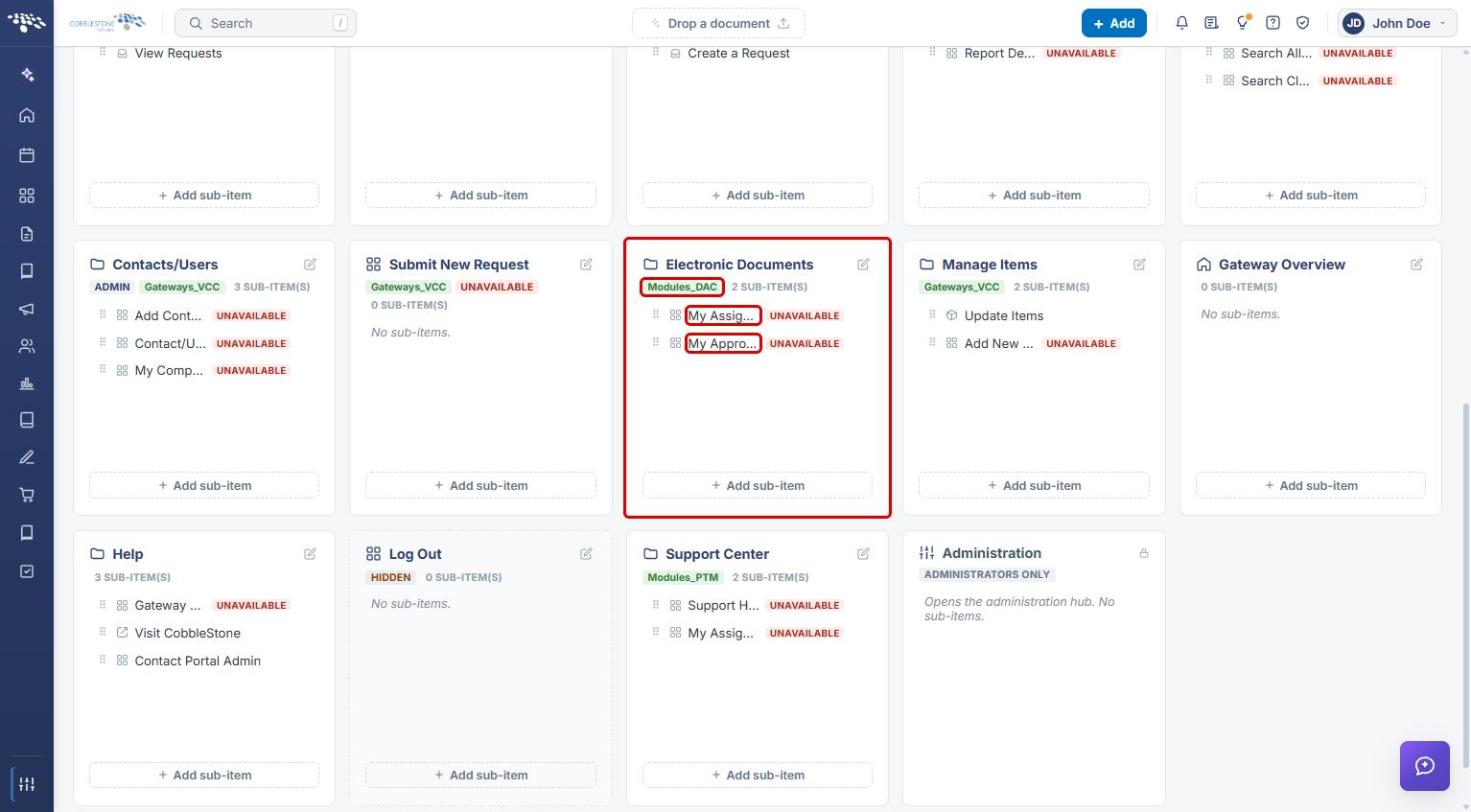
- Scroll to the Electronic Documents card.
- Confirm it shows the Modules_DAC tag and has two sub-items: My Assignments and My Approval & Signature Settings.
4c. Review a menu item's settings
- Click My Assignments to open the Edit menu item panel.
- Review the Label, the Page (or manually entered link), and the Visible in the menu setting.
- Close the panel with X if no change is needed. Select Save only if you intend to change the item.
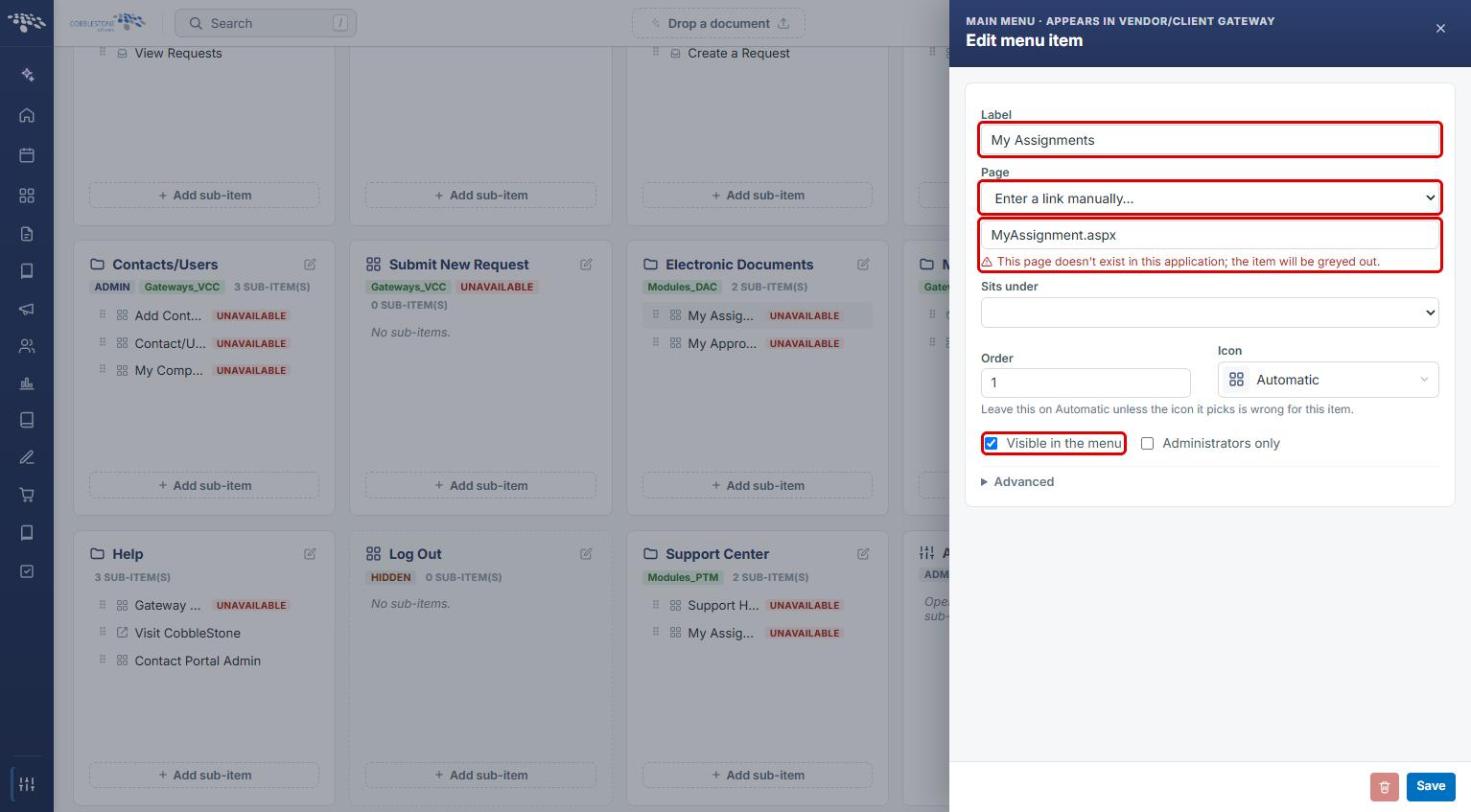
Note: Items marked UNAVAILABLE point to a link that doesn't exist in the current application, so they appear greyed out in the menu. In this environment, My Assignments links to MyAssignment.aspx and My Approval & Signature Settings links to UserESignatures.aspx; both are flagged UNAVAILABLE.
5. Check Who Sees the Gateway Menu (Administrators)
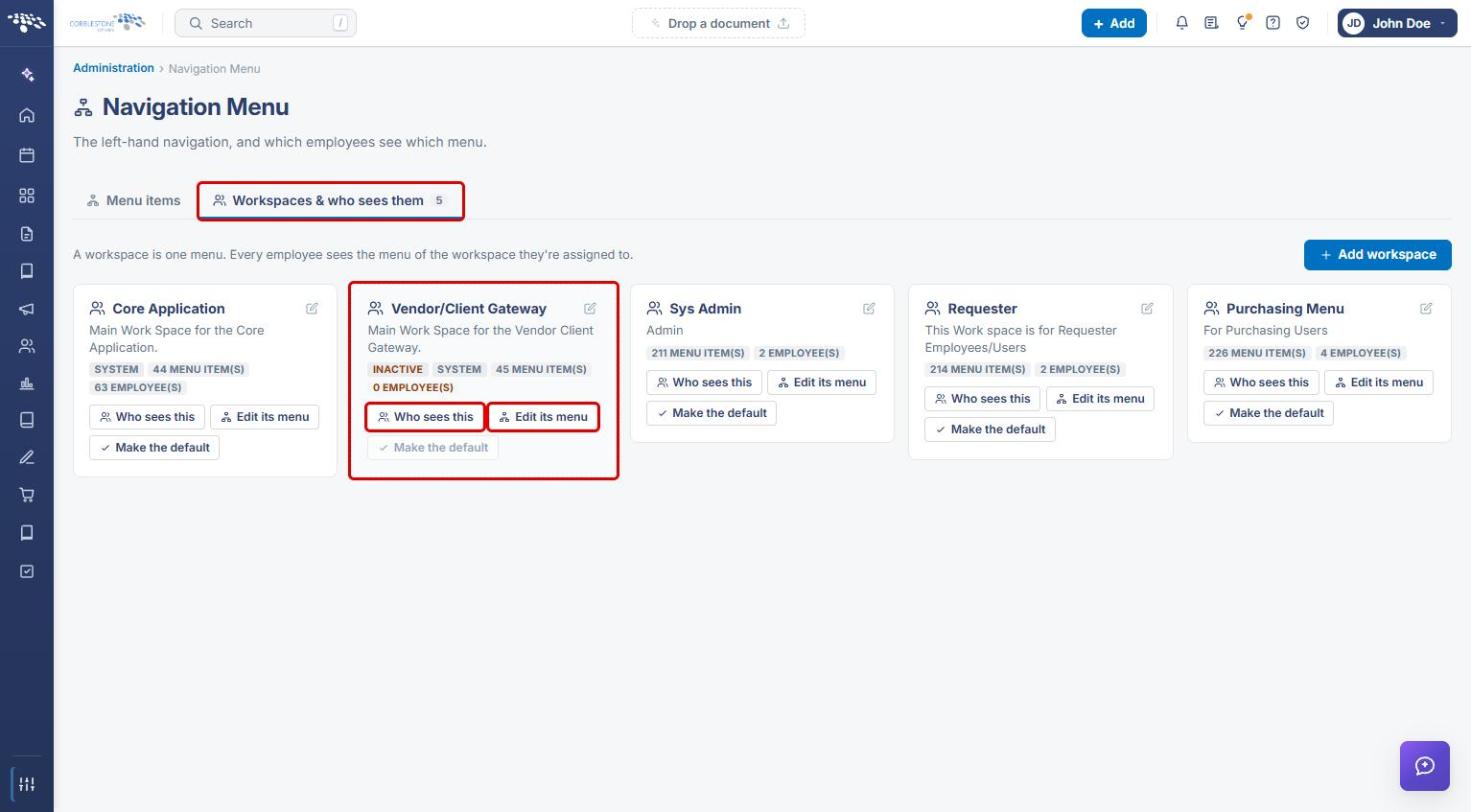
- In Navigation Menu, select the Workspaces & who sees them tab.
- Find the Vendor/Client Gateway card. Check its status (for example, INACTIVE) and its menu item count.
- Select Who sees this to review its audience, or Edit its menu to return to the menu items from Section 4.
Quick Reference Summary
| Task | How to Complete It |
|---|---|
| See my assigned approvals and signatures (Gateway user) | Gateway menu → Electronic Documents → My Assignments |
| Manage my signature settings (Gateway user) | Gateway menu → Electronic Documents → My Approval & Signature Settings |
| See my assignments (internal employee) | Open the internal My Assignments page |
| Check the Gateway menu items | Administration → Navigation Menu → Menu items → Workspace: Vendor/Client Gateway → Electronic Documents |
| Review a menu item's link or visibility | Click the sub-item to open Edit menu item; close with X unless you are changing it |
| Check whether the Gateway menu is active | Navigation Menu → Workspaces & who sees them → Vendor/Client Gateway card |