COBBLESTONE SOFTWARE
Contract Insight — User Guide
Manage Current Sessions
Security & Access: Session Manager
Note: Each procedure in this guide begins at the Contract Insight homepage, so any section can be followed on its own. Signing a session out takes effect immediately and cannot be undone, so confirm a session is no longer needed before using either sign-out control.
1. Overview
The Session Manager provides full tracking and management of all active sessions within Contract Insight, along with the ability to sign users out of the application if needed. It lists everyone who is signed in at the current moment and identifies which of those sessions an administrator is able to end.
There are three main components to the Session Manager screen:
- Refresh — Reloads the grid with the most up-to-date information on the current/active sessions within the Contract Insight Application.
- Sign everyone out — Button to end all sessions within the Contract Insight Application except the person performing the action.
- Session list — Grid-view of all current/active sessions within the Contract Insight Application, grouped by product, with a per-row Sign out control.
Because the Session Manager is maintained from the Administration area, only Application Administrators — or other users specifically granted the appropriate permission — can review current sessions or sign other users out. Standard users have no visibility into other people’s sessions.
2. Accessing the Session Manager
The Session Manager is the central management screen for all active sessions. To open it:
From the Contract Insight homepage, click Administration at the bottom of the left navigation menu. On the Administration page, under Security & Access, select Session Manager.
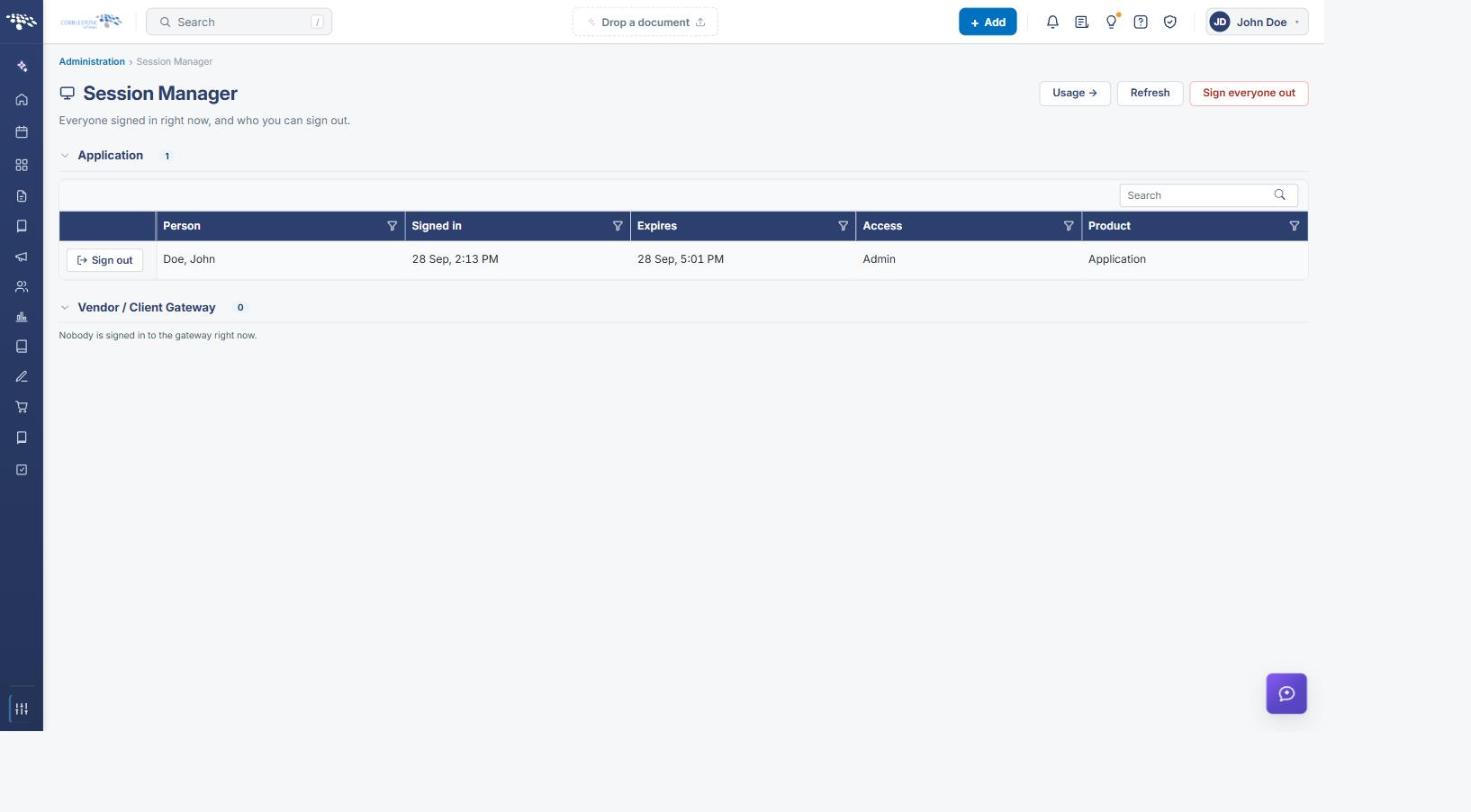
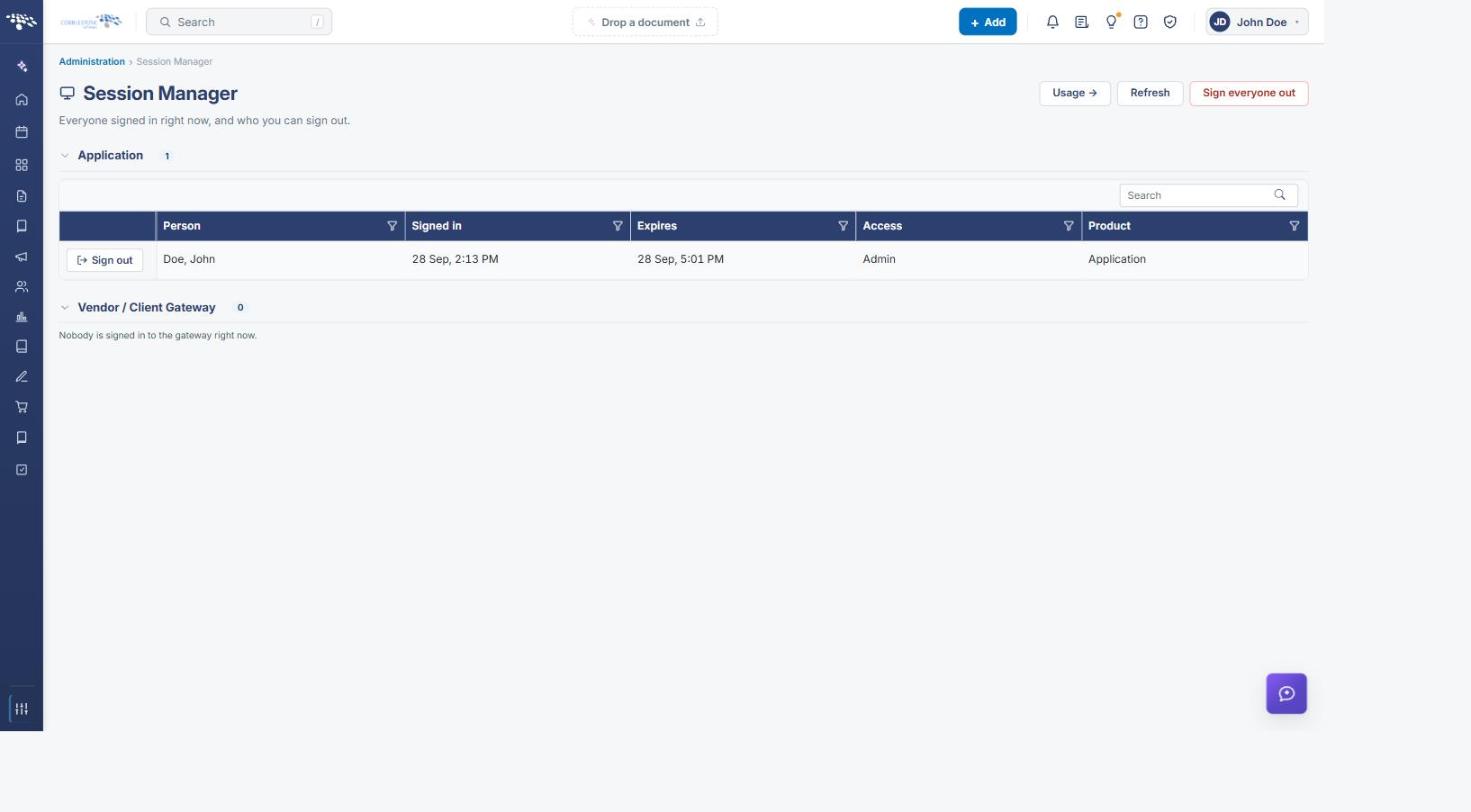
The Session Manager screen includes the following elements:
- A breadcrumb trail of Administration › Session Manager
- A Session Manager heading with the subtitle “Everyone signed in right now, and who you can sign out.”
- A Usage → link in the upper right that opens the License & Session Usage page
- A Refresh button that reloads the session list
- A Sign everyone out button that ends all other active sessions
- Collapsible Application and Vendor / Client Gateway groups, each with a live count of the sessions it holds
- A Search box at the right of the list toolbar to filter the grid by keyword, with a Clear control that appears once a search or filter is applied
- A sortable, filterable grid with Person, Signed in, Expires, Access, and Product columns, each with its own filter icon
- A per-row Sign out button at the left of each session row
3. Reviewing Current Sessions
Navigate to the Session Manager as described in Section 2. Sessions are grouped by the area of the system the person signed in to, and each group can be collapsed or expanded using the chevron beside its name.
3.1 Application Sessions
The Application group lists everyone signed in to the core Contract Insight application, with a live count beside the group name. Each row records:
- Person — the name of the signed-in employee, shown last name first
- Signed in — the date and time the session began
- Expires — the current expiration of the employee’s session (provided they do not take another action)
- Access — the access level of the session, for example Admin
- Product — the area of the system the employee is signed in to, for example Application
3.2 Vendor / Client Gateway Sessions
The Vendor / Client Gateway group lists everyone signed in to the portal that vendors and clients use, tracked separately from application sessions. When nobody is using the gateway, the group shows a count of 0 and reads “Nobody is signed in to the gateway right now.”
4. Refreshing the Session List
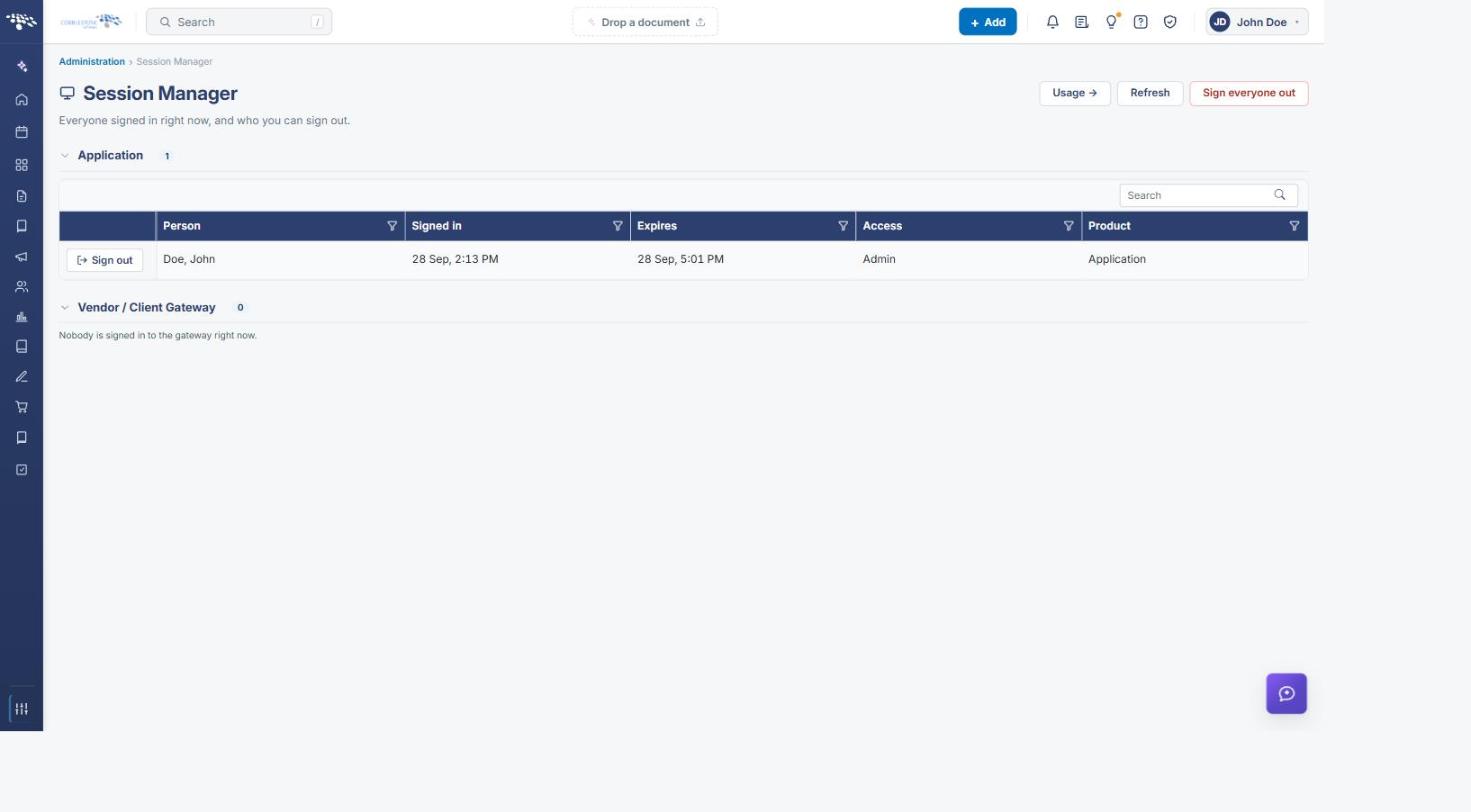
Function: Reloads the grid so that it reflects the sessions that are active at this moment.
Steps:
- From the Contract Insight homepage, click Administration at the bottom of the left navigation menu. On the Administration page, under Security & Access, select Session Manager.
- Click Refresh in the upper right of the page.
- The grid repopulates with the most up-to-date information on the current/active sessions within Contract Insight, including any newly started sessions and updated expiration times.
Note: The counts beside the Application and Vendor / Client Gateway group headings update along with the grid, so they can be used as a quick check of how many sessions are open in each area.
5. Signing Out an Individual Session
Function: Ends one person’s session and frees the license that session was using.
Steps:
- From the Contract Insight homepage, click Administration at the bottom of the left navigation menu. On the Administration page, under Security & Access, select Session Manager.
- Locate the session you want to end. Use the Search box or a column filter if the list is long (see Section 7).
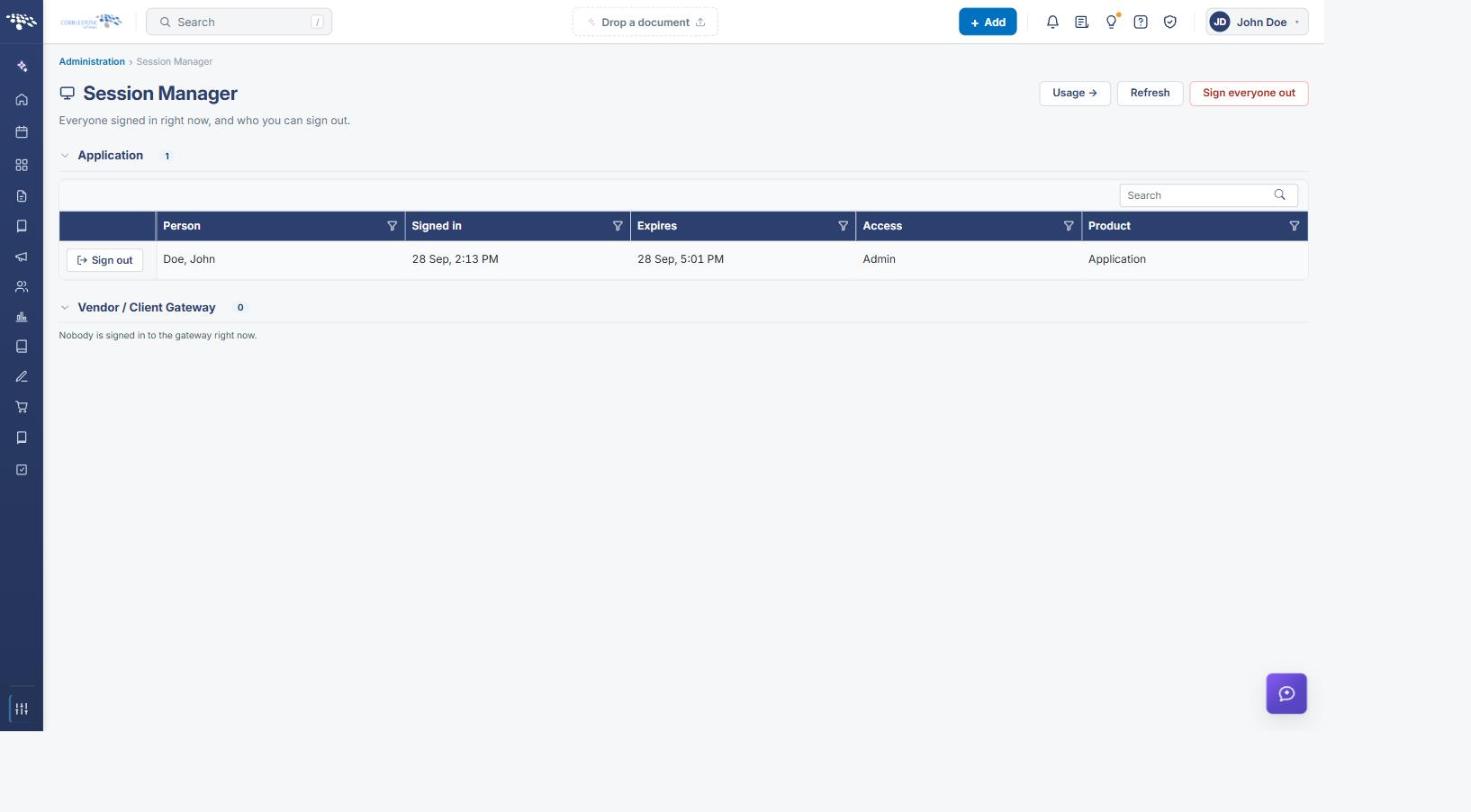
- Click Sign out at the left of that person’s row.
- The session ends and the row is removed from the grid, and the count beside the group heading is reduced by one.
Note: This is the control to use when an employee forgets to log out of the system. An administrator can go to this page and sign their session out to free up a license with which another employee can log in.
6. Signing Everyone Out
Note: This button should only be used if there is a pressing need to clear out all current/active sessions within Contract Insight. It will immediately invalidate every other employee’s session and force them back to the sign-in page, so any unsaved work they have open may be lost.
Steps:
- From the Contract Insight homepage, click Administration at the bottom of the left navigation menu. On the Administration page, under Security & Access, select Session Manager.
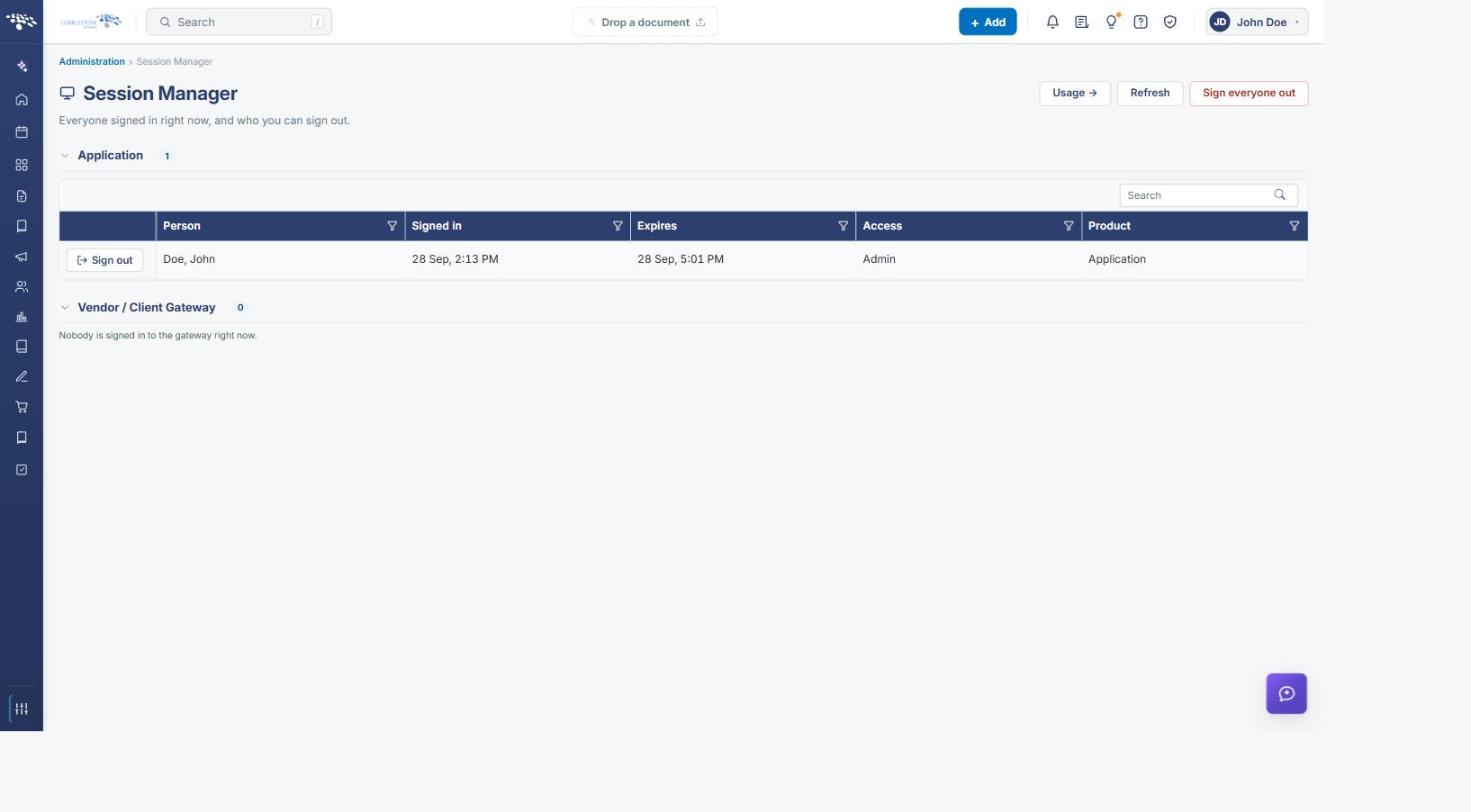
- Click Sign everyone out in the upper right of the page, and confirm the action if you are prompted to.
- All other current/active sessions are ended and those employees are returned to the sign-in page. The session you are performing the action from remains active.
- Click Refresh to confirm that the list now shows only the remaining sessions.
7. Searching, Filtering, and Sorting the List
Function: Narrows the session list to the rows you need on a busy system.
Steps:
- From the Contract Insight homepage, click Administration at the bottom of the left navigation menu. On the Administration page, under Security & Access, select Session Manager.
- To search, type a keyword — a person’s name, for example — into the Search box at the right of the list toolbar and press Enter. The grid narrows to the matching rows and a Clear control appears beside the box.
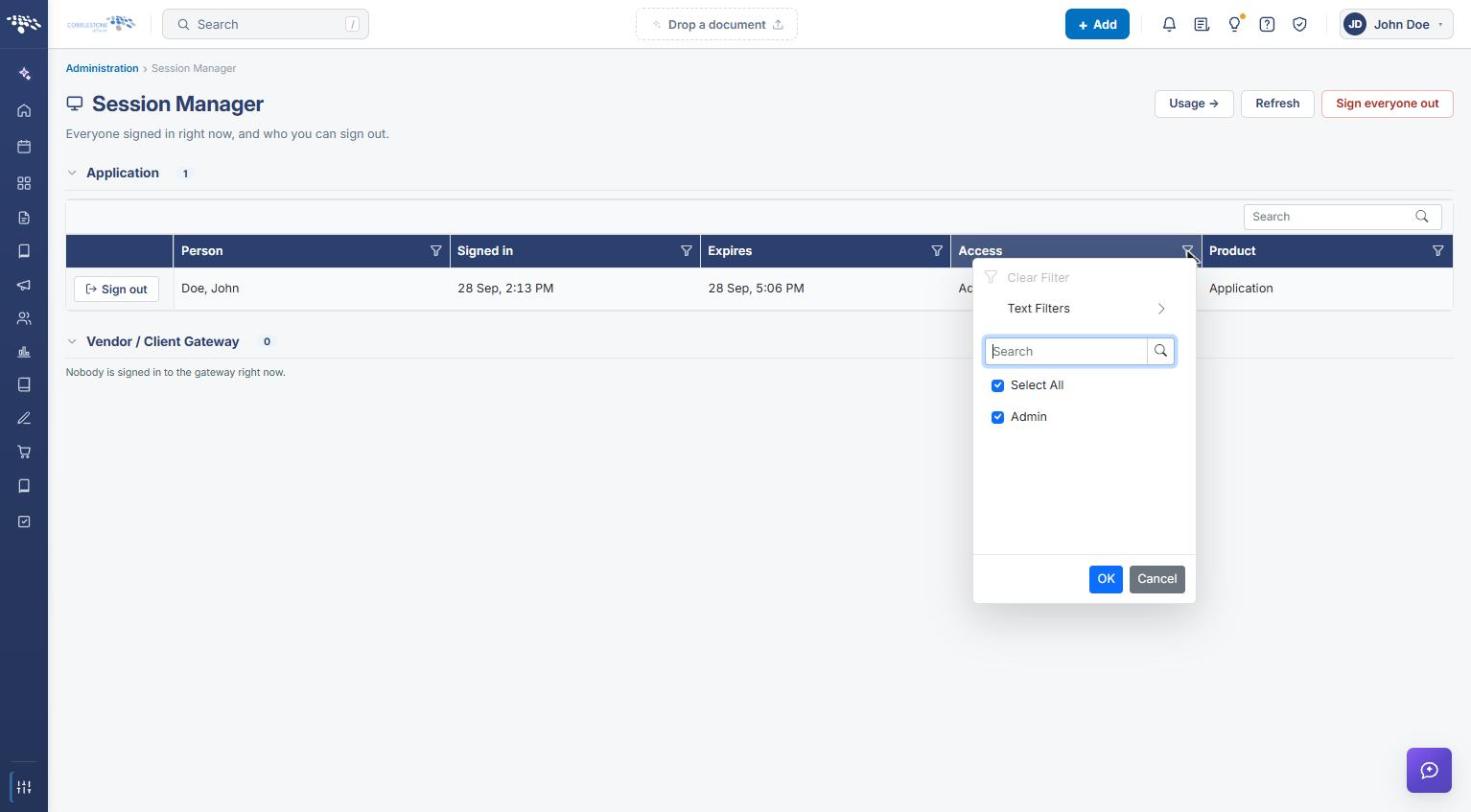
- To filter a column, click the filter icon in that column’s header. The filter menu offers Clear Filter, a Text Filters submenu, a search box, and a checkbox list of the values in that column with a Select All option.
- Tick or untick values, then click OK to apply the filter, or Cancel to close the menu without changing anything.
- To sort, click a column header to sort the grid by that column; click the header again to reverse the sort order.
- Click Clear on the list toolbar to remove the search and any column filters and return to the full list.
8. Reviewing License & Session Usage
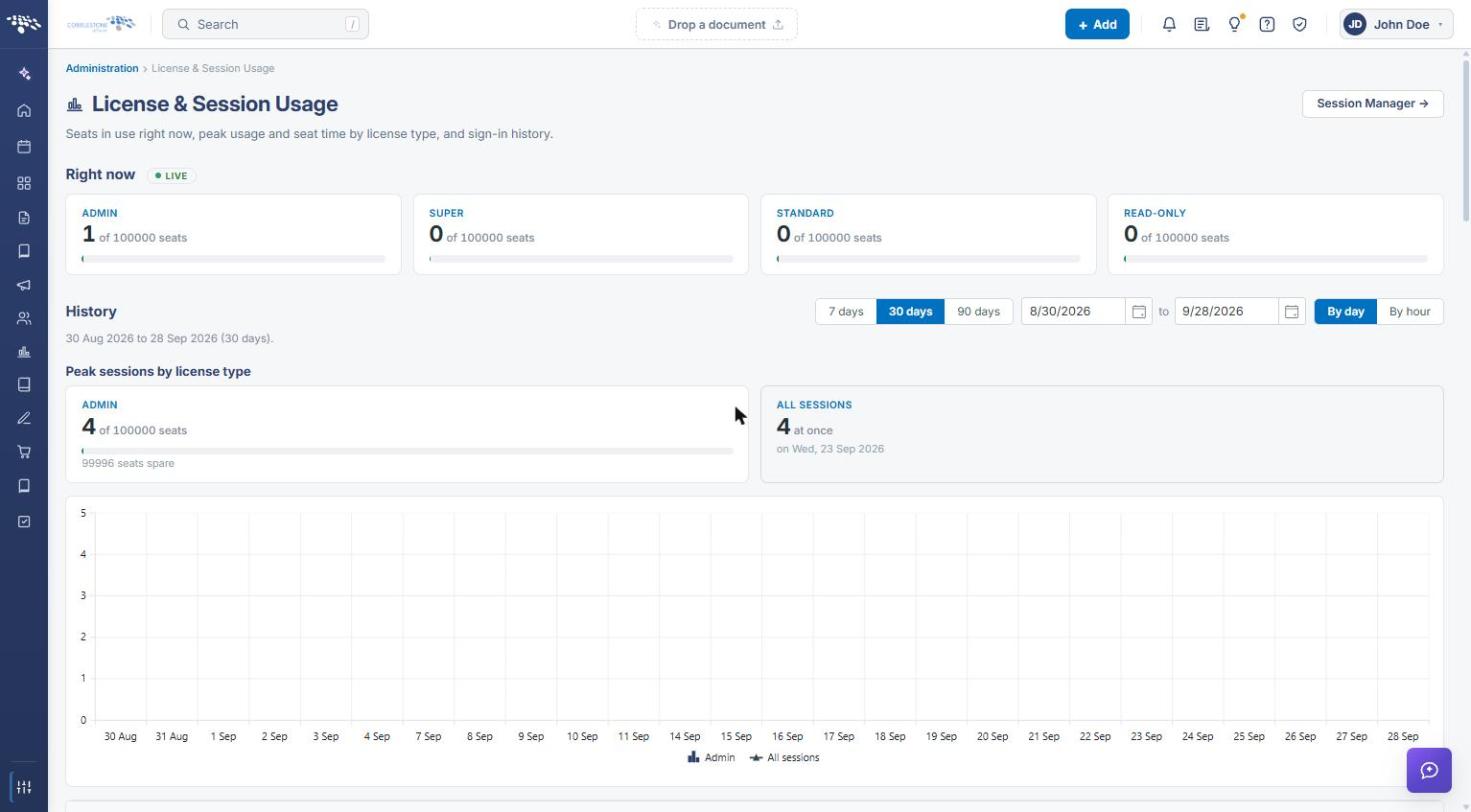
The Session Manager shows only the sessions that are active right now. For historical and license-level detail, click Usage → in the upper right of the Session Manager, or from the Administration page select License & Session Usage under Security & Access. That page provides:
- Right now — a live panel showing the seats in use against the seats available for each license type: Admin, Super, Standard, and Read-Only
- History — 7 days, 30 days, and 90 days presets, a custom date range, and By day or By hour views
- Peak sessions by license type — peak usage and spare seats for each license type, alongside an All Sessions peak and the date it occurred
- Sign-ins and sign-outs by day — a chart plotting arrivals, resumes, and people over the selected range
- The daily grid — Day, Arrivals, Resumes, People, Sign-outs, and Timed out columns, with its own Export control and pagination with an Items per page selector
A Session Manager → link in the upper right of the usage page returns to the Session Manager.
Note: The usage page counts an arrival — somebody signing in — separately from a resume, which is a session they already had being picked up again in a new tab or window. A resume is not a new person and does not take another seat. Sign-outs a person did not choose, such as sessions ended for inactivity, are counted under Timed out as well as in the sign-out total.
9. Quick Reference Summary
Task | How to Complete It |
Open the Session Manager | Homepage → Administration → Security & Access → Session Manager. |
Refresh the list | Refresh in the upper right of the page; the grid and the group counts both update. |
Sign out one person | Sign out on that person’s row in the session grid. |
Sign out everyone | Sign everyone out in the upper right. All other sessions end and those employees return to the sign-in page; your own session stays active. |
Find a session | Search box on the list toolbar, or the filter icon in a column header; click a column header to sort. |
Clear search and filters | Clear on the list toolbar. |
Columns on the grid | Person, Signed in, Expires, Access, and Product, plus the per-row Sign out control. |
Session groups | Application and Vendor / Client Gateway, each with a live count of the sessions it holds. |
Review usage history | Usage → on the Session Manager, or Administration → Security & Access → License & Session Usage. |