COBBLESTONE SOFTWARE
Contract Insight — User Guide
Full Text Indexing
Application Configuration: Indexing Documents for Search
Note: Each procedure in this guide begins at the Contract Insight homepage, so any section can be followed on its own. Indexing settings affect search for everyone and should be maintained by an Application Administrator.
1. Overview
Full text indexing is what allows Contract Insight to search inside the documents attached to records, rather than only across the fields on the record itself. With it working, a search can find a phrase buried in a Word document, a spreadsheet or a PDF attached to a contract, an employee or a vendor/customer.
Two pieces make that possible. The search engine index is the searchable copy of the content, rebuilt on a timer so that newly attached documents become findable. The OCR crawler handles documents whose text is not directly readable — scans and image-based PDFs — converting them so their content can be indexed too.
Neither has a screen of its own in the main Administration area. The behaviour of both is governed by settings on the Application Settings screen, and the timing of the indexing run is set on Scheduled Jobs.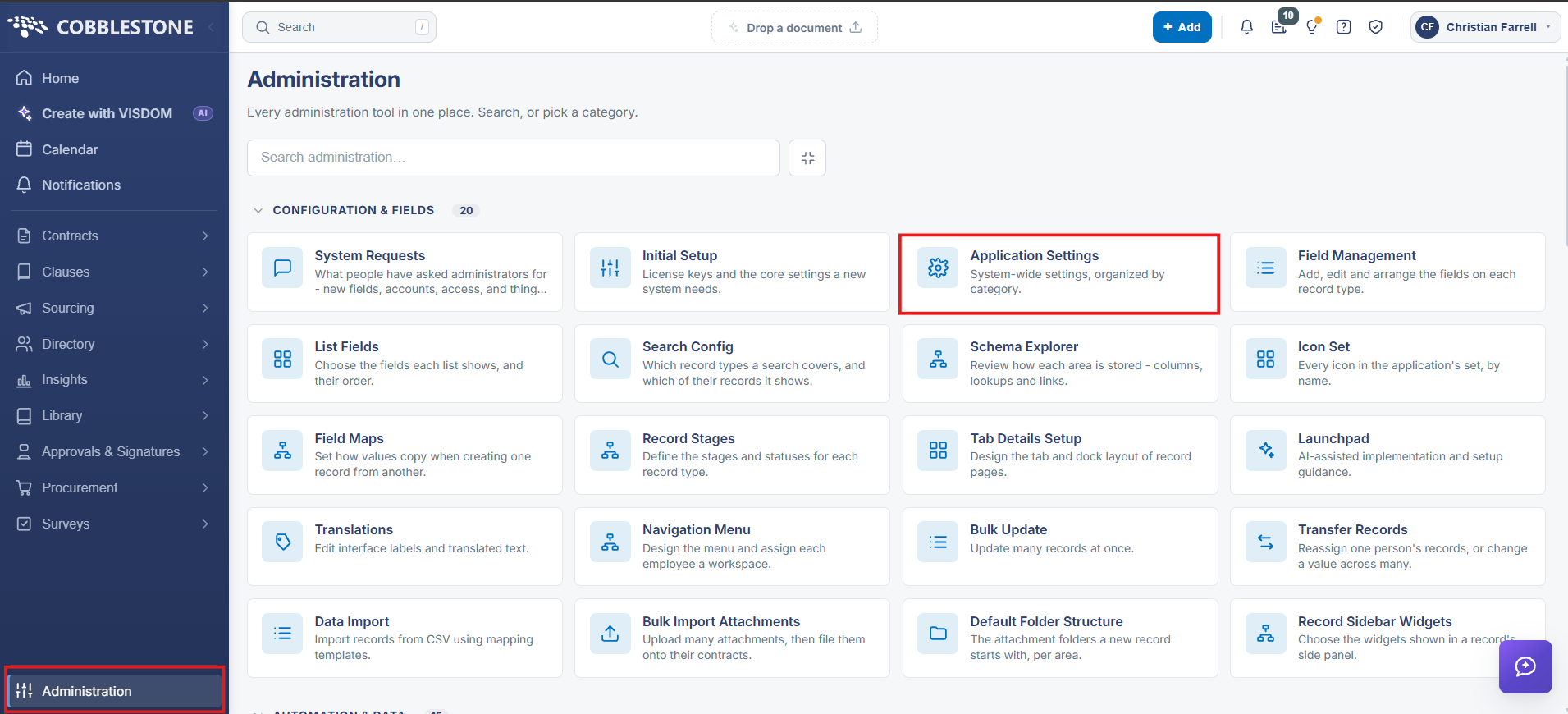
2. Where Indexing Is Controlled
- Application Settings → Search — how the search engine behaves, including how often it rebuilds its indexes and caches
- Application Settings → OCR Crawler — how documents are processed so their text can be indexed. These settings are surfaced by search but maintained on the crawler’s own screen.
- Scheduled Jobs → Data Integration Scheduler — the Search Engine Indexing and Caching job, which is the run that actually refreshes the index
Note: Because these settings sit in different categories, the quickest way to reach any of them is the search box at the top of Application Settings — searching for “index” or “OCR” gathers them together regardless of which category they belong to.
3. Search Settings
Open Application Settings and select the Search category. It holds four settings:
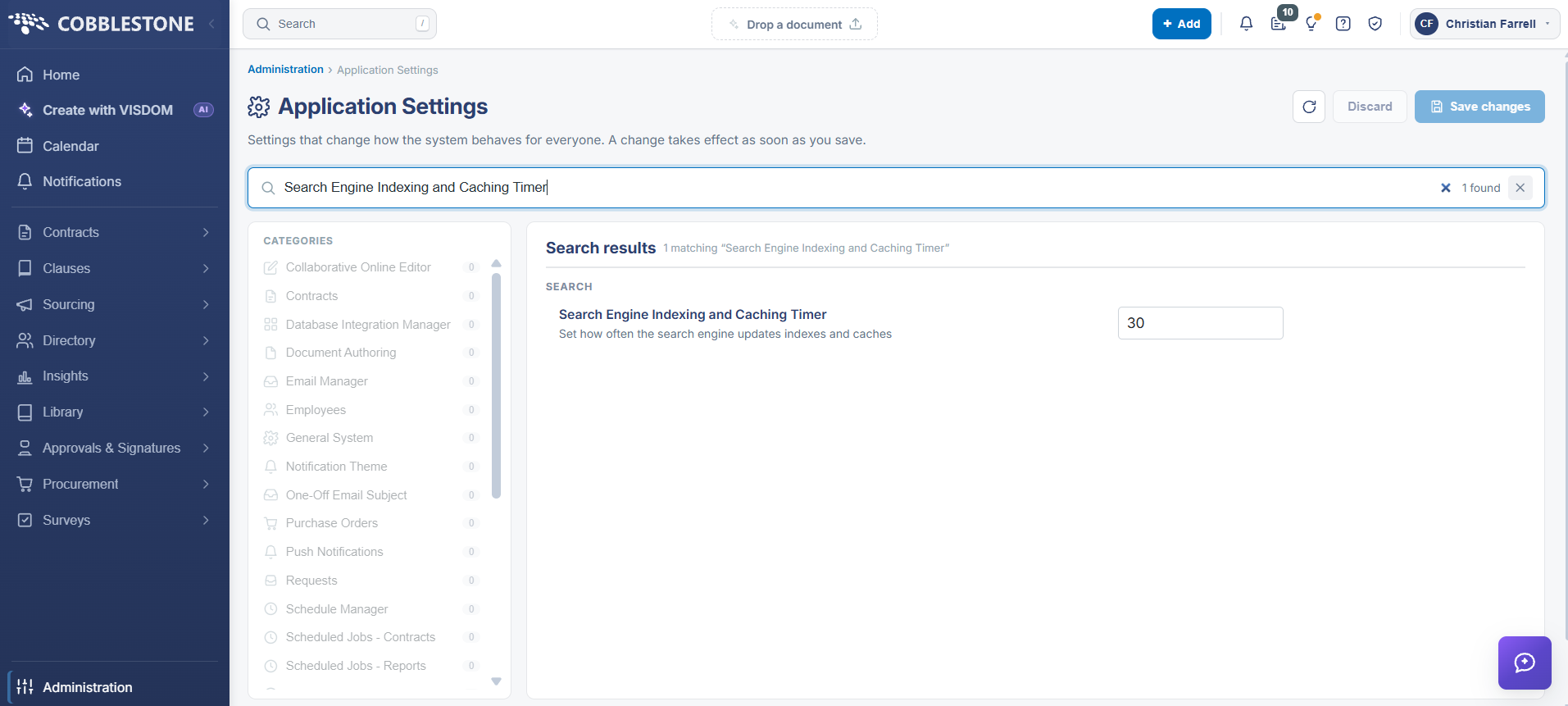
- Search Engine Indexing and Caching Timer — how often the search engine updates its indexes and caches
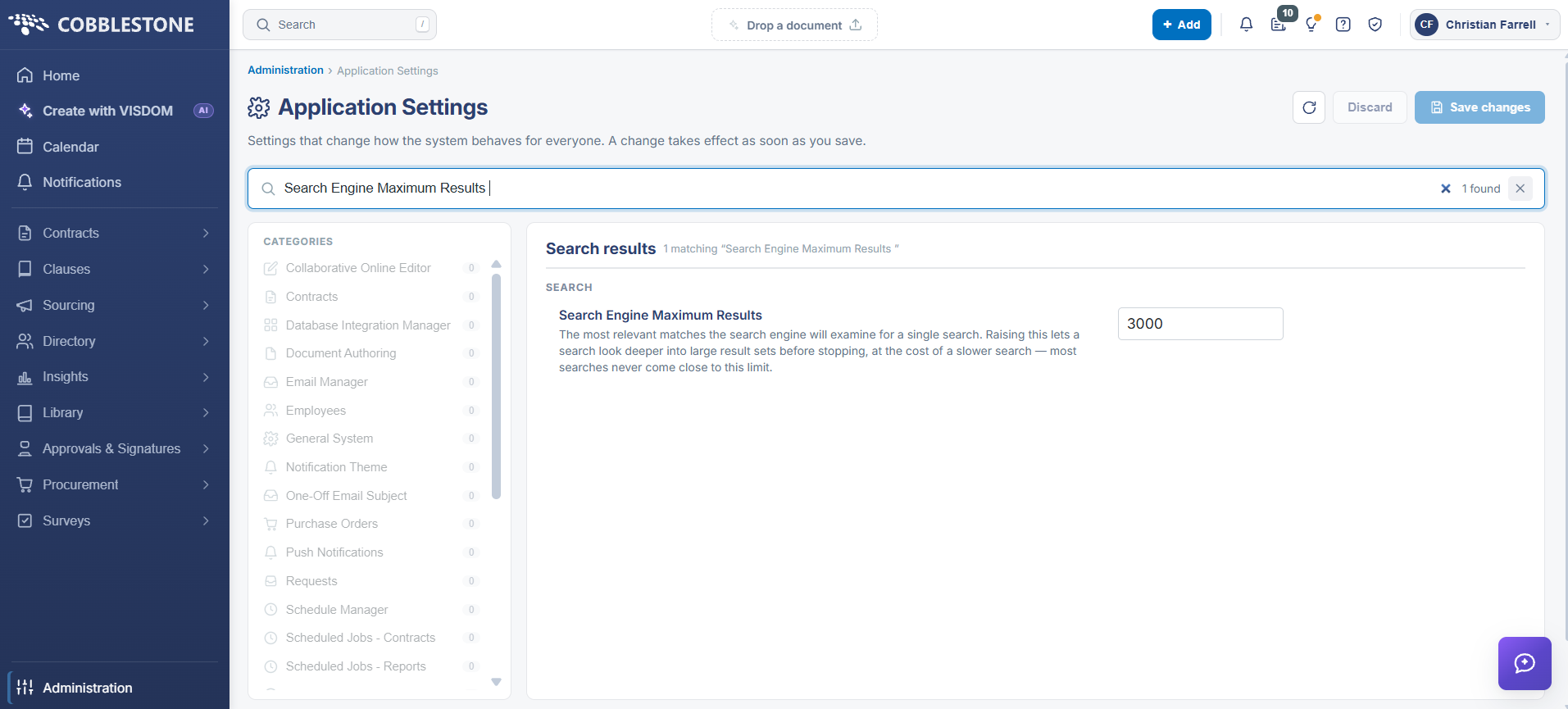
- Search Engine Maximum Results — the most relevant matches the search engine will examine for a single search. Raising it lets a search look deeper into large result sets before stopping, at the cost of a slower search; most searches never approach the limit.
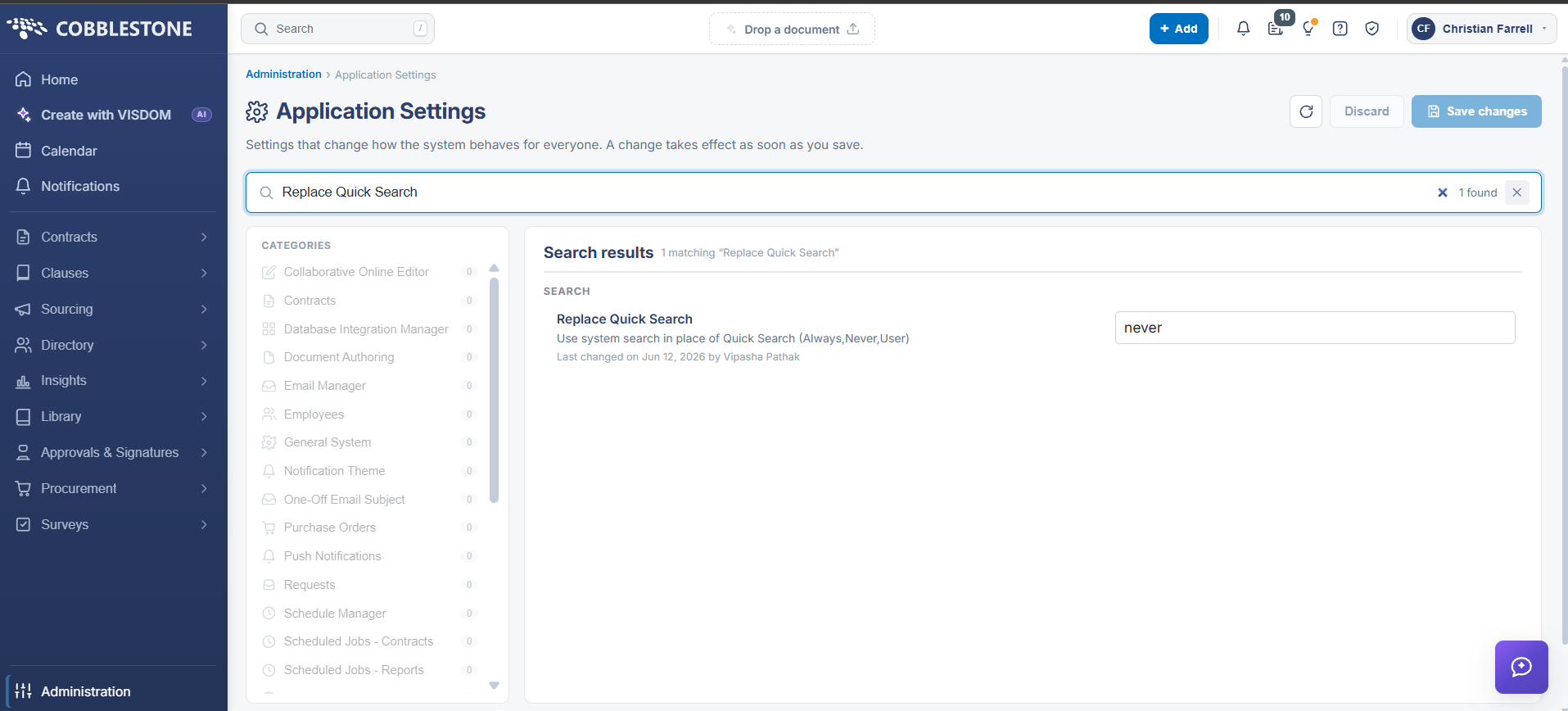
- Replace Quick Search — whether the system search is used in place of Quick Search (Always, Never or User)
- Suggest Search Engine — whether to suggest using the search engine on the Quick Search results page
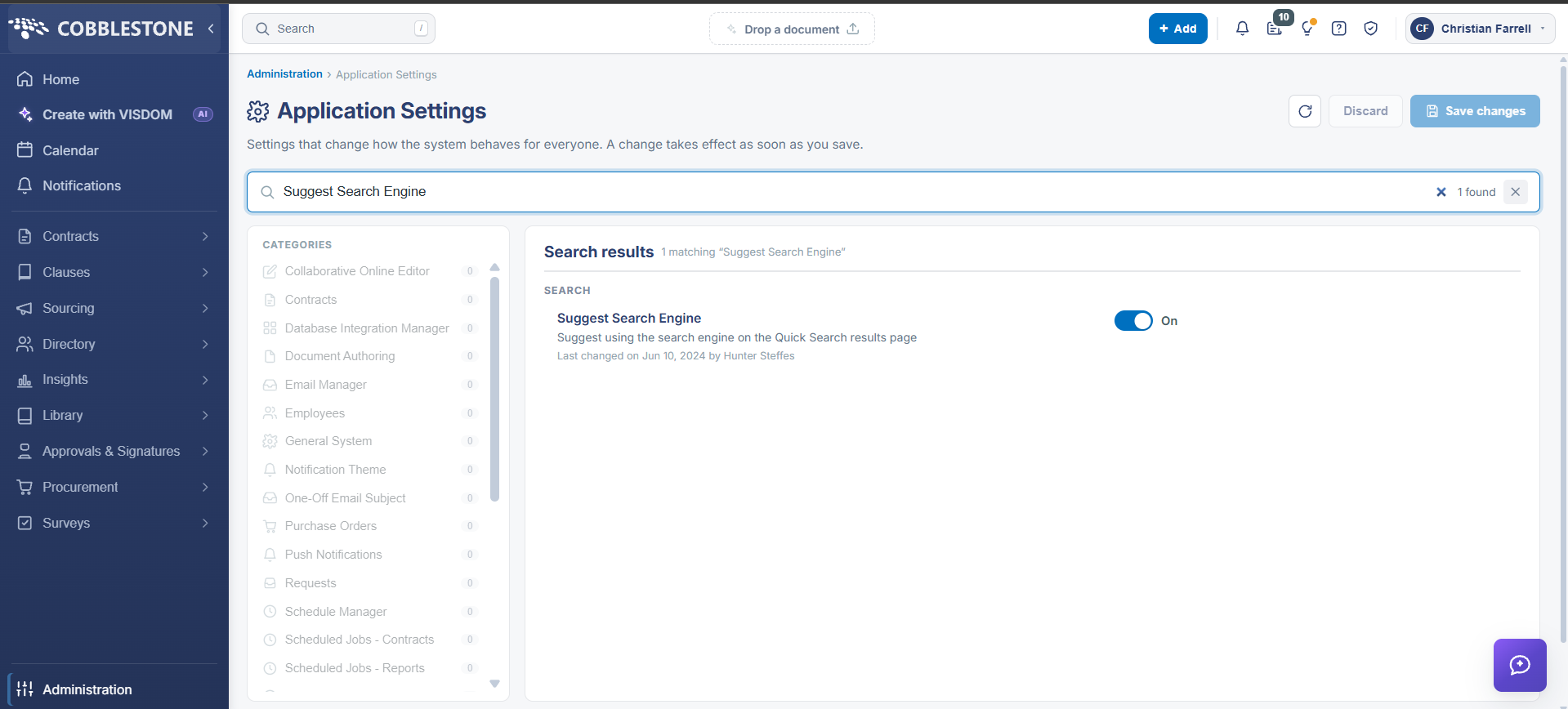
Note: Other categories carry search-related settings that affect what people see rather than what is indexed — for example Hide Source Column and Sort Quick Search Results by Primary Key under General System, and Search Grids Page Size under Vendor/Client Gateway.
4. The Indexing Job
The Scheduled Jobs screen covers “the work Contract Insight does on a timer — alert emails, imports and indexing.” Indexing is the Search Engine Indexing and Caching job, listed under the Data Integration Scheduler.
Each job row shows:
- Job — the name of the job
- Every — how often it runs, for example every 30 minutes
- Last run and Next run — when it last ran and when it is next due, shown as a countdown, “Due now”, or “On the next sweep”
- Status — Scheduled, Paused, or Runs in Classic
- Per-row buttons to Run now, edit the schedule, and view the job’s run history
Steps:
- From the Contract Insight homepage, click Administration at the bottom of the left navigation menu. On the Administration page, under Automation & Data, select Scheduled Jobs.
- Find the Search Engine Indexing and Caching job under the Data Integration Scheduler — use the Search box above the grid to filter for it.
- Check Every, Last run, Next run and Status to confirm the job is scheduled and running to the interval you expect.
- Click the edit button on the row to change how often it runs.
- Click Run now to index immediately rather than waiting for the next scheduled sweep.
Note: Each scheduler can be switched off as a whole with the Turn off button beside its heading, and the heading reports how many of its jobs are scheduled. Turning off the Data Integration Scheduler stops indexing along with the other jobs it contains.
5. OCR Crawler Settings
The OCR crawler converts documents whose text cannot be read directly, so that scanned and image-based files become searchable. Its settings are found by searching Application Settings for “OCR”, where they appear under an OCR Crawler heading badged Search only — set up on its own screen.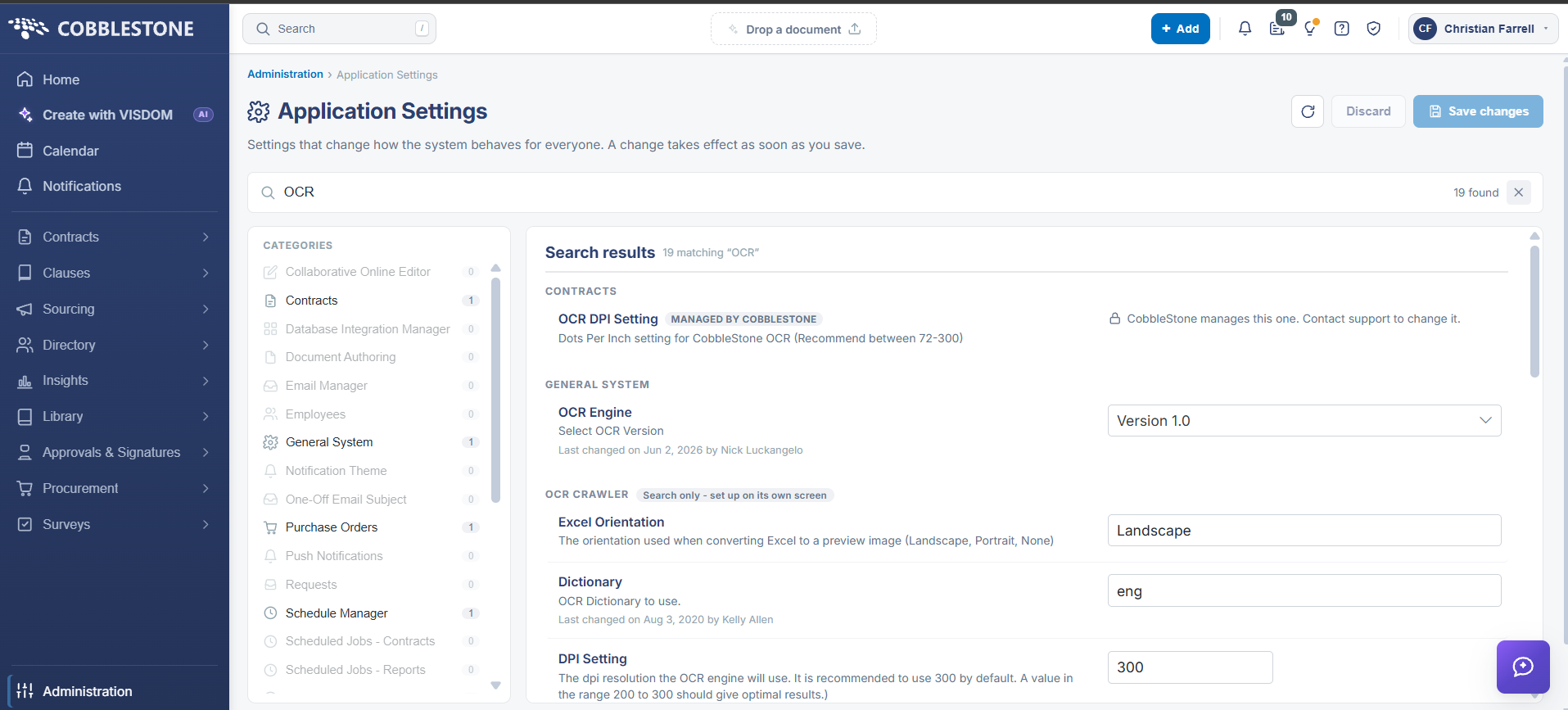
- OCR Site Address — the URL of the OCR crawler
- OCR Objects and Media Types — which objects and media types are processed
- OCR Copy Exclusions — file extensions that should be indexed but should not generate an OCR file, used where a copy is being saved
- Save OCR Copy — whether the processed document is saved as a new attachment record
- DPI Setting, OCR Passes and Dictionary — the resolution, number of passes and dictionary the engine uses; a resolution in the 200–300 range is recommended
- Batch Size, OCR Page Threads and OCR Sleep — how many records are processed per batch, how many pages run concurrently, and the interval between process cycles
- PDF On Demand Max Size and Use Hangfire for OCR on Demand — the size limit for on-demand OCR, and whether processing runs out of process; files above the limit are queued and the user is sent a link by e-mail
- Live Audit — whether processing information is shown on the crawler site
Note: Some settings are marked Managed by CobbleStone — the OCR DPI Setting under Contracts, for example, states that CobbleStone manages it and support should be contacted to change it. Leave those alone and raise a support request instead.
6. Changing an Indexing Setting
Steps:
- From the Contract Insight homepage, click Administration at the bottom of the left navigation menu. On the Administration page, under Configuration & Fields, select Application Settings.
- Type index or OCR into the search box at the top to gather the relevant settings, or select the Search category directly.
- Read the setting’s description to confirm it is the one you intend to change, and check its Last changed line.
- Change the value using the control on the row — a text box for a value, or an On / Off toggle for a switch.
- Click Save changes in the upper right, or Discard to abandon the edit.
Note: A change takes effect as soon as it is saved, but the index itself only reflects it at the next indexing run. Use Run now on the Search Engine Indexing and Caching job if the effect needs to be seen immediately.
7. Checking That Indexing Is Working
Steps:
- Attach a document containing a distinctive phrase to a record.
- From the Contract Insight homepage, click Administration at the bottom of the left navigation menu. On the Administration page, under Automation & Data, select Scheduled Jobs.
- Find the Search Engine Indexing and Caching job and click Run now, or wait for the next scheduled run shown in Next run.
- Use the job’s history button to confirm the run completed.
- Search the application for the distinctive phrase and confirm the record is returned.
- Where a scanned or image-based document is not found, check the OCR crawler settings — that file type may be excluded, or the document may still be queued for processing.
Note: Allow for the interval between attaching a document and it becoming searchable. A document attached just after an indexing run is not findable until the next one, which is why the Every value on the job matters as much as the settings themselves.
8. Quick Reference Summary
Task | How to Complete It |
Find the settings | Homepage → Administration → Configuration & Fields → Application Settings; search for “index” or “OCR”. |
Search category | Indexing and Caching Timer, Maximum Results, Replace Quick Search, Suggest Search Engine. |
The indexing job | Homepage → Administration → Automation & Data → Scheduled Jobs → Data Integration Scheduler. |
Index immediately | Run now on the Search Engine Indexing and Caching job, rather than waiting for the next sweep. |
Change the interval | Use the edit button on the job row to change how often the job runs. |
Scanned documents | The OCR crawler handles these; its settings are found by searching Application Settings for “OCR”. |
Leave these alone | Settings badged Managed by CobbleStone — contact support to change them. |
Verify | Attach a document with a distinctive phrase, run the job, then search for the phrase. |