COBBLESTONE SOFTWARE
Contract Insight — User Guide
Creating a Notification Template
03. Admin User Manual › Alerts & Notifications › Creating a Notification Template
Note: Each procedure in this guide begins at the Contract Insight homepage, so any section can be followed on its own. Custom fields are configurable, so the exact field list on a contract category record may vary between environments.
1. Overview
A notification template controls the wording of an email or alert the system sends. Templates are created and maintained from Administration → Notification Templates, and new templates are built in the same editor used to change existing ones. Placeholders, marked like {---ColumnName---}, are left exactly as written in the template and are filled in with the record's own details when the email actually sends. Leaving placeholders in place is what ties a generic template to a specific record's data at send time. Edits take effect on the next send.
2. Key Elements
- New template form: sets the template's Name, Area, Record type, Theme, Description, extra change-notification recipients, and whether it is Active.
- Area and Record type determine which record details the template's placeholders can draw on (the area's own records, or one of its related lists).
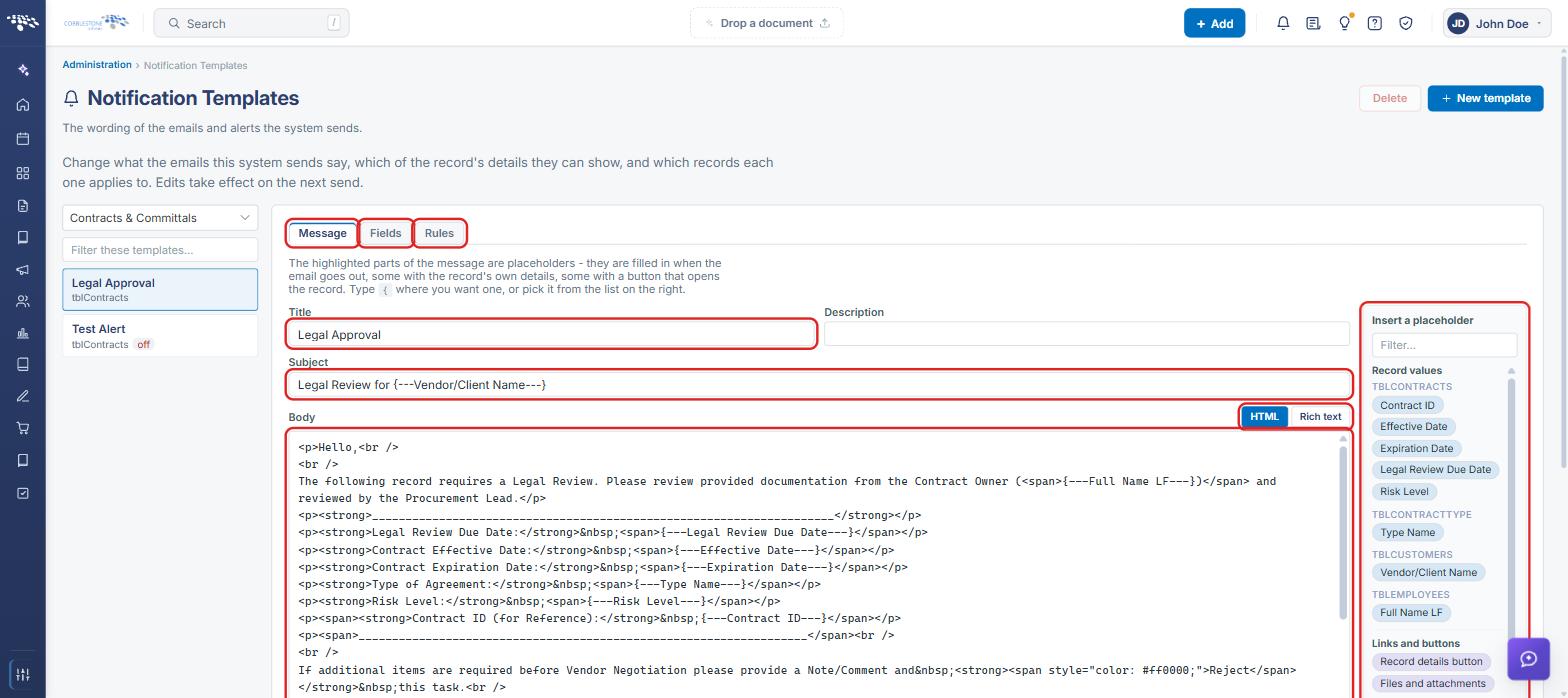
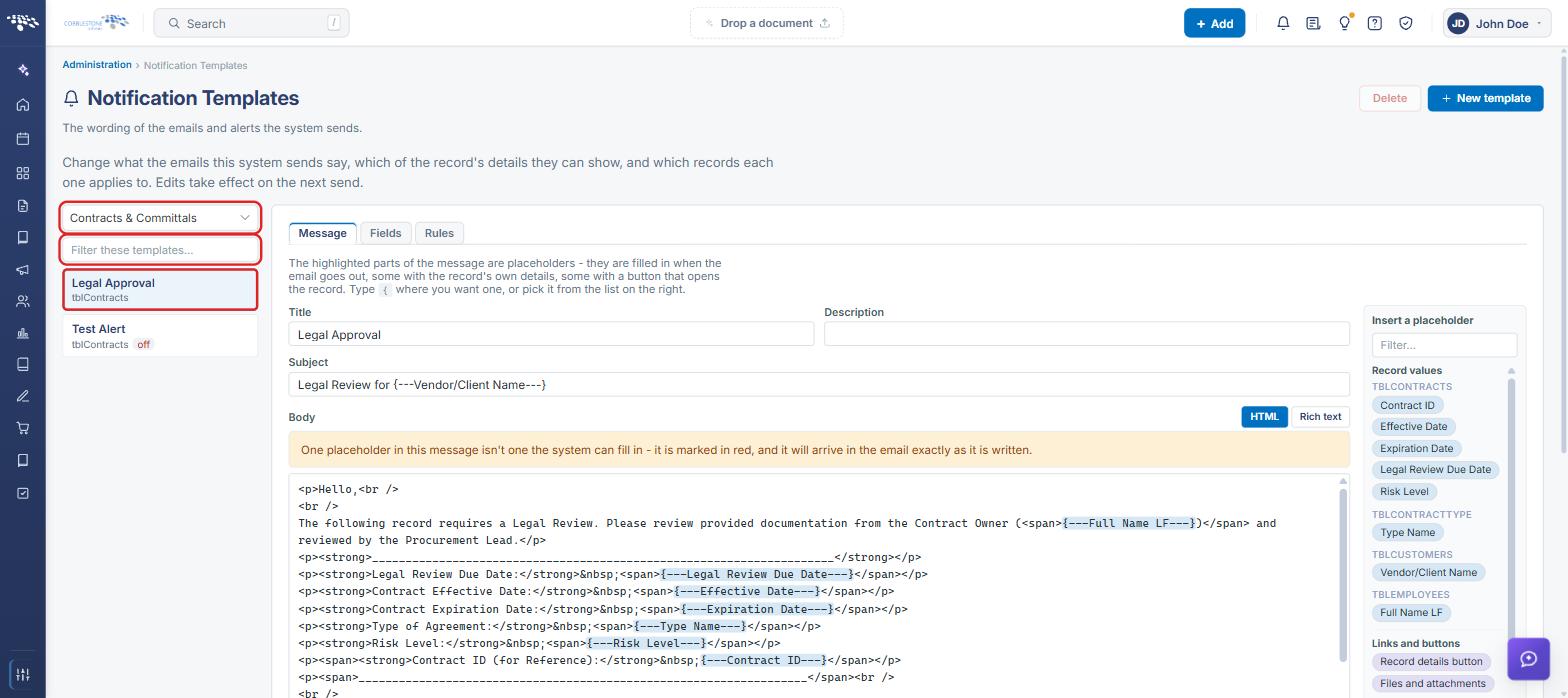
- The template editor has three tabs: Message (title, subject, body and send settings), Fields (which record details the message can show), and Rules (which records the template applies to).
- Placeholders follow the {---ColumnName---} pattern and must be left exactly as written. A placeholder the system can't fill in is marked in red and arrives in the email exactly as it is written.
- The Insert a placeholder panel beside the Body lists the available Record values and Links and buttons (such as Record details button and Files and attachments). You can also type { in the Subject or Body to pick one.
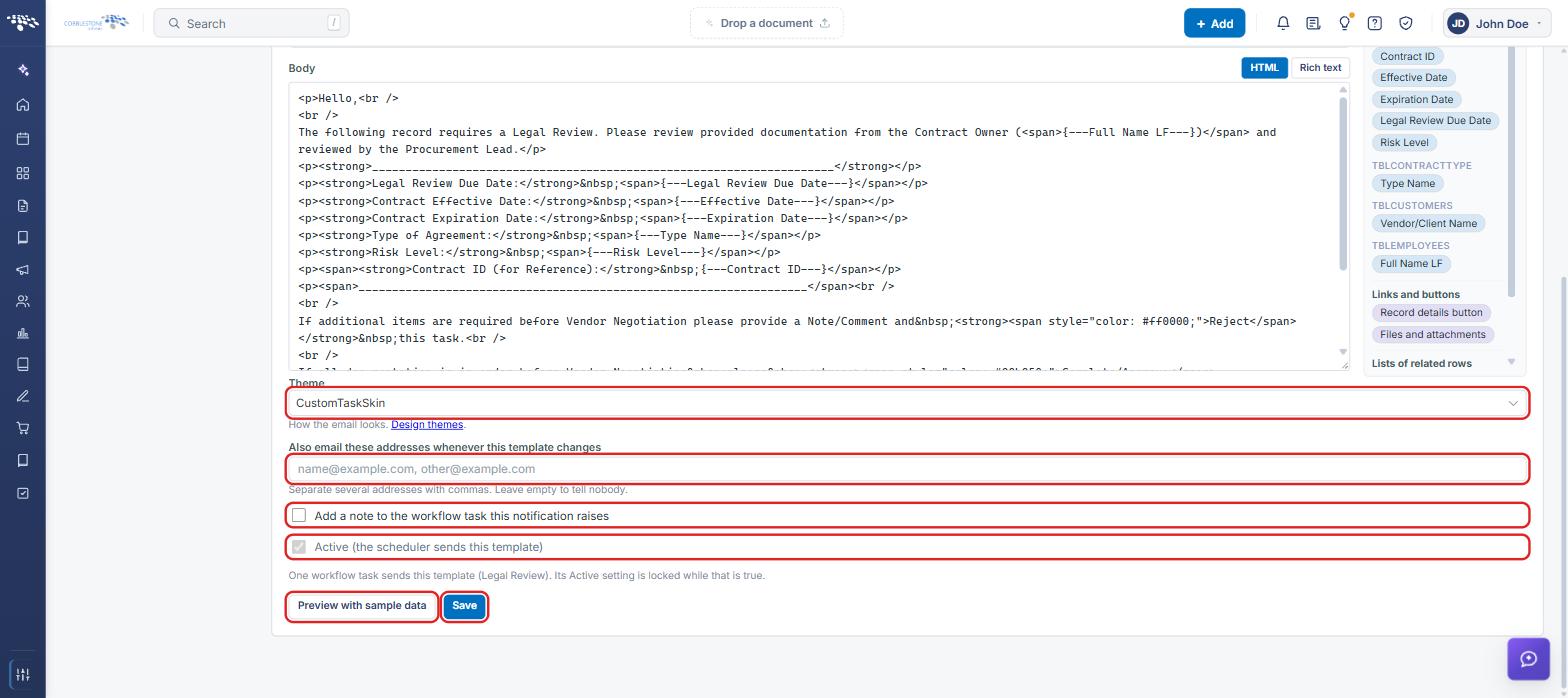
- Also email these addresses whenever this template changes sends a copy to extra recipients any time the template itself is edited.
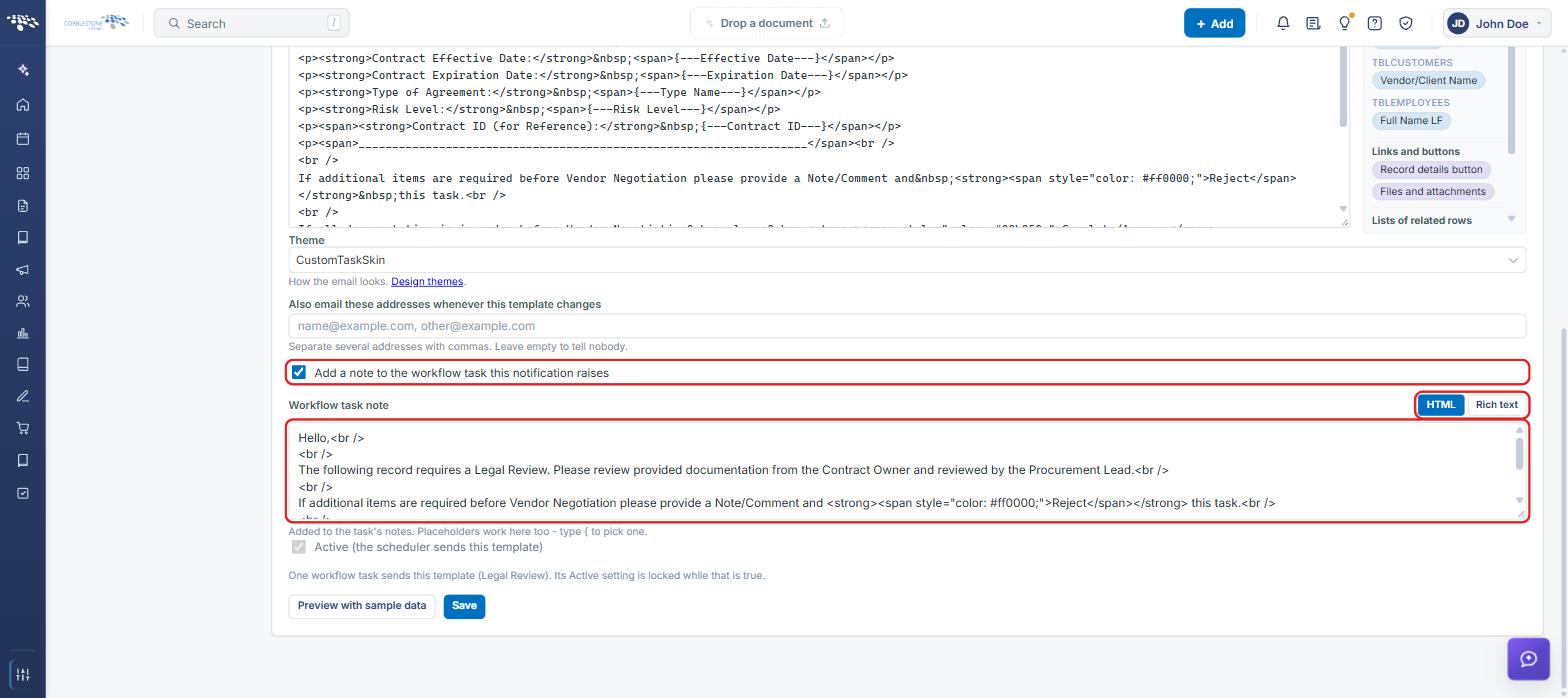
- Add a note to the workflow task this notification raises attaches template-authored text onto the task record, not just the email.
- Active (the scheduler sends this template) controls whether the scheduler sends the template. If a workflow task sends the template, its Active setting is locked.
3. Navigating to Notification Templates
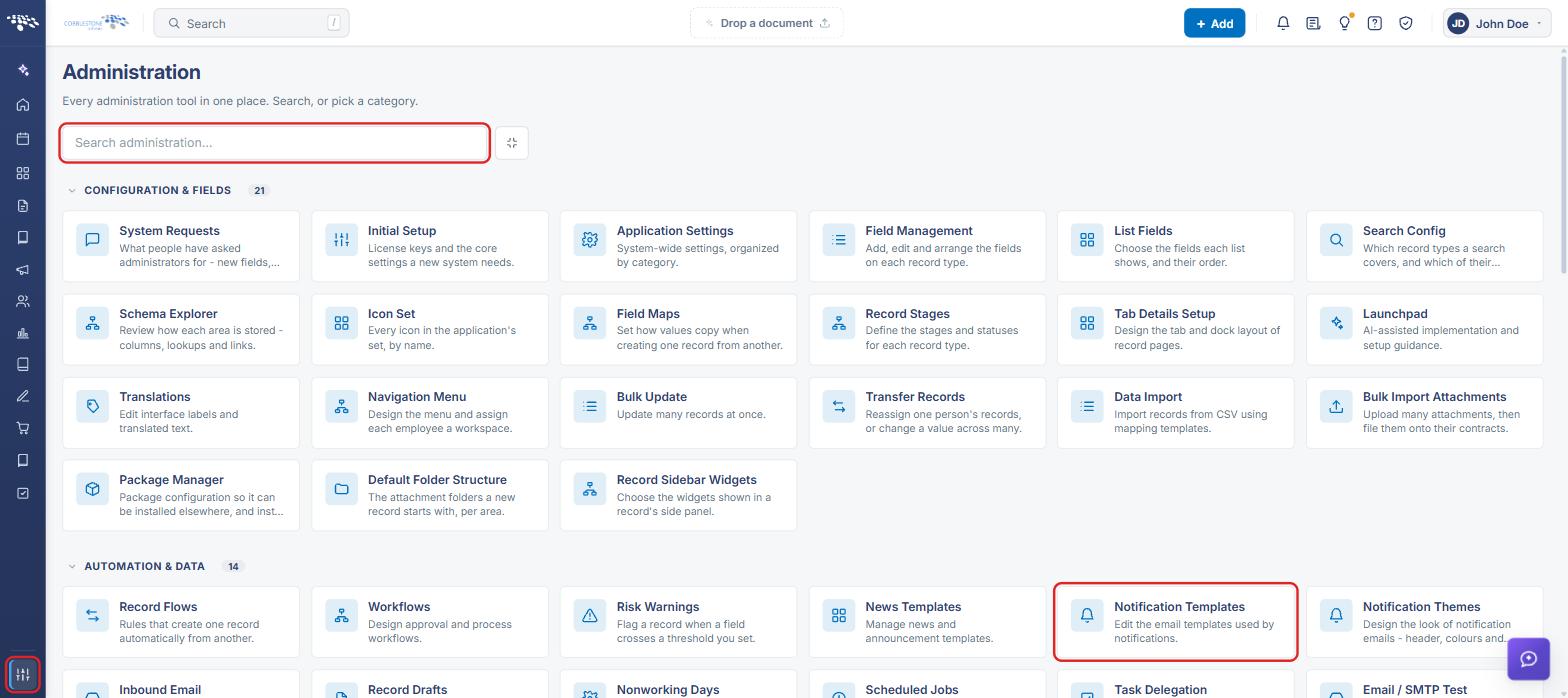
- From the Contract Insight homepage, click the Administration icon at the bottom of the left navigation bar.
- Under Automation & Data, click Notification Templates. You can also type "Notification" in the Search administration box to find it.
4. Creating a New Notification Template
4a. Starting a New Template
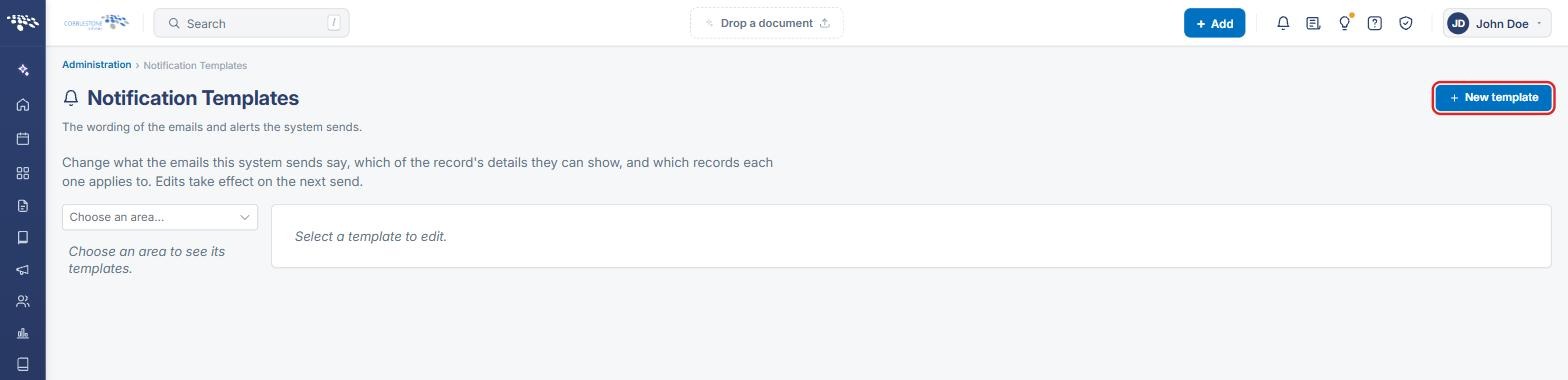
- Navigate to Administration → Notification Templates (see Section 3).
- Click + New template in the upper-right corner of the page.
4b. Entering the Template Details
- In the New notification template panel, enter a Name. This is what administrators will call the template; it is not shown to the recipient.
- Select the Area — the kind of record the template's emails are about (for example, Contracts & Committals).
- Select the Record type — the area's own records (for example, Contract Details) or one of its related lists. This is what the message's placeholders can draw on.
- Select a Theme to control how the email looks. You can change it later.
- Optionally, enter a Description noting when the template is used.
- Optionally, in Also email these addresses whenever this template changes, enter one or more addresses separated by commas. Leave it empty to notify nobody.
- Check Active (the scheduler sends this template) if the template should be sent by the scheduler.
- Click Create and choose fields. The template is created and opens in the editor so you can choose its fields (see Section 5).
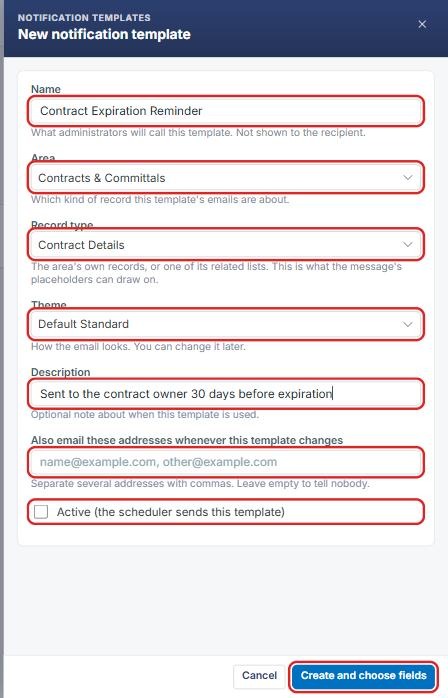
Note: The Area and Record type decide which record details are available as placeholders, so choose them before writing the message. Click Cancel to close the panel without creating the template.
5. Choosing the Template's Fields (Fields Tab)
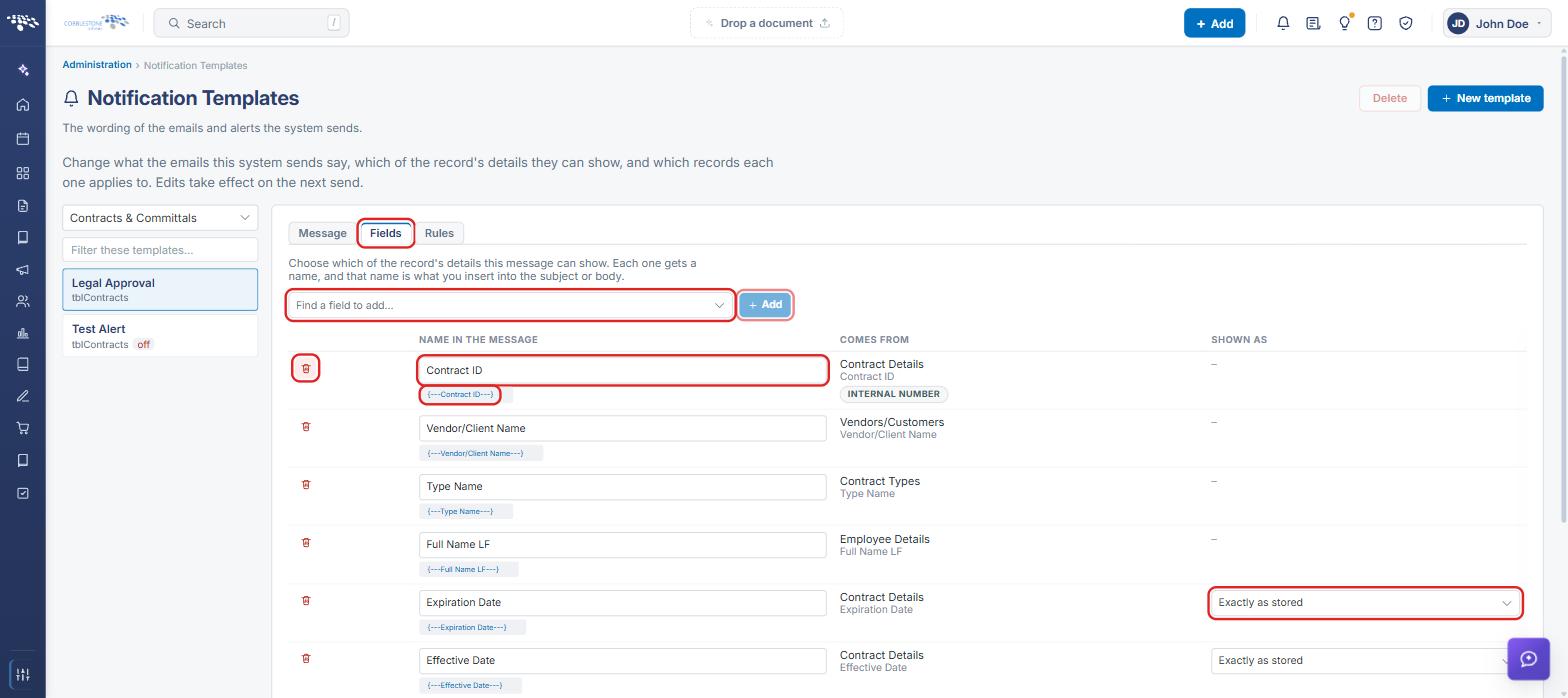
The Fields tab controls which of the record's details the message can show. Each field gets a name, and that name is what you insert into the subject or body.
- Click the Fields tab.
- Use Find a field to add… to locate a field, then click + Add.
- Review or change the Name in the message for each field. The placeholder it creates (for example, {---Contract ID---}) is shown beneath the name; Comes from shows the table and column the value is read from.
- For date and similar fields, choose how the value is Shown as (for example, Exactly as stored).
- To remove a field, click its delete (trash) icon.
- Click Save fields at the bottom of the list.
6. Writing the Message (Message Tab)
6a. Title, Subject and Body
- Click the Message tab.
- Confirm the Title and, optionally, enter a Description.
- Enter the email Subject. Placeholders can be used here, for example Legal Review for {---Vendor/Client Name---}.
- Write the email in the Body. Use the HTML / Rich text toggle to switch between editing the HTML source and formatted text.
- To insert a placeholder, place the cursor where it should appear and click it in the Insert a placeholder panel (use Filter… to narrow the list), or type { and pick one. Placeholders are highlighted in the body; a placeholder the system can't fill in is marked in red with a warning above the body.
6b. Theme, Recipients and Sending
- Below the Body, choose the Theme. Click Design themes to create or change themes.
- Optionally, enter addresses in Also email these addresses whenever this template changes.
- Check or clear Active (the scheduler sends this template). If a workflow task sends this template, the Active setting is locked and a message below it names the task.
- Click Preview with sample data to check how the email will look.
- Click Save.
6c. Adding a Note to the Workflow Task
- Check Add a note to the workflow task this notification raises. A Workflow task note box appears.
- Enter the note text, using the HTML / Rich text toggle as needed. The note is added to the task's notes, and placeholders work here too — type { to pick one.
- Click Save.
7. Limiting Which Records Use the Template (Rules Tab)
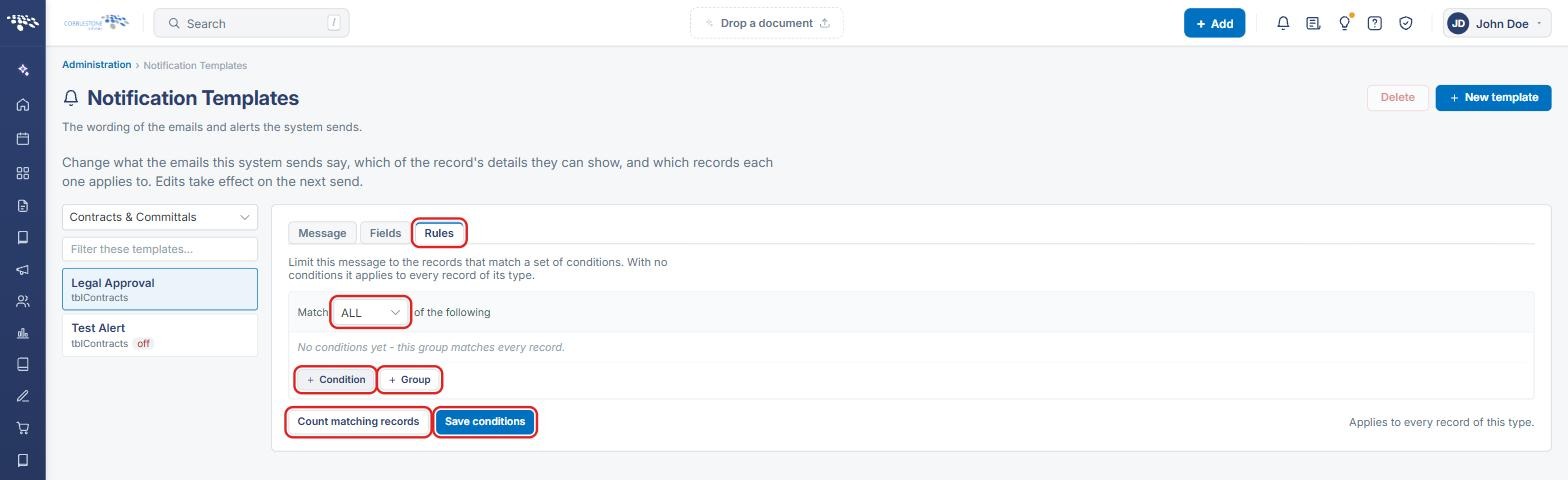
The Rules tab limits the message to records that match a set of conditions. With no conditions, the template applies to every record of its type.
- Click the Rules tab.
- Use the Match dropdown (for example, ALL) to set how the conditions in the group are combined.
- Click + Condition to add a condition, or + Group to add a nested group of conditions.
- Click Count matching records to see how many records the rules currently match.
- Click Save conditions.
8. Opening an Existing Template
- Navigate to Administration → Notification Templates (see Section 3).
- Choose an Area from the dropdown on the left to list its templates. Templates that are not active show an off tag.
- Optionally, type in Filter these templates… to narrow the list.
- Click a template to open it in the editor, then use the Message, Fields and Rules tabs as described in Sections 5–7.
9. Quick Reference Summary
| Task | How to Complete It |
|---|---|
| Open Notification Templates | Administration icon → Automation & Data → Notification Templates. |
| Create a template | + New template → enter Name, Area, Record type, Theme → Create and choose fields. |
| Choose fields for placeholders | Fields tab → Find a field to add → + Add → Save fields. |
| Write the subject and body | Message tab → Subject and Body → insert placeholders from the Insert a placeholder panel or by typing { → Save. |
| Notify extra recipients of template changes | Message tab → Also email these addresses whenever this template changes → Save. |
| Add a note to the workflow task | Message tab → check Add a note to the workflow task this notification raises → enter Workflow task note → Save. |
| Turn sending on or off | Message tab → Active (the scheduler sends this template) → Save. |
| Limit which records the template applies to | Rules tab → + Condition / + Group → Save conditions. |
| Preview the email | Message tab → Preview with sample data. |
| Edit an existing template | Choose an area → select the template from the list. |