COBBLESTONE SOFTWARE
Contract Insight — User Guide
Create User-Defined/Custom Fields
03. Admin User Manual › Field Manager › Create User-Defined/Custom Fields
Note: Each procedure in this guide begins at the Contract Insight homepage, so any section can be followed on its own. Custom fields are configurable, so the exact field list on a contract category record may vary between environments.
1. Overview
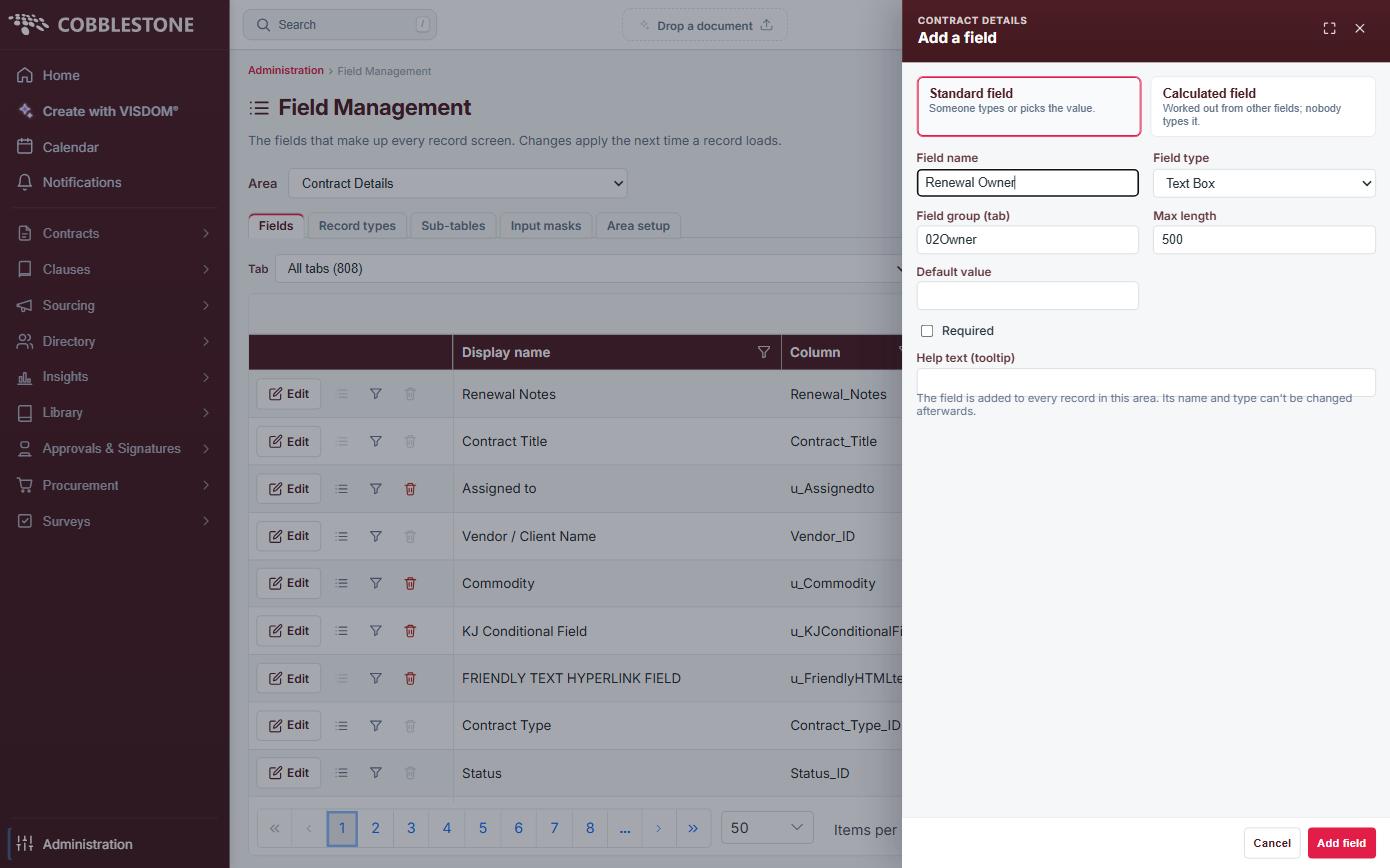
Custom fields are created from Field Management's Fields tab: pick an area, click Add field, and define its display name, type (Text Box, Drop Down Box, Currency, Date, Rich Text Editor and more), field group, visibility, and whether it is required, unique, shown on emails, or eligible for AI field extraction.
2. Key Elements
- Administration → Field Management, choose an Area, then Add field to create a new custom ("u_") field
- Field type is fixed once created — changing type means adding a new field and retiring the old one
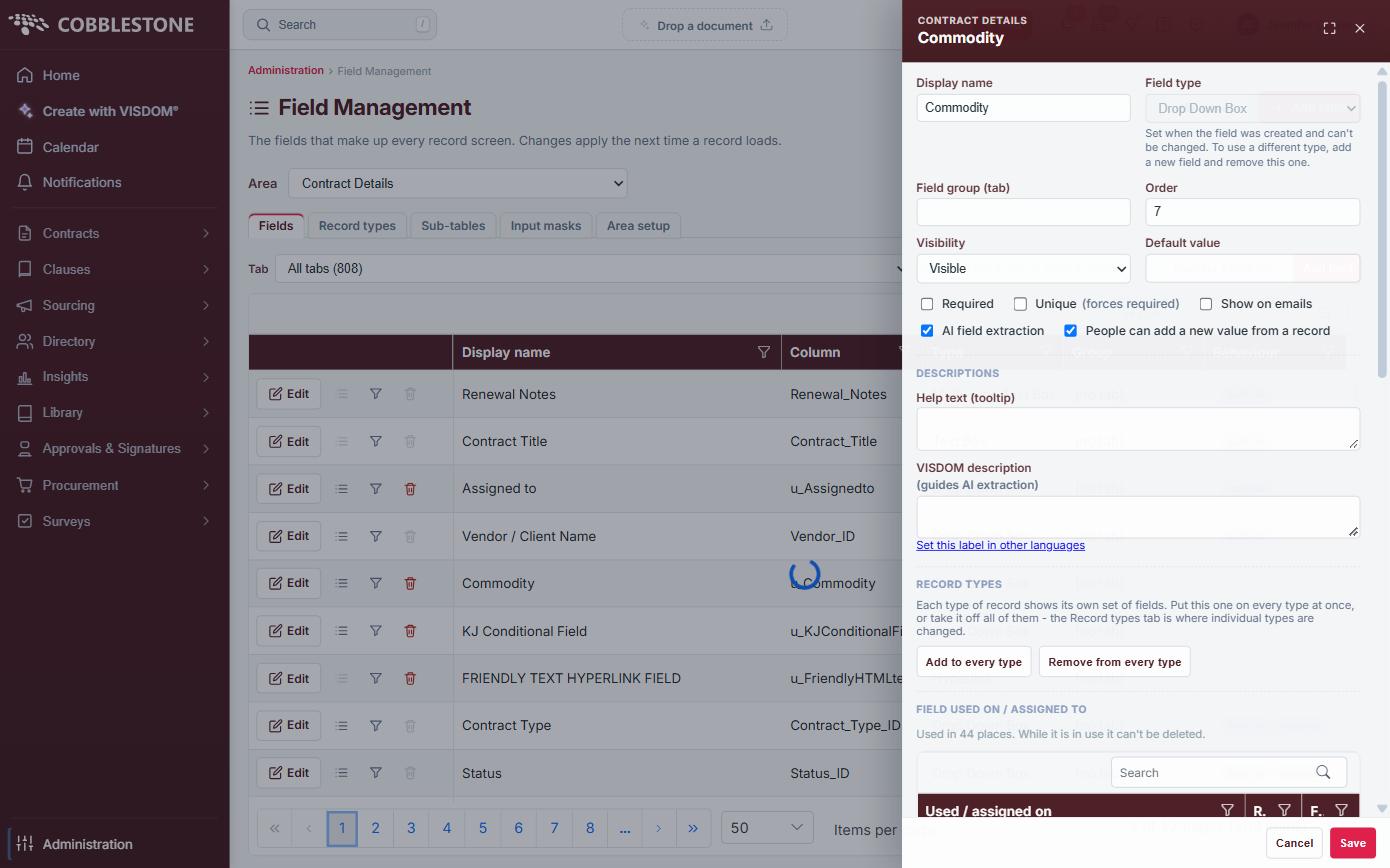
- Required, Unique (which forces required) and Show on emails are set at creation and editable afterward via Edit
- An AI field extraction checkbox and a VISDOM description box let a new field be picked up automatically by VISDOM AI extraction
3. Quick Reference Summary
Step-by-step walkthrough:
1. Go to Administration → Field Management and choose an Area.
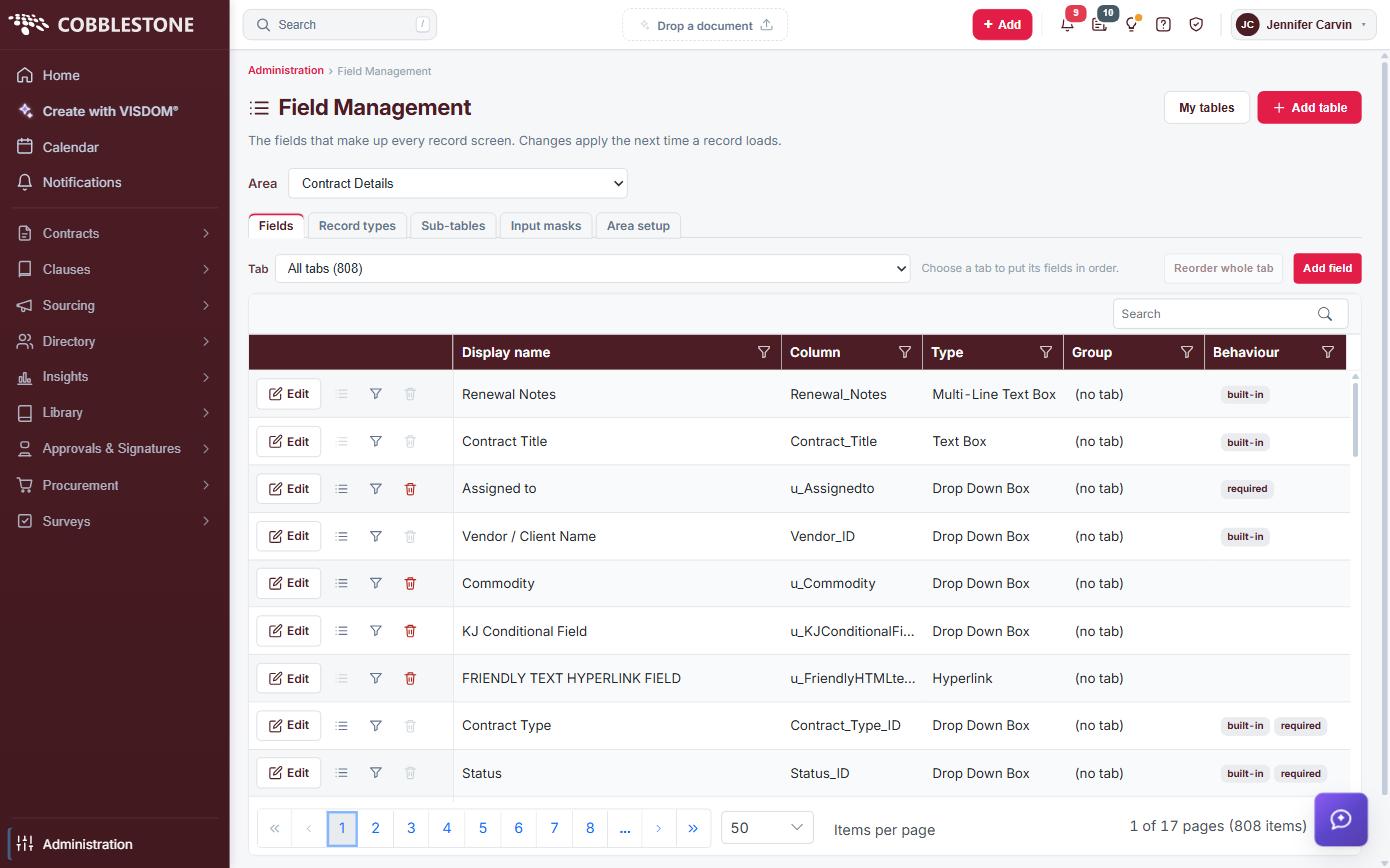
2. On the Fields tab, click Add field and set its name, type, field group, and whether it's required.
3. To adjust an existing field's Required, Unique, Show on emails, or AI field extraction settings, click Edit.