COBBLESTONE SOFTWARE
Contract Insight — User Guide
SMS Messaging
Configuration Group: SMS Messaging
Note: Each procedure in this guide begins at the Contract Insight homepage, so any section can be followed on its own. SMS messaging requires an account with a supported third-party SMS provider, and text messages are only delivered to employees who have a valid mobile number on their employee record.
1. Overview
The SMS Messaging configuration group holds the settings that connect Contract Insight to a third-party SMS provider and determine what text messages the system is allowed to send. Once connected, SMS can be used as a multifactor authentication (MFA) verification method and as a channel for task notifications.
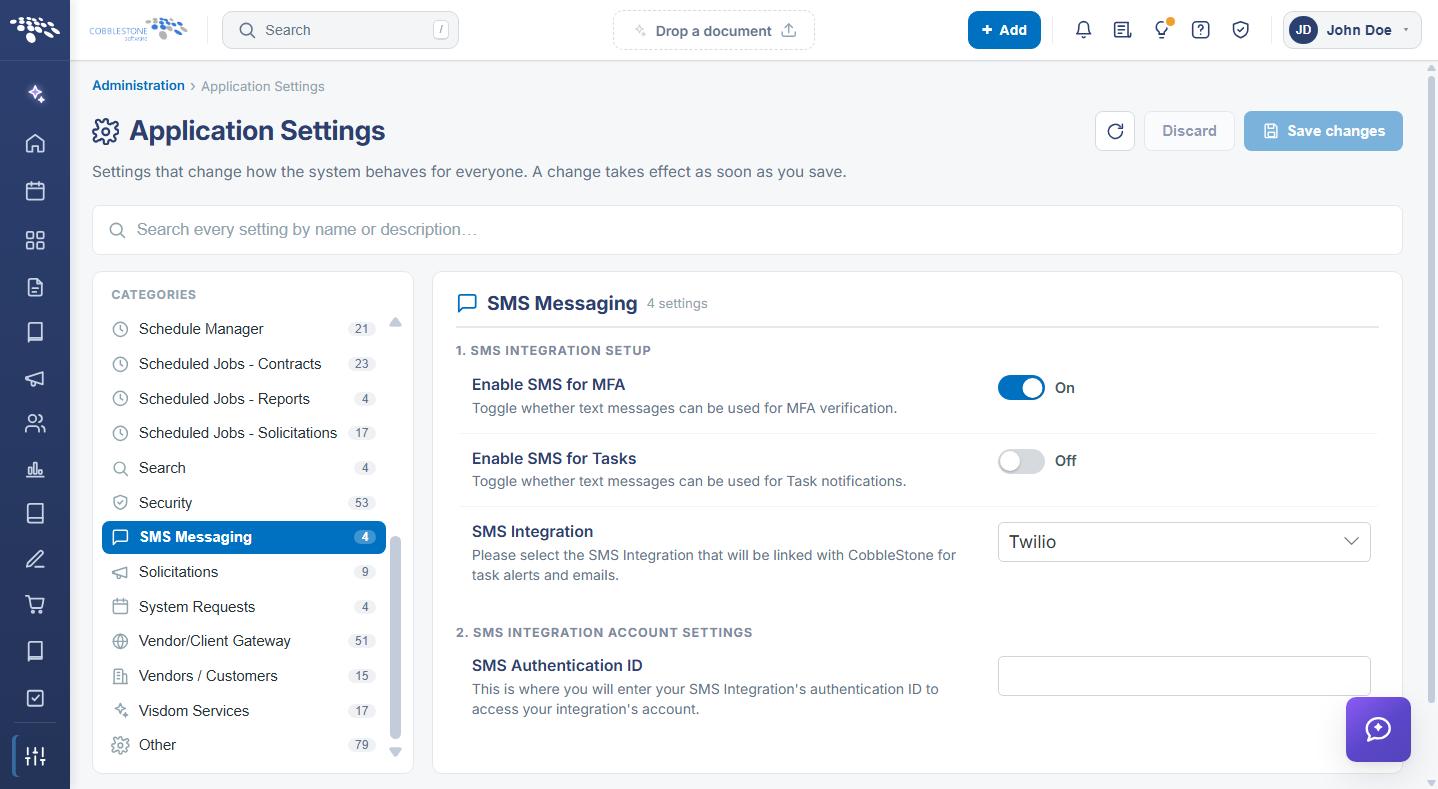
SMS Messaging contains 4 settings, organized under two subsection headings in the settings panel: 1. SMS INTEGRATION SETUP and 2. SMS INTEGRATION ACCOUNT SETTINGS.
Note: Unlike most configuration groups, the subsection headings here are numbered. They are presented in the order the configuration should be completed — choose and enable the integration first, then enter the account credentials that connect to it.
As with every configuration group, each setting is presented as a single row containing:
- The name of the application setting
- A description of what the setting does
- An editing control holding the current value — a toggle, a dropdown, or a text box
- A “Last changed” line recording when the setting was last modified and by whom
Because the SMS Messaging group is maintained from the Administration area, only Application Administrators — or other users specifically granted the appropriate permission — can view and change these values.
2. Accessing the SMS Messaging Configuration Group
The SMS Messaging settings are reached through Application Settings. To open them:
- From the Contract Insight homepage, click Administration at the bottom of the left navigation menu.
- On the Administration page, under Configuration & Fields, select Application Settings.
- In the CATEGORIES rail on the left, click SMS Messaging. The category is highlighted, and the count beside it shows the number of settings it contains.
- The settings panel on the right is headed SMS Messaging with its setting count, and lists the settings under the two numbered subsection headings.
.png)
A specific setting can also be reached without browsing the category, by typing part of its name or description into the Search box at the top of the Application Settings screen.
3. SMS Integration Setup
The 1. SMS INTEGRATION SETUP subsection selects the SMS provider and determines which parts of the application may send text messages.
The SMS integration setup settings are:
- SMS Integration — The SMS integration that will be linked with CobbleStone for task alerts and emails. Selected from a dropdown; Twilio is the supported integration.
- Enable SMS for MFA — Toggles whether text messages can be used for MFA verification. Toggle.
- Enable SMS for Tasks — Toggles whether text messages can be used for task notifications. Toggle.
The two toggles are independent, so SMS can be enabled for MFA verification only, for task notifications only, or for both. Where both are off, no text messages are sent even though the integration remains configured.
4. SMS Integration Account Settings
The 2. SMS INTEGRATION ACCOUNT SETTINGS subsection holds the credential that connects Contract Insight to the SMS provider account.
The SMS integration account setting is:
- SMS Authentication ID — The SMS integration’s authentication ID, used to access the provider account. Entered in a text box.
Caution: This value is an account credential supplied by your SMS provider. Obtain it from the provider account, enter it exactly, and treat it as sensitive. An incorrect or expired authentication ID stops all text messages from being delivered, without preventing the settings from saving.
5. Configuring SMS Messaging
Function: Connects Contract Insight to an SMS provider and enables text messaging for the entire system.
Steps:
- From the Contract Insight homepage, click Administration at the bottom of the left navigation menu. On the Administration page, under Configuration & Fields, select Application Settings, then click SMS Messaging in the CATEGORIES rail.
- Under 1. SMS INTEGRATION SETUP, select the provider from the SMS Integration dropdown.
- Under 2. SMS INTEGRATION ACCOUNT SETTINGS, enter the SMS Authentication ID from your provider account.
- Return to 1. SMS INTEGRATION SETUP and set Enable SMS for MFA and Enable SMS for Tasks according to how text messaging is to be used.
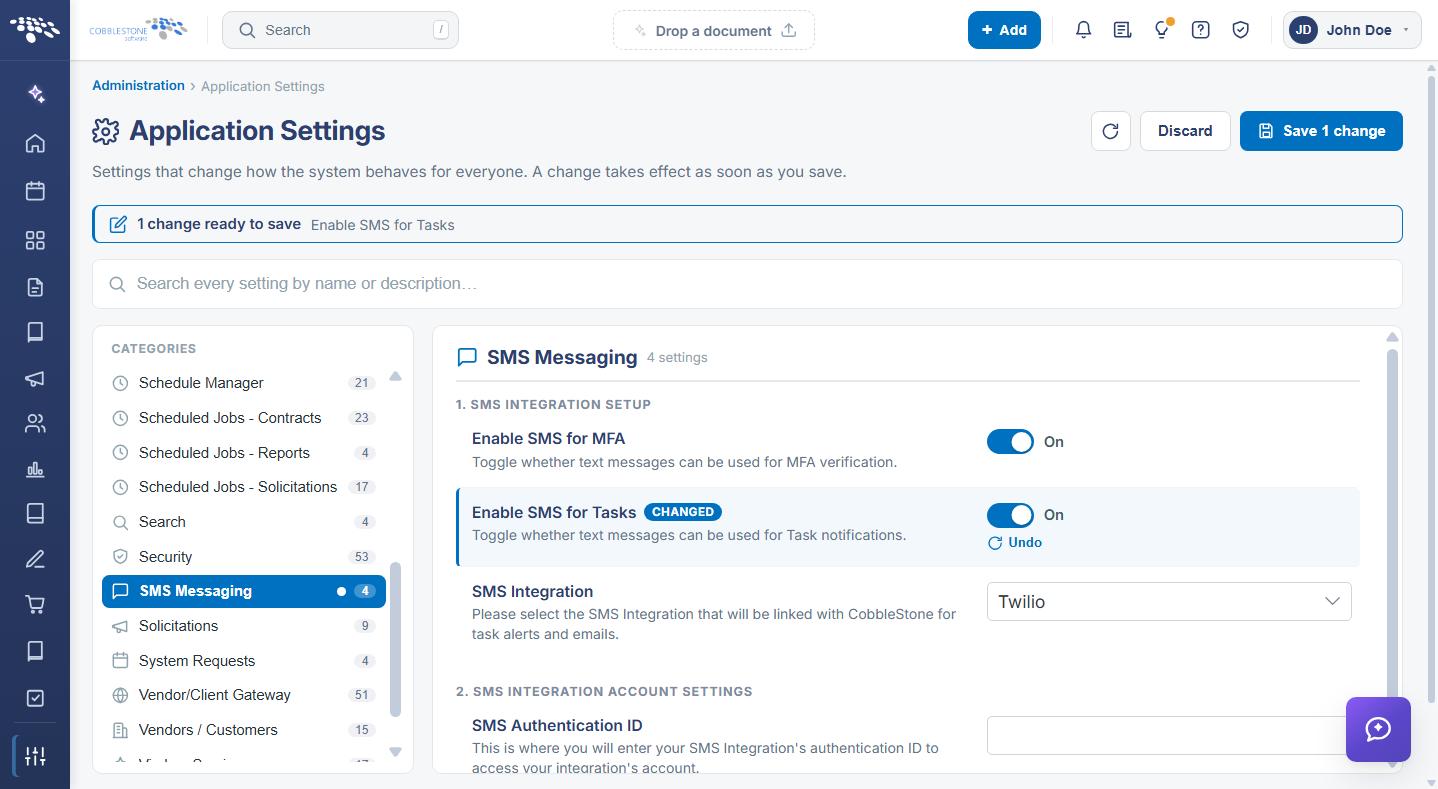
- Each changed setting is marked with a CHANGED badge, an Undo link appears beneath it, a dot appears beside SMS Messaging in the CATEGORIES rail, and a banner at the top of the screen reports how many changes are ready to save.
- Click Save changes in the upper right to commit the changes, or Discard to put every changed setting back to its saved value. Undo on a setting row reverts that one setting only.
Note: A change takes effect as soon as it is saved and applies to every user. Because the settings can be changed together and saved once, the integration and its credential can be put in place before the toggles are switched on.
6. Related SMS Administration
The SMS Messaging group establishes the connection and the permission to send. Where and how text messages are actually used is administered elsewhere.
The related administration pages and settings are:
- Multifactor Authentication (MFA) — reached from the Administration page under Security & Access, where MFA is turned on and the verification methods are chosen, including text message
- Employee Permissions and the employee record — where each person’s mobile number is held; a text message can only be delivered to an employee with a valid mobile number recorded
- Push Notifications — a separate configuration group covering push notification delivery, which is distinct from SMS
- Notification Templates — reached from the Administration page under Automation & Data, for the templates used by notifications
Task notification timing is governed by the task and scheduled job settings in their own groups — see the Employees group for employee task alert timers, and the Schedule Manager group for the system-wide job frequencies.
7. Quick Reference Summary
Task | How to Complete It |
Open the group | Homepage → Administration → Configuration & Fields → Application Settings → SMS Messaging. |
Choose the provider | SMS Integration dropdown under 1. SMS INTEGRATION SETUP, then Save changes. |
Connect the account | Enter the SMS Authentication ID under 2. SMS INTEGRATION ACCOUNT SETTINGS. |
Allow SMS for sign-in | Enable SMS for MFA toggle, then Save changes. |
Allow SMS for tasks | Enable SMS for Tasks toggle, then Save changes. |
Stop all text messages | Set both Enable SMS toggles to Off; the integration stays configured. |
Turn on MFA itself | Administration → Security & Access → Multifactor Authentication (MFA). |
Fix undelivered messages | Check the SMS Authentication ID, then confirm the recipient has a mobile number on their employee record. |
Undo a change | Undo on the setting row, or Discard in the upper right, before saving. |