Collaborative Online Editor
Configuration Settings
Navigate to Manage/Setup > Application Configuration > Config Settings. From the configuration group dropdown, select “Collaborative Online Editor.”
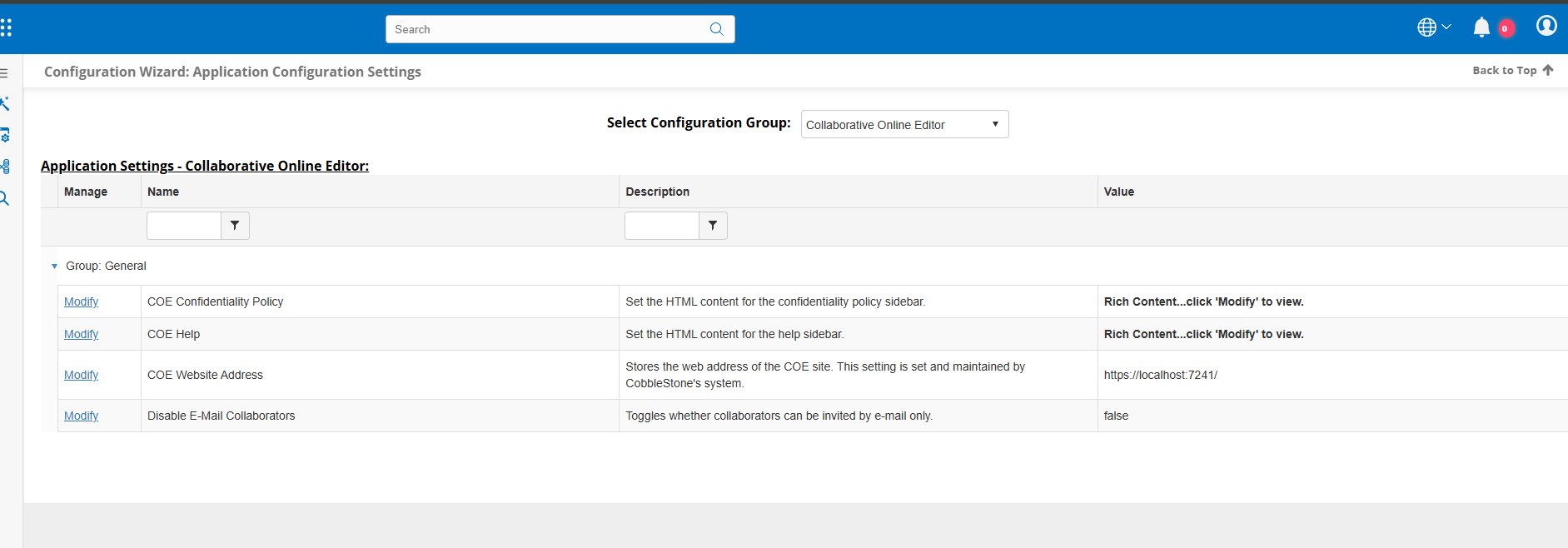
The following settings can be configured:
- COE Confidentiality Policy: Sets the HTML content for the confidentiality policy sidebar displayed on the COE site.
- COE Help: Sets the HTML content for the help sidebar displayed on the COE site.
- COE Website Address: Sets the web address of the COE site. This should only be set by a system administrator.
- Disable E-Mail Collaborators: Toggling this option off means that collaborators must be either a Contract Insight user or a Vendor Client Gateway customer contact. Toggling this option on allows for collaboration by users not tied to either system.
There is a second set of Configuration settings under General System > Joint Document Processes
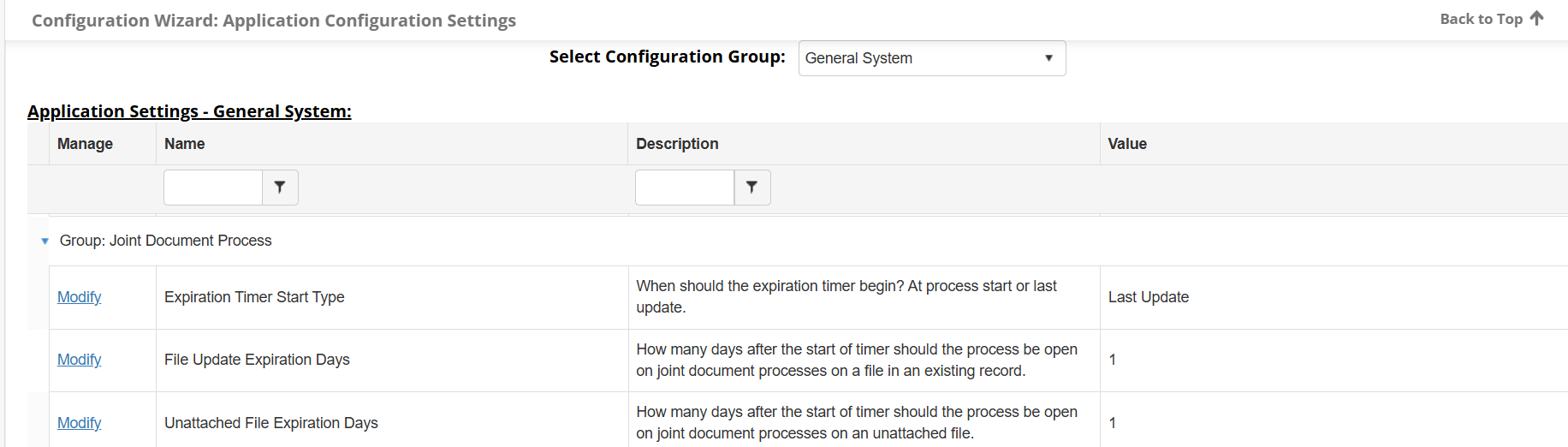
- Expirations Timer Start Type - Decides if the Expiration Timer for Collaborative processes should start from the start of the process or reset after each update.
- File Update Expiration Days - Decides how many days after the start of timer should the process be open on joint document processes on a file in an existing record.
- Unattached File Expiration Days - Decides how many days after the start of timer should the process be open on joint document processes on an unattached file.
User Permission
There is a user permission that can be assigned to individual users or security groups titled Collaborative Online Editor: Prevent Tracked Changes Management. Users assigned the Collaborative Online Editor: Prevent Tracked Changes Management permission can no longer grant collaborators the ability to accept or reject tracked changes, nor can they be given that ability when invited to a collaboration.
Employees without this restriction can continue to assign the “Manage Tracked Changes” option to Employee, Company Contact, and Email collaborators. However, this option cannot be assigned to any Employee who has the restriction in place. If selected, the system will automatically remove the option upon sending the invitation and notify the sender that the selected user does not have permission to manage tracked changes.
Starting a Collaboration
To start a collaboration, navigate to the Files / Attachments section of any record. In the attachments grid, the Edit Document button has been replaced with a Start Collaboration button.

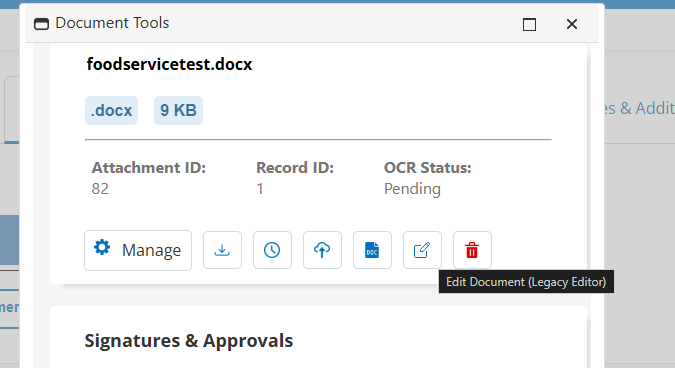
Note: the legacy online editor can be accessed through the Document Toolbox. The original Edit Document button has been moved here to allow continued use of the legacy editor. The legacy editor will be depreciated in the future.
Clicking on the Start Collaboration brings up a prompt for the user to verify the start of the collaboration process.
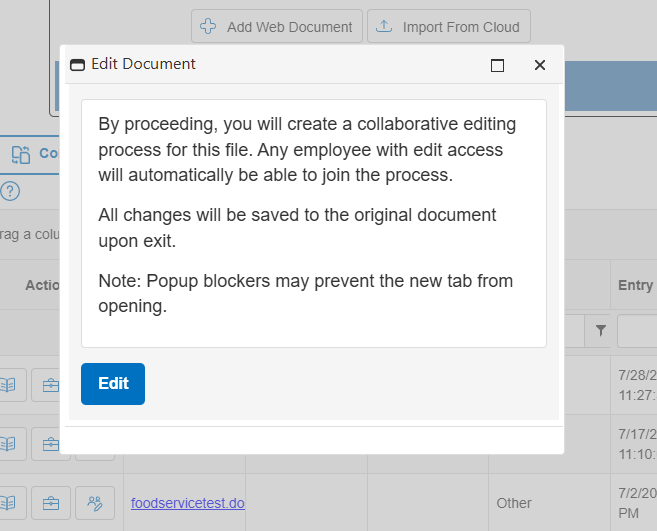
Clicking on Edit will create the collaboration, check the file out (if file checkout is enabled), and navigate the user to the collaborative editor site.
Collaborative Online Editing
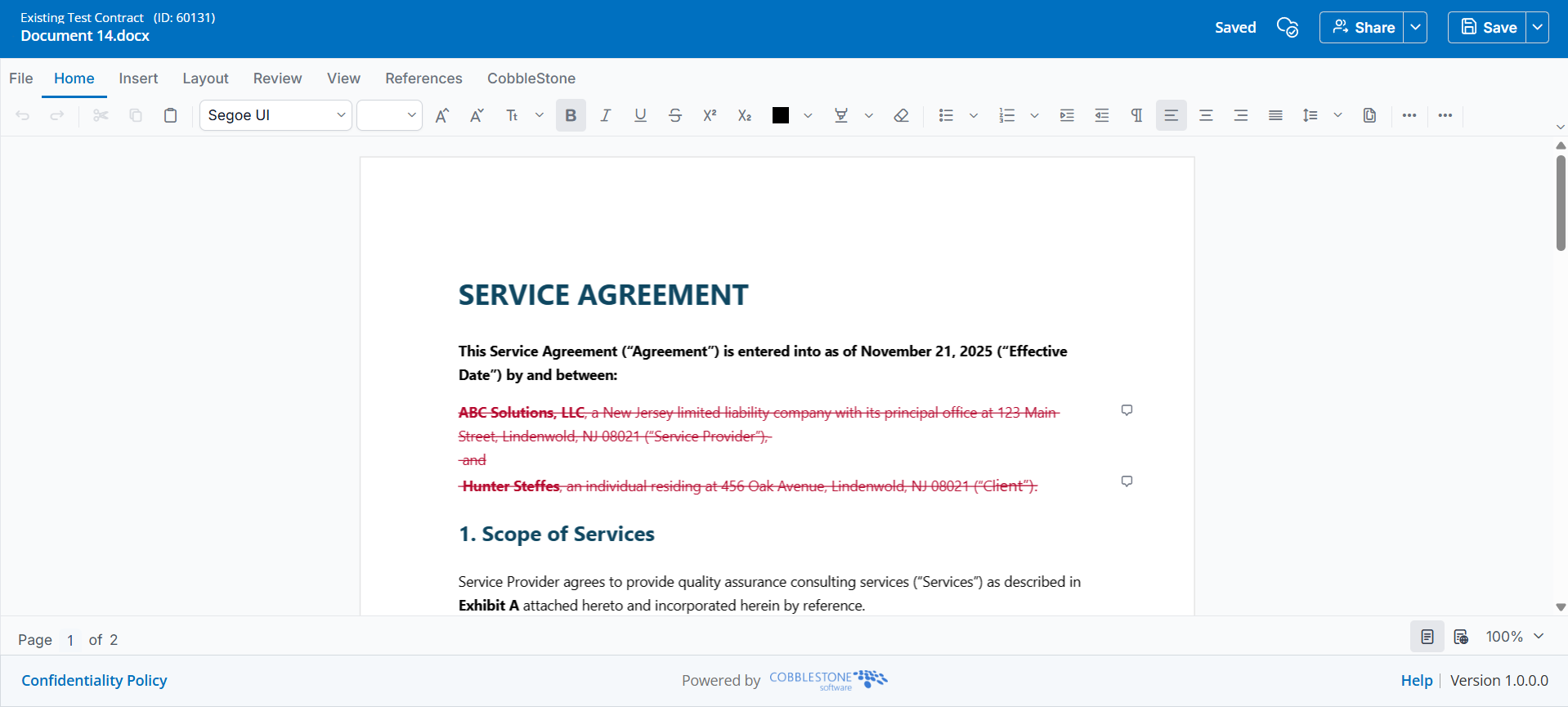
The COE uses Syncfusion’s document editor control to enable a collaborative editing experience for an existing document. One or more collaborators can simultaneously edit the document, with colored markers denoting their place in the document.
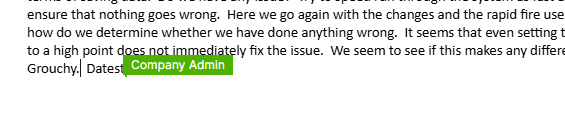
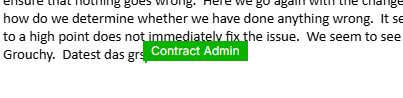
All changes are automatically saved and maintained in a separate database table. The original document is never modified.
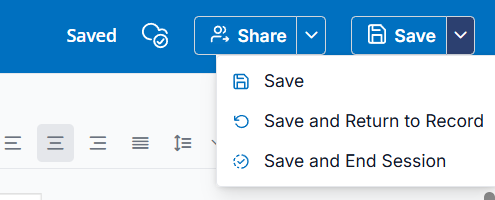
The blue title bar displays the document title, the title of the associated record, and the share and save options.
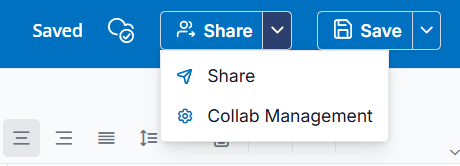
All collaborators with permission to invite others will see the option to Share. The Collab Management option will be visible for everyone, but users without permissions will only be able to see other collaborators, they will not be able to perform any actions.
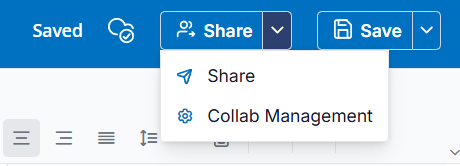
Contract Insight employees will also have the options to return to the record details page or to save and end the collaboration.
Session Tracking
Sessions are tracked for Contract Insight system users and customer contacts. A Javascript timer is used to check for the session’s health every 5 minutes. If the session is deemed as expired, then the user is given a prompt to log back in.
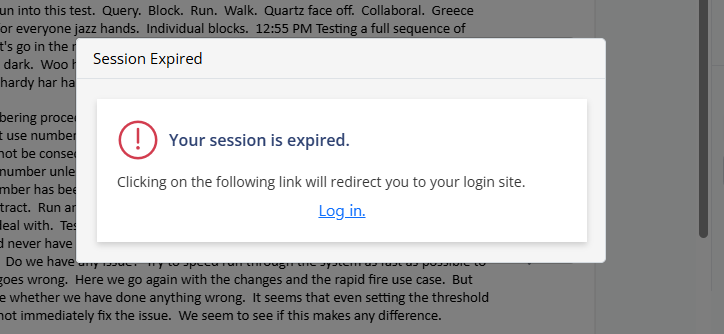
The link will redirect back to the appropriate CI or VCG login pages, if the force login permission was selected. Upon successful login, the collaborator is redirected back to the document.
Inviting Collaborators
A key part of the collaborative document editing is the ability to invite new users to work on the document. Click the Share option in the Share Dropdown list to send an invite.
Invite a Collaborator
This toolbar button opens a modal dialog giving you options to invite a new collaborator, and gives a choice of permissions to grant that collaborator. Those permissions are:
- Manage Tracked Changes - Tracked Changes are on by default. Users that are granted permission to manage tracked changes will be allowed to accept or reject changes.
- Access VISDOM - Users with the Access VISDOM permission will be allowed to use the VISDOM toolbar.
- Collab Management - Allows users to invite others and manage the permissions they are given.
- Create Record - Allows users to access the Save and End Session option which will finalize the document and attach the new version to the record.
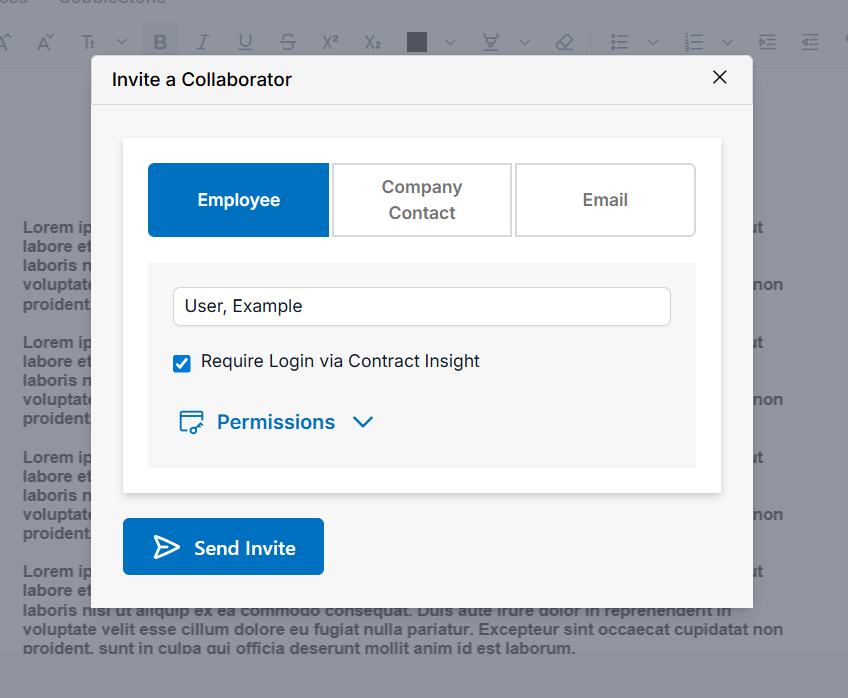
Contract Insight users will be able to select from other employees, customer contacts from the counterparty tied to the record, or to enter an e-mail to send the invite to (if email-only invites are allowed).
VCG customer contacts will have only the option of inviting either other contacts in their own company, or using an e-mail address (if email-only invites are allowed) .
Finally, e-mail only collaborators will only be able to send an e-mail invite. This option can be disabled using the configuration setting mentioned at the beginning of this article.
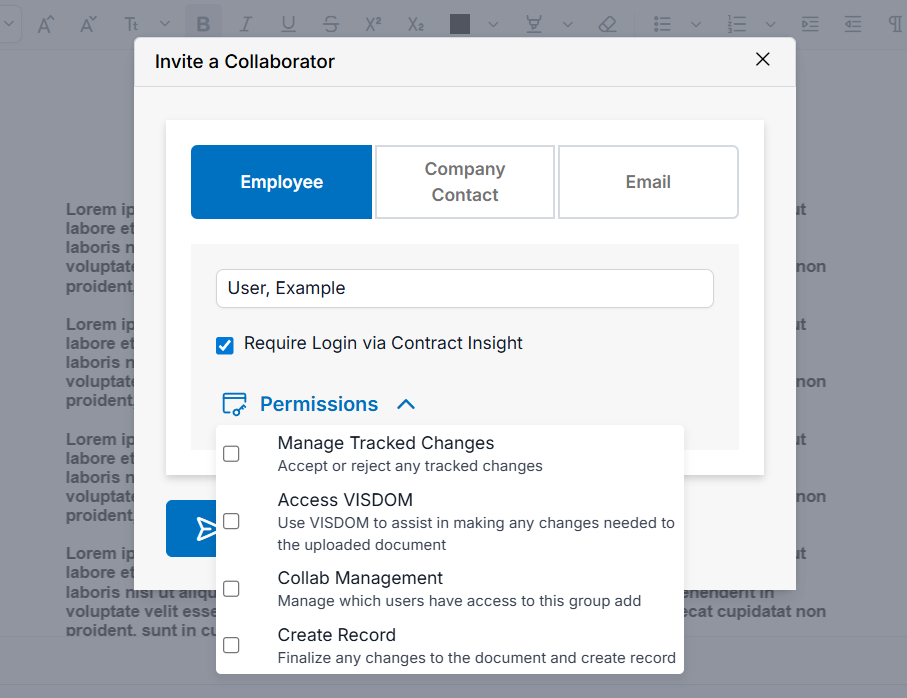
Picking an employee to invite.
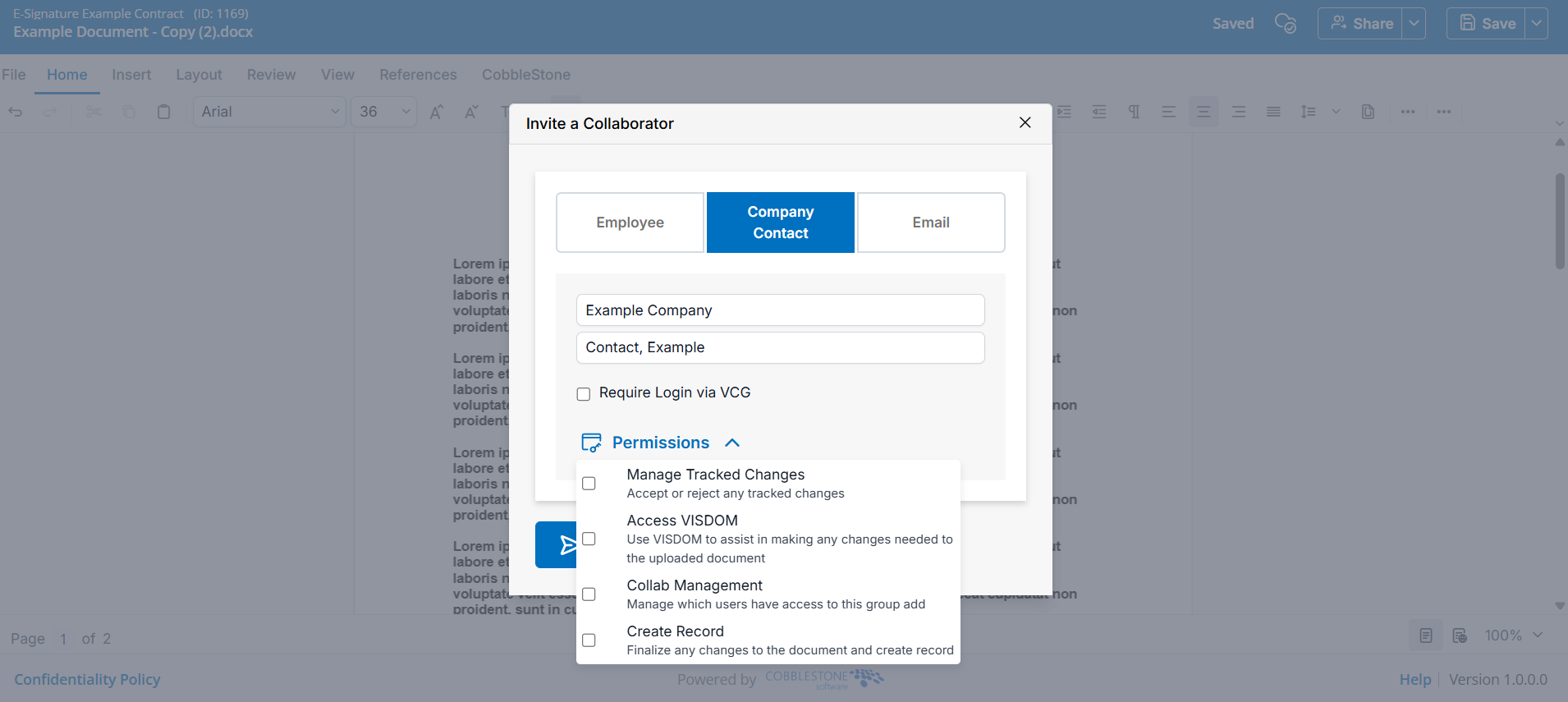
Picking a customer, then a customer contact, to invite.
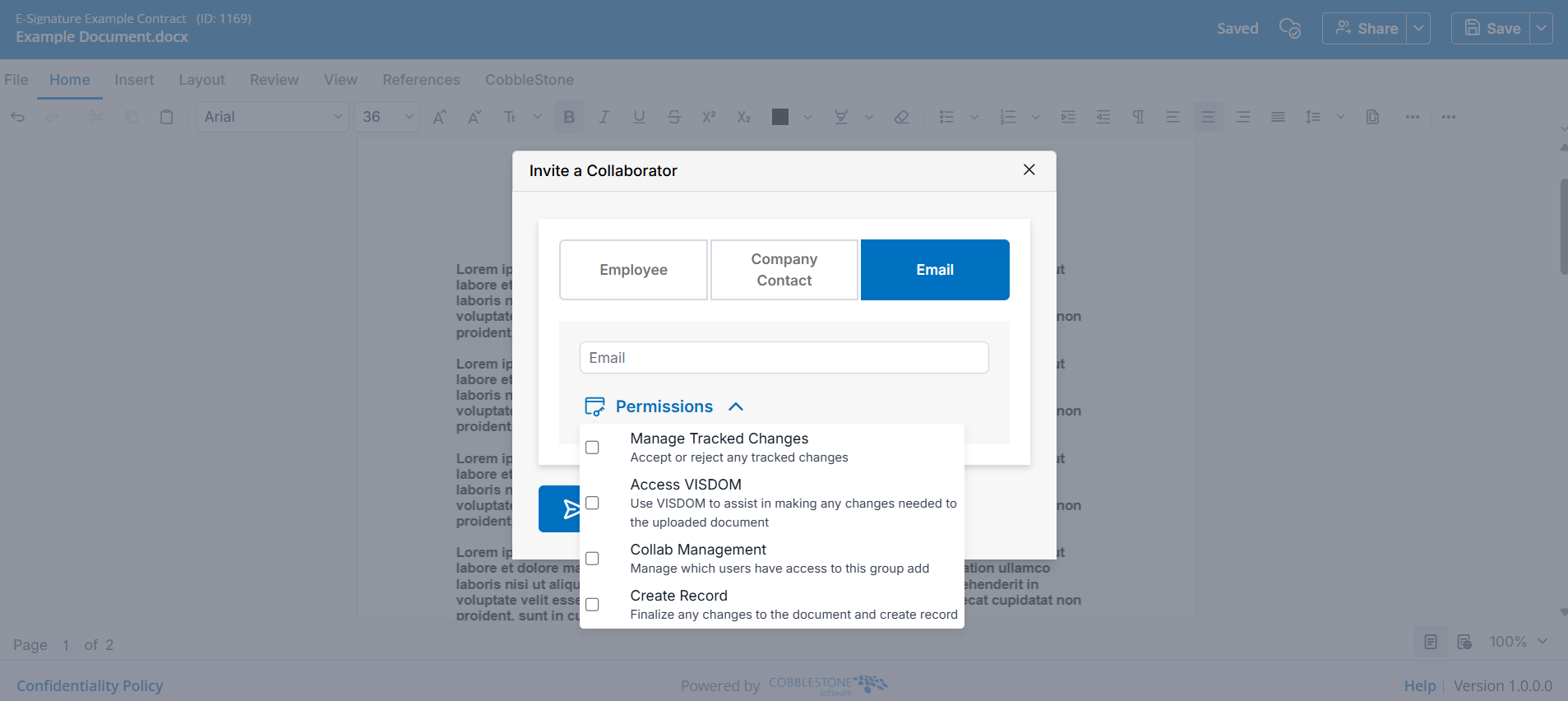
Inviting by e-mail only.
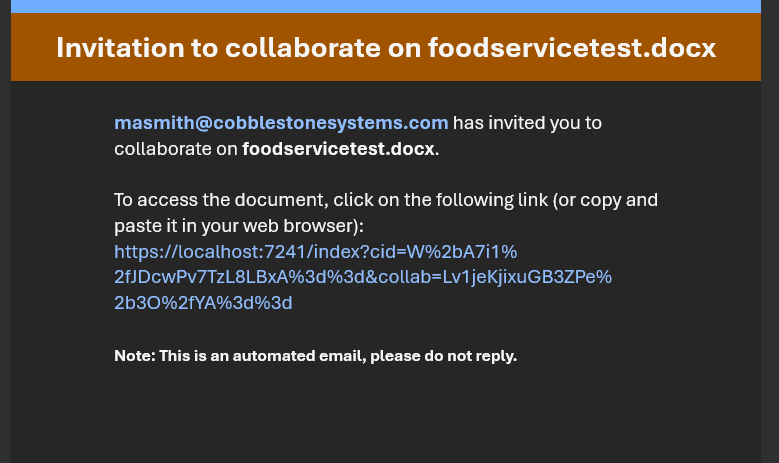
The email invite sent out uses the standard template in the system, and contains the relevant information:
- The name of the document
- Who invited you (email address)
- A link to the COE document
An example is shown below:
Collab Management
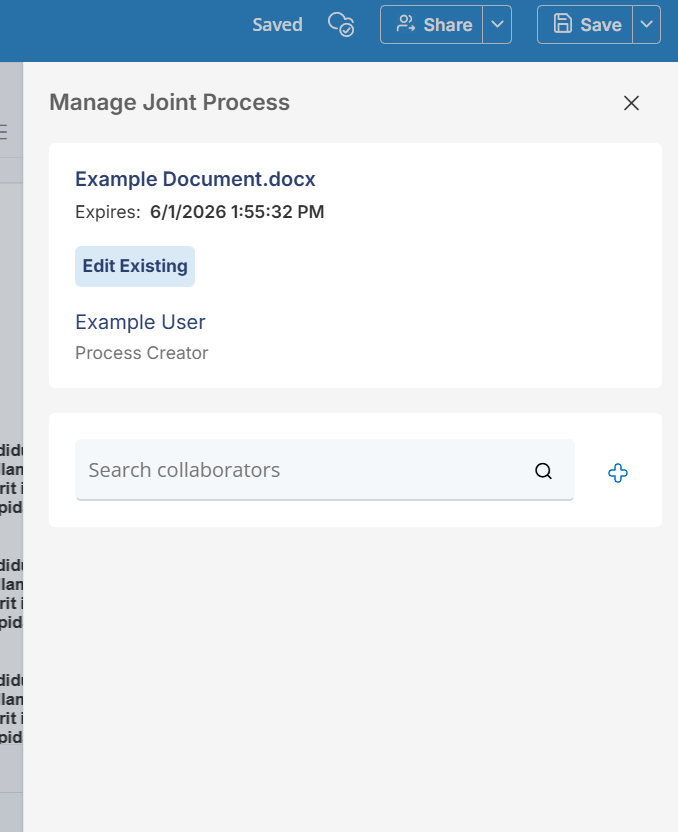
The Collab Management option under the Share menu allows tracking of who is invited to collaborate and what their permissions are. Clicking the button brings up a sidebar that lists all of the collaborators invited to participate.
Mentions in Comments
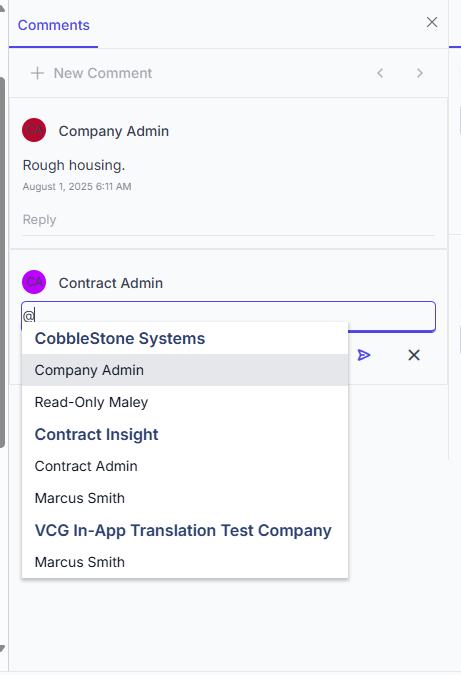
Mentions (@) can be used in the editor’s Comments section to submit a notification to a collaborator.
In a comment, using the @ character displays a list of invited collaborators grouped by their given company.
- Contract Insight users will always show up under CobbleStone Systems.
- VCG customer contacts will show up under their specified company name.
- E-mail collaborators will show up under External Email.
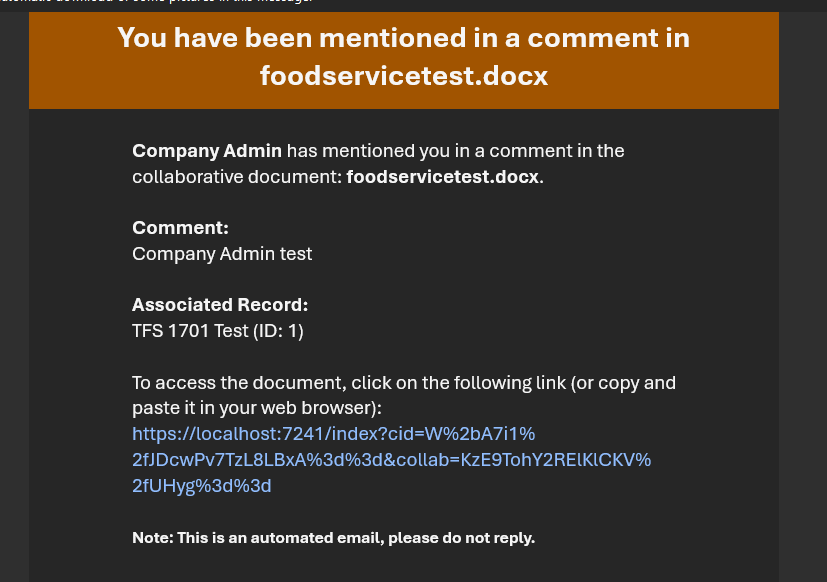
When the comment is saved, an email is sent out to the collaborator with the following relevant details:
- The name of the document
- Who mentioned you (collaborator’s name)
- The comment that you were mentioned in
- The title of the associated record
- A link to the COE document, which will match the link they originally received in their initial invite if invited from the document.
The e-mail uses the standard template in the core system. An example is shown below:
Saving Progress and Ending Collaborations
There are multiple save options under the save menu: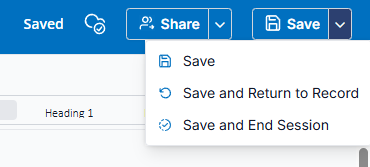
- Save - This options saves the current progress. Progress should autosave, indicated by the "Saved" message and checkmark over cloud icon. If for some reason autosave wasn't working, the save option is available to save progress.
- Save and Return to Record - This option allows the user to return to Contract Insight and continue working without ending the collaboration. You can return to the collaboration process by pressing the same edit button used to begin the process if you were the user that began the process, or by clicking on the invitation link again.
- Save and End Session - Only users with the proper permission will be allowed the option to save and end a collaboration.
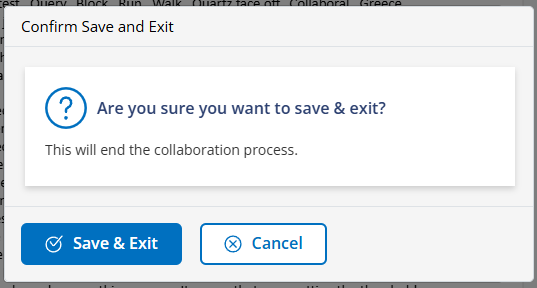
On click, the user is presented with a confirmation prompt.
When confirmed, the following sequence occurs:
- All saved changes to the document are compiled.
- A new document version is created and appended to the associated record.
- The collaboration is closed.
- It bears repeating that Save & End Session should only be used when you want to end the collaboration. It is not for saving edits. Document edits are automatically saved.
Once a collaboration is closed, all links to the document are considered invalid. Any attempt to access the document on the COE site will result in a warning dialog declaring that the collaboration is closed and inaccessible.
Footer
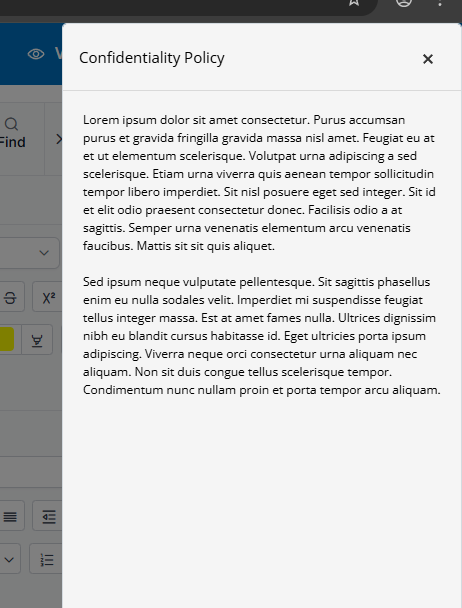
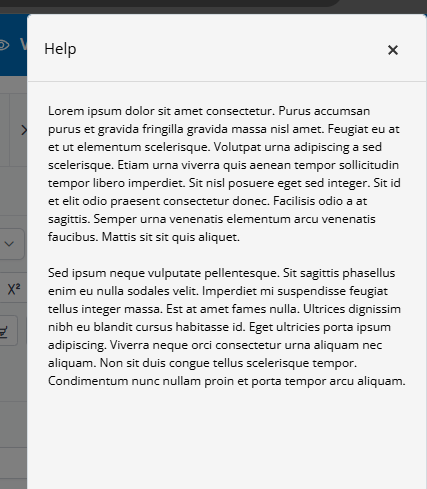
The page footer has link buttons for displaying the configured confidentiality policy and help text. Both are displayed in a modal sidebar.
Visdom Sidebar
The VISDOM Sidebar is accessible by clicking the Cobblestone tab.
Chatbot
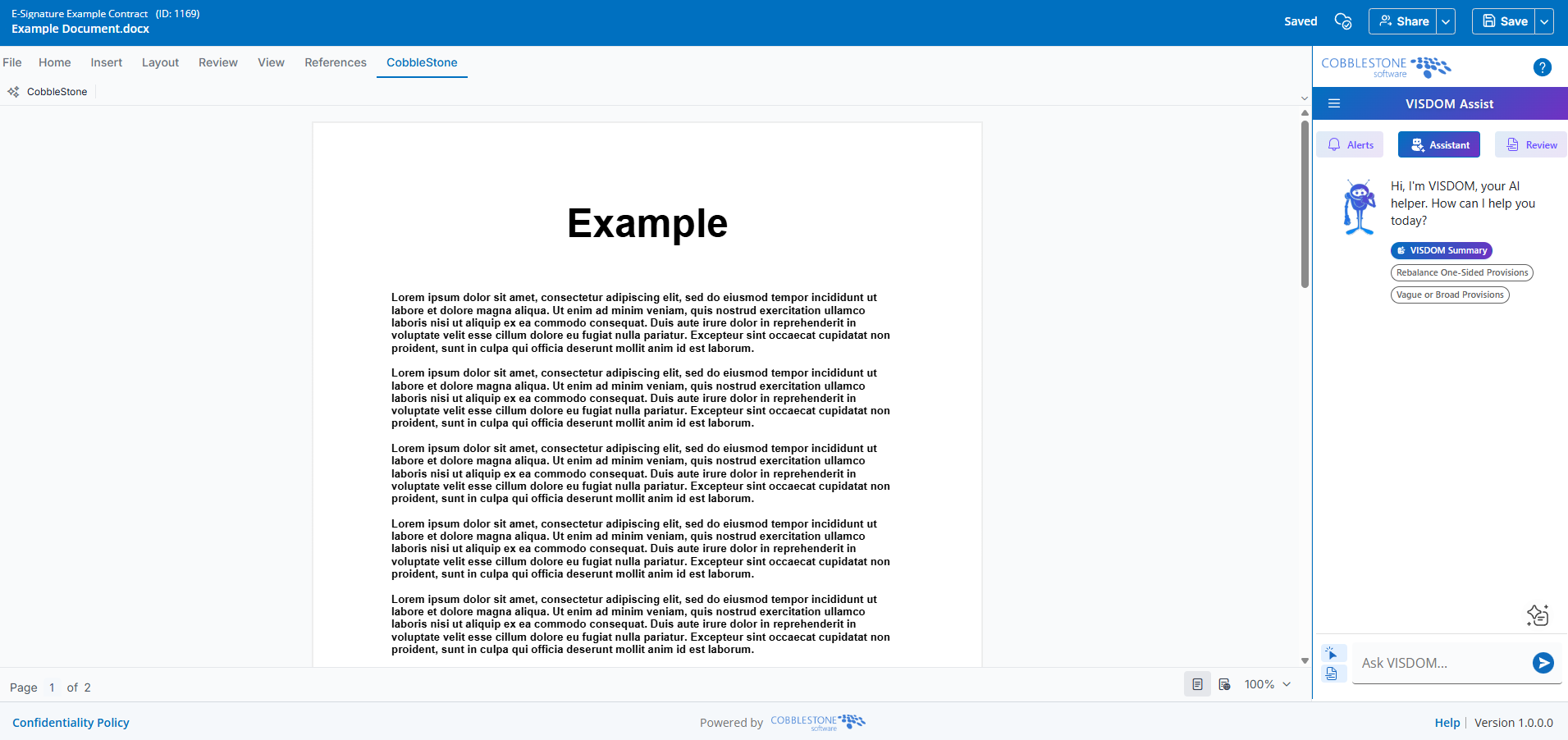
The VISDOM chatbot can be used to ask questions about the document, general legal questions, and can provide a VISDOM Summary. You can use selected context within the document by highlighting a section with your mouse, or toggle full document context with the icon in the bottom left. There is also a generic prompt library available using the the sparkling document icon.
Alerts
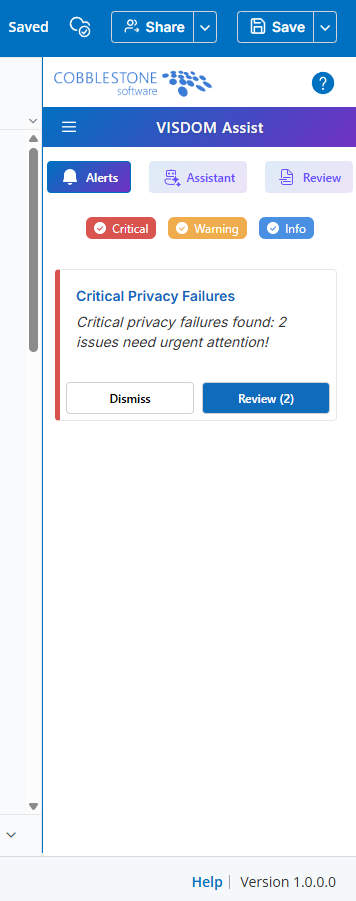
VISDOM Alerts flag Issues (Critical Items), Inconsistencies (Warnings) and key information (Info) in your document. You can choose to either dismiss or review.
Review
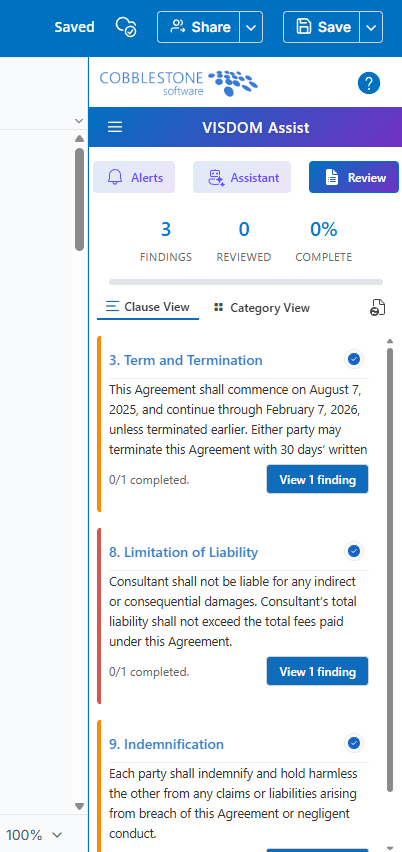
The VISDOM Review scans your document and returns findings that can either be addressed or dismissed. The findings can be viewed by individual clauses or by broader categories.
Clause Library
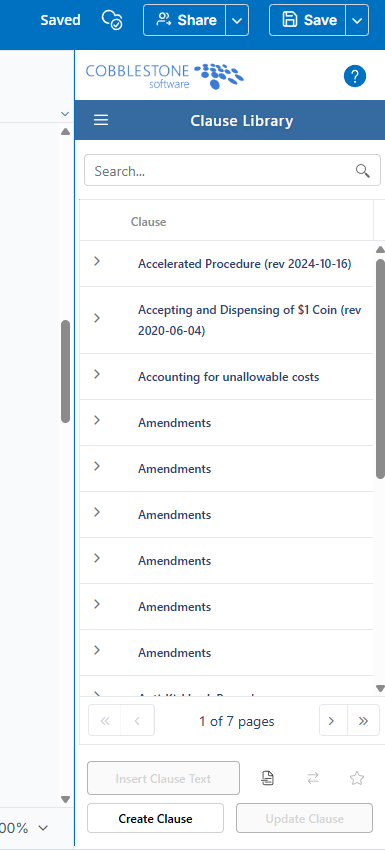
The Clause Library option gives users access to their Contract Insight Clause Library. This panel can be used to insert clauses, create clauses from selected text, replace text using the text of a selected clause, bookmark a clause, create a new clause, or update an existing clause library clause.
Found Clauses
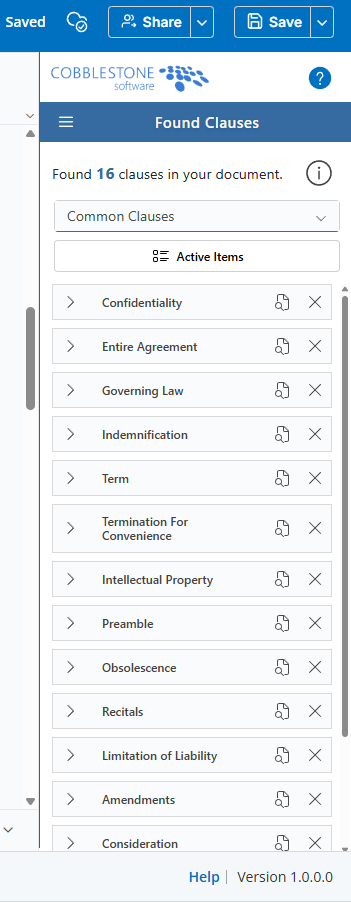
The Found Clauses Tool scans your document and compares it against VISDOM as a Service's clause taxonomies, allowing for quick add to training data or your clause library.
GSA Clauses
High Risk Findings
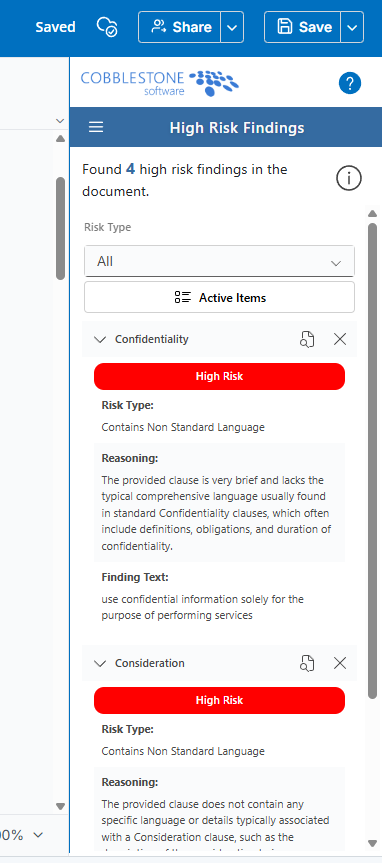
The High Risk Findings panel finds language that could be considered high risk and offers suggestions to help address that risk.
Sentiment Indicators
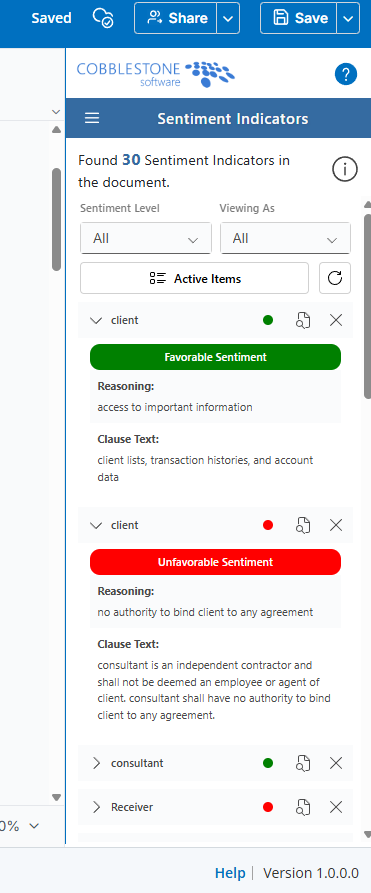
The Sentiment Indicators panel scans the document and analyzes sentiment in clause language for the various parties inside of the document.
Collaboration Management
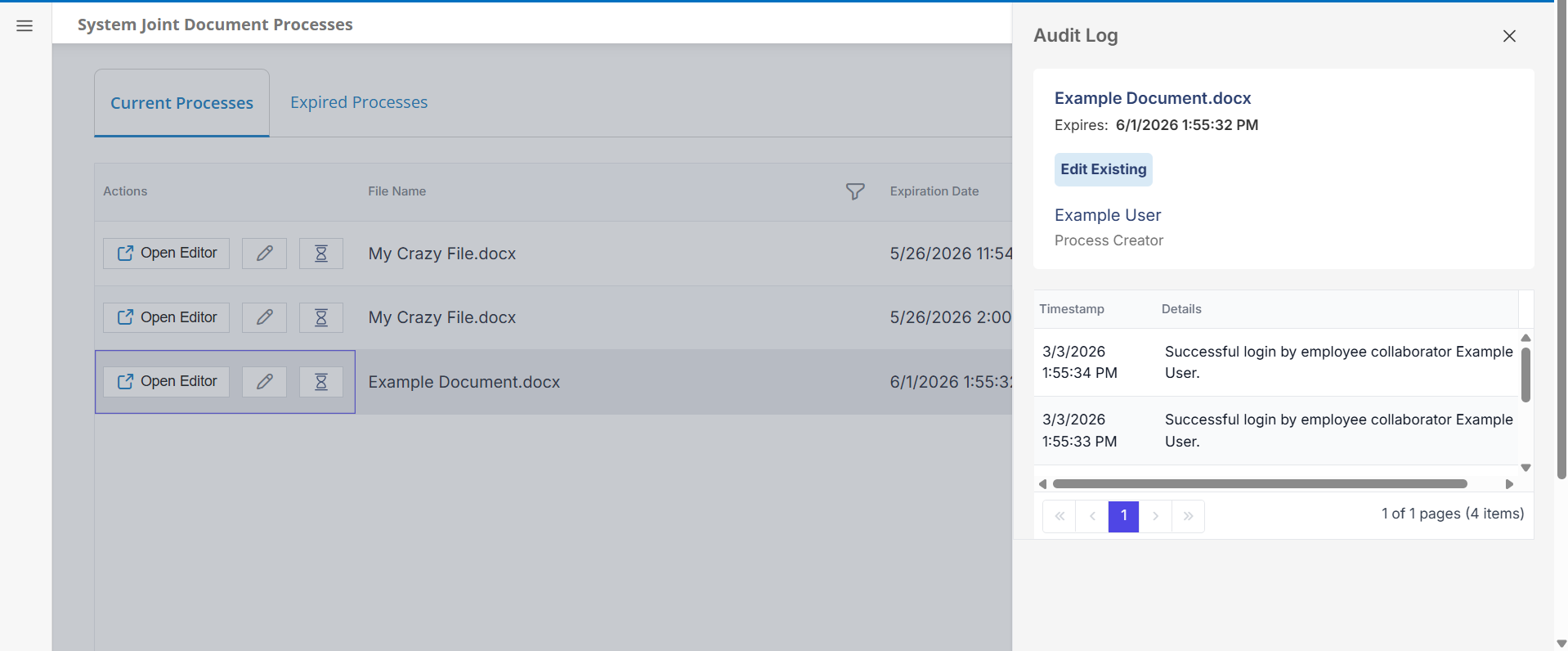
Current and Expired Processes can be managed on the System Joint Document Processes page by System Administrators or on the My Joint Document Processes page by participants in Joint Document Processes
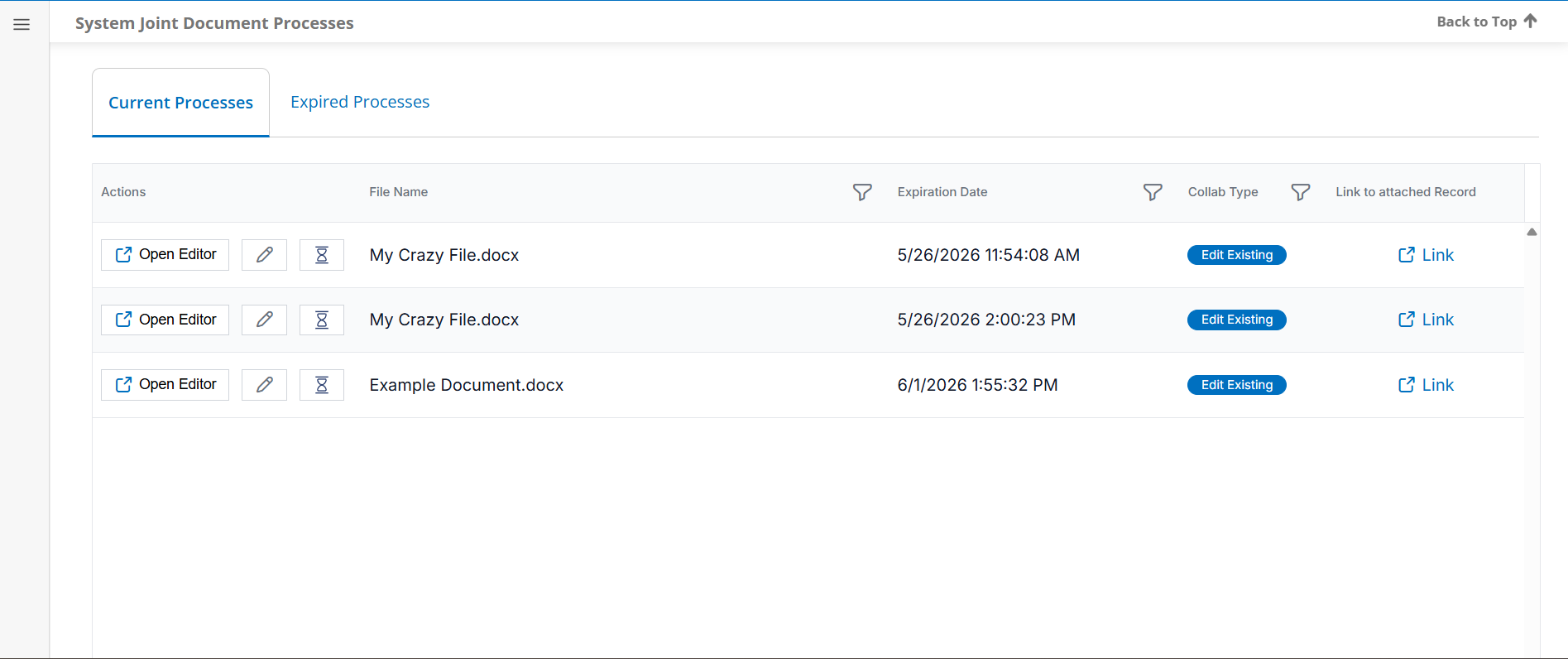
Current Processes
On the Current Processes Tab, the following actions are available:
- Open Editor - Opens the Collaborative Online Editor to the relevant process
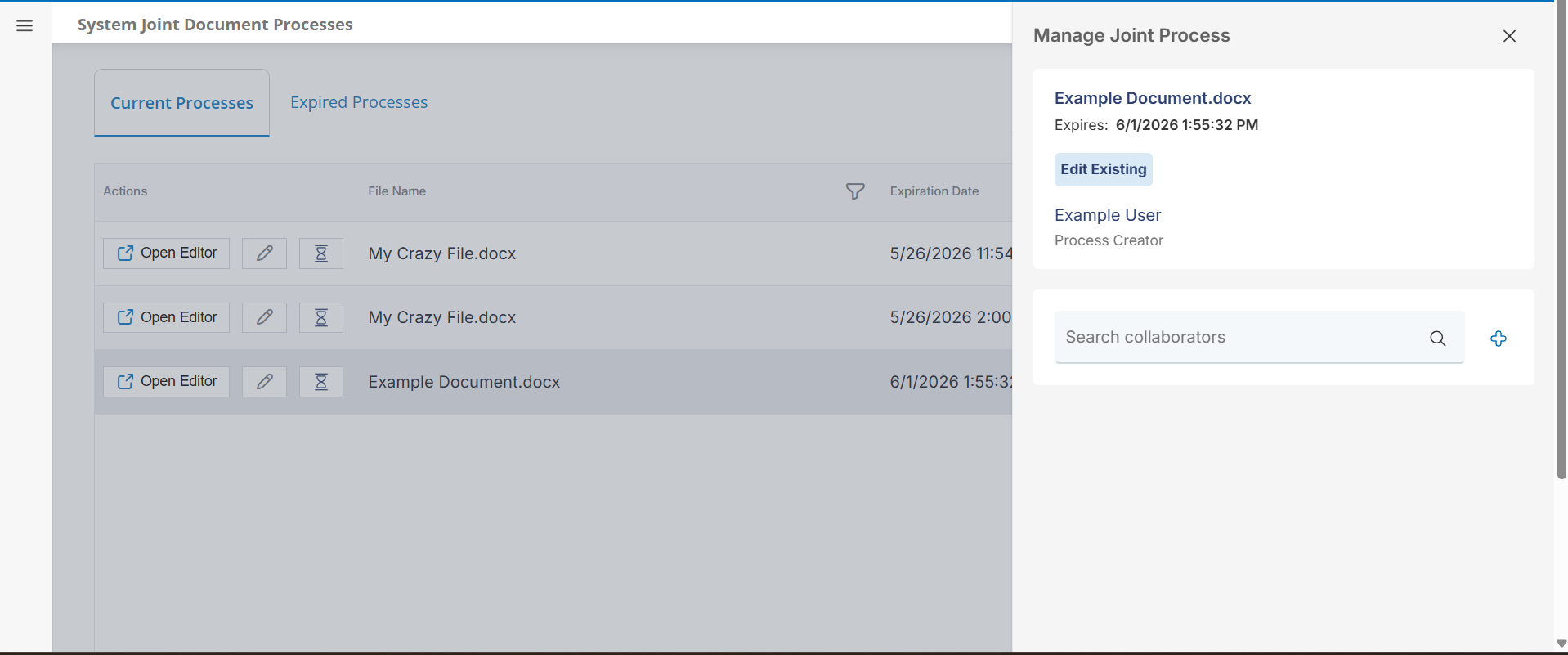
- Edit - Opens the Collaboration Management Sidebar for the relevant process
- Audit Log - Clicking on the History icon opens the Audit Log sidebar. The view displays a pageable grid containing the timestamps and details of audited events. These events include:
- When a process is started and by whom.
- When a process is ended and by whom.
- When a process is re-activated and by whom.
- When someone successfully opens the document on the COE site.
- When someone opens an expired document on the COE site.
- When a collaborator is invited, by whom, and with what permissions.
- When a collaborator’s permissions are changed.
- When a collaborator is removed.
- When a collaborator’s invite is re-sent.
- Link to Attached Record - Takes the user to the relevant record attached to the Collaboration Process
Expired Processes
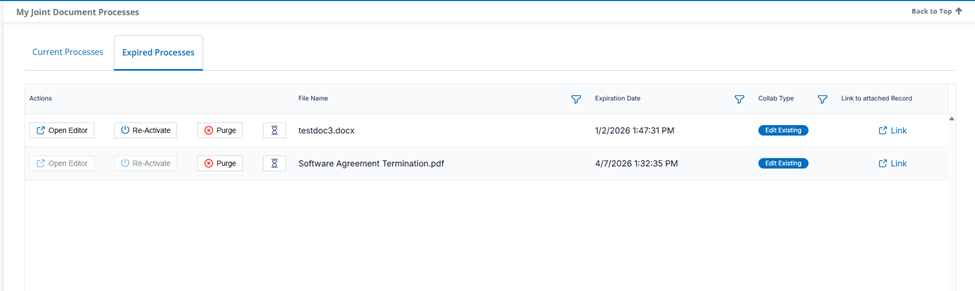
The Expired Process tab has all the options of the Current Processes tab, plus the ability to either Re-Activate or Purge the process.
- Re-Activate updates the Expiration date and moves the process back to the Current Processes tab
- Purge removes the process from the Expired Processes list and it is no longer accessible.