Add Contract From File
Adding a Contract: Add Contract from File
Contract Insight can create a new contract record directly from an uploaded document instead of a blank form. The From a document (VISDOM) option in the global + Add menu hands the file to VISDOM, the application's built-in AI engine, which reads the document and pre-fills the new record's fields from what it extracts, rather than leaving every field to be typed in by hand.
● + Add → From a document (VISDOM) is listed first in the Add a record menu
● VISDOM reads the uploaded file and extracts field values automatically
● The extracted data becomes the starting point for the new contract record
Method 1: Drag and Drop Box
1. Drag and Drop File(s) on the box that reads, "Drop a document".

If the user wishes to create multiple records from files at one time, they may drag and drop multiple files on the drag and drop box.
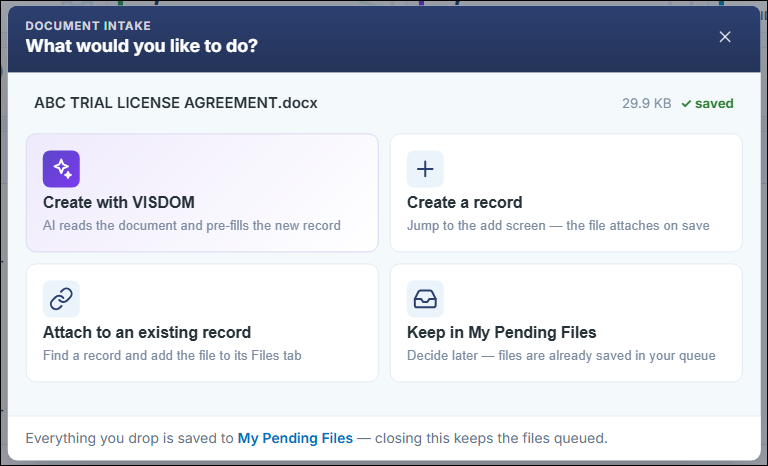
2. After dropping the file it will prompt for what you would like to do. For this example, we will select Create with VISDOM.
3. The Create with VISDOM screen displays. Select the Record Type and Type for the new Contract Record being added. You can choose a specific Type or let VISDOM choose as it processes your document. 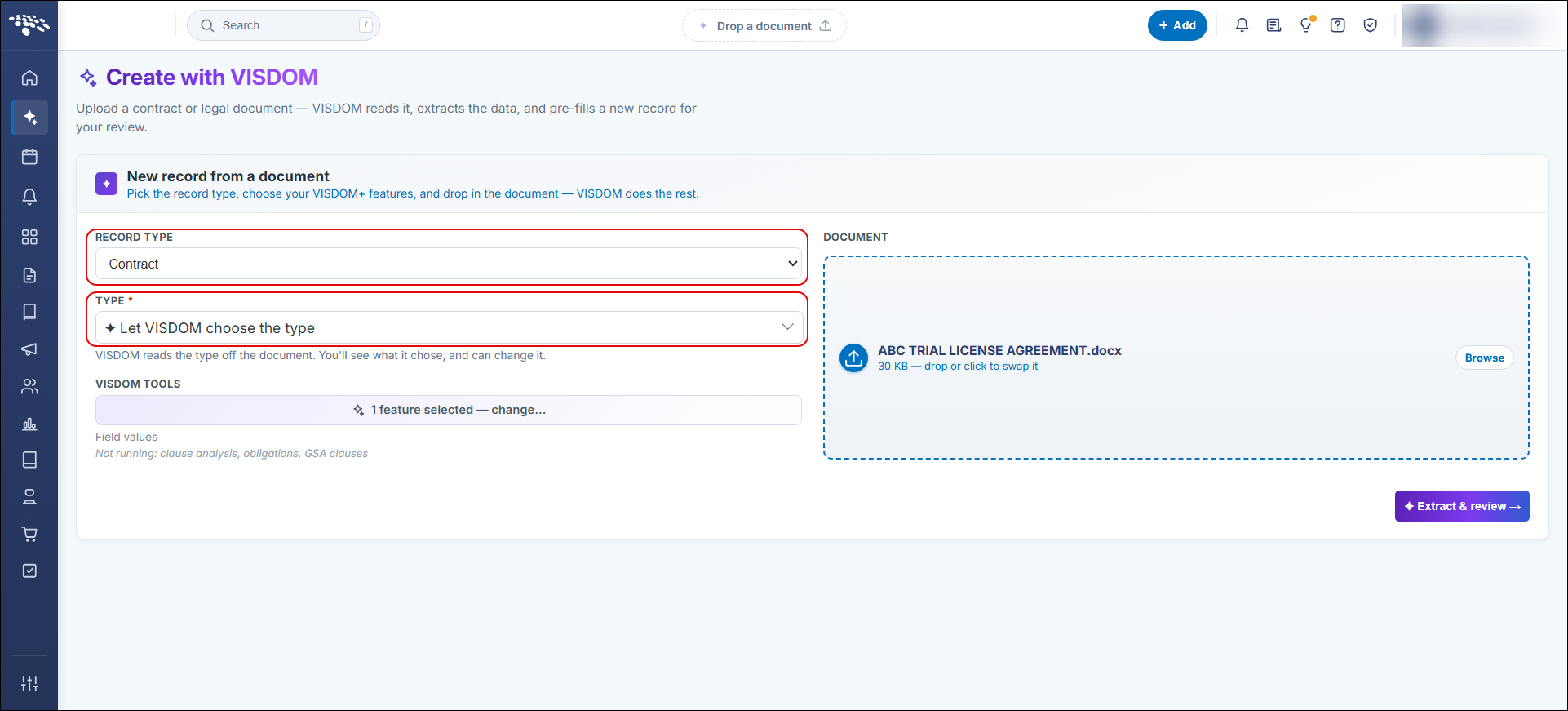
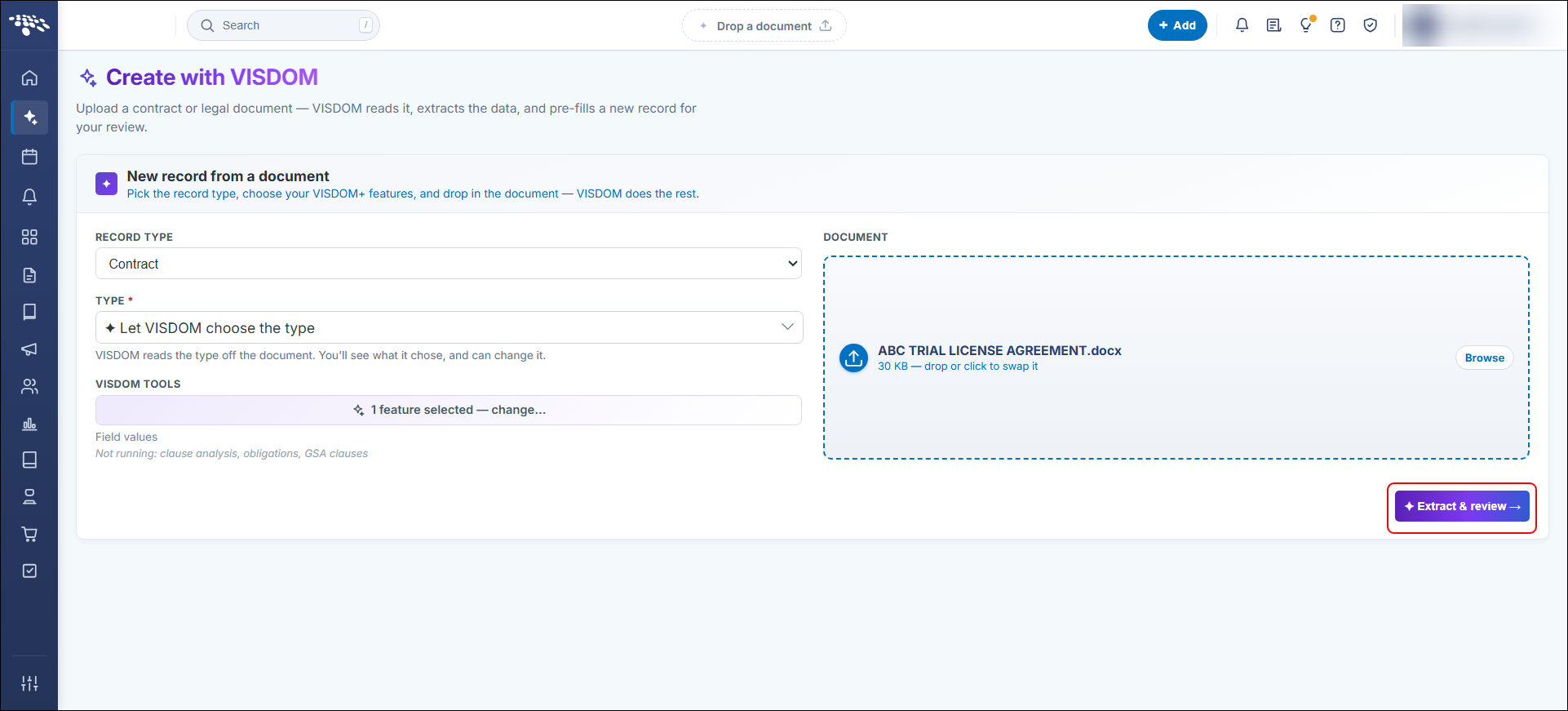
4. Then, click the Extract & review button to begin the VISDOM process.
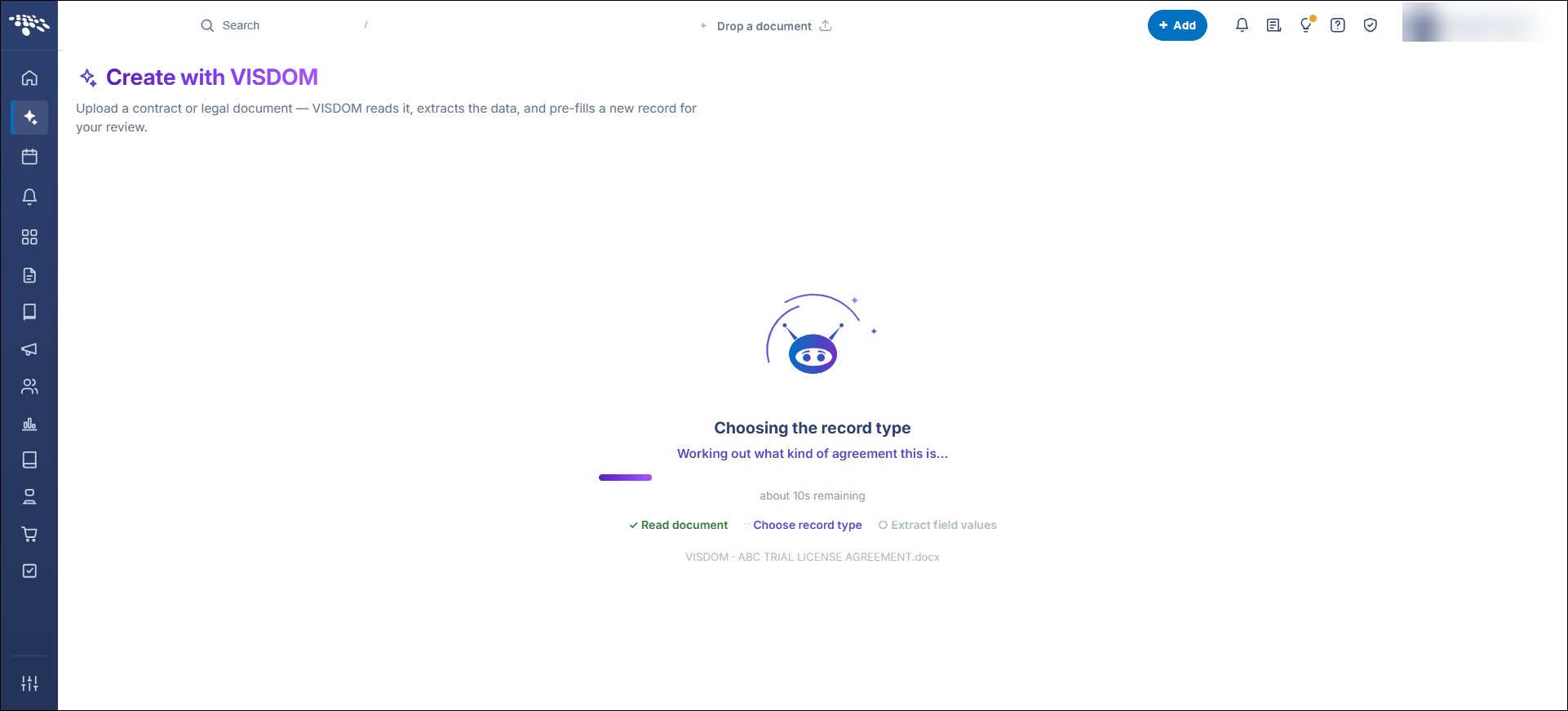
5. VISDOM processes the uploaded document
6. Review the Add Screen. Always be sure to double check the record, assuring information has pulled completely and correctly. It is up to the user to make sure the information has pulled over correctly.
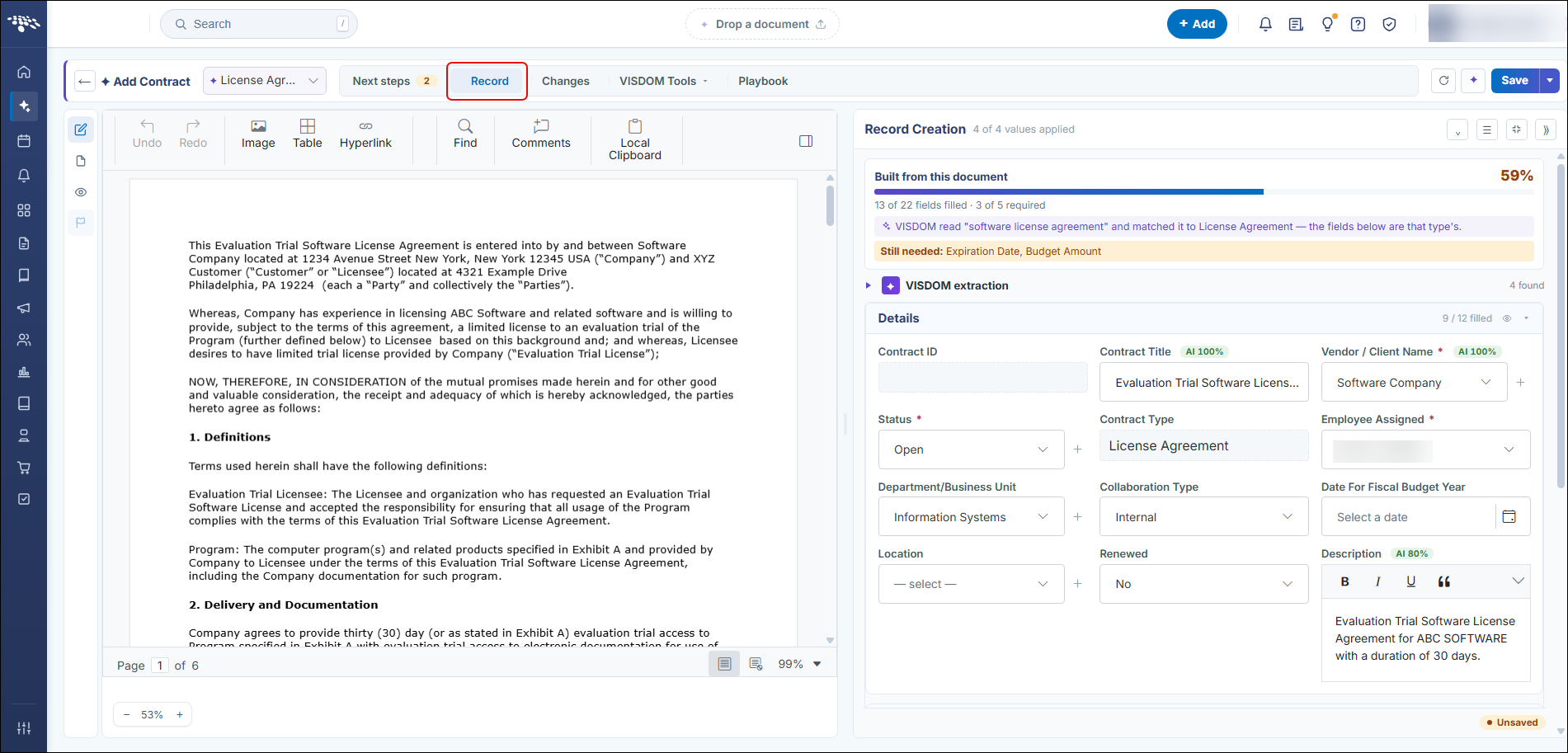
Note: It is recommended that files larger than 25 MB be broken up and separated to separate files when uploading. Note many computer systems depend on the internet connection, time-out settings, e-mail settings and uploading large files might affect performance. The system does has not imposed a limit on the number of files that can be added to contract record. Results depend on the document quality.
7. Once field population is complete, click Save at the top right of the screen to save the new Contract Record and navigate to the new record's Contract Details screen.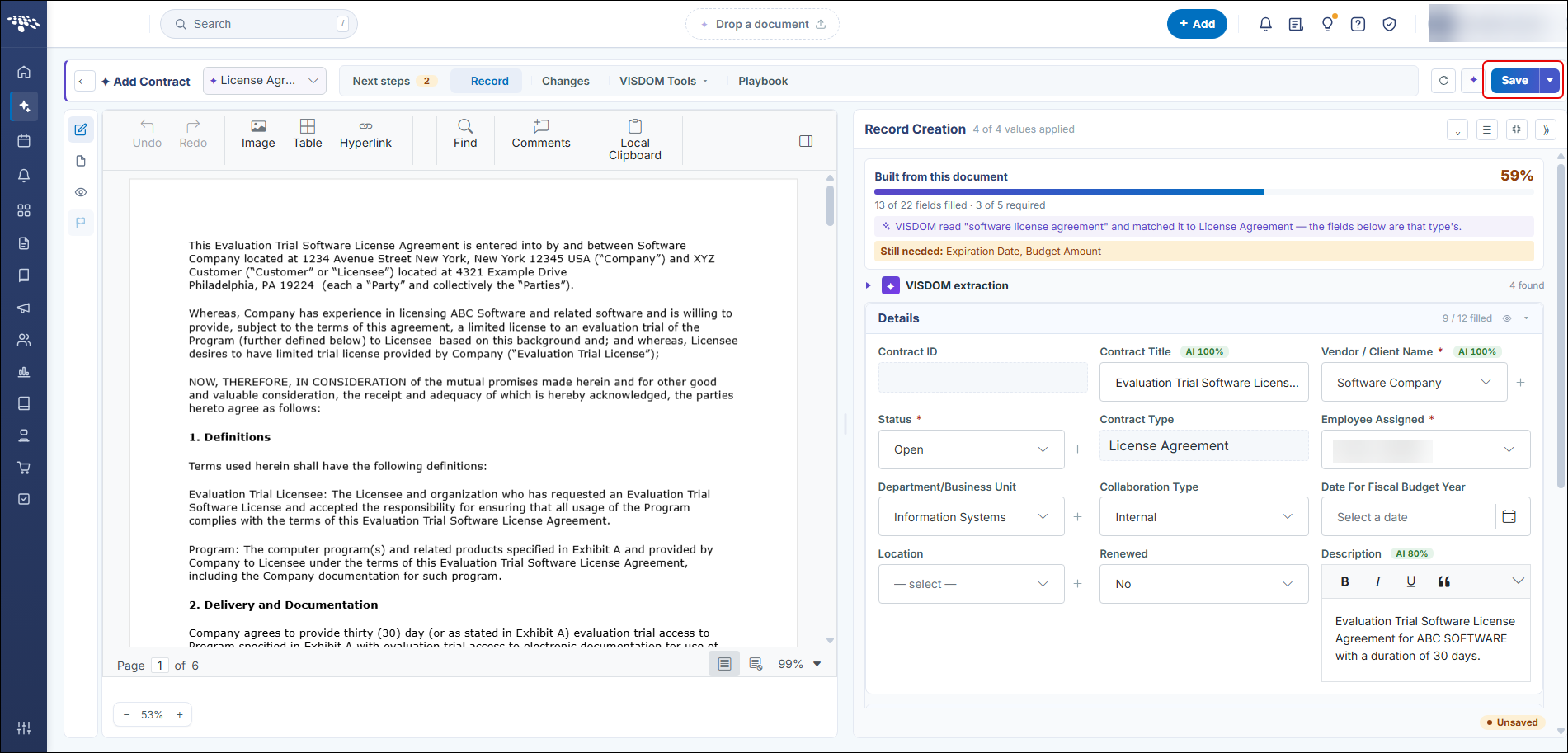
8. Note that the file/document that the Contract Record was created from is automatically attached to the Contract in the Files/Attachments section of the Contract Details screen, where it can be opened/downloaded.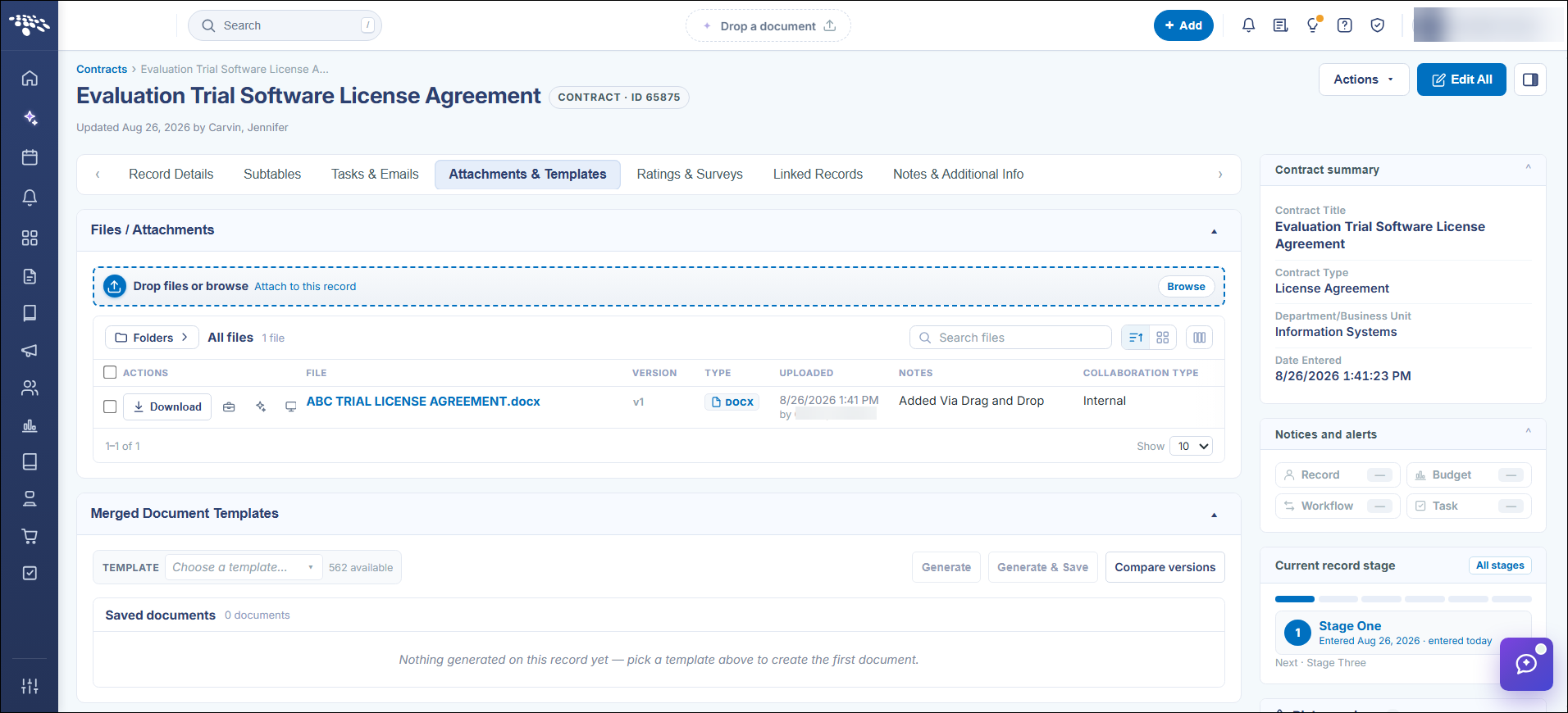
Method 2. Contracts Dropdown
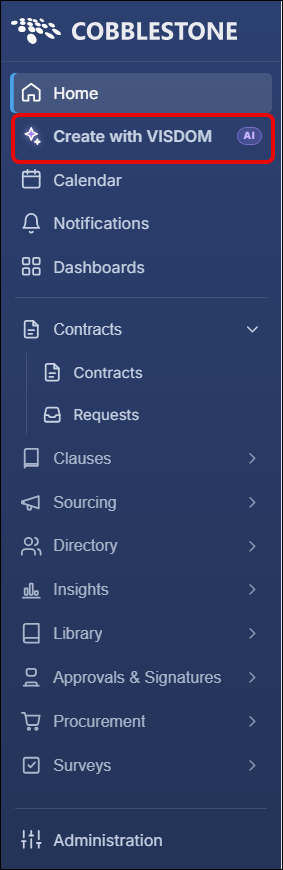
1. Click Create with VISDOM in the menu.
2. Click Browse to navigate to and select the text-based file/document from which to create the new Contract Record.
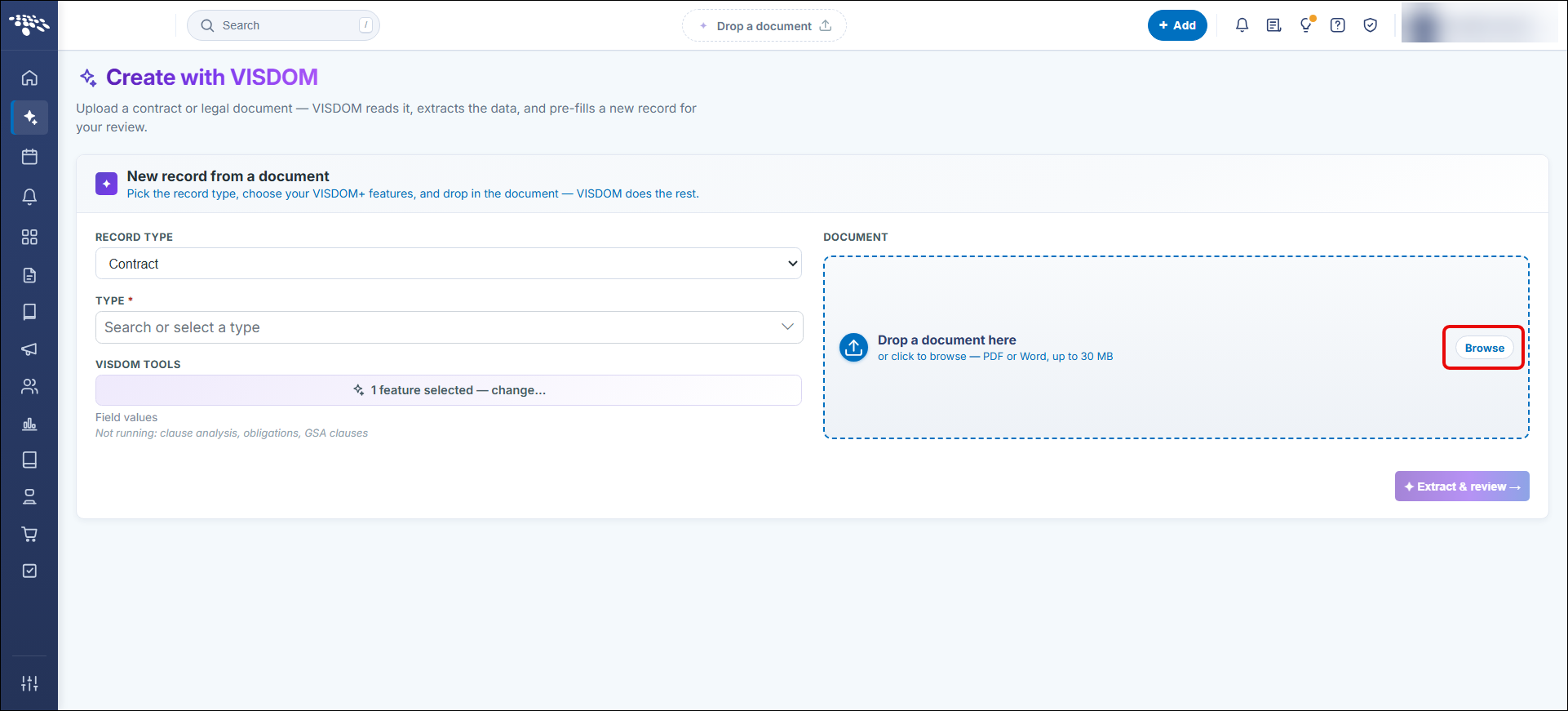
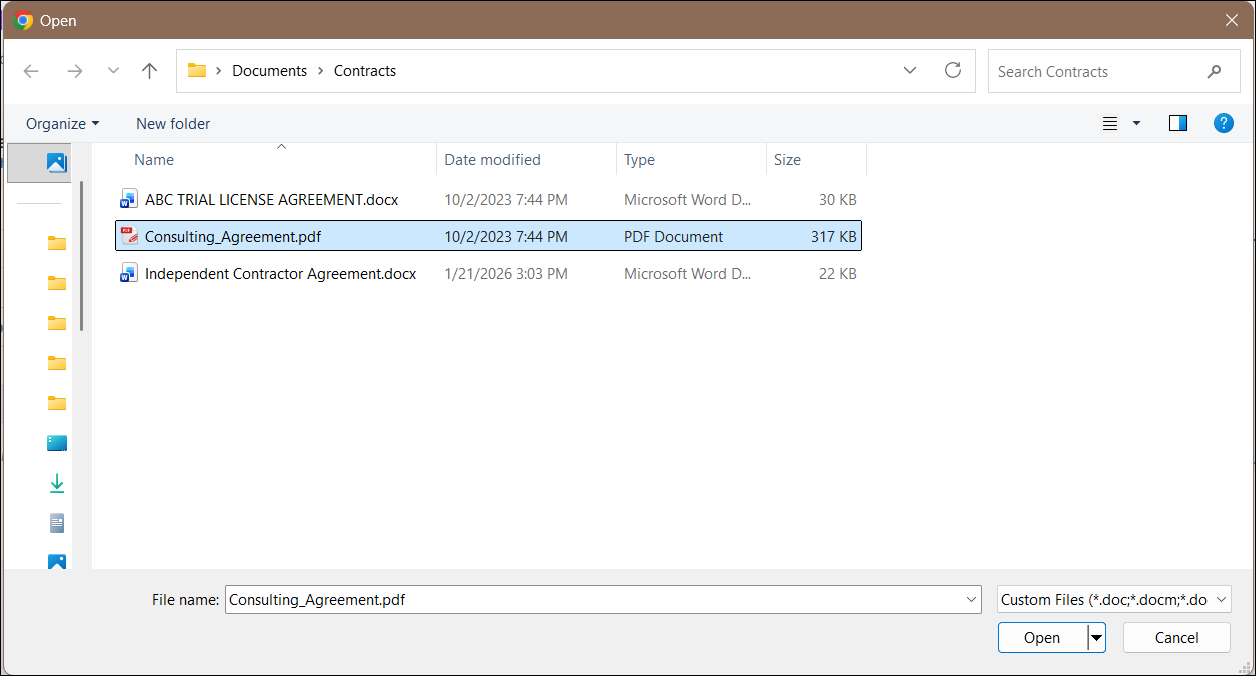
3. Select a Type then click Extract & review to begin the VISDOM process.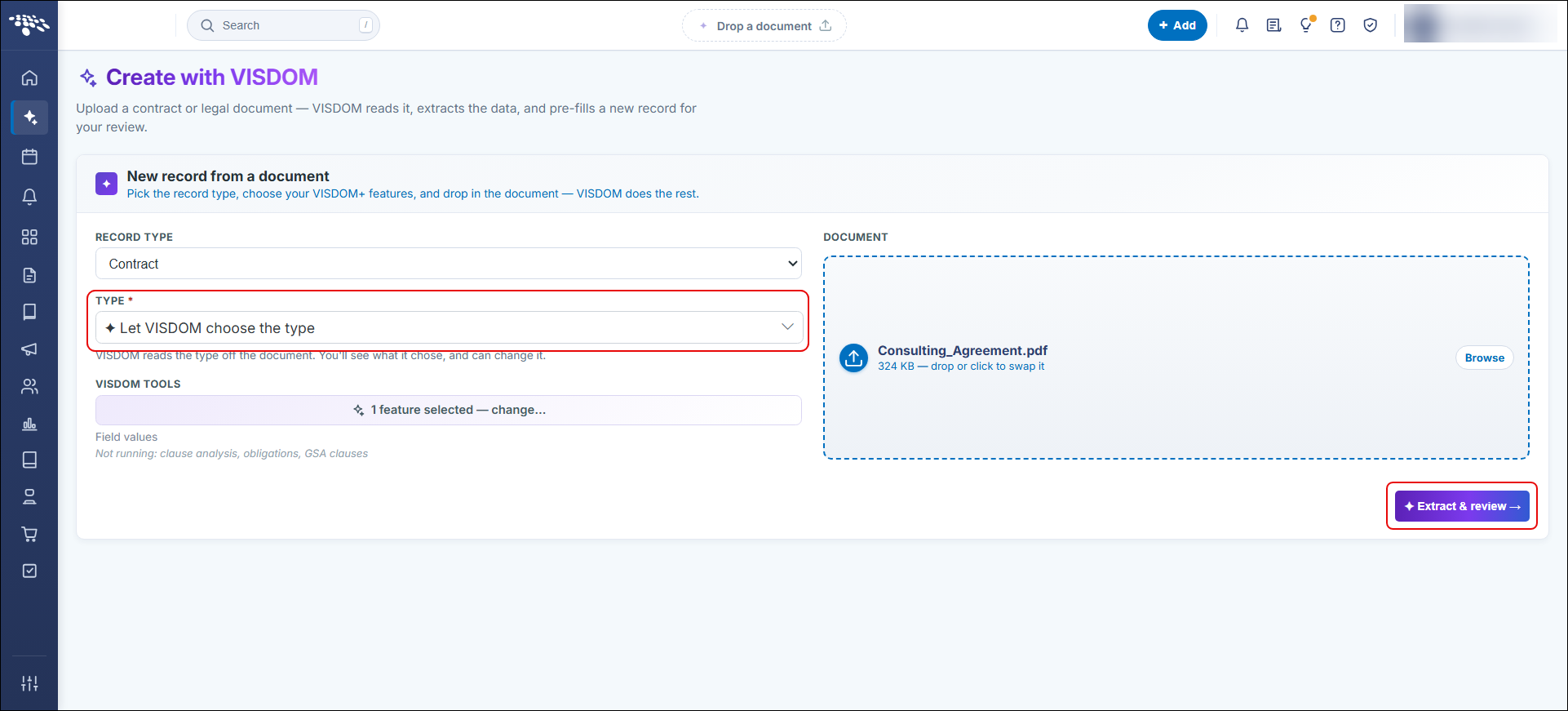
4. VISDOM processes the uploaded document
5. Review the Add Screen. Always be sure to double check the record, assuring information has pulled completely and correctly. It is up to the user to make sure the information has pulled over correctly.
Note: It is recommended that files larger than 25 MB be broken up and separated to separate files when uploading. Note many computer systems depend on the internet connection, time-out settings, e-mail settings and uploading large files might affect performance. The system does has not imposed a limit on the number of files that can be added to contract record. Results depend on the document quality.
6. Once field population is complete, click Save at the top right of the screen to save the new Contract Record and navigate to the new record's Contract Details screen.
7. Note that the file/document that the Contract Record was created from is automatically attached to the Contract in the Files/Attachments section of the Contract Details screen, where it can be opened/downloaded.