COBBLESTONE SOFTWARE
Contract Insight — User Guide
Schedule Manager
Scheduled Jobs: The Job Inventory and Setting Each Schedule
Note: Each procedure in this guide begins at the Contract Insight homepage, so any section can be followed on its own. The jobs available depend on the modules and integrations licensed for the environment, so the exact inventory may vary between systems.
1. Overview
The Schedule Manager is the part of the Scheduled Jobs screen concerned with the individual jobs — what each job does, how often it is set to run, when it last ran and when it is next due. Where the scheduler-level controls turn a whole group of jobs on or off, the job-level controls set the schedule for one job at a time.
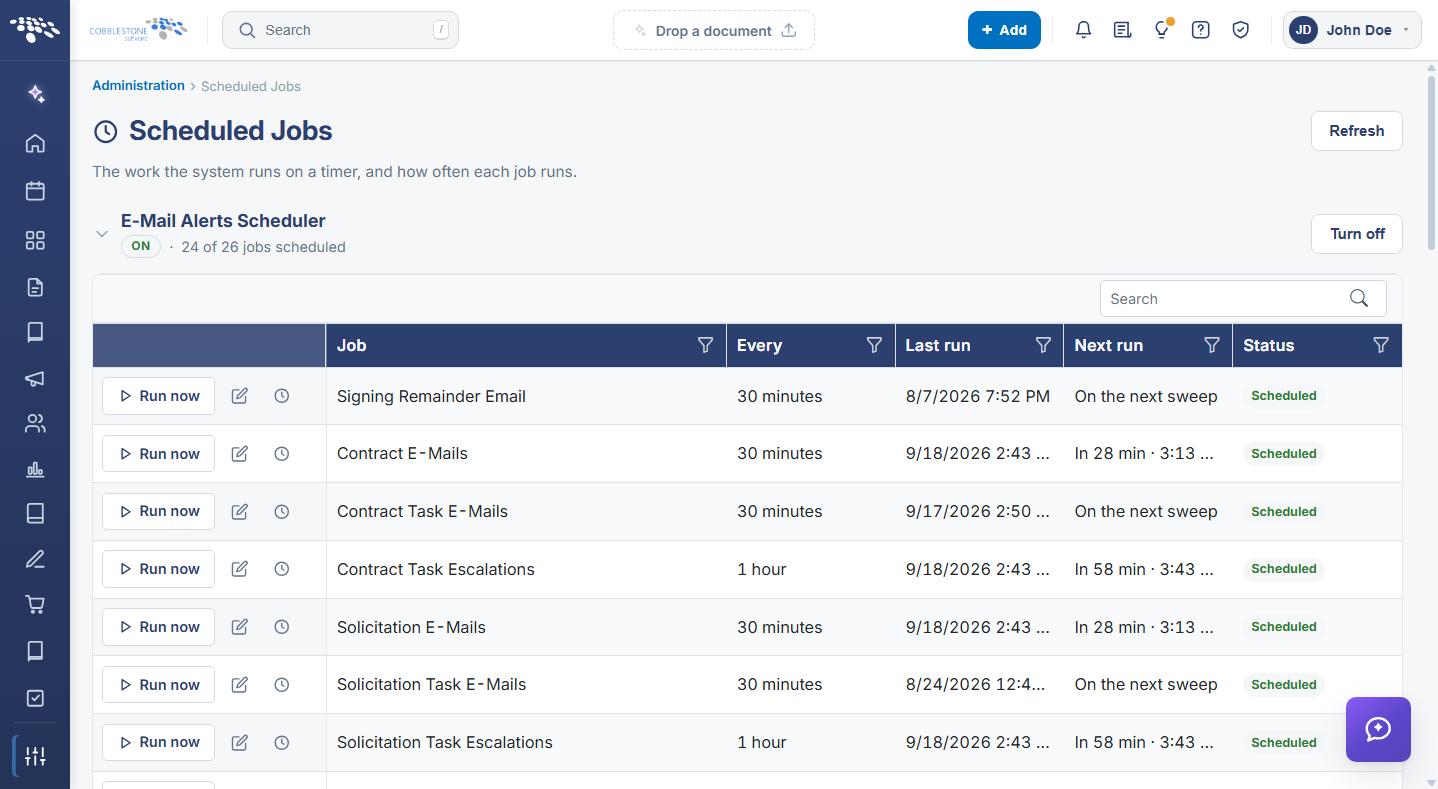
Every job belongs to one of two schedulers. The E-Mail Alerts Scheduler holds the jobs that send alert and notification email; the Data Integration Scheduler holds the jobs that move and maintain data. Each scheduler shows a count of how many of its jobs are actively scheduled, in the form “19 of 24 jobs scheduled”.
For each job, an administrator can:
- Read its current schedule from the Every column, and its next due time from Next run
- Change how often it runs, using the Change how often it runs (pencil) icon
- Stop it running on a schedule, by setting its interval to 0
- Run it immediately, using Run now
- Review what its previous runs did, using the History (clock) icon
Because Scheduled Jobs is maintained from the Administration area, only Application Administrators — or other users specifically granted the appropriate permission — can change job schedules.
2. Accessing the Schedule Manager
- From the Contract Insight homepage, click Administration at the bottom of the left navigation menu.
- On the Administration page, under Automation & Data, select Scheduled Jobs.
- The Scheduled Jobs screen opens with both schedulers listed. Click the collapse chevron beside a scheduler name to hide or show its job grid.
- Use the Search box above a scheduler’s grid, or a column filter icon, to narrow the list to the job you need.
Each row in the job grid reports:
- Job — the name of the job
- Every — the interval it is currently set to run at, shown in minutes, hours, or days
- Last run — the date and time it last ran
- Next run — when it is next due, as a countdown and time, as On the next sweep, or as an em dash where it is not scheduled in this way
- Status — Scheduled, Paused (an interval of 0), or Runs in Classic
3. E-Mail Alerts Scheduler Jobs
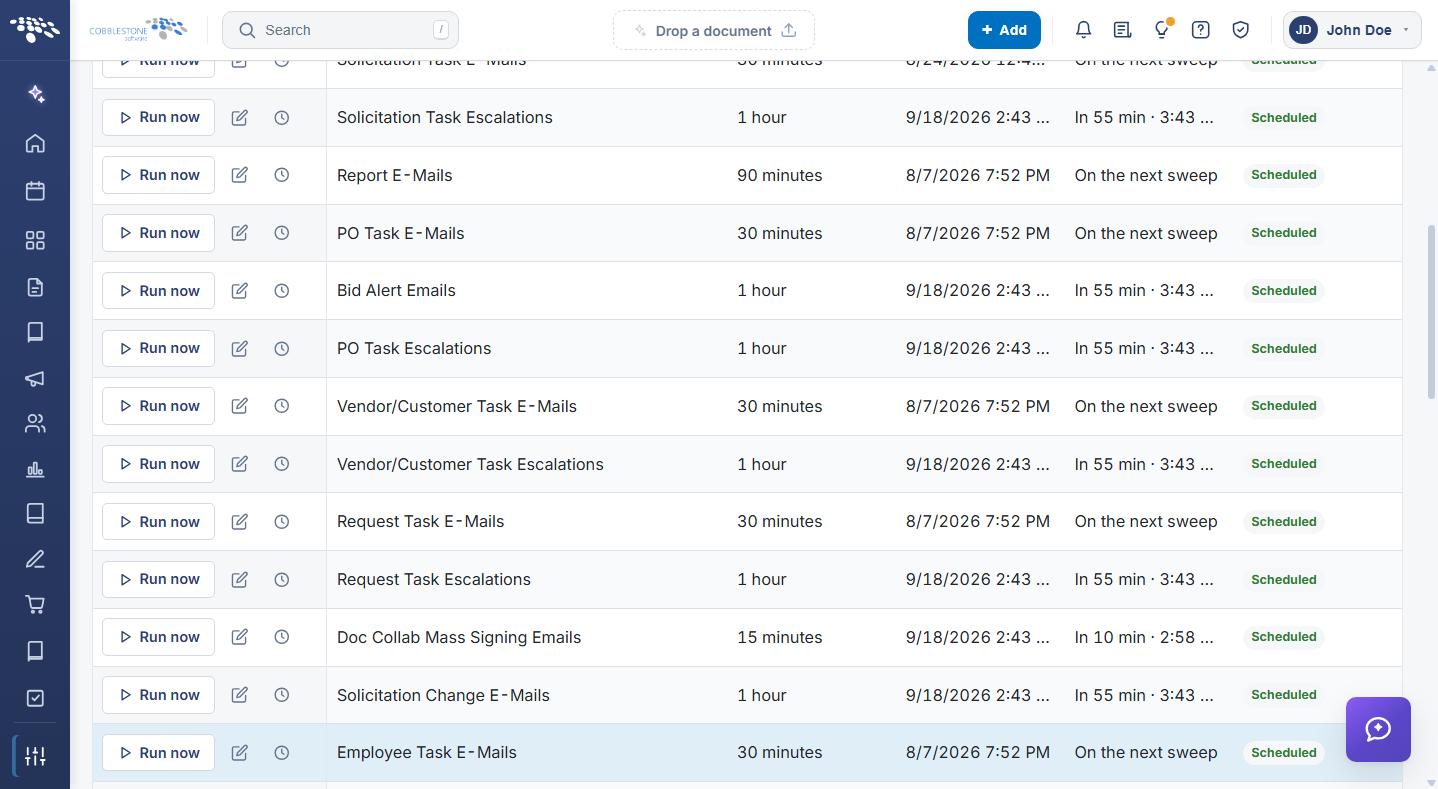
The E-Mail Alerts Scheduler holds 24 jobs. These are the jobs that generate and send the system’s alert and notification email. Grouped by what they act on, they are:
3.1 Contracts
- Contract E-Mails — sends contract record alerts
- Contract Task E-Mails — sends contract task alerts
- Contract Task Escalations — checks contract tasks for escalation
3.2 Solicitations and Bids
- Solicitation E-Mails — sends solicitation record alerts
- Solicitation Task E-Mails — sends solicitation task alerts
- Solicitation Task Escalations — checks solicitation tasks for escalation
- Solicitation Change E-Mails — sends alerts when a solicitation changes
- Bid Alert Emails — sends bid alerts
3.3 Purchase Orders, Requests, Vendors and Employees
- PO Task E-Mails and PO Task Escalations — purchase order task alerts and escalations
- Request Task E-Mails and Request Task Escalations — request task alerts and escalations
- Vendor/Customer Task E-Mails and Vendor/Customer Task Escalations — vendor and customer task alerts and escalations
- Employee Task E-Mails and Employee Task Escalations — employee task alerts and escalations
3.4 Signing, Reports and Notifications
- Signing Remainder Email — sends reminders to sign
- Doc Collab Mass Signing Emails — sends the initial participant emails for mass signing jobs
- Report E-Mails — sends scheduled report email
- Survey Notification Emails — sends survey email links
- ICal Notification E-mails — sends iCal calendar notifications
- WorkFlow Email Alert Processing — processes the workflow email alert queue
- Request Account Deletion Email — checks account deletion requests
- Expiration Link Monitor — monitors expiring links
4. Data Integration Scheduler Jobs
The Data Integration Scheduler holds 14 jobs. These are the jobs that import, generate, synchronize, and maintain data. Grouped by what they do, they are:
4.1 Imports and Data Movement
- SQL Jobs — runs the scheduled SQL jobs
- Bulk Data Imports — runs the scheduled data imports
- Data Aggregator Import — imports data from the data aggregator service, covering OFAC, SAM.gov and D&B screening
- DNB Monitor — runs the Dun & Bradstreet monitoring job
4.2 E-Signature Document Imports
- Docusign Document Imports — imports completed documents from DocuSign
- Adobe Acrobat Sign Document Imports — imports completed agreements from Adobe Acrobat Sign
- Sign Now Document Imports — imports completed signing processes from signNow
4.3 Documents, VISDOM and Maintenance
- Document Authoring - Document Generation — processes the queue of requests to generate documents from templates
- Visdom Services — refreshes OAuth tokens and keeps taxonomies and categories synchronized with the service
- Visdom Metadata Sync — sends field, type and obligation type metadata to VISDOM
- Visdom Background Preloader — processes files in the background
- Risk Comparison Data Updates — checks the Risk Comparison Definitions update schedules
- Search Engine Indexing and Caching — maintains the search index and cache
- System Health Check — looks for issues such as duplicate list options, records that cannot be told apart, and alerts that were never sent
.png)
5. Setting a Job’s Schedule
Function: Sets the interval at which one job runs.
Steps:
- From the Contract Insight homepage, click Administration at the bottom of the left navigation menu. On the Administration page, under Automation & Data, select Scheduled Jobs.
- Locate the job in its scheduler’s grid, using the Search box or a column filter if needed.
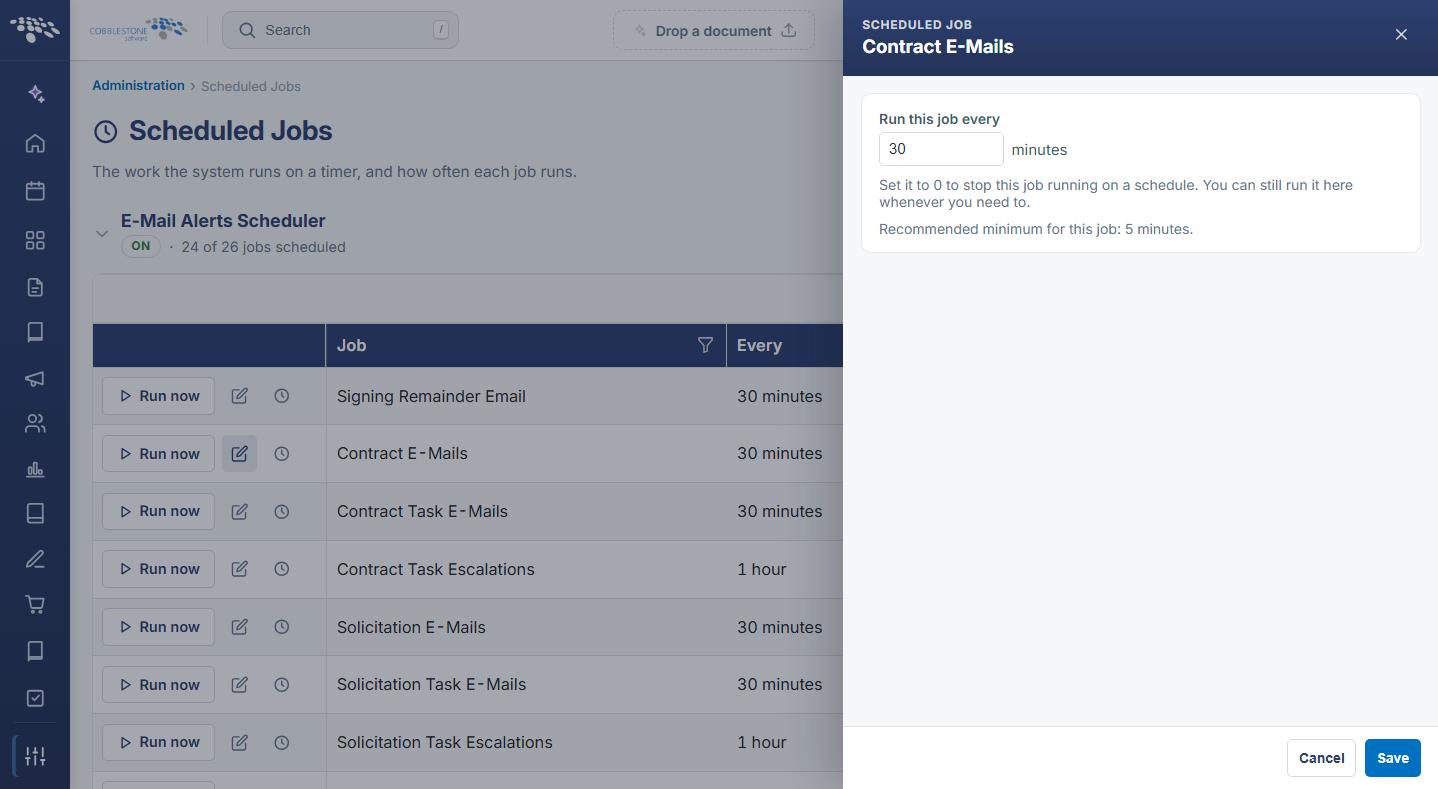
- Click the Change how often it runs (pencil) icon on the job’s row.
- A drawer slides out from the right, headed SCHEDULED JOB and the job name, containing a Run this job every field measured in minutes.
- Enter the new interval. The drawer states the recommended minimum for that particular job, and notes that setting the value to 0 stops the job running on a schedule while still allowing it to be run manually from this screen.
- Click Save to commit the new interval, or Cancel to close the drawer without changing it.
- Click Refresh in the upper right to confirm the Every and Next run values have changed.
Note: Each job carries its own recommended minimum, so there is no single safe interval for every job. A job that sweeps a large table — indexing, health checks, bulk imports — should be given a longer interval than a job that simply checks a queue.
Caution: Setting an interval to 0 leaves the job in Paused status, and it will not run again until an interval is restored. Alerts that depend on a paused job stop silently, so record which jobs have been paused deliberately.
6. Verifying a Job Runs Correctly
Function: Confirms that a job runs and does what is expected, without waiting for its next scheduled sweep.
Steps:
- From the Contract Insight homepage, click Administration at the bottom of the left navigation menu. On the Administration page, under Automation & Data, select Scheduled Jobs.
- Locate the job in its scheduler’s grid and click Run now on the job’s row.
- Click Refresh in the upper right to update the Last run and Next run values.
- Click the History (clock) icon on the job’s row. A drawer opens headed HISTORY and the job name, listing each recorded run with its date and time, its outcome status — for example Success — and a short message describing what the run did.
- Use the widen icon in the drawer header to expand the drawer to full width, and the close icon to close it.
A job that has not yet run reads “This job has no recorded activity yet.” in place of the list. Run now is unavailable on jobs whose status is Runs in Classic, though their interval can still be changed and their history reviewed.
.png)
7. Where Job Schedules Are Also Held
The intervals shown on this screen are the same values held in Application Settings, so a job’s schedule can be set from either place and the two always agree.
The corresponding configuration groups are:
- Schedule Manager — the system-wide timers, including the two Scheduler Manager timers that drive the email and integration sweeps, the e-signature document import timers, the data aggregator and DNB monitor timers, the VISDOM service timers, and the system health check timer
- Scheduled Jobs - Contracts, Scheduled Jobs - Reports, and Scheduled Jobs - Solicitations — the alert and job schedules specific to those record types
- Employees and Requests — the task email and escalation timers for those record types
- Document Authoring — the document generation and mass signing email timers
Those groups are reached from the Administration page under Configuration & Fields, by selecting Application Settings and choosing the group in the CATEGORIES rail. The scheduler-level controls — the ON/OFF badges and the Turn off buttons — are covered in the Manage Schedulers guide.
8. Quick Reference Summary
Task | How to Complete It |
Open the screen | Homepage → Administration → Automation & Data → Scheduled Jobs. |
Find a job | Search box above the scheduler grid, or a column filter icon. |
Read a job schedule | The Every column for the interval, Next run for when it is next due. |
Set a job schedule | Pencil icon on the row → enter minutes in Run this job every → Save → Refresh. |
Pause one job | Set its interval to 0; the status becomes Paused and it can still be run manually. |
Test a job now | Run now on the row, then Refresh, then the clock icon for HISTORY. |
See what a run did | Clock icon on the row — each run with its date, status and message. |
Email alert jobs | The 24 jobs under E-Mail Alerts Scheduler — see Section 3. |
Import and data jobs | The 14 jobs under Data Integration Scheduler — see Section 4. |
Fix missing task alerts | Check the record type’s Task E-Mails job interval and status, then its History. |
Fix missing signed documents | Check the Docusign, Adobe Acrobat Sign, or Sign Now Document Imports job. |
Set intervals in settings | Application Settings → Schedule Manager and the Scheduled Jobs categories. |