COBBLESTONE SOFTWARE
Contract Insight — User Guide
01. Importing Companies
03. Admin User Manual › Vendor/Customer Management › 01. Importing Companies
Note: Each procedure in this guide begins at the Contract Insight homepage, so any section can be followed on its own. Custom fields are configurable, so the exact field list on a contract category record may vary between environments.
1. Overview
Bringing many company records in at once is handled by Administration → Data Import, described in the application as importing records from CSV using mapping templates — the same generic import tool used for other record types, applied to the Vendors/Customers area to bulk-create or update company records from a spreadsheet.
2. Key Elements
- Administration → Data Import imports records from CSV using mapping templates
- A mapping template ties spreadsheet columns to company fields
- The same tool covers other record types, not only companies
3. Choosing a Template and Mapping Fields
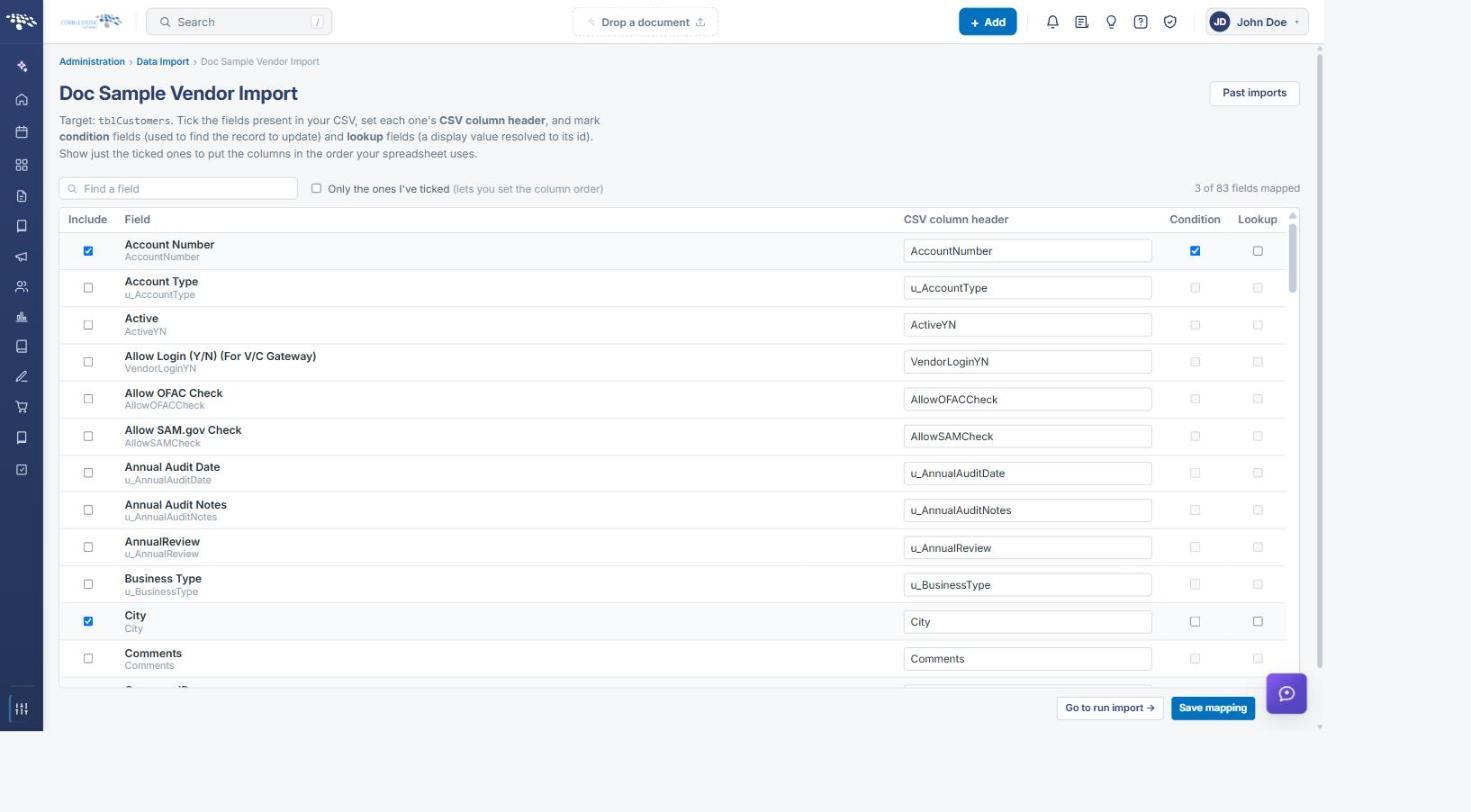
From Administration > Data Import, each row in the Templates list is a saved mapping for one target table (Insert/update or Update-only mode). Selecting Map Fields on a template opens its field list: tick each field present in your spreadsheet, set the CSV column header it corresponds to, and mark any field used as a condition (to find the record to update) or a lookup (a display value resolved to its ID). A counter at the top tracks how many of the table’s fields are currently mapped.
4. Uploading a File to Run an Import
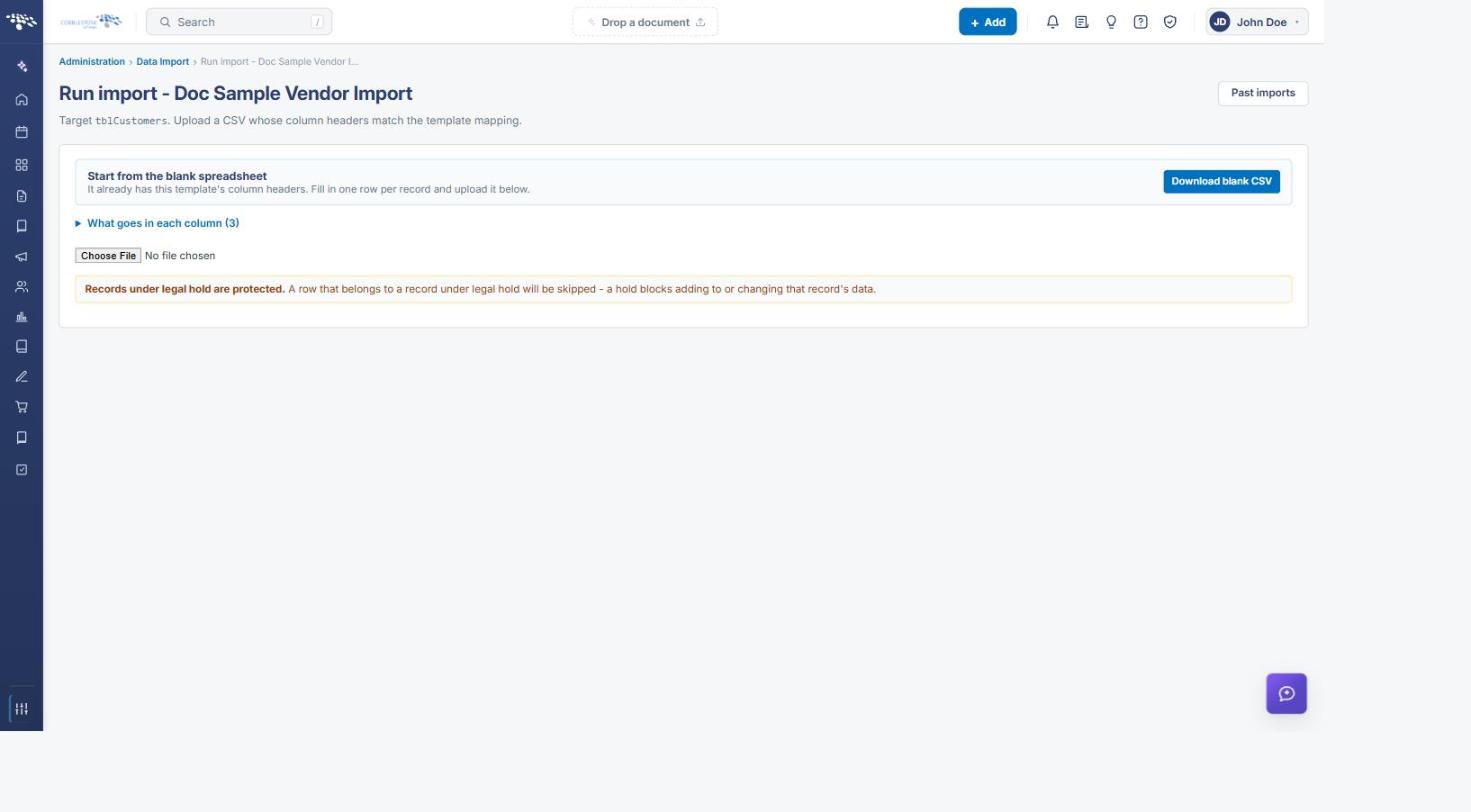
Once a template is mapped, Go to Run Import opens the upload step: Download Blank CSV gets a spreadsheet pre-filled with that template’s column headers, and Choose File selects the file to process once you’re ready. Records currently under Legal Hold are protected: a row belonging to a record on hold is skipped rather than updated. Uploading and running an import inserts or updates real company records, so a filled-in file is worth a careful review against the field mapping before it’s processed.
5. Quick Reference Summary
Task | How to Complete It |
Open the import tool | Administration > Data Import. |
Create a new template | Add Template: name it, pick a target table, and optionally check Update-only. |
Map spreadsheet columns to fields | Map Fields on a template, then tick and configure each field. |
Get a starter spreadsheet | Download Blank CSV on the Run Import screen for that template. |
Run an import | Choose File on the Run Import screen, then process it. |
Protect a record from being changed by an import | Place it on Legal Hold first — its rows are skipped during import. |
See past imports | Past Imports, from a template’s Run Import screen. |