Send Secure Email
Secure Email
Secure Email can be sent from contract, request, counterparty, and solicitation records. Secure email allows active users of the system to send emails from the system with a link to direct the recipient to the secure email chain.
Creating a New Secure Email
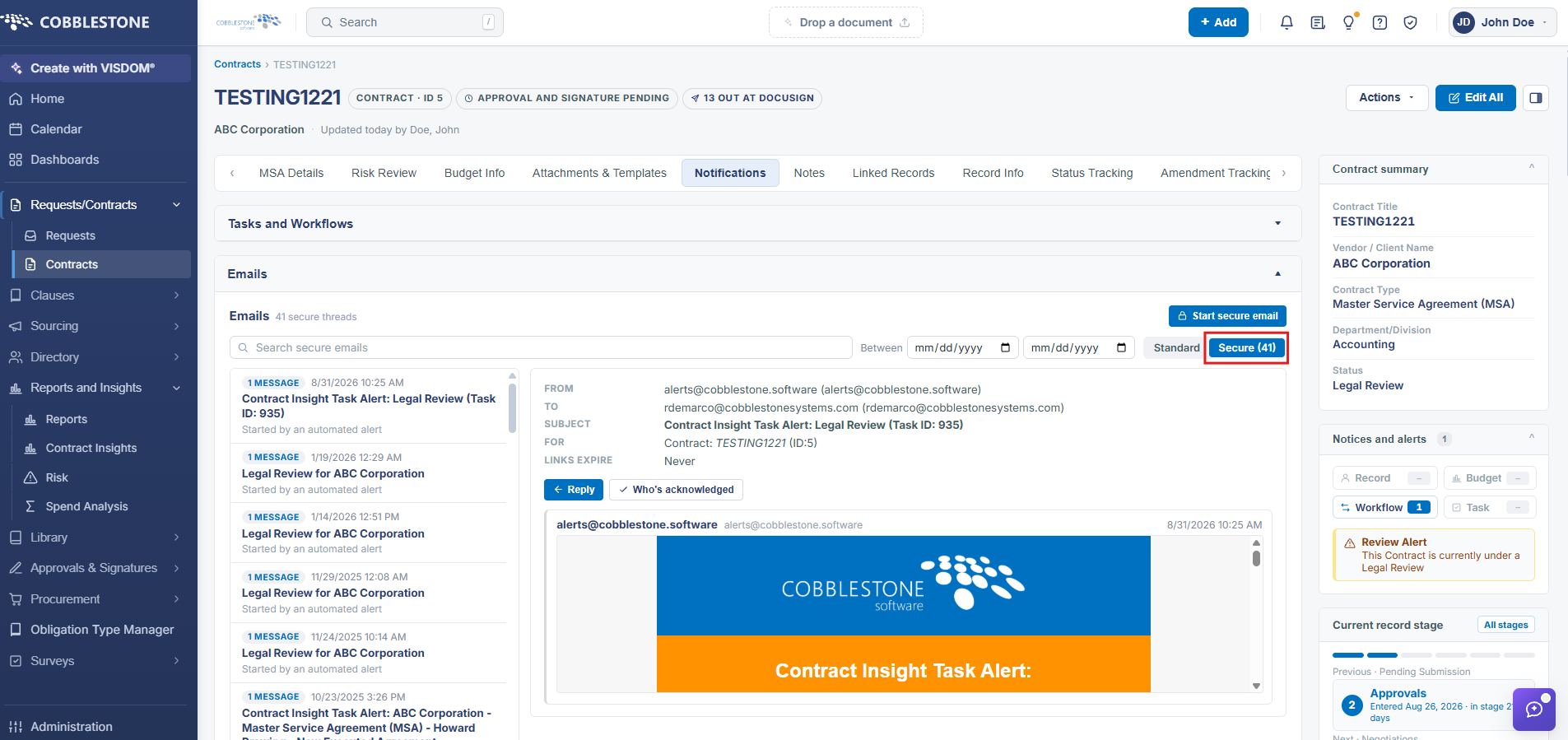
1. On the Contract Details screen, click the Notifications tab and scroll down to the Emails dock to send an email from a contract record, toggle the email filter from Standard to Secure.
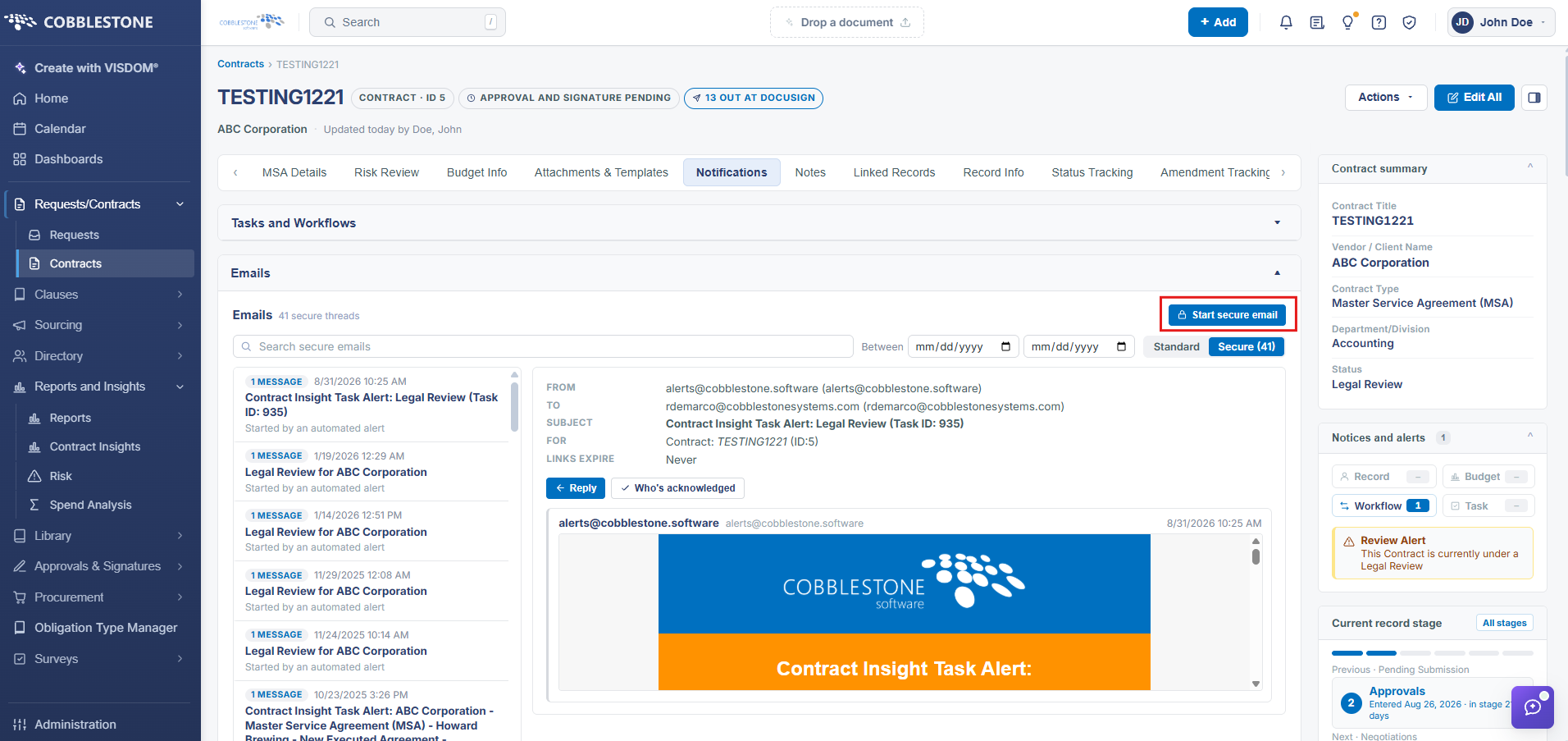
2. Click the Start secure email button in the Emails Dock.
3. Complete all fields before sending the secure email: 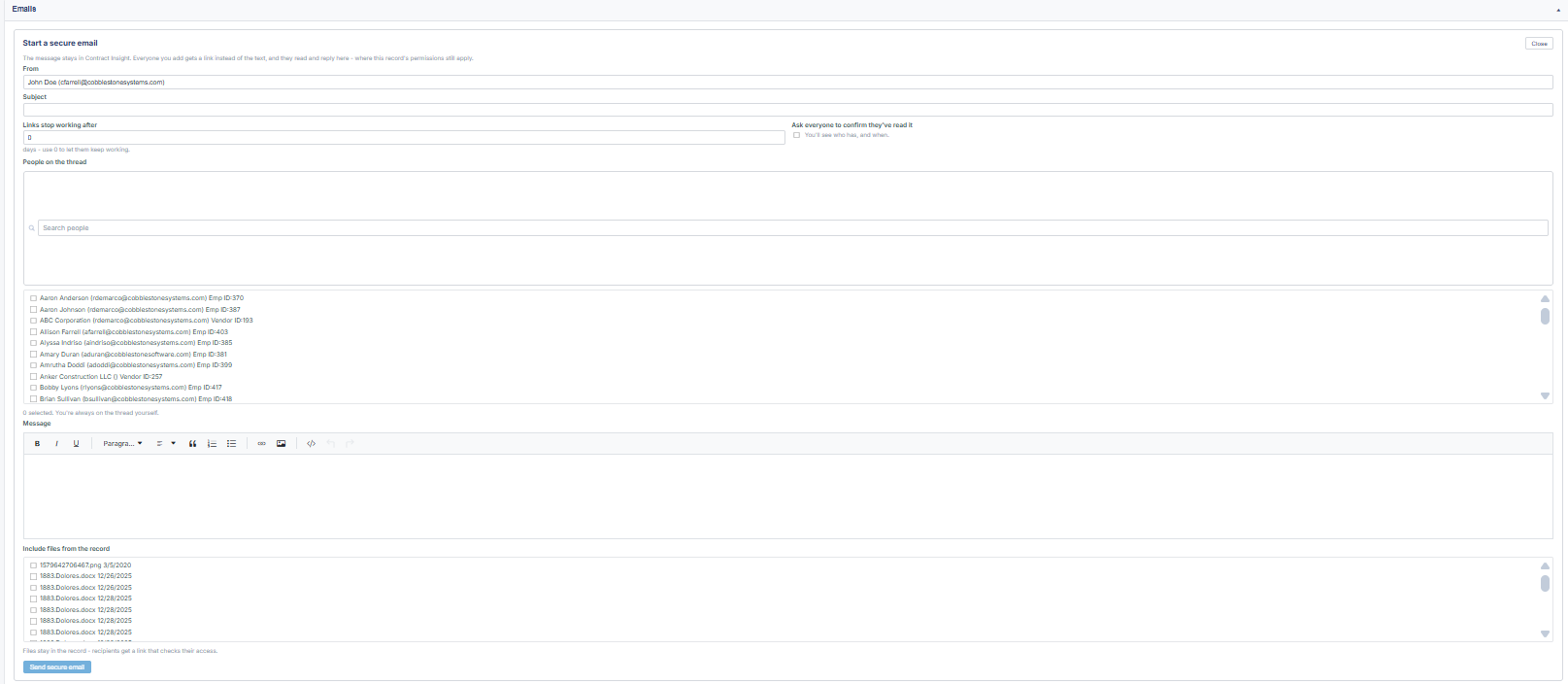
- From: This field is pre-populated with the email address of the logged-in user.
- Subject: Enter a subject line
- Links Stop Working After: Set the amount of days that links will work for
- Request Acknowledgement: Check the box if you want each participant to acknowledge they have viewed the email thread.
- People on the thread: As you type a name, names appear from the employee list and counterparty contact list. To remove a name, click the X next to the name.
- Message (Email Body): You must enter content in the Email body.
- Include Files from the record:To add attachments to the email, check the desired attachments in the attachments list
- All files attached to the record display. Mark the box next to each attachment to include it in the email.
4. Once the email is completed, click Send Email to send the email. A new screen displays validating the email has been sent.
The recipient(s) receive an email with a link to access the secure email. The user must be logged in to the system to review the email.
Replying to a Secure Email
1. When a secure email is received, click Click to View Secure Email in the email.
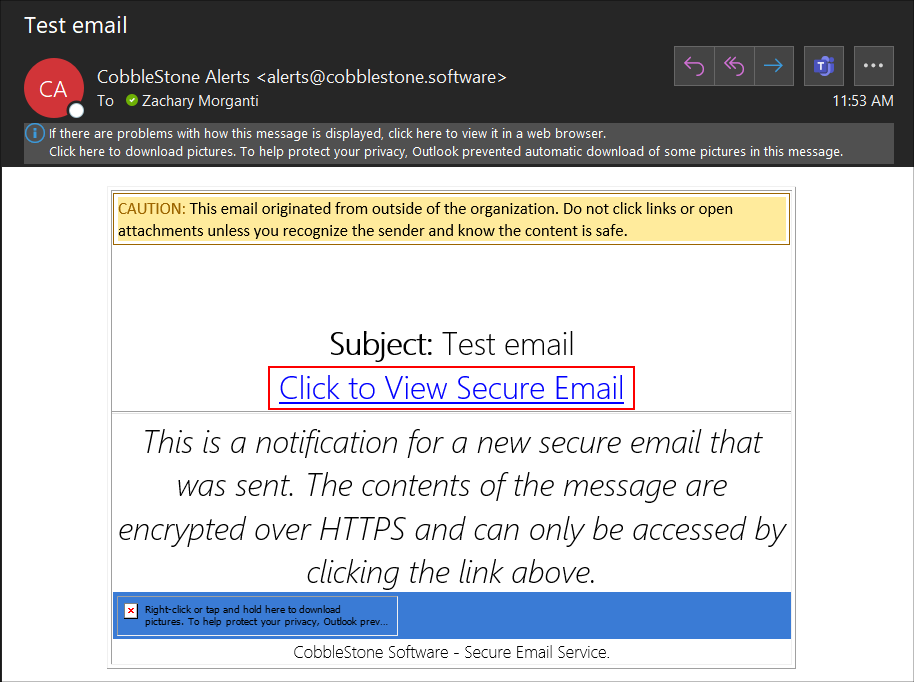
2. If not actively logged into the system, the link takes the user to the Log In screen (unless your organization uses Single Sign-On). Once signed-in, the system goes to the secure email chain sent in the email link.
3. Click Add New Response to draft a response. The email editor screen displays.
4. The email is pre-populated with data from the first email. To acknowledge receipt of the email, mark the box next to Acknowledge. This box does not appear if the original recipient does not require acknowledgement.
5. Attachments can be added to the email by clicking Send Attachments.
6. To respond to the email, complete the email body and click Send Response.
Note: Changes can be made to any attachments and uploaded on the file by clicking Return to Record and using the Browse or Drop Files Here options to upload new file versions.
Viewing a Secure Email Chain:
1. On the Contract Details screen, click the Notifications tab and scroll down to the Emails dock to send an email from a contract record, toggle the email filter from Standard to Secure.
2. The Secure Email Chain List displays.
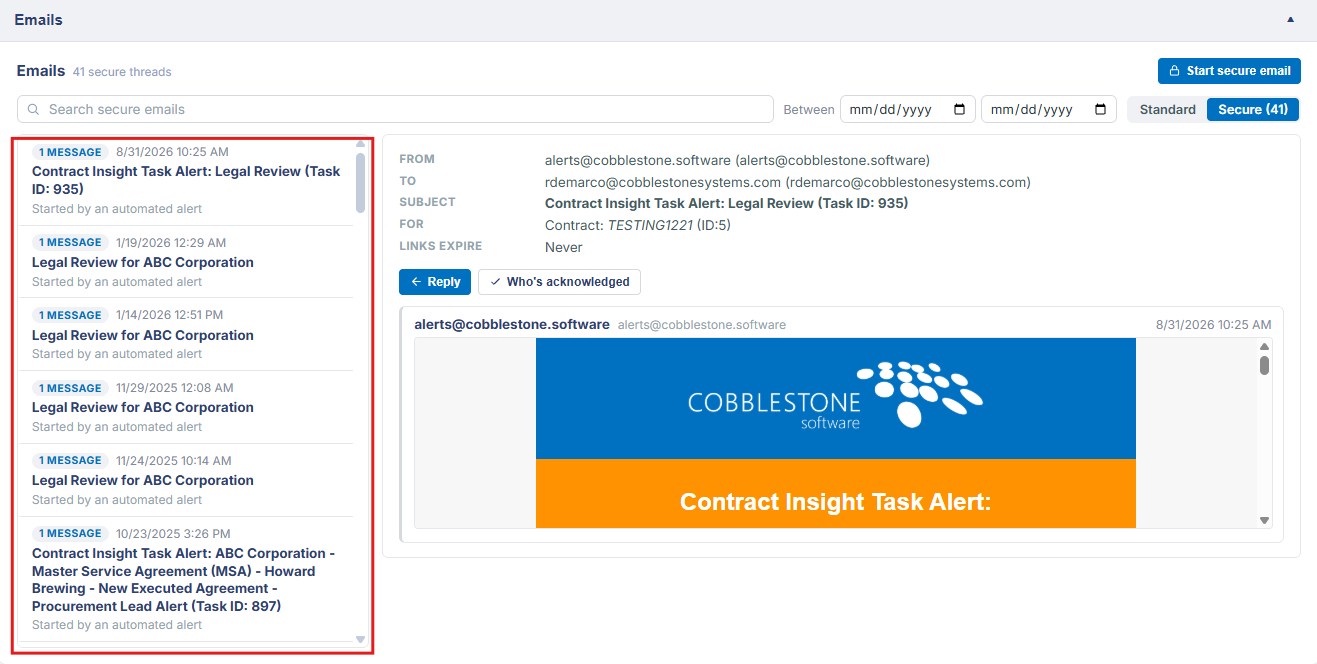
3. Click on the email thread that you want to view. The Email chain displays.
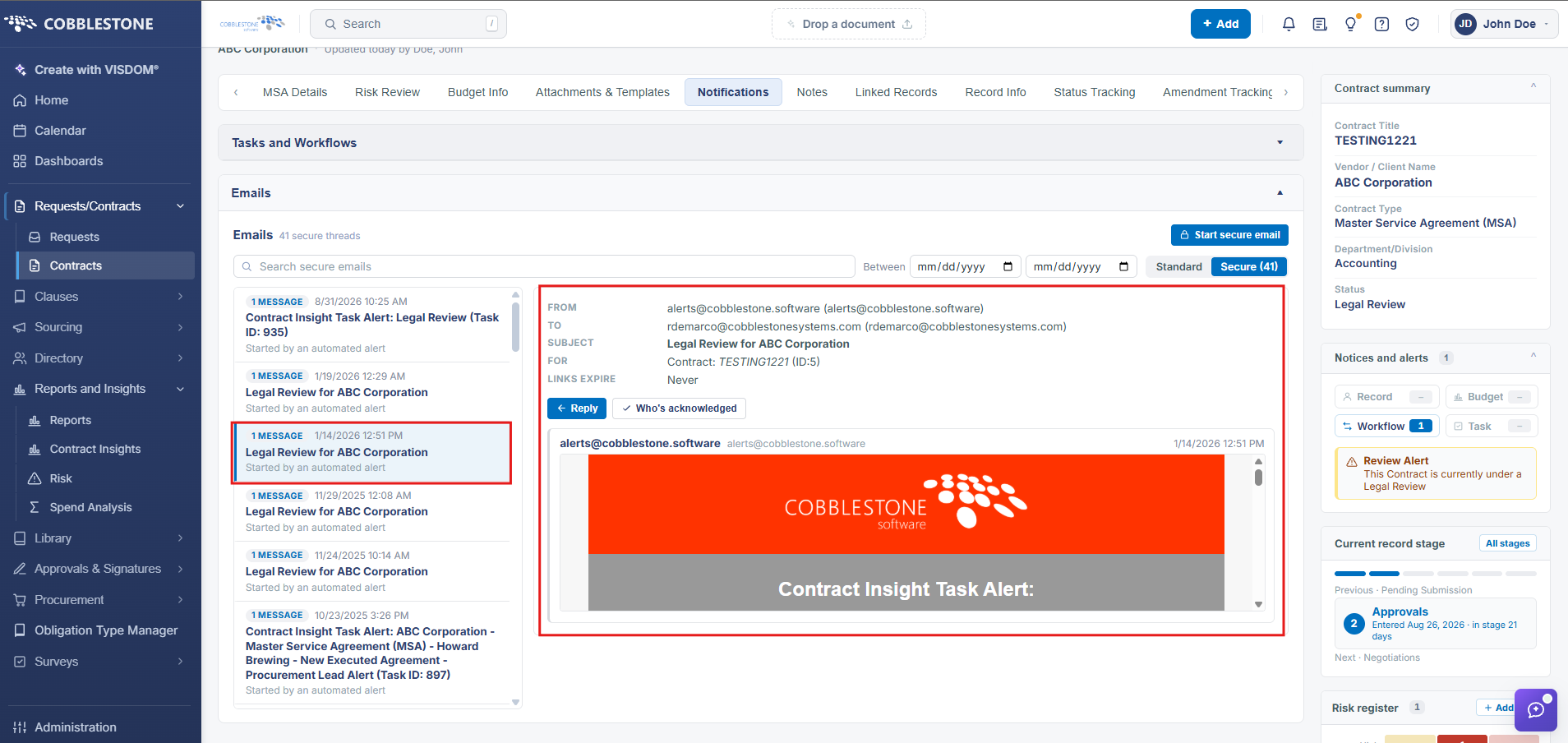
4. To respond to the email, click Reply.
5. To view acknowledgements, click Who's acknowledged.