CobbleConnect™ – Mass Import Module Manual
This manual describes the Mass Import module of CobbleConnect™, which allows users to attach multiple files to existing system records using a CSV-based workflow.
1. Overview
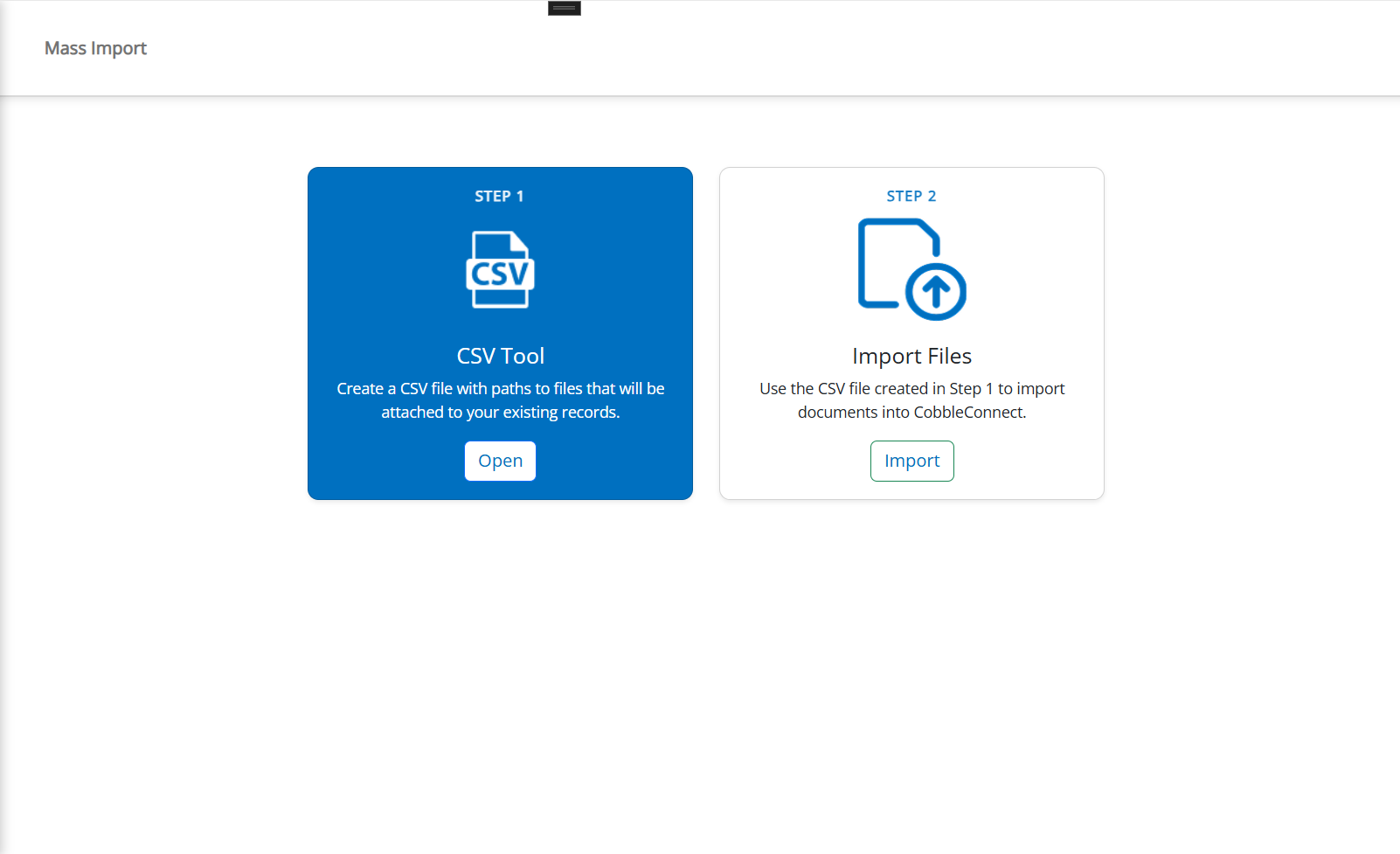
The Mass Import module provides a two‑step guided workflow to attach multiple files to existing records. Users first generate a CSV file containing record IDs and file paths, and then import the file to automatically upload and map attachments into CobbleConnect™.
2. Step 1 – CSV Tool
The first step consists of using the CSV Tool to generate a structured CSV file. This tool helps users create a list of files and their corresponding record identifiers.
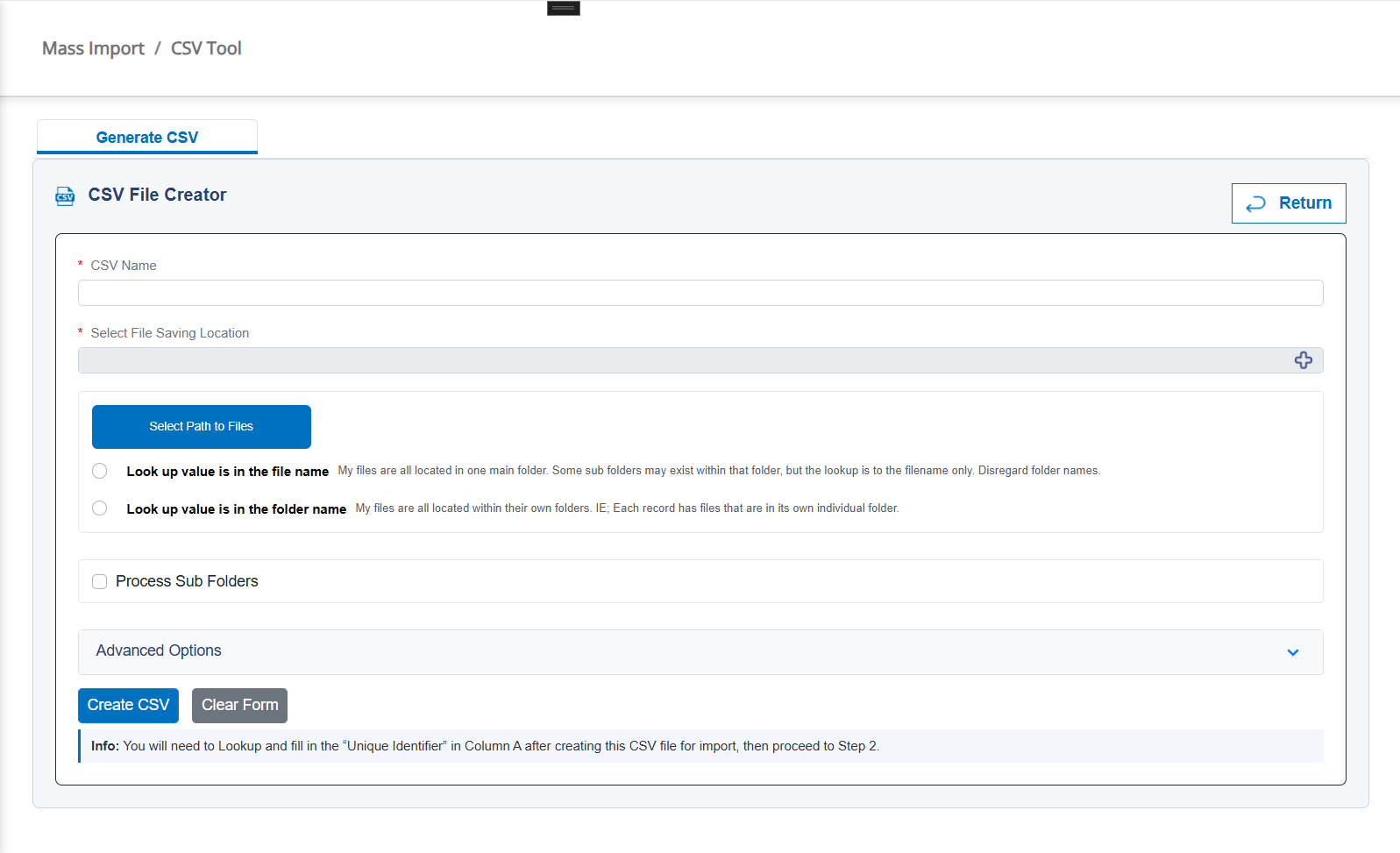
The CSV must include:
• Record ID (e.g., ContractID, RequestID, POFileID)
• Full file path on the user's machine or network location
Once the CSV is created, users can review the file to verify paths, spelling, and record identifiers before moving to the next step.
3. Step 2 – Import Files
In the second step, users upload the generated CSV into CobbleConnect™. The system processes each row, validates the record ID, verifies the file path, and automatically uploads the document to the correct record's attachment list.
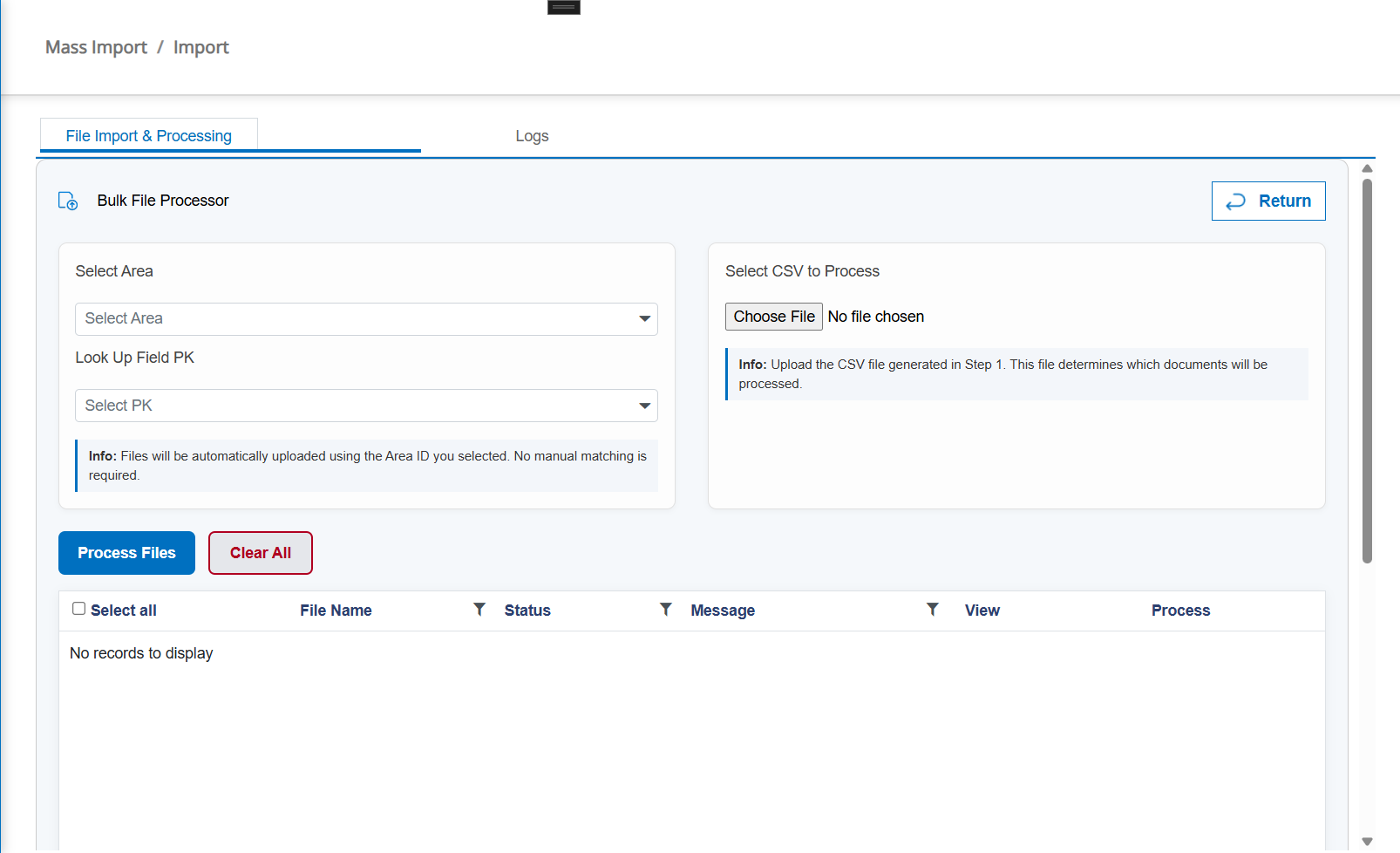
The Import step performs the following actions:
• Validates CSV structure and required fields
• Confirms file existence at provided paths
• Uploads each file to the appropriate record
• Displays progress and results of the batch import
• Shows success or error notifications per file
4. User Interface Description
The Mass Import screen consists of two large tiles representing each step of the workflow:
• Step 1 – CSV Tool: Generates the file needed for import.
• Step 2 – Import Files: Processes the prepared CSV and uploads the files.
Each tile contains a description and a button (Open or Import) to guide the user through the process.
5. Requirements & Best Practices
• Ensure all file paths in the CSV are valid and accessible from your machine.
• Avoid using special characters in filenames.
• Keep the CSV UTF‑8 encoded.
• Verify record IDs exist before running the import.
• Large batches may take several minutes depending on file size.
6. Error Handling
The system will display clear error messages for cases such as invalid file paths, missing records, unsupported file formats, or permission issues during upload.
7. Technical Notes
The Mass Import module uses the DynamicForm service to validate IDs and map files. The import engine uploads documents using the same endpoints as individual file uploads inside the Records & Files module.