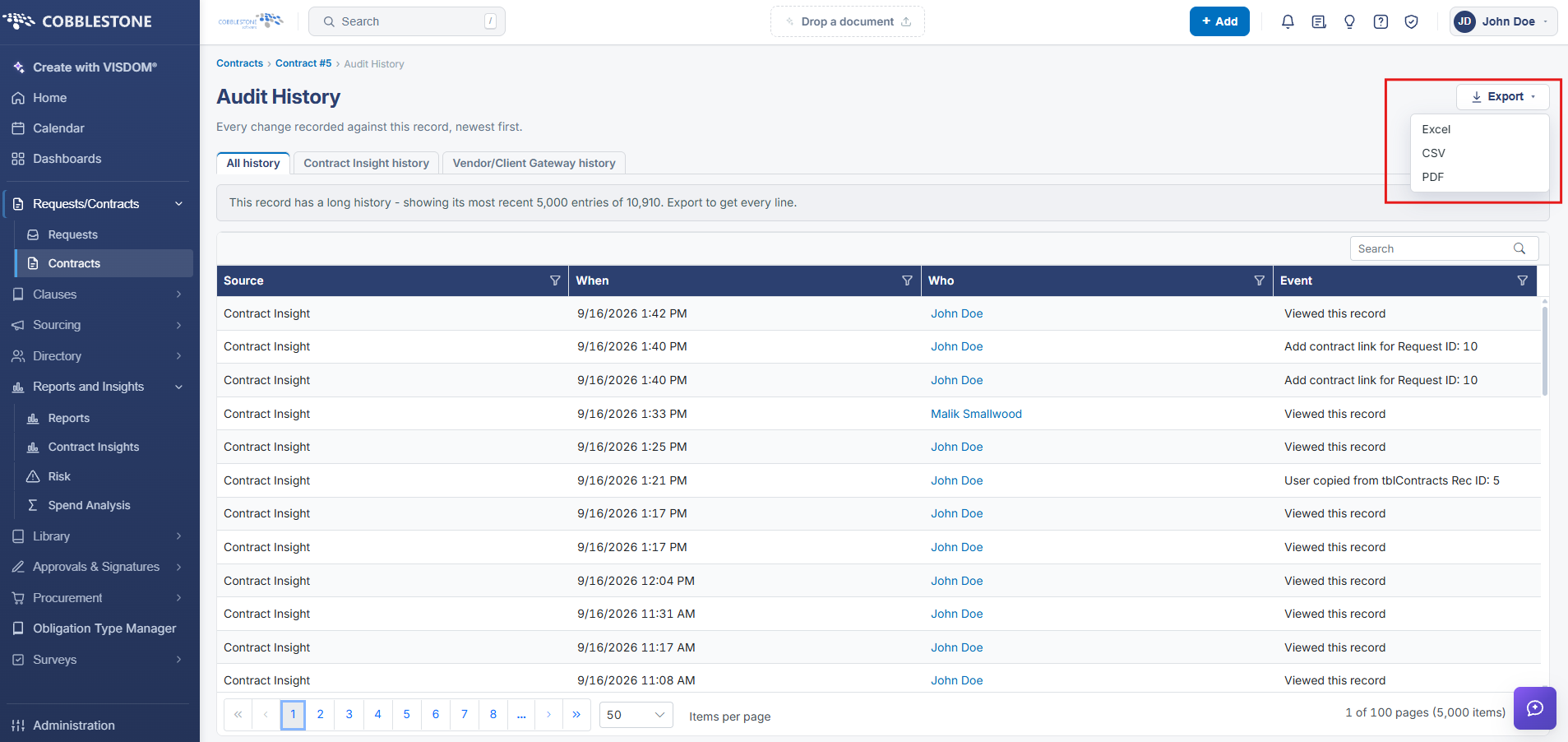
View Contract History
Contract Details: Viewing a Contract's History
Every contract record keeps an audit trail of the changes made to it. The View History action, found under Record Actions in the record's Actions menu, opens that trail so users can see what changed on the record and when. The record's own header also shows the most recent update at a glance ("Updated <date> by <employee>"), and a separate Status history panel tracks status transitions specifically.
- Actions → View History (Record Actions group) opens the full change history
- The record header always shows the last updated date and employee
- Status history is tracked separately, with History and Time in status views
Viewing a History Log
1. On the Contract Details screen, click the Actions dropdown > View History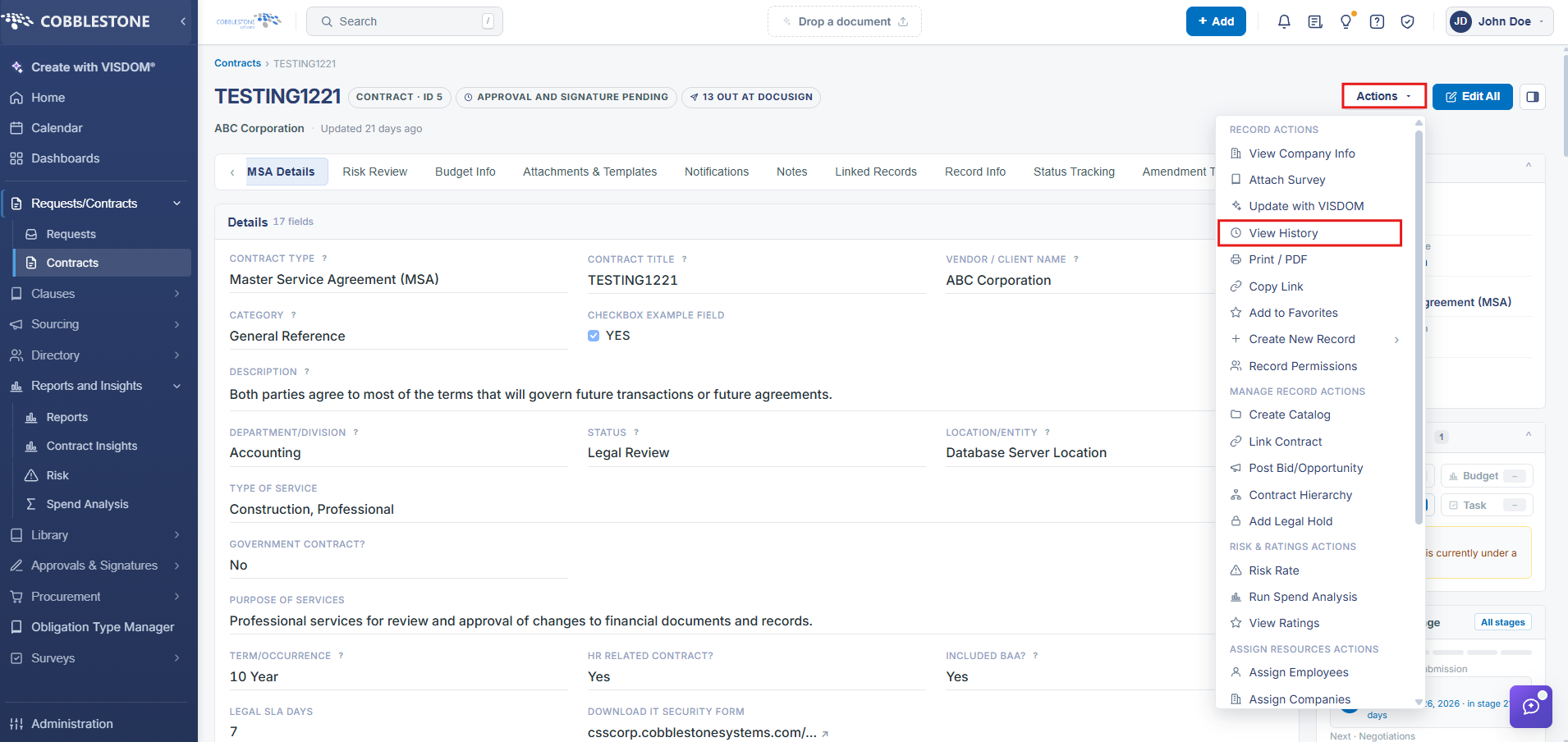
2. The History Details screen for the contract record displays.
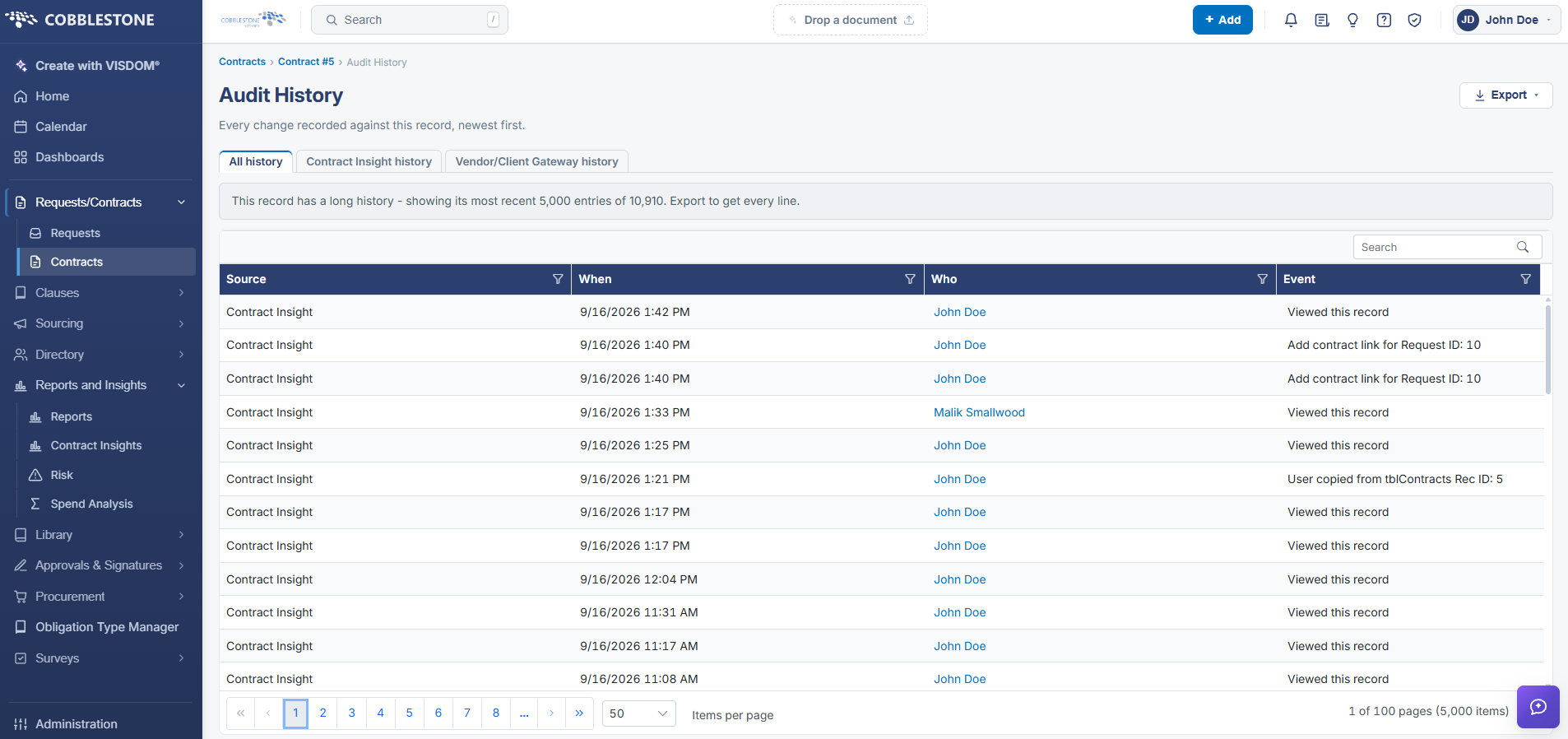
This screen allows you to view the details for each event related to the contract. This includes the employee’s first and last name, the event that took place (such as viewing the contract), the date the event occurred, the employee’s ID, the contract’s record ID, as well as the table name.
Exporting an Activity Log
Click the Export drop down box to export History Details screen to an Excel file, CSV or PDF.