The Core System provides Contract Insight’s core components and functionality for full lifecycle management of your organization’s contracts and committals.
CORE SYSTEM
NEW FEATURES
NEW FEATURE: Clause Playbooks
Reference #: 260330.1204.16940
We’re excited to introduce Clause Playbooks, a new way to help teams review contracts faster, apply preferred language more consistently, and provide clearer guidance during negotiations.
Clause Playbooks bring together your approved clauses, negotiation guidance, and business rationale into one easy‑to‑use resource—so reviewers always know what language to use and why it matters.
Clause Playbooks are now available in Contract Insight and the CobbleStone Add‑In for Word, with support coming soon to the Collaborative Online Editor.
Why Clause Playbooks Matter
Contracts often require balancing speed, accuracy, and consistency. Clause Playbooks help by:
- Making approved and preferred clause language easier to find
- Providing built‑in guidance to support negotiations
- Reducing rework and guesswork during reviews
- Supporting more consistent decision‑making across teams
How Clause Playbooks Work
Clause Playbooks can be accessed and managed through three integrated areas of Contract Insight, making them easy to maintain and easy to use during reviews.
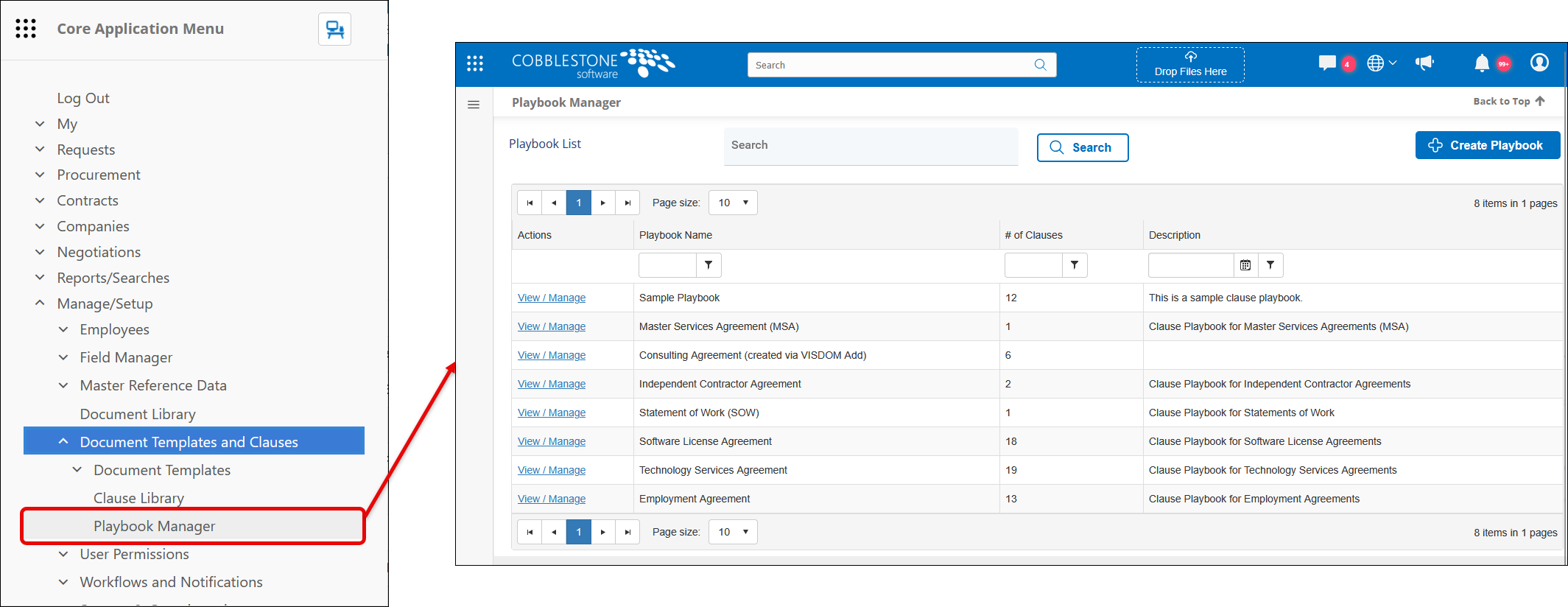
1. Centralized Playbook Management
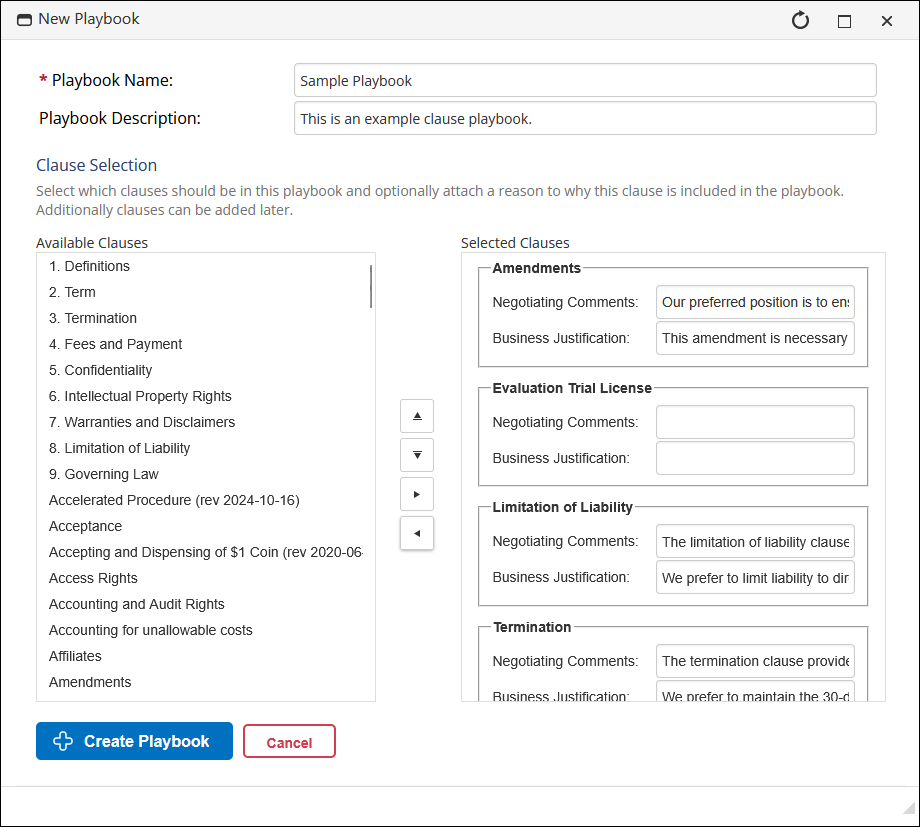
Administrators can create and manage playbooks from a central location. Each playbook groups together clauses from your Clause Library and allows admins to define:
- Negotiating Comments – how a clause should be handled during review
- Business Justification – why the clause is recommended
- Playbooks stay aligned with your existing clause library, helping teams keep standards up to date without maintaining duplicate content.
2. Using Playbooks During Contract Review
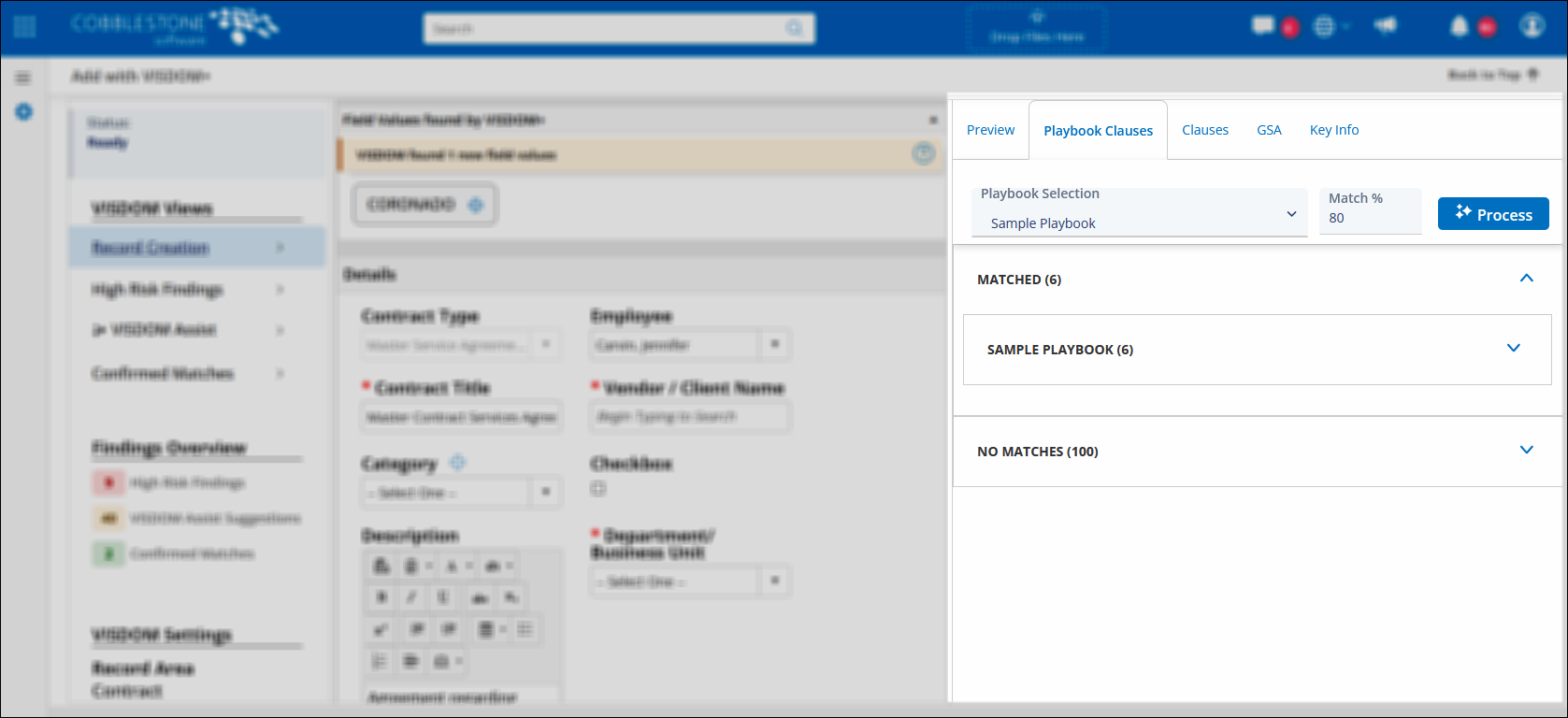
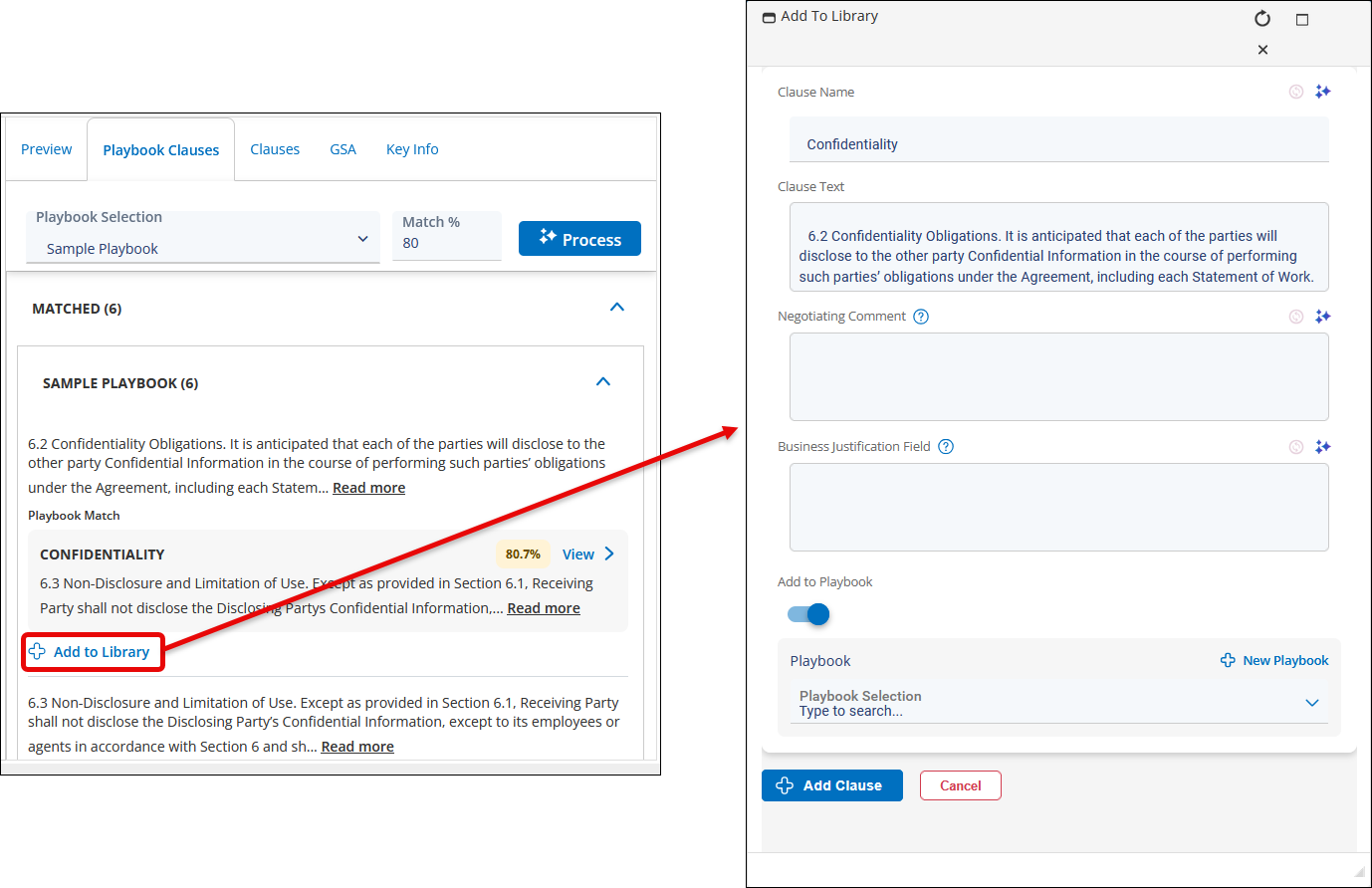
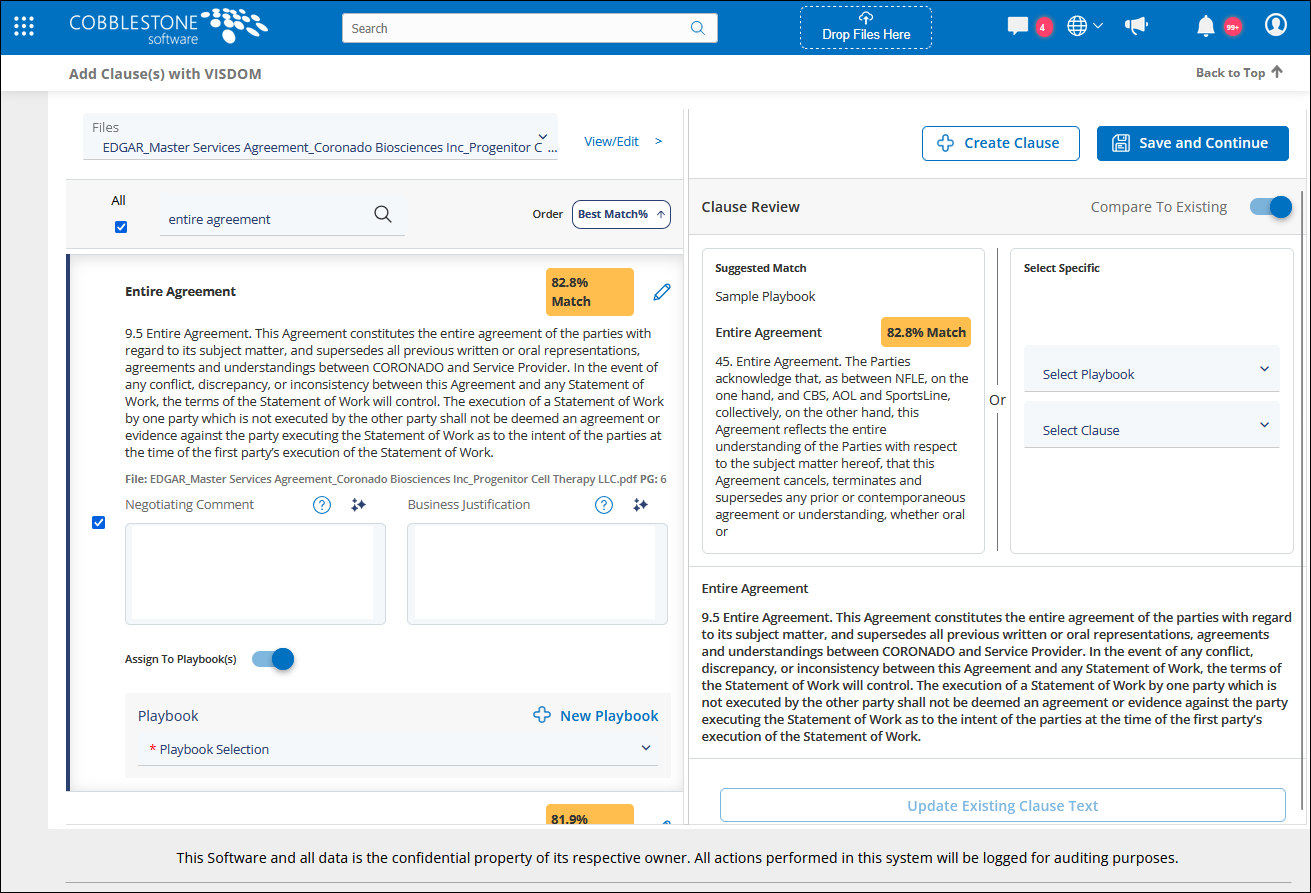
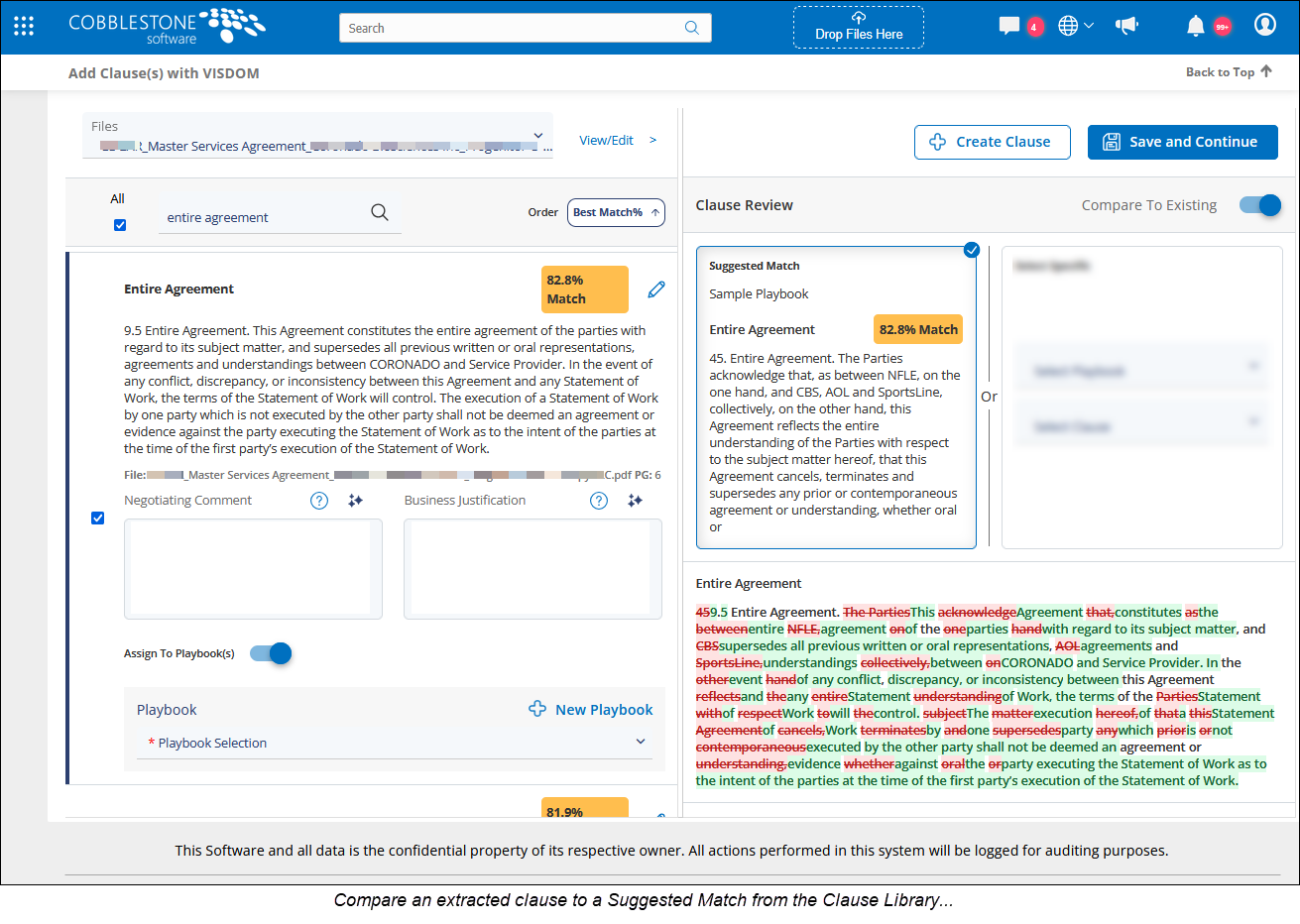
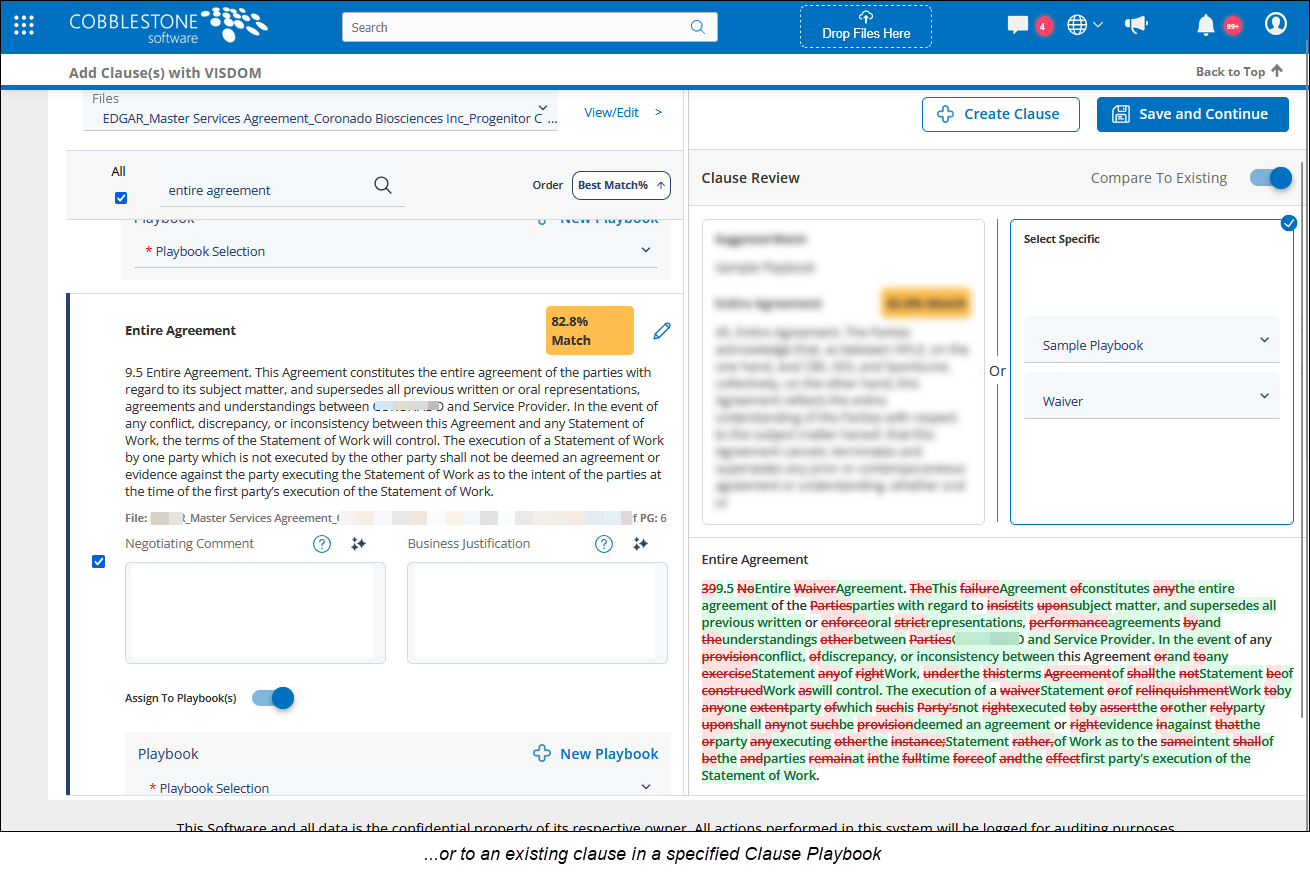
When reviewing a document using VISDOM, users can select one or more playbooks to compare against the contract. The system automatically identifies:
- Clauses in the document that match your approved language
- The closest matches from your playbooks
- Clauses in the contract that don’t yet exist in your Clause Library
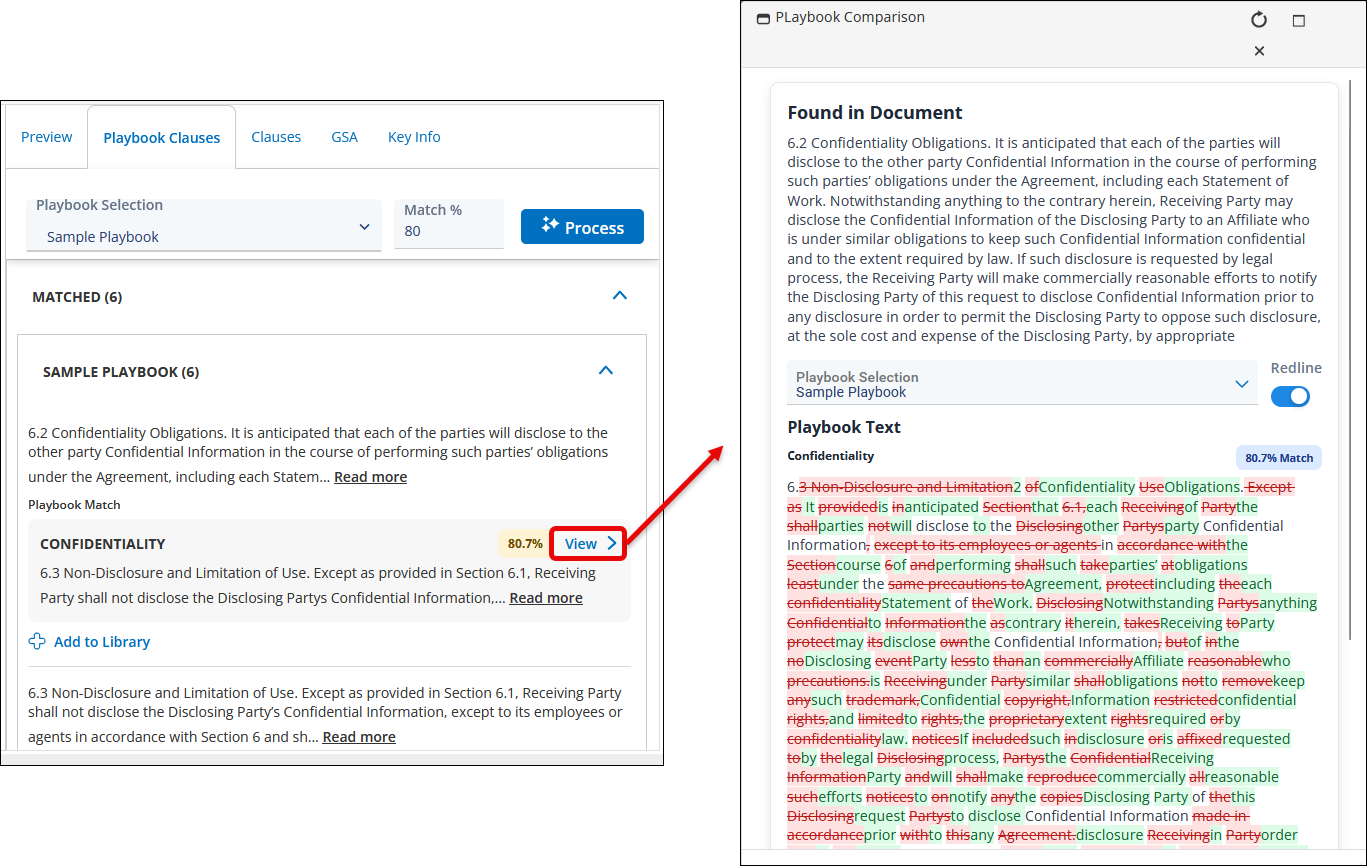
Reviewers can easily compare language side by side, view match percentages, and see clear guidance for how each clause should be handled.
If a clause from the document isn’t already in your library, it can be added directly during review. When adding a new clause, users can also:
- Include negotiating guidance and business justification
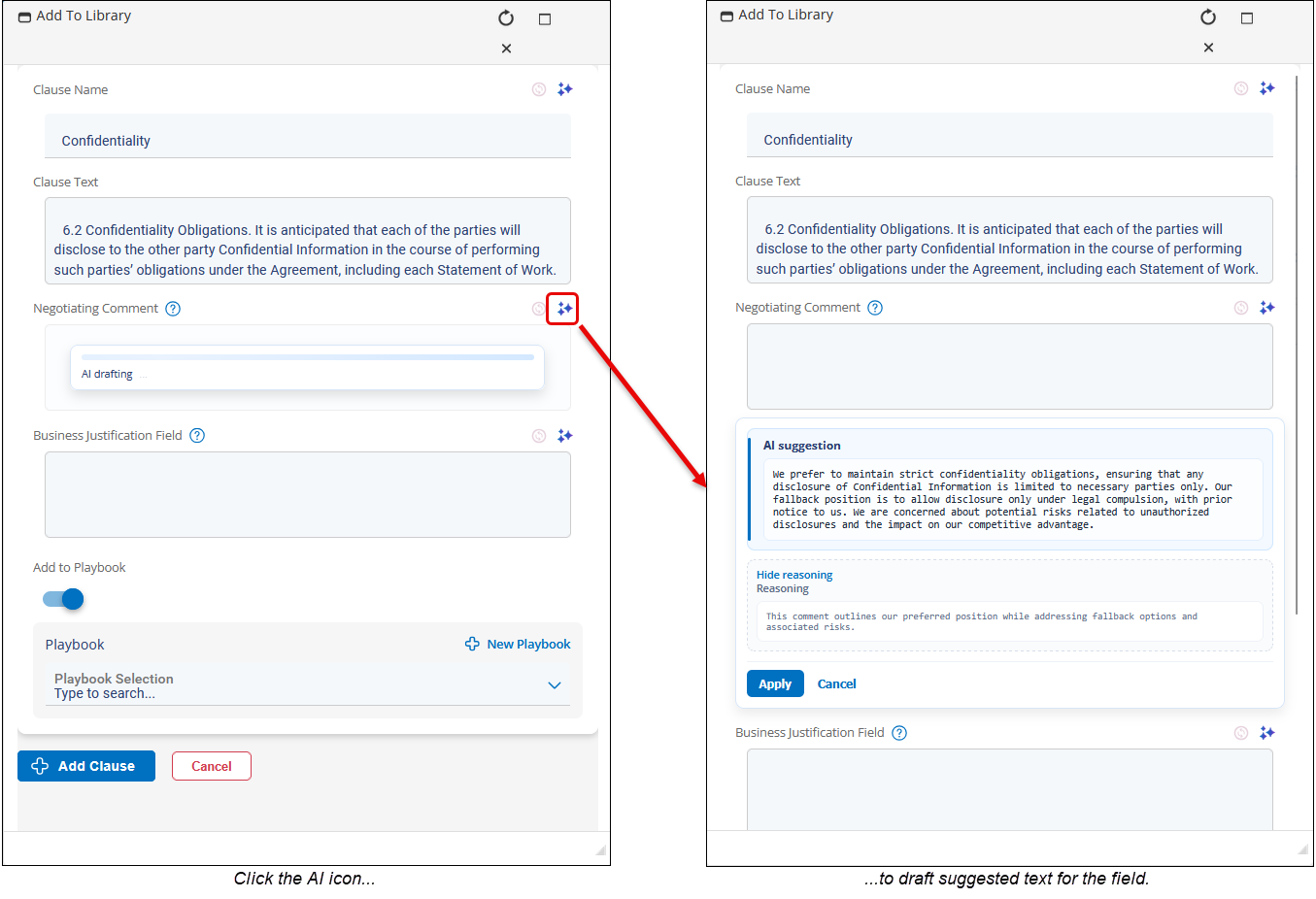
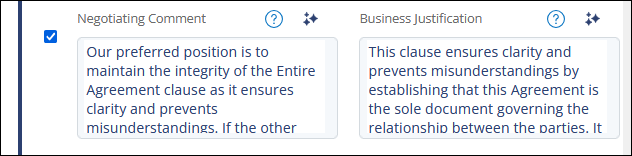
- Leverage AI‑assisted suggestions to help draft those explanations
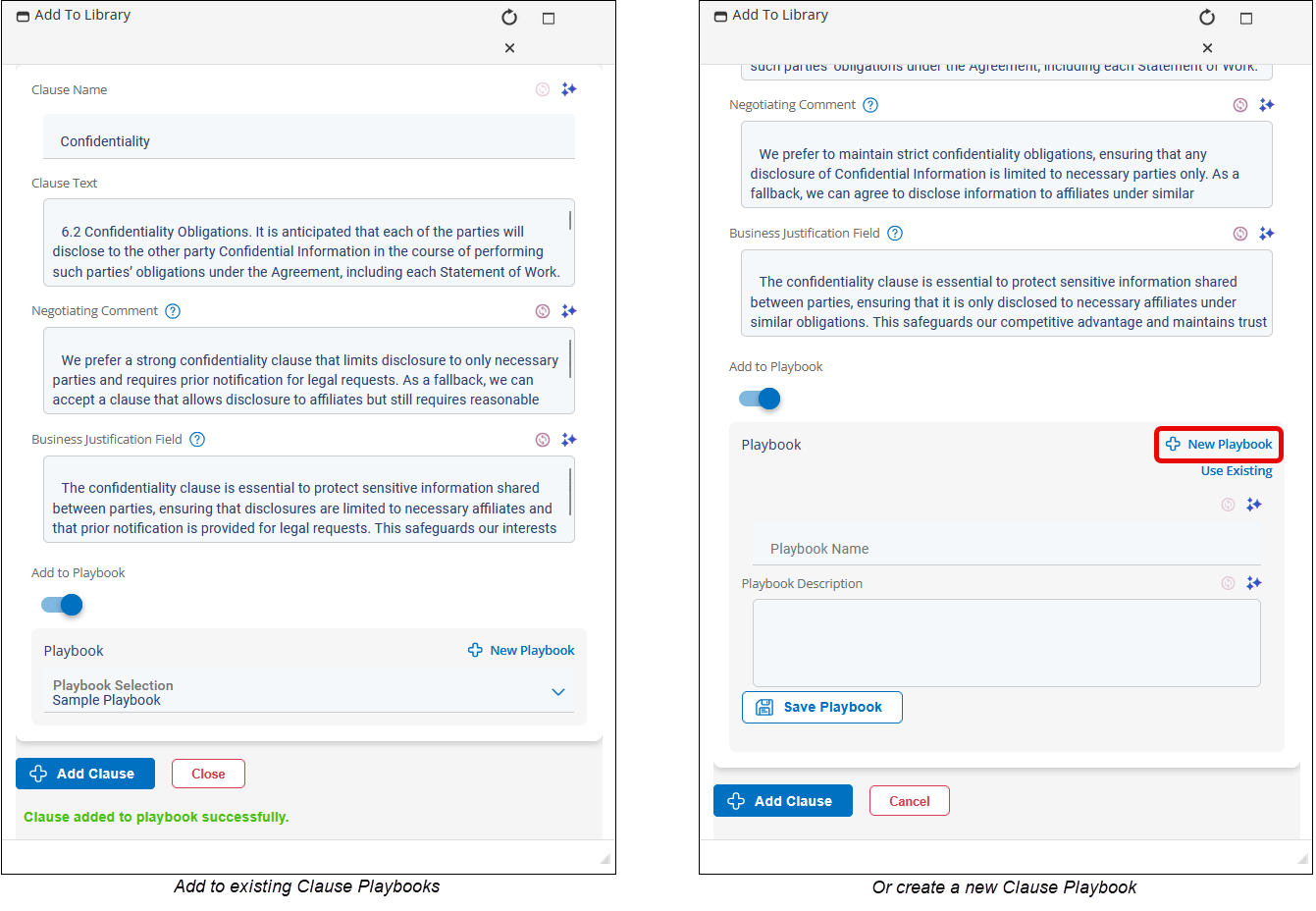
- Add the clause directly to one or more playbooks for future use
This helps ensure new learnings from real negotiations are captured and reused.
3. Managing Playbooks at the Clause Level
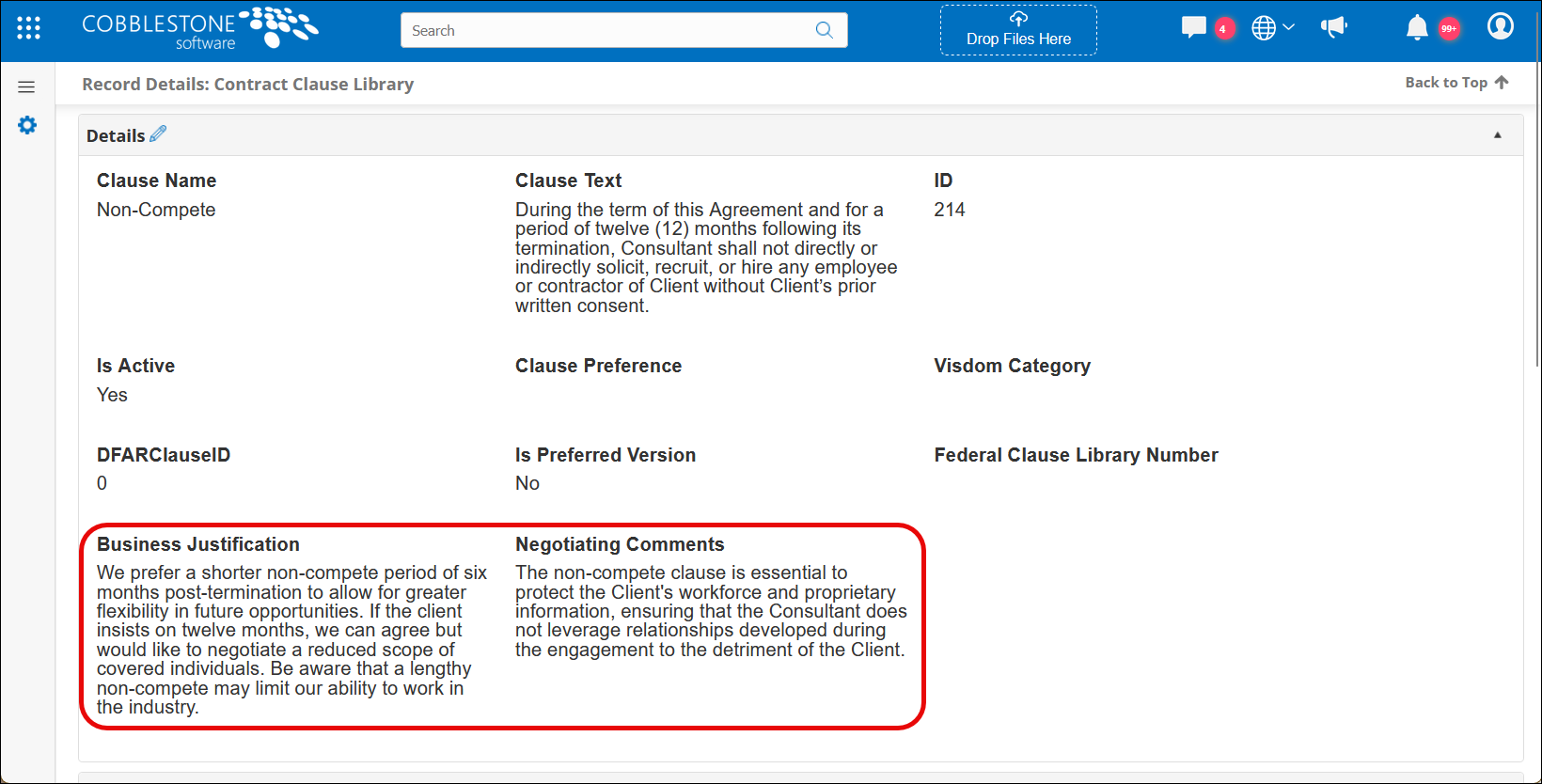
Clause Playbooks can also be managed directly from the Clause Library, giving admins flexibility to assign and maintain playbooks as part of normal clause maintenance.
From the Clause Library, users can:
- Add or update Negotiating Comments and Business Justifications
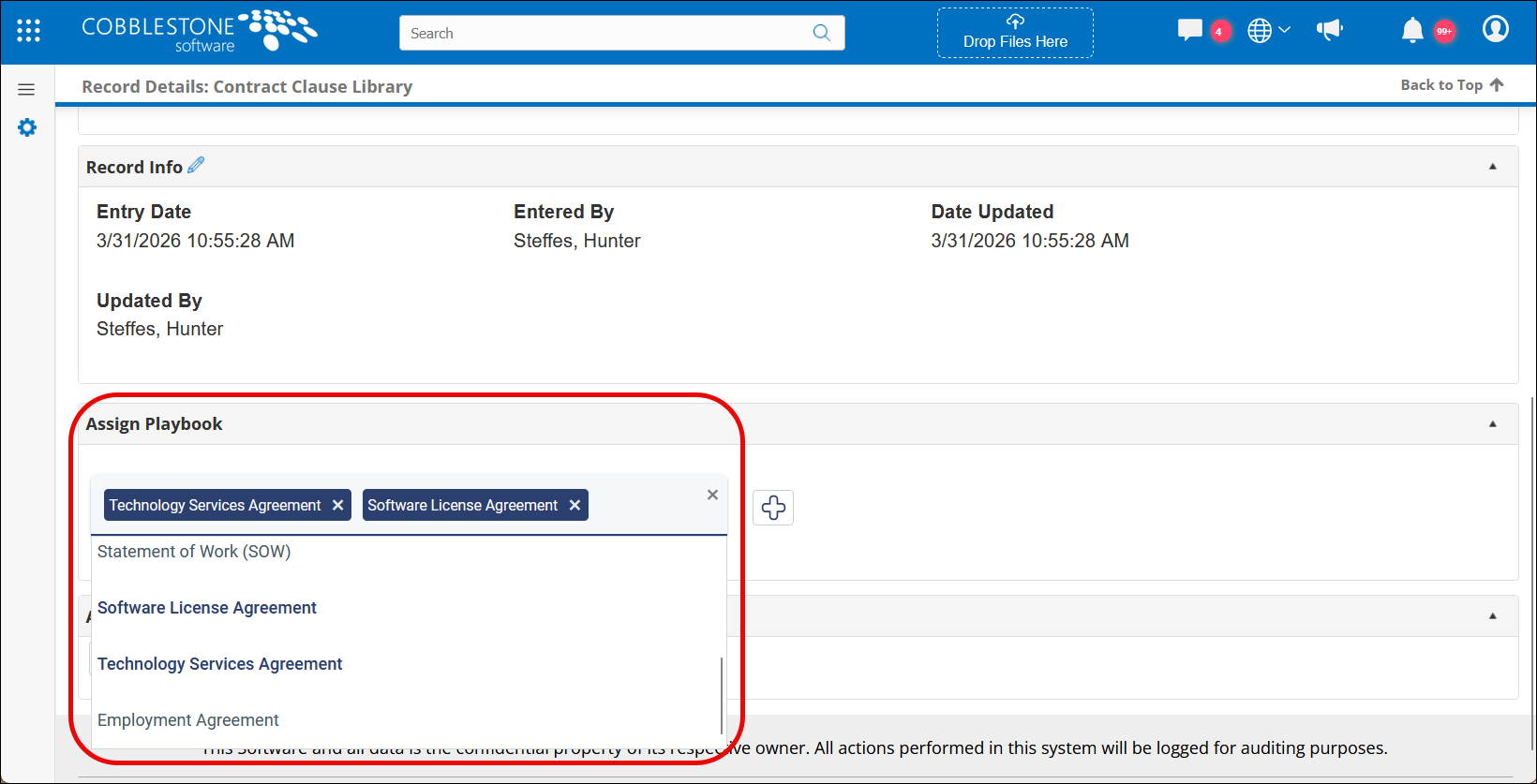
- Assign existing clauses to one or more Playbooks (assigned Playbooks appear bolded in the list)
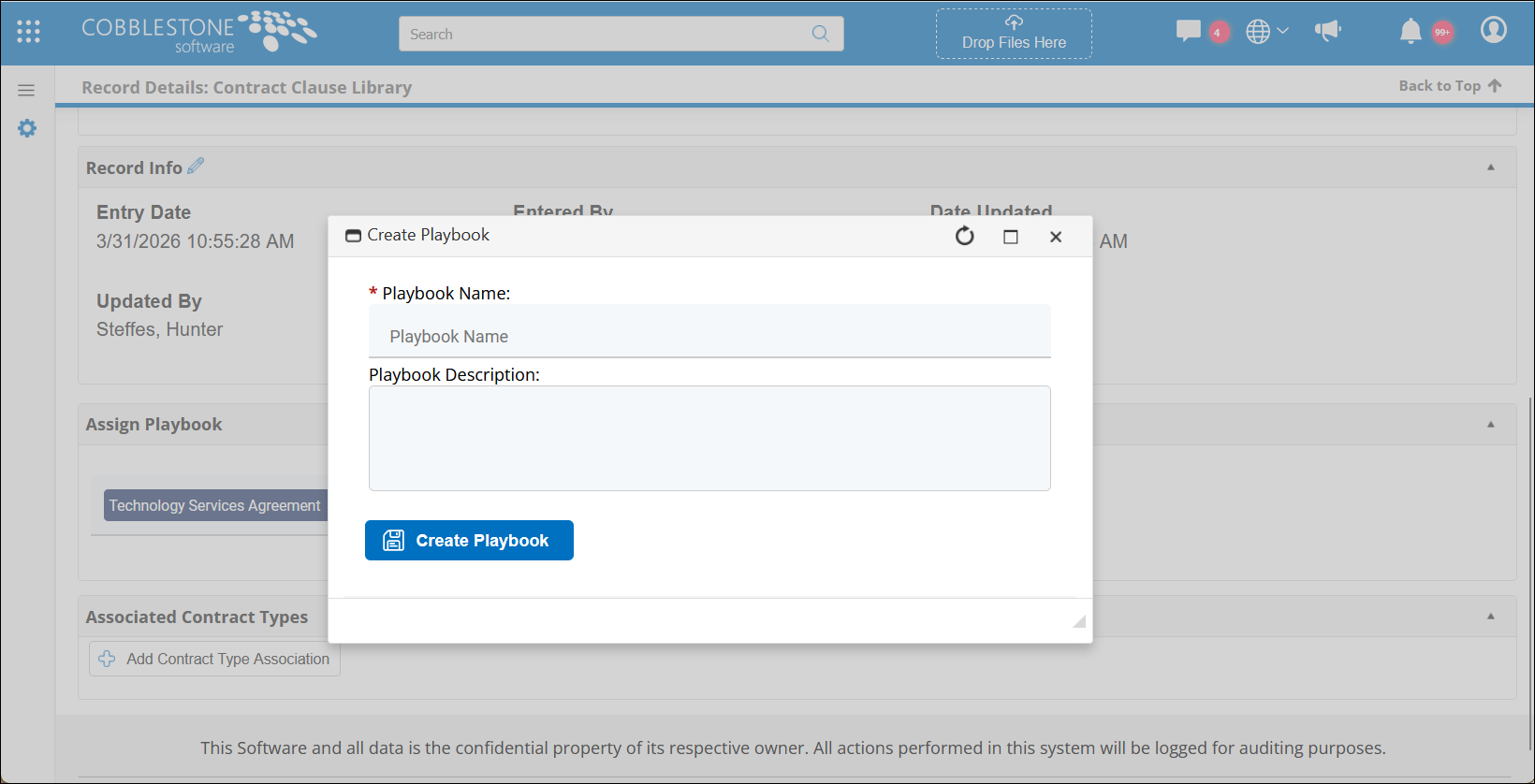
- Create a new Playbook directly from a clause by clicking the plus icon next to the Playbooks field
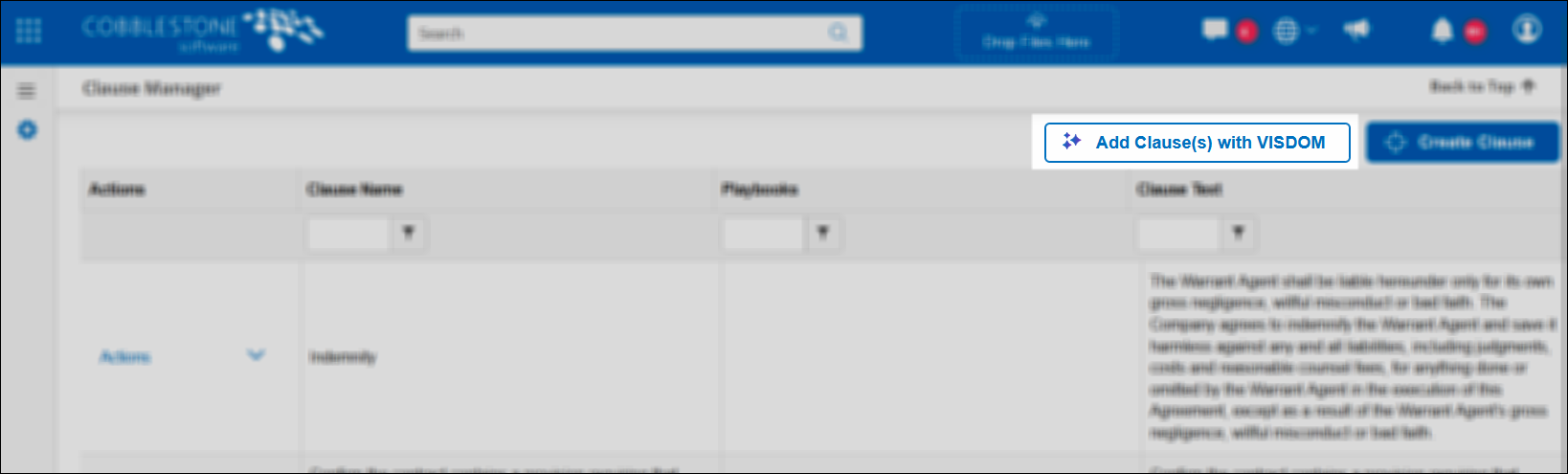
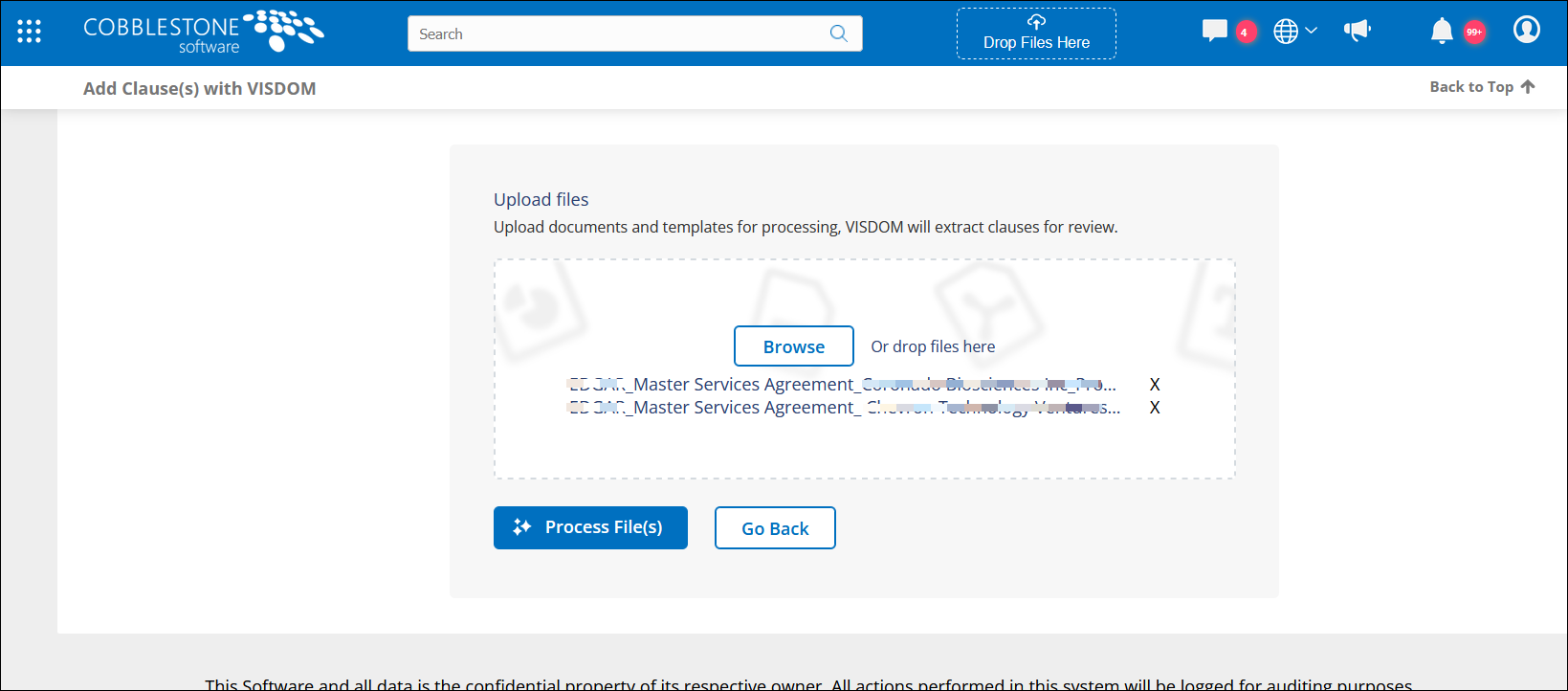
New clauses can also be added using VISDOM, allowing teams to extract clauses from documents, compare them against existing standards, and update the Clause Library and associated playbooks in one streamlined workflow.
AI‑assisted suggestions help draft negotiating comments and business justifications, giving teams a faster starting point while retaining full control.
What’s New
Smarter clause matching
When reviewing a document using VISDOM, its content is automatically compared against your Clause Library. The most relevant approved language is surfaced, helping reviewers move faster with confidence.
Centralized playbook management
Admins can manage playbooks either from a dedicated management area or directly within the Clause Library—keeping standards aligned as they evolve.
Clear guidance for reviewers
Business Justifications explain why a clause is recommended, making it easier to leave consistent, well‑supported comments and redlines.
Use multiple playbooks at once
Apply multiple playbooks during a single review—ideal when contracts span different deal types, industries, or counterparties.
Clause Playbooks transform your contract standards into practical, actionable guidance—available wherever contracts are reviewed.
NEW FEATURE: Automated Obligation Detection & Task Creation with VISDOM
Reference #: 260330.1222.15813
We’ve introduced a powerful new capability that helps you quickly identify obligations within legal or contractual documents and turn them into actionable tasks—automatically.
VISDOM can now scan documents to find obligations (such as requirements, deadlines, or responsibilities), highlight them, and add them directly to your records. These identified obligations can then drive tasks, reminders, and updates—helping ensure nothing important is missed.
How this helps you
- Save time: Automatically find obligations instead of manually reviewing lengthy documents.
- Reduce risk: Ensure key commitments and deadlines are clearly captured and tracked.
- Improve consistency: Standardize how obligations are identified and managed across records.
Key capabilities
- Automatic obligation detection: VISDOM highlights potential obligations within your documents.
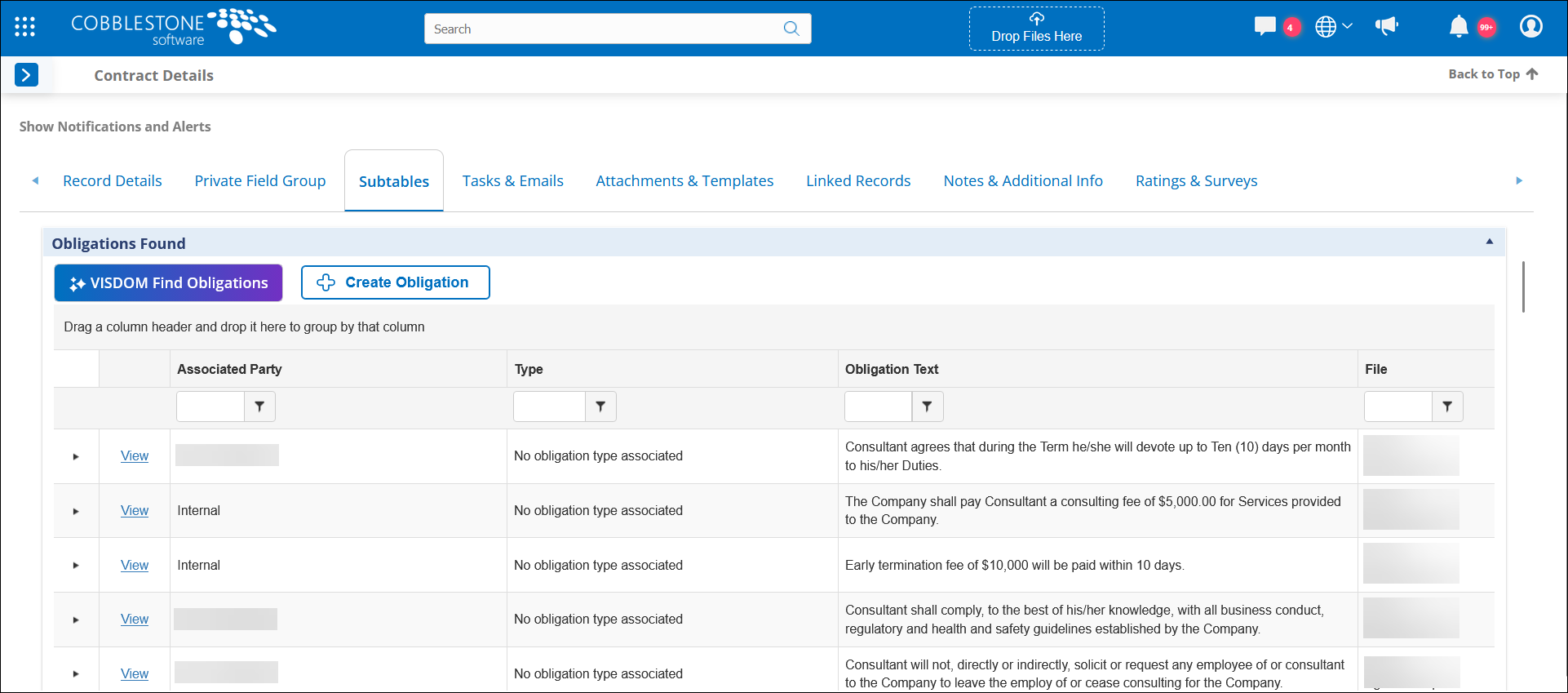
- Centralized obligation tracking: All detected (and manually added) obligations appear in a new “Obligations Found” section on the record.
- Actionable follow‑up: Obligations can trigger tasks or updates based on your configured rules.
- Flexible review: You can review, edit, add, or save only the obligations that matter to you.
New: Obligation Type Manager
Administrators can now manage obligation categories in one place:
- Create, edit, or remove Obligation Types
- Define how VISDOM recognizes each type
- Optionally link obligation types to automated actions (such as field updates or task creation)
This new setup gives teams greater control over how obligations are identified and handled.
Where you’ll see it
- On the Record Details page under the new “Obligations Found” subtable
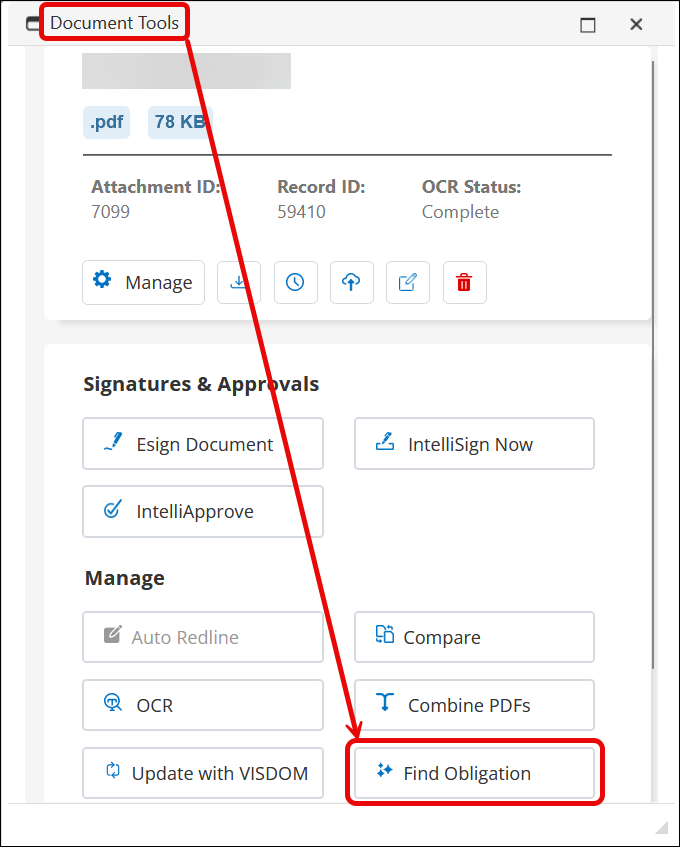
- From the document toolbox, where you can choose a file and extract obligations on demand
Obligations can also be added manually from the Record Details subtable tab and do not require an obligation type to be assigned.
CORE SYSTEM
ENHANCEMENTS
ENHANCEMENT: Reintroduced Drag‑and‑Drop Multiple File Upload to One Record
Reference #: 260330.1273.26810
We’ve improved the drag‑and‑drop experience to make adding multiple files to a single record faster and more intuitive.
You can again drag several files into the system at once and attach them all to one record in a single action. When you begin creating the record, the files you dragged in will stay with you throughout the process and will automatically be added as attachments when you save.
This enhancement restores the convenient work path many users relied on—no more repeating steps for each file or deciding what to do with every upload. Just drag, create, and save.
How it works:
- Drag and drop multiple files at the same time
- Choose Create New Record
- Select the Attach to Record option then continue through the VISDOM Add process
- When you save the new record, all the files you dragged in will appear in the Attachments section
This update streamlines your workflow and saves time, especially when working with several related files.
CORE SYSTEM
RESOLUTIONS
RESOLUTION: Drag‑and‑Drop Requests Not Triggering Pending Notification Emails
Reference #: 260330.1259.24281
When Contract Requests were created using the drag‑and‑drop option, the Request was successfully submitted but notification emails were not sent to the review group to indicate that the Request was pending.
This behavior did not occur when Contract Requests were created using the standard (manual) entry method.
Contract Requests created via drag‑and‑drop will now correctly send pending notification emails to the appropriate review recipients, consistent with manually created requests.
RESOLUTION: Workflow Task Email Notification Template Causing Duplicate Action Buttons
Reference #: 260330.1259.25224
In certain Workflow task emails, duplicate action buttons appeared when a task included an automatic field update. This resulted in multiple buttons being displayed for the same task status, which could cause confusion when responding to the email.
Workflow task emails now display only one action button per task status, as intended. In addition, the task email buttons have received a minor visual update to improve clarity and consistency.
RESOLUTION: Contract Note Permissions Refresh Causing Delete Option to Appear Incorrectly
Reference #: 260330.365.25532
In certain scenarios, users who had permission to add Contract Notes briefly saw the delete option appear after refreshing the page or saving a note, even if their security group did not allow note deletion. This led to confusion around which users were permitted to delete notes.
The system now consistently respects security group permissions for Contract Notes. Users will only see the delete option if their security group explicitly allows it, regardless of page refreshes or note updates.
RESOLUTION: Contract Creation Workflow Timing Issue Delaying Automatic Document Attachment
Reference #: 260330.1203.27872
When Contracts were created with an automated document‑generation workflow, the associated template did not always attach immediately. Although a generation message appeared, the document often did not display until the page was fully reloaded or the user logged out and back in. This caused delays and interruptions for teams creating multiple contracts throughout the day.
Document‑generation workflows now complete reliably at the time of Contract creation, and the generated document attaches automatically without requiring page reloads or re‑login. The process has been improved to ensure workflow steps remain synchronized and complete as expected.
RESOLUTION: Details Page Hyperlink Configuration Causing Links to Open in the Same Window
Reference #: 260330.337.28018
URL fields configured to open in a new tab or window did not behave as expected when clicked from the Details page. Instead of opening a new tab, the link opened in the current window, which could interrupt a user’s workflow.
Hyperlinks configured to open in a new tab or window now follow that setting correctly when accessed from the Details page.
RESOLUTION: Field Display Formatting Causing Inconsistent Text Highlighting on Details Pages
Reference #: 260330.337.29250
Users experienced inconsistent behavior when highlighting text on Record Details screens. Clicking and dragging to select text did not always work as expected—sometimes no text was selected, and other times only part of a word was highlighted. This made it difficult to reliably copy information and disrupted normal workflows.
Text fields have been updated to ensure consistent text‑selection behavior across the application. Users can now reliably highlight and copy full words or sections of text without issue.
RESOLUTION: Dropdown Field Sorting Logic Overriding Configured Value Order
Reference #: 260330.337.29509
When editing dropdown fields on top‑level records (such as Contracts and Requests), the available options were displayed in alphabetical order, even when a different order had been configured. This caused dropdown lists to appear in an unexpected sequence that did not match the intended setup.
Dropdown fields now display values in the configured order, whether that order is defined by how the list was set up or by system logic behind the scenes. The application no longer forces alphabetical sorting when editing these fields.