COBBLESTONE SOFTWARE
Contract Insight — User Guide
Record Type Management
Master Reference Data Management: Record Type
Note: Each procedure in this guide begins at the Contract Insight homepage, so any section can be followed on its own. Custom fields are configurable, so the exact field list on a record type record may vary between environments.
1. Overview
Record Types classify records for tracking, creation, and field management. Examples include Consulting Agreement, Confidentiality Agreement, Software Agreement, and Land Lease. They are master reference data, maintained as a single shared list, so that every record is classified consistently across the application.
Each record type record carries a TypeName, a ForArea value that determines which part of the application the type belongs to — Contract Details, Contract Requests, Solicitation Details, or Vendors/Customers — and a system-assigned Type ID. A type also carries an Auto Create Template setting, an optional Page To Move To (gateway only) value, and the ShowOnVCG and Is Dutch Auction options. Any custom fields configured for the environment also appear on the record. The system additionally maintains read-only Record Info values for each type: Entered By, Date Entered, Updated By, and Date Updated.
Because the Record Types list is maintained from the Administration area, only Application Administrators — or other users specifically granted the appropriate permission — can create, edit, or delete record type records. Standard users can typically select an existing type when completing a record, but cannot manage the underlying list.
2. Accessing the Record Types List
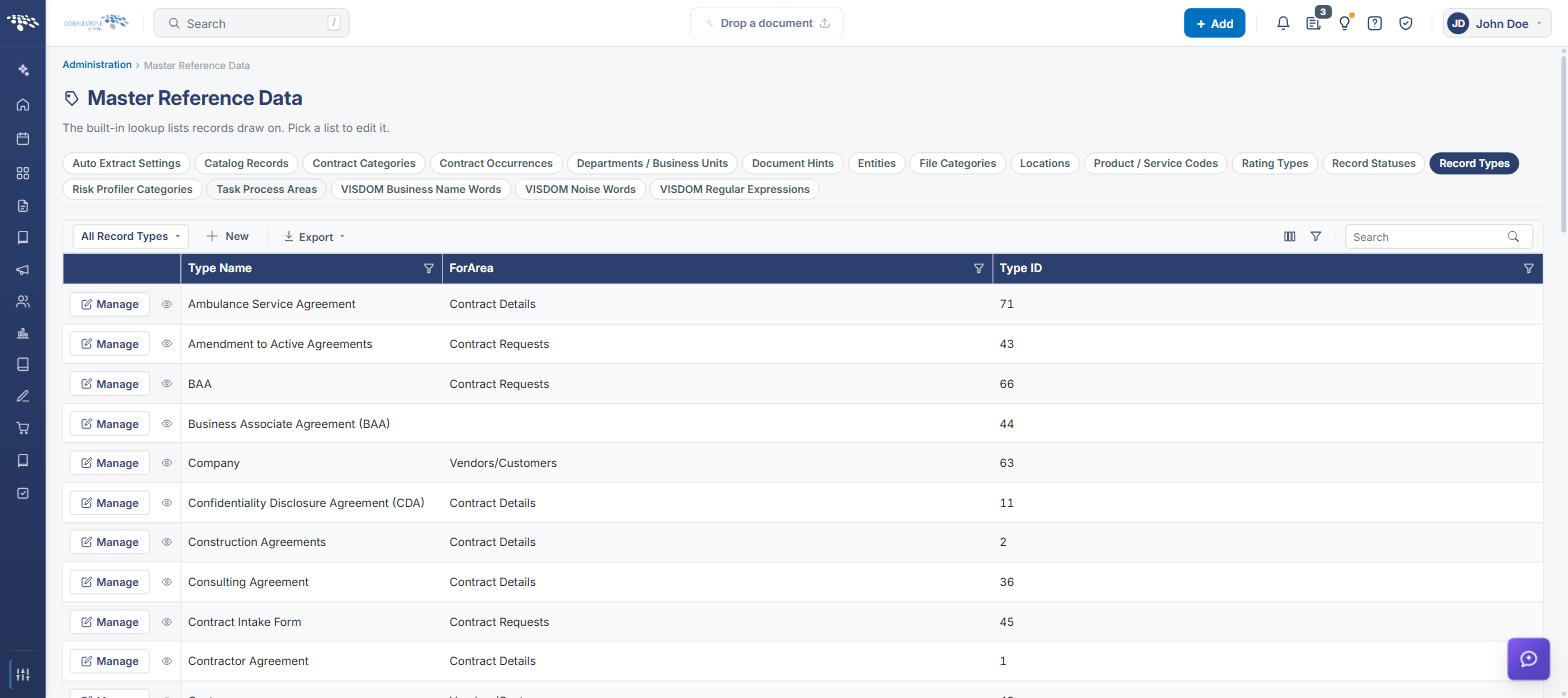
The Record Types list is the central management screen for all record type records. To open it:
From the Contract Insight homepage, click Administration at the bottom of the left navigation menu. On the Administration page, under Lookup Tables, select Master Reference Data, then click the Record Types tab.
The Record Types list screen includes the following elements:
- A Master Reference Data heading with the subtitle “The built-in lookup lists records draw on. Pick a list to edit it.”
- A row of list selector tabs — Auto Extract Settings, Contract Categories, Contract Occurrences, Departments / Business Units, Document Hints, Entities, File Categories, Locations, Product / Service Codes, Rating Types, Record Statuses, Record Types, Risk Profiler Categories, Task Process Areas, and the VISDOM lists — with Record Types highlighted when selected
- An All Record Types dropdown at the left of the list toolbar, used to limit the grid to a single area
- A + New button to create a new record type
- An Export menu on the toolbar offering Excel, PDF, and CSV
- A columns icon (grid icon) that opens the Columns dialog, and a filter icon, at the right of the list toolbar
- A Search box at the right of the toolbar to filter the grid by keyword
- A sortable, filterable grid with Type ID, TypeName, ForArea, ShowOnVCG, Is Dutch Auction, Date Entered, Date Updated, Enable Wizard Adding, Entered By, and Updated By columns, each with its own filter icon
- Per-row Manage (edit) and eye-shaped View action buttons
- Pagination controls at the bottom of the grid, with a live page and record count (for example, “1 of 5 pages (240 items)”) and an Items per page selector
3. Adding a Record Type.png)
Steps:
- From the Contract Insight homepage, click Administration at the bottom of the left navigation menu. On the Administration page, under Lookup Tables, select Master Reference Data, then click the Record Types tab.
- Click + New on the list toolbar.
- The Add new Record Type panel slides out from the right, headed RECORD TYPES/ Add new Record Type, with a field-completion indicator in the Details header (for example, “3 / 8 filled — 2 required”).
- In the Details section, enter the required TypeName (marked with a red asterisk) — for example, Consulting Agreement, Confidentiality Agreement, or Software Agreement.
- Select the required ForArea value from the dropdown — Contract Details, Contract Requests, Solicitation Details, or Vendors/Customers.
- Complete the remaining Details fields as needed: Auto Create Template, Page To Move To (gateway only), the ShowOnVCG and Is Dutch Auction checkboxes, and any custom fields configured for the environment.
- The Record Info section (Entered By, Date Entered, Updated By, and Type ID) is read-only; these values are populated by the system when the record is saved.
- Click Save in the lower right of the panel to create the type, or Cancel to discard it without saving.
Note: TypeName and ForArea are both required, so the Details header tracks them with a “2 required” indicator until each is completed. Icons in the upper right of the panel allow it to be expanded to full width or opened as a full page.
4. Viewing a Record Type
Navigate to the Record Types list as described in Section 2. There are then two ways to review a record type record:
4.1 Quick View
.png)
Click the eye icon on a type’s row. A slide-out panel opens on the right showing the Details and Record Info tabs for that record, along with Done and Edit buttons.
4.2 Full Record (Manage).png)
Click Manage on a type’s row to open the full record type page. This page displays:
- A breadcrumb trail of Record Types › the type name
- The type name as the page title, with a “RECORD TYPE · ID ##” badge and an “Updated <date>” byline (followed by “by <user>” where a user is recorded against the update)
- Back, Actions, and Edit All buttons in the upper right, plus a toggle to hide or show the details panel
- A row of tabs for each section of the record: Details and Record Info
- A right-hand rail with a Record Type summary panel, a Risk register panel (with a + Add risk button), and a Sections list showing the count of sections on the record
- A VISDOM Assistant button in the lower right of the page, which opens a chat panel scoped to the current type record
5. Editing a Record Type
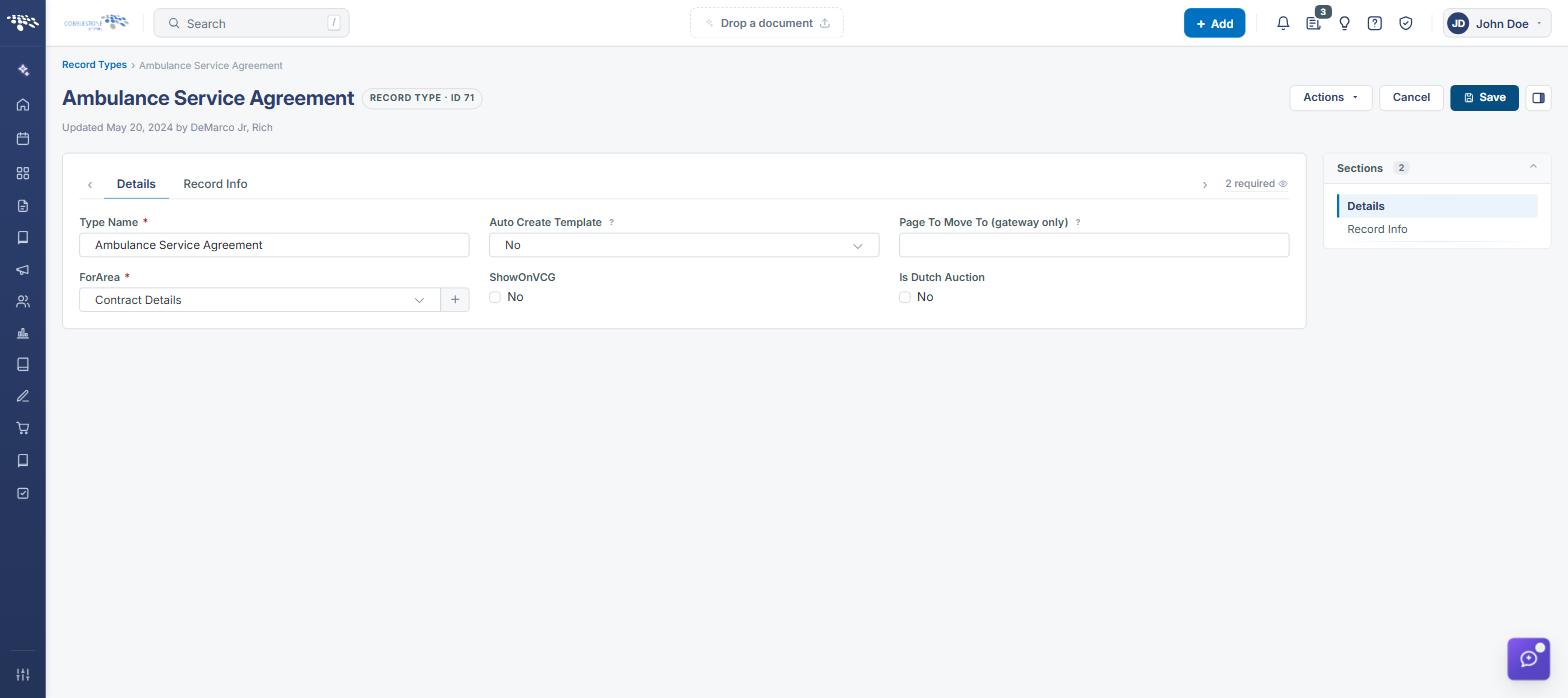
Steps:
- From the Contract Insight homepage, click Administration at the bottom of the left navigation menu. On the Administration page, under Lookup Tables, select Master Reference Data, then click the Record Types tab.
- Click Manage on the row for the type you want to edit to open its full record (or click the eye icon and then Edit from the Quick View panel).
- Click Edit All in the upper right of the record page. The Details fields become editable inputs and a “2 required” indicator appears beside the tab row. To change a single value instead, click the pencil icon shown beside that field.
- Update the TypeName, and adjust the ForArea, Auto Create Template, ShowOnVCG, Is Dutch Auction, or any custom field values as needed.
- Click Save in the upper right to commit the change, or Cancel to leave the record unchanged.
Note: The Type ID and the Record Info values (Entered By, Date Entered, Updated By, and Date Updated) are maintained by the system and cannot be edited.
6. Wizard-Based Record Types
Contract Insight can present the add screen for a record type as a wizard, stepping the user through one field group at a time before the record is submitted, rather than showing every field on a single page. This is useful for types with long or conditional field sets, where completing the record in stages is easier than working down one long form.
Whether a type uses the wizard is carried on the type itself and is reported on the Record Types grid by the Enable Wizard Adding column, which shows True or False for each type. If that column is not visible, add it through the Columns dialog described in Section 8.
Note: Enable Wizard Adding appears on a record type’s Details tab only where the environment’s tab layout includes it. Which fields and sections a record type record shows is controlled by the Field Management and Tab Details Setup administration tools.
7. Deleting a Record Type.png)
Note: Prior to deleting a type, make sure it is not being used by any records. Deleting a type that is still in use can affect reporting and existing record associations.
Steps:
- From the Contract Insight homepage, click Administration at the bottom of the left navigation menu. On the Administration page, under Lookup Tables, select Master Reference Data, then click the Record Types tab.
- Click Manage on the row for the type you want to remove to open its full record.
- Click Actions in the upper right of the record page.
- Under Record Actions, select Delete record (shown in red at the bottom of the menu).
- Confirm the deletion when prompted.
The Actions menu also provides Update with VISDOM, View History, Print, Record PDF, Create New Record, and Record Permissions, along with the document-processing actions Approval Processes, Signature Processes, IntelliApprove, and IntelliSign.
8. Managing List Columns
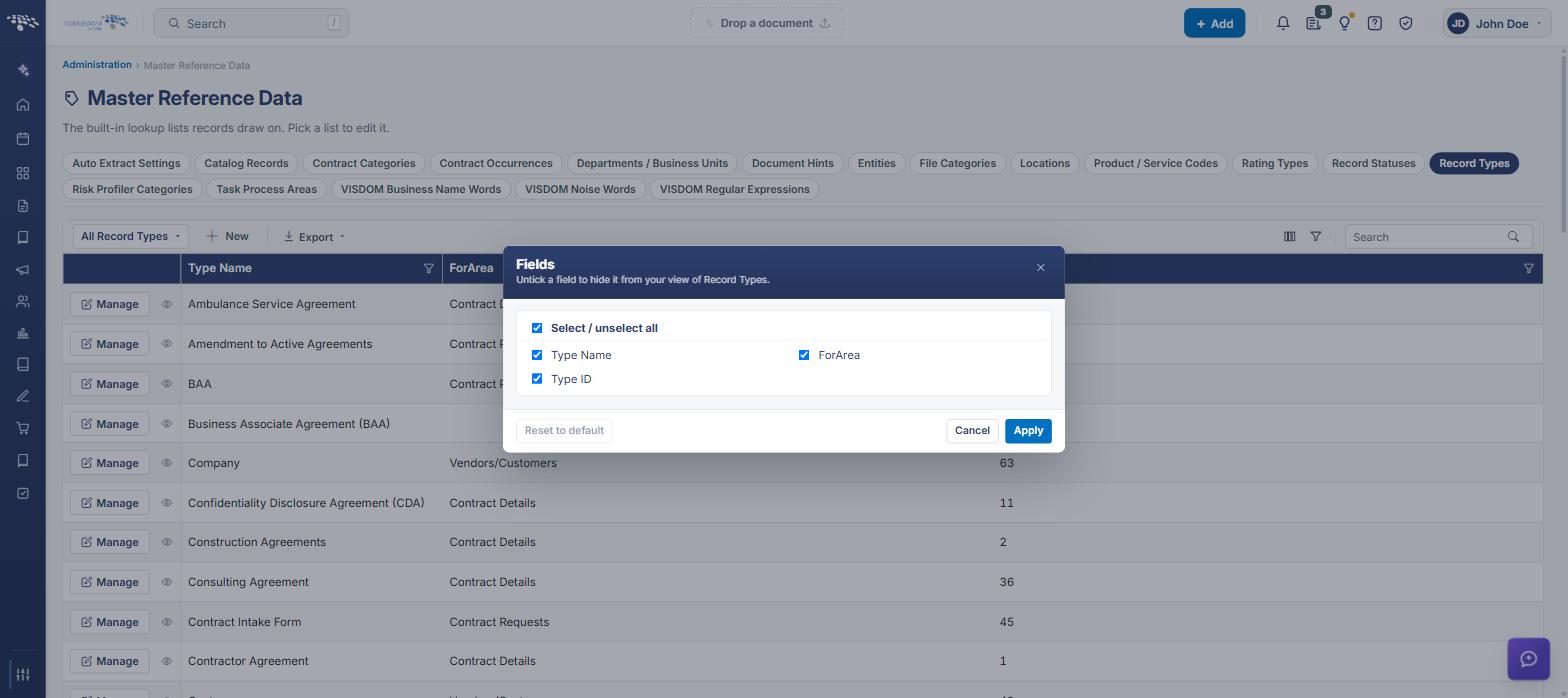
Function: Controls which columns are displayed on the Record Types grid.
Steps:
- From the Contract Insight homepage, click Administration at the bottom of the left navigation menu. On the Administration page, under Lookup Tables, select Master Reference Data, then click the Record Types tab.
- Click the columns icon (small grid icon) at the right of the list toolbar.
- The Columns dialog opens, subtitled “Untick a column to hide it from your view of Record Types.” It lists every available column as a checkbox — Type ID, TypeName, ForArea, ShowOnVCG, Is Dutch Auction, Date Entered, Date Updated, Enable Wizard Adding, Entered By, and Updated By — plus a Select / unselect all option.
- Untick any column to hide it from the grid, or tick it to show it again.
- Click Apply to update the list view immediately, or Reset to default to restore the original column layout. Click Cancel (or the × in the dialog header) to close the dialog without changing anything.
9. Filtering the List by Area
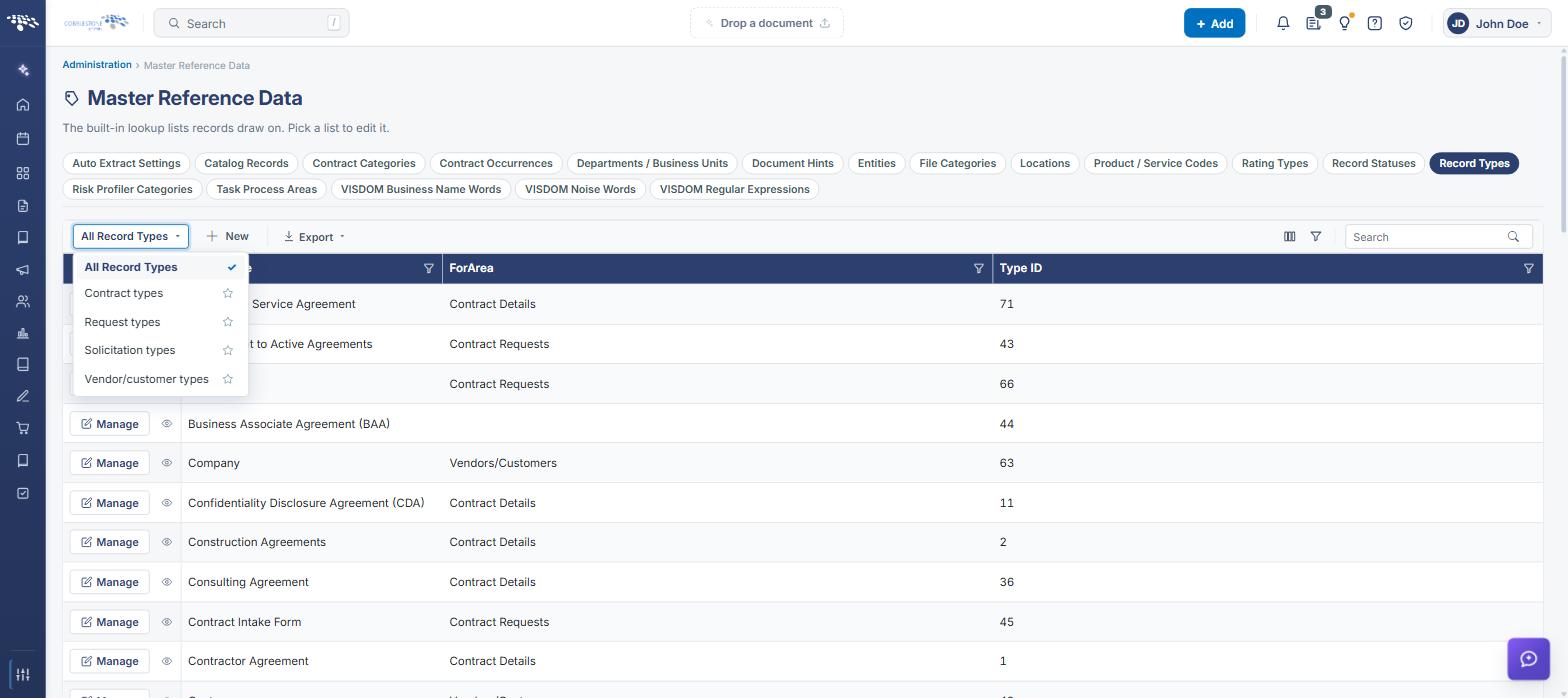
Function: Limits the Record Types grid to the types belonging to one area of the application.
Steps:
- From the Contract Insight homepage, click Administration at the bottom of the left navigation menu. On the Administration page, under Lookup Tables, select Master Reference Data, then click the Record Types tab.
- Click the All Record Types dropdown at the left of the list toolbar.
- Select the area to display — All Record Types, Contract types, Request types, Solicitation types, or Vendor/customer types. A checkmark marks the current selection.
- The grid reloads showing only the types for the selected area. Choose All Record Types again to clear the filter.
10. Exporting the Record Type List
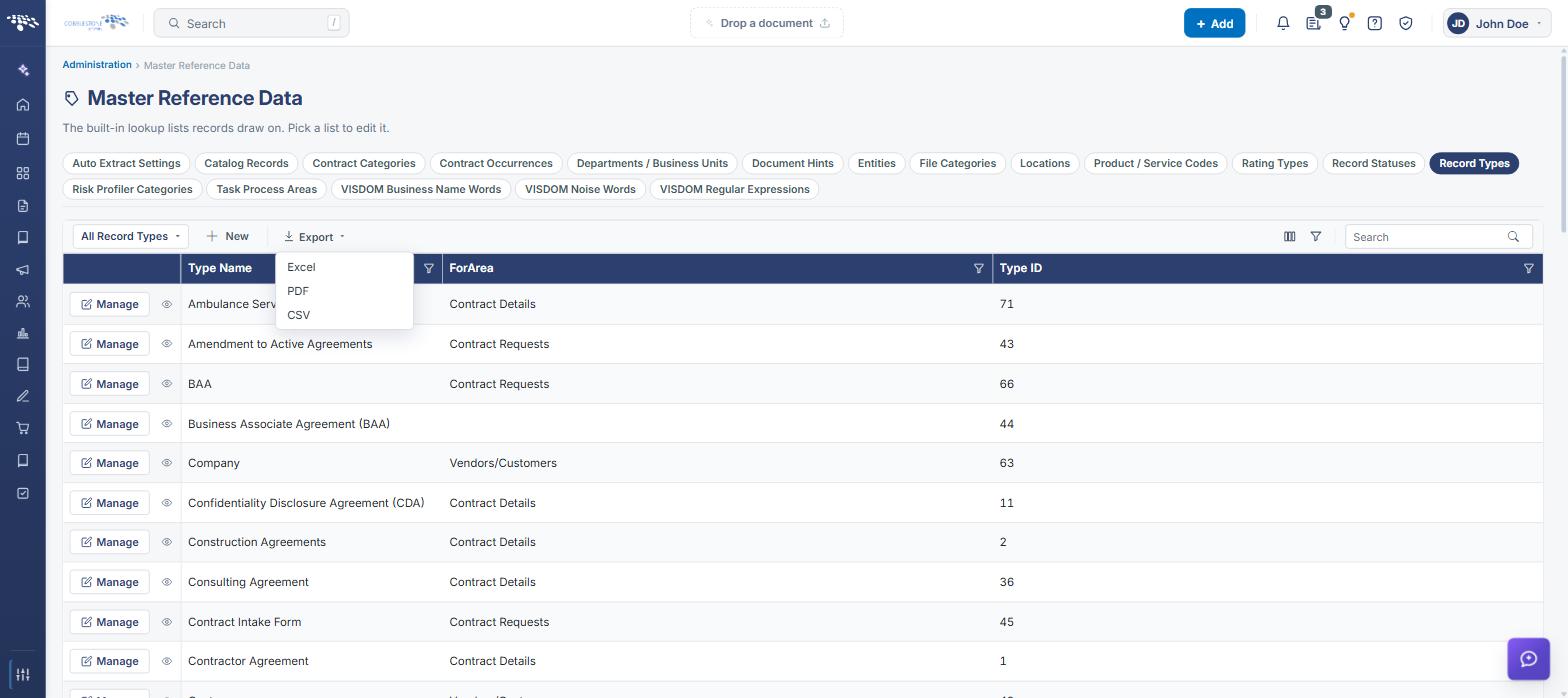
Navigate to the Record Types list as described in Section 2. The full list — or a filtered view of it — can then be exported directly from the Export menu on the toolbar:
- Excel — exports the current grid to a spreadsheet (.xlsx)
- PDF — exports the current grid to a PDF document
- CSV — exports the current grid to a comma-separated values file
An individual type record can also be exported on its own using the Record PDF action in the Actions menu on the full record page. These exports are useful for sharing record type data with stakeholders who do not have Contract Insight access, or for offline recordkeeping.
11. Related Sections on a Record Type Record
A record type record organizes its information into tabbed sections, listed in the Sections panel on the right-hand rail with a count:
- Details — the field values for the type: TypeName, ForArea, Auto Create Template, Page To Move To (gateway only), ShowOnVCG, Is Dutch Auction, and any custom fields configured for the environment
- RecordInfo — system metadata for the record: Entered By, Date Entered, Updated By, Date Updated, and the system-assigned Type ID
The right-hand rail also includes a Record Type summary panel and a Risk register panel, where risks can be recorded against the type record using + Add risk (the panel reads “No risks recorded against this record.” when empty).
Sections can be added to or removed from a record type record’s layout through the Tab Details Setup administration tool, for administrators who need to adjust which related tables appear.
12. Quick Reference Summary
Task | How to Complete It |
Open the list | Homepage → Administration → Lookup Tables → Master Reference Data → Record Types tab. |
Add a type | + New on the list toolbar, enter the TypeName and select a ForArea in the Add new Record Type panel, then Save. |
View a type | Eye icon for a Quick View panel, or Manage for the full tabbed record page. |
Edit a type | Manage → Edit All, update the Details fields, then Save. |
Check wizard adding | Enable Wizard Adding column on the grid shows True or False for each type. |
Delete a type | Manage → Actions → Delete record, then confirm. Check first that no records use the type. |
Change list columns | Columns icon on the list toolbar, tick or untick columns, then Apply. |
Filter by area | All Record Types dropdown on the list toolbar; pick contract, request, solicitation, or vendor/customer types. |
Export the list | Excel, PDF, or CSV from the Export menu on the list toolbar; Record PDF in Actions for a single record. |
Fields on a record | TypeName and ForArea (both required), Auto Create Template, Page To Move To (gateway only), ShowOnVCG, Is Dutch Auction, and a system-assigned Type ID, plus any environment-specific custom fields. |