COBBLESTONE SOFTWARE
Contract Insight — User Guide
Performing a Quick Search
06. End Users: Searching & Reporting › Quick Search › Performing a Quick Search
Note: Each procedure in this guide begins at the Contract Insight homepage, so any section can be followed on its own. Custom fields are configurable, so the exact field list on a contract category record may vary between environments.
1. Overview
Contract Insight allows users to search and report based on any keyword, date, or number in standard and user-defined fields using the Quick Search tool. Quick Search is a google-like search tool where a user can enter a string and receive results of all Contract Records within the Contract Insight system that contains the search criteria. The Quick Search function is located on the menu under Quick Search.
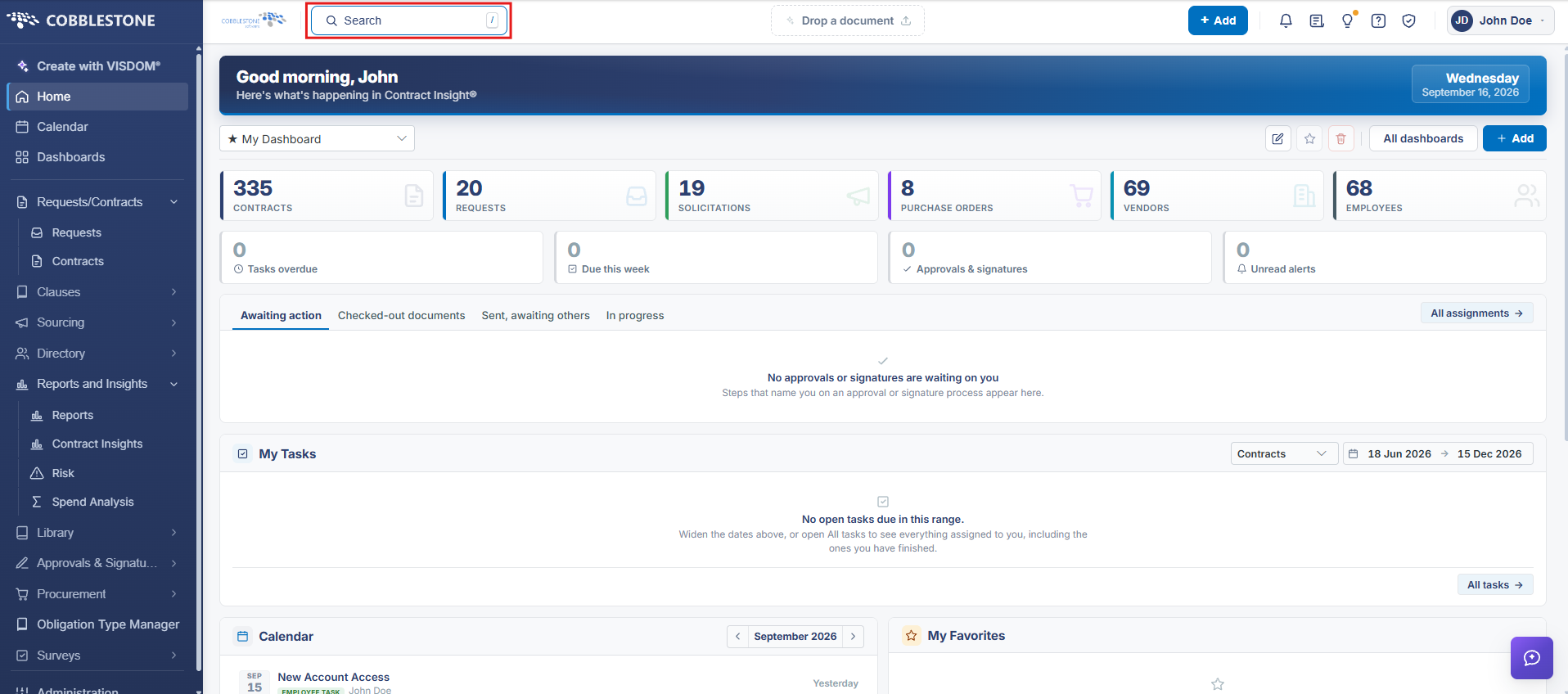 Quick Search Bar
Tip/Shortcut: Typing "/" will pull up the search window at any time
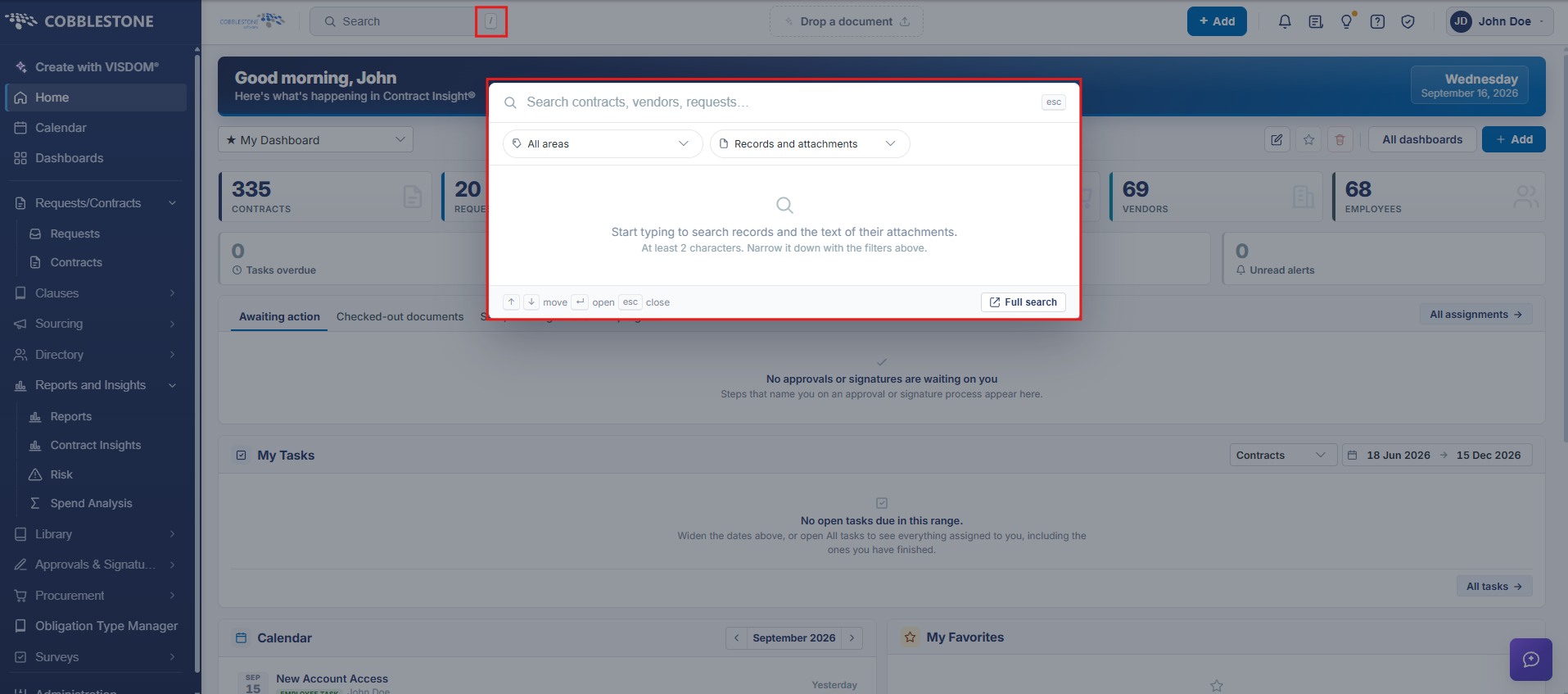 Search Window
2. Key Elements
- Type a term into the top-nav Search box (or press /) and submit to open the Search results page
- A total match count appears at the top, including how many matches were found specifically in attachment text
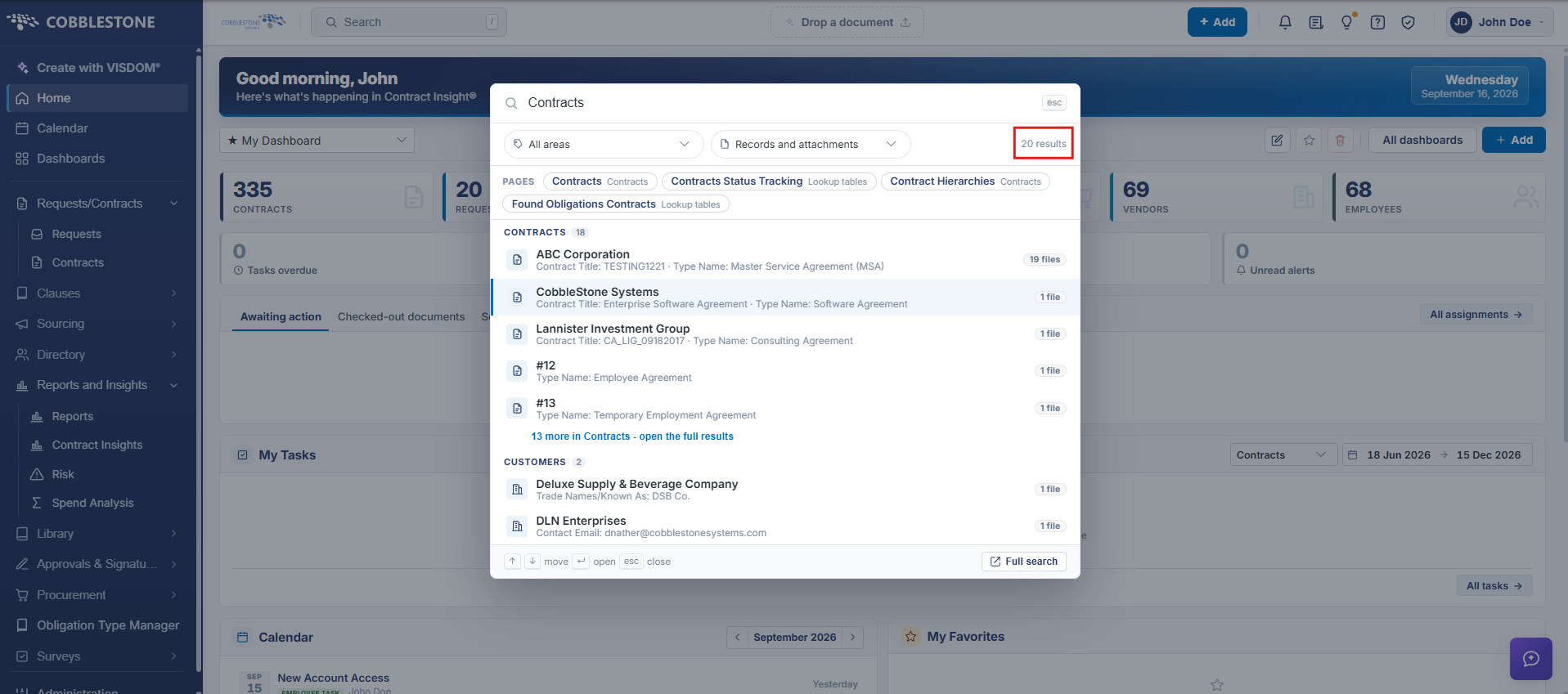
- Results are organized into an All tab and per-area tabs (Contracts, Customers, Requests, Solicitations, Purchase Orders) with live counts
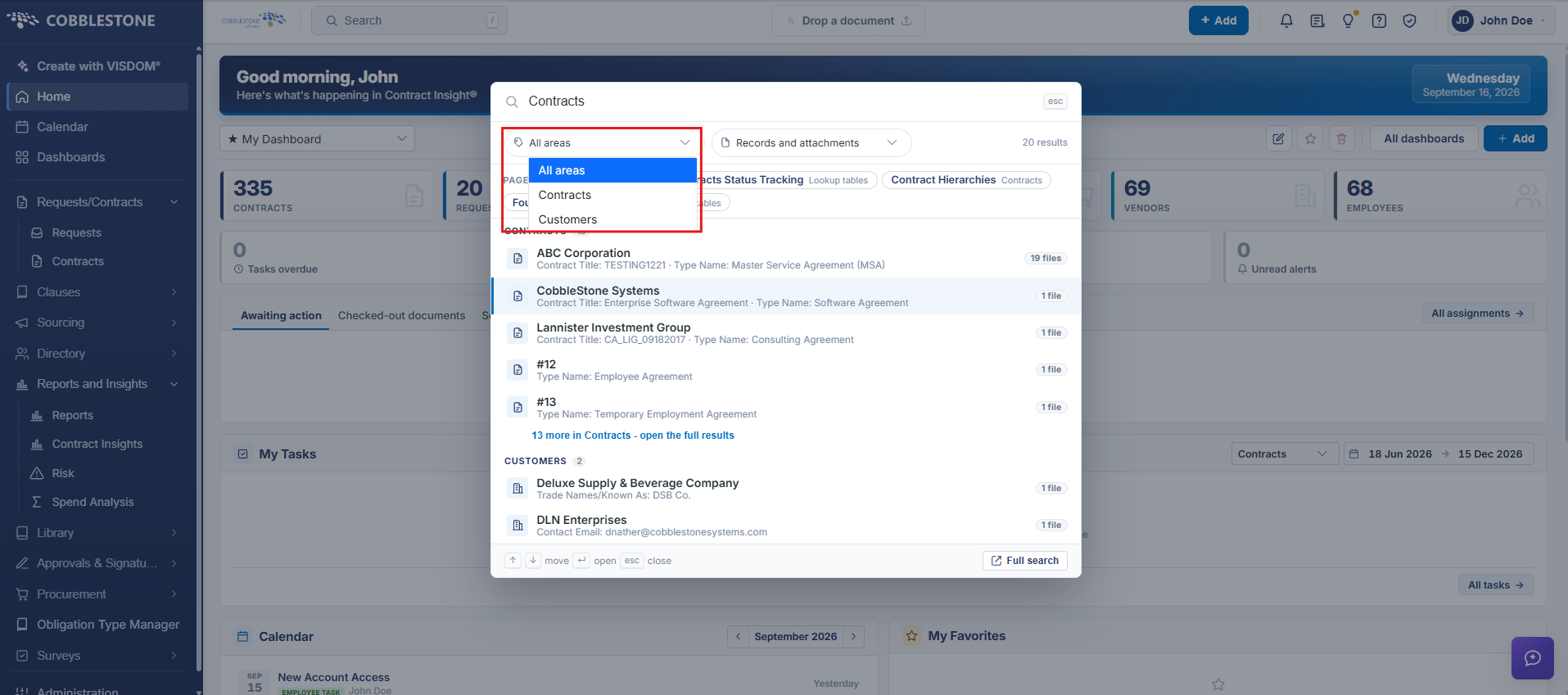
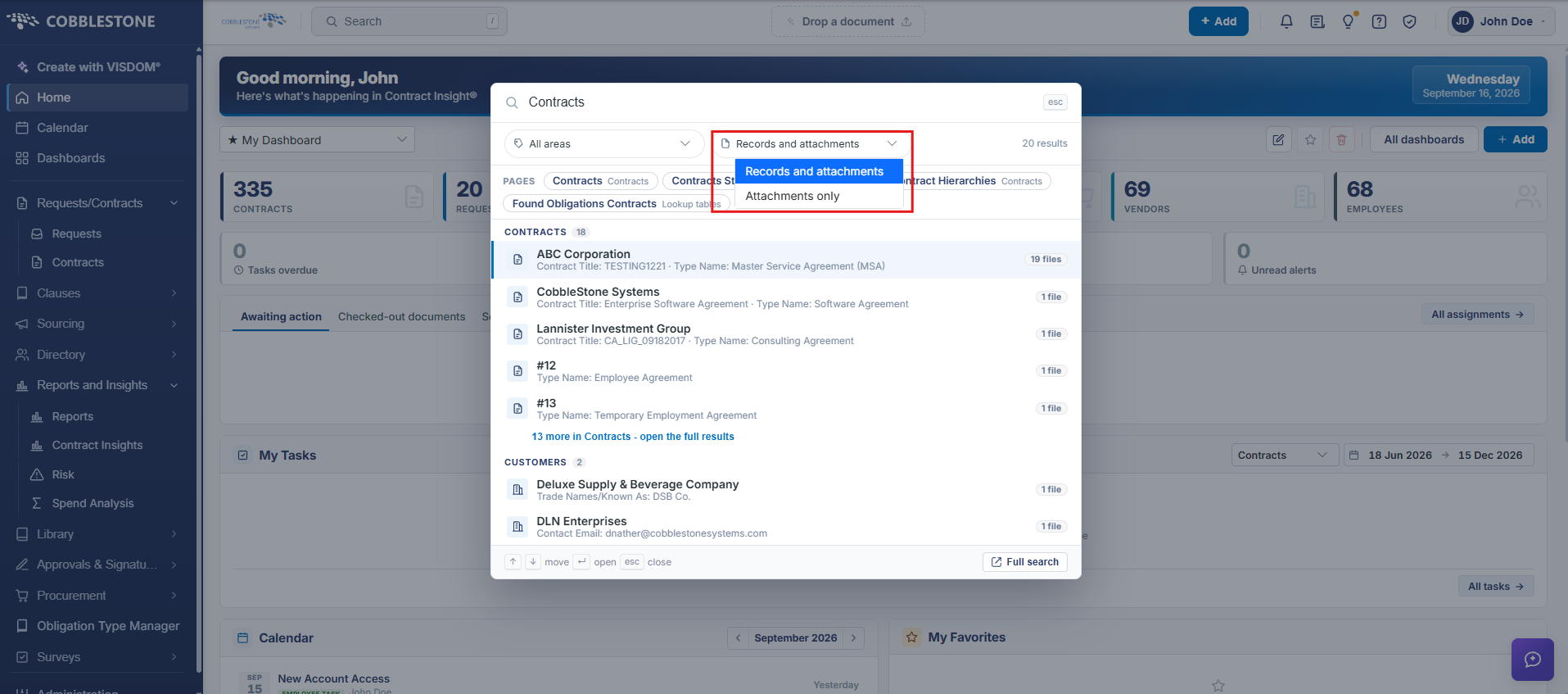
- Check "Attachment matches only" to narrow results to matches found inside attached files
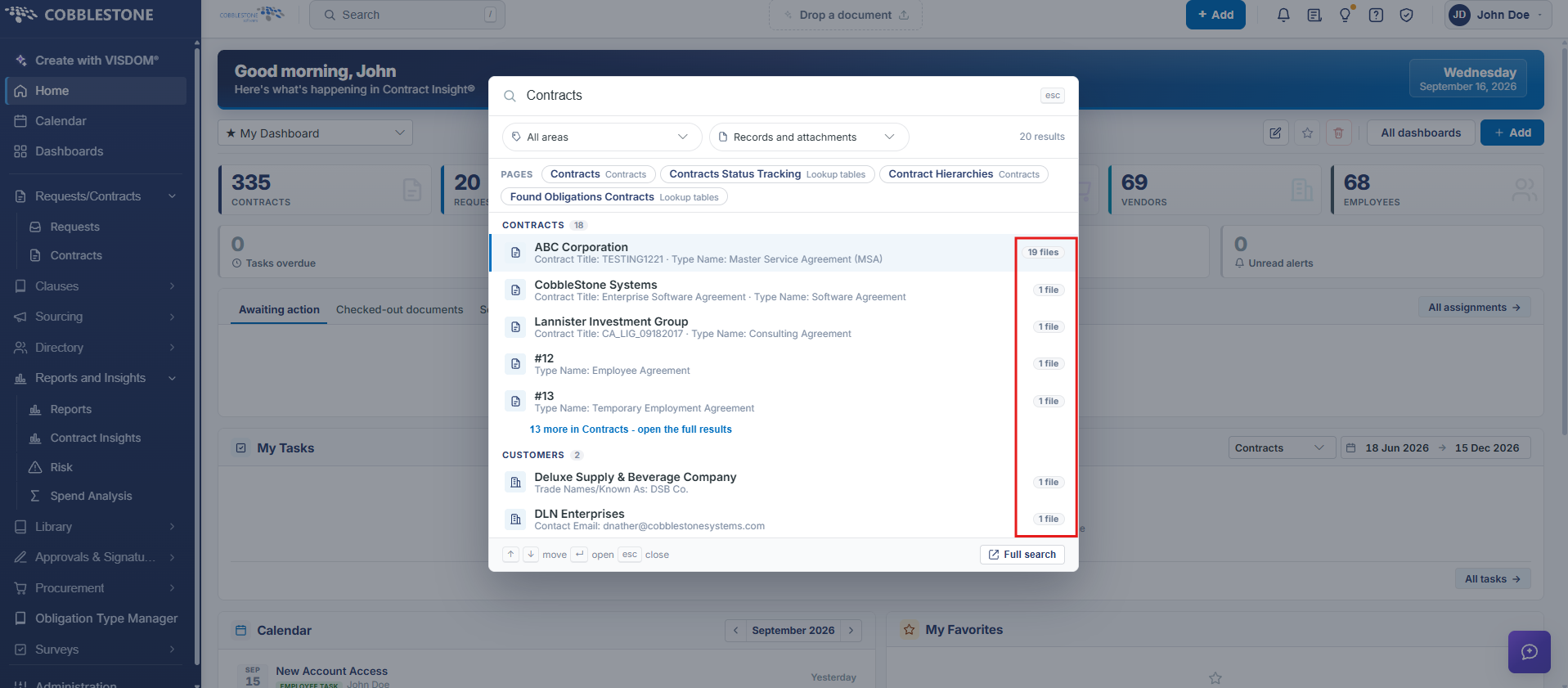
- Each row's Source badge shows RECORD or a file-count badge depending on where the match was found
3. Quick Reference Summary
[TODO: content needed]