Watermark Configuration
System Admins can:
- Create, edit, and delete watermarks
- Choose between text‑based or image‑based watermarks
- Optionally set a single default watermark for all PDFs in the system
Watermarks are applied as an overlay when a PDF is downloaded or previewed, ensuring the original file remains unchanged. This design prevents interference with features like signing or OCR while still allowing organizations to mark documents consistently.
All watermark settings are managed in one centralized location:
Manage Setup → Application Configuration → PDF Watermark Configuration
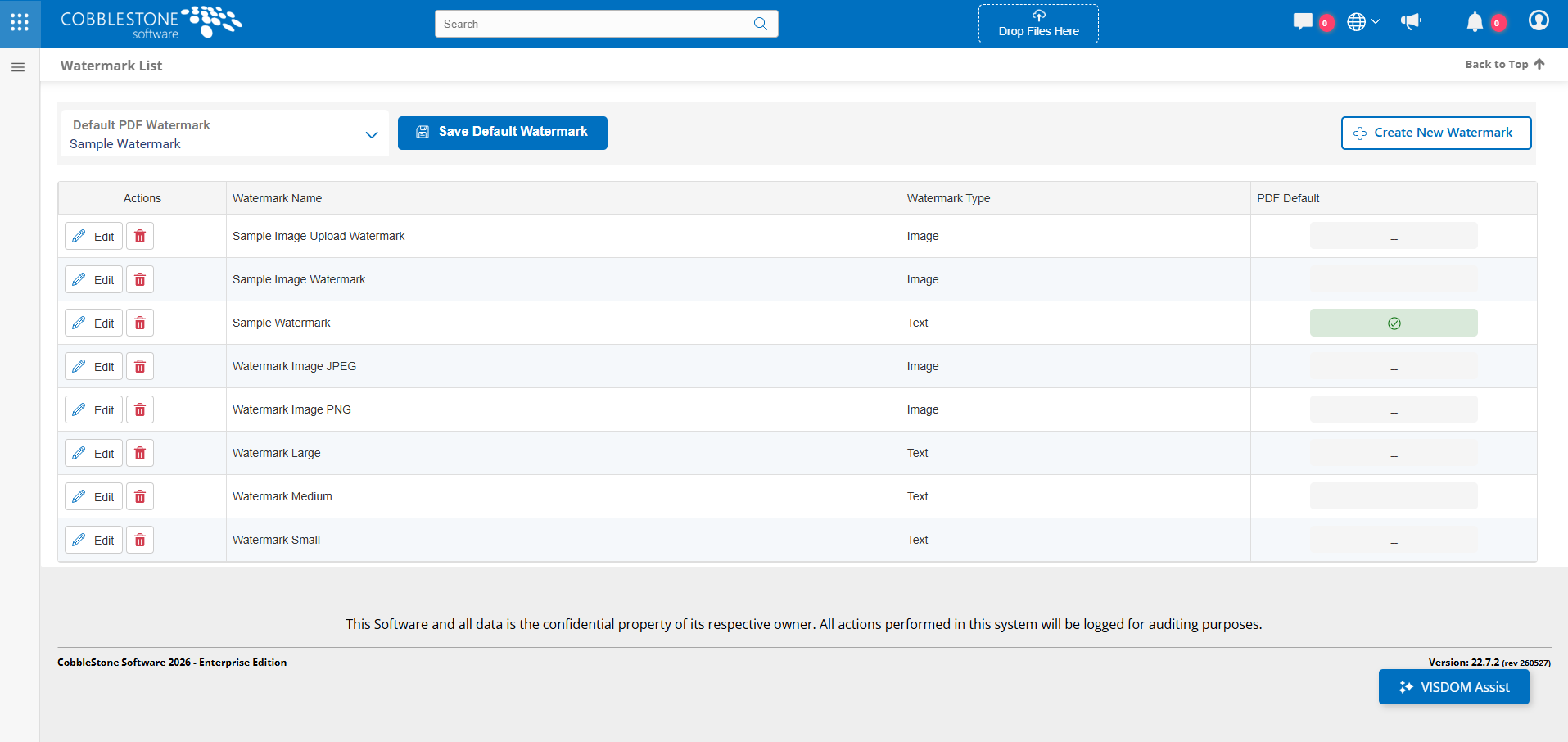
On this page users can Create, Modify, Delete, and select default watermarks that are created in the system. Once a default is set, any PDF opened or downloaded in Contract Insight will automatically display the chosen watermark.
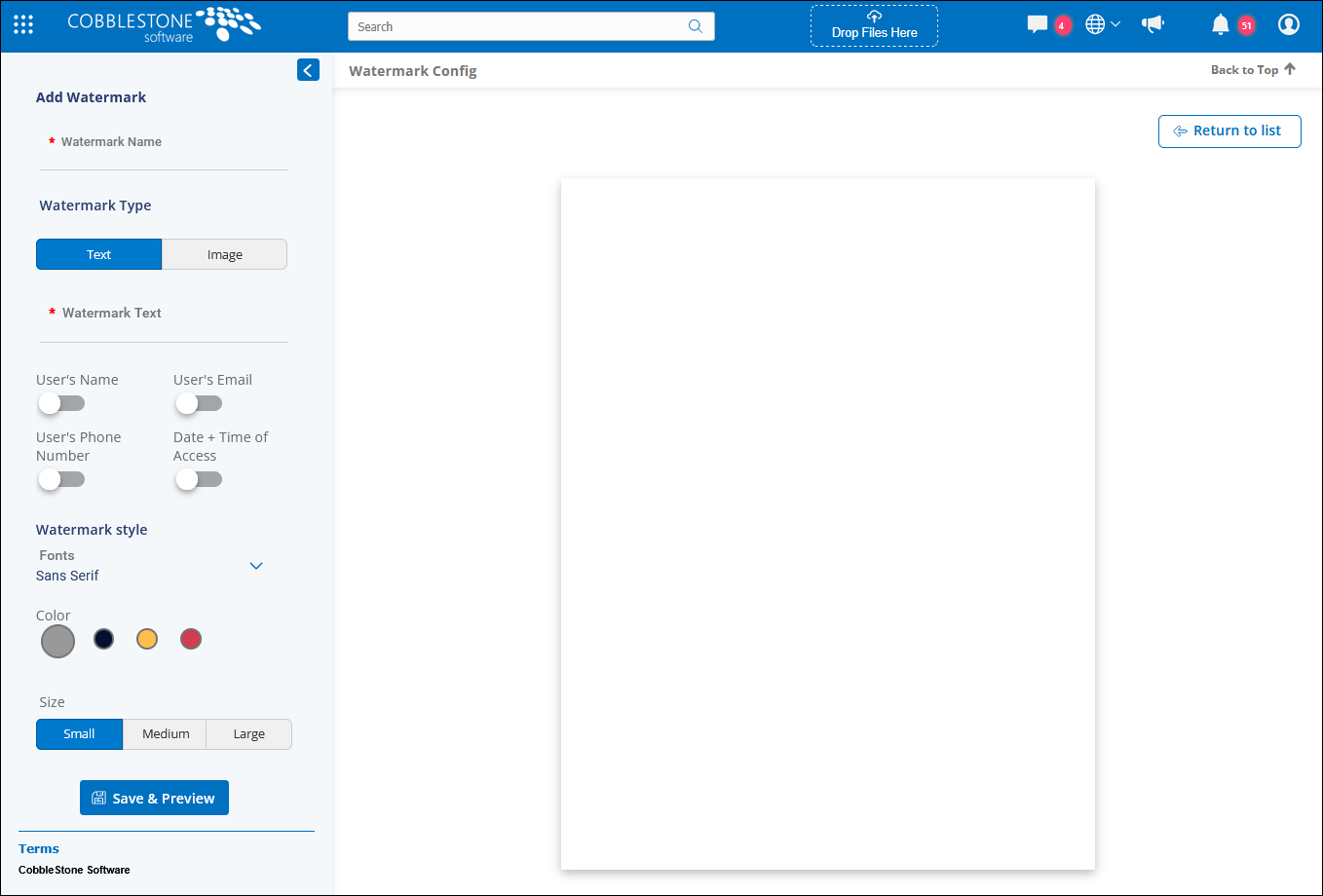
To create a new watermark, select the Create New Watermark button to get started. Users can select between a Text/Image based watermarks. If using the Text, users can include the Watermark Text, but they also have the option to include the User's information like Name, Email, Phone Number, and Time of Access. This enables users for better auditing on who is downloading/viewing documents in the system. The image watermark can only use an image.
This feature helps organizations improve document control and visibility while keeping the user experience simple and efficient.
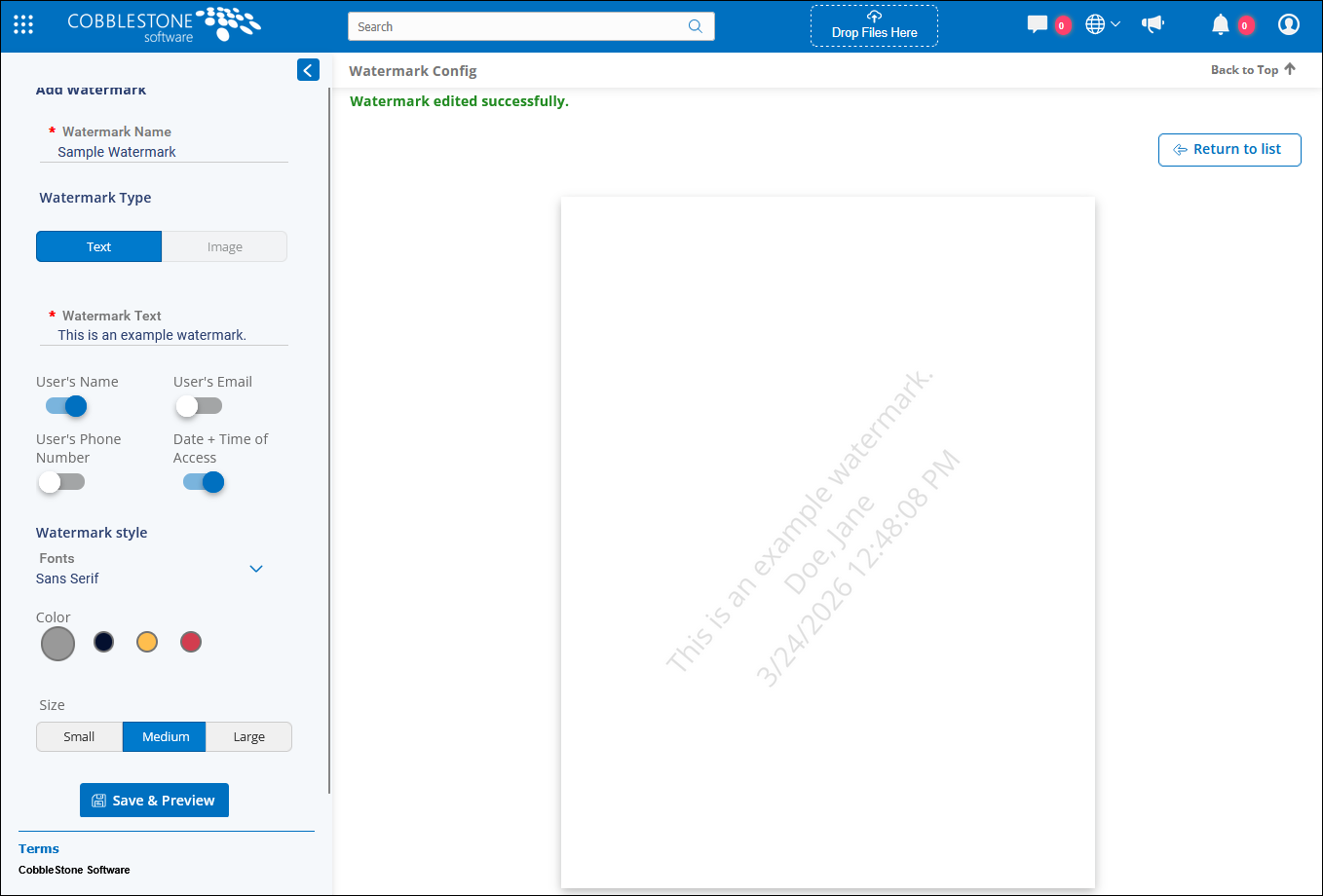
Once the Watermark is set, you can navigate to a record and preview/download a file, and it will display a watermark on the document.