The Core System provides Contract Insight’s core components and functionality for full lifecycle management of your organization’s contracts and committals.
CORE SYSTEM
NEW FEATURES
NEW FEATURE: Watermark Management for PDF Documents
Reference #: 260320.345.17836
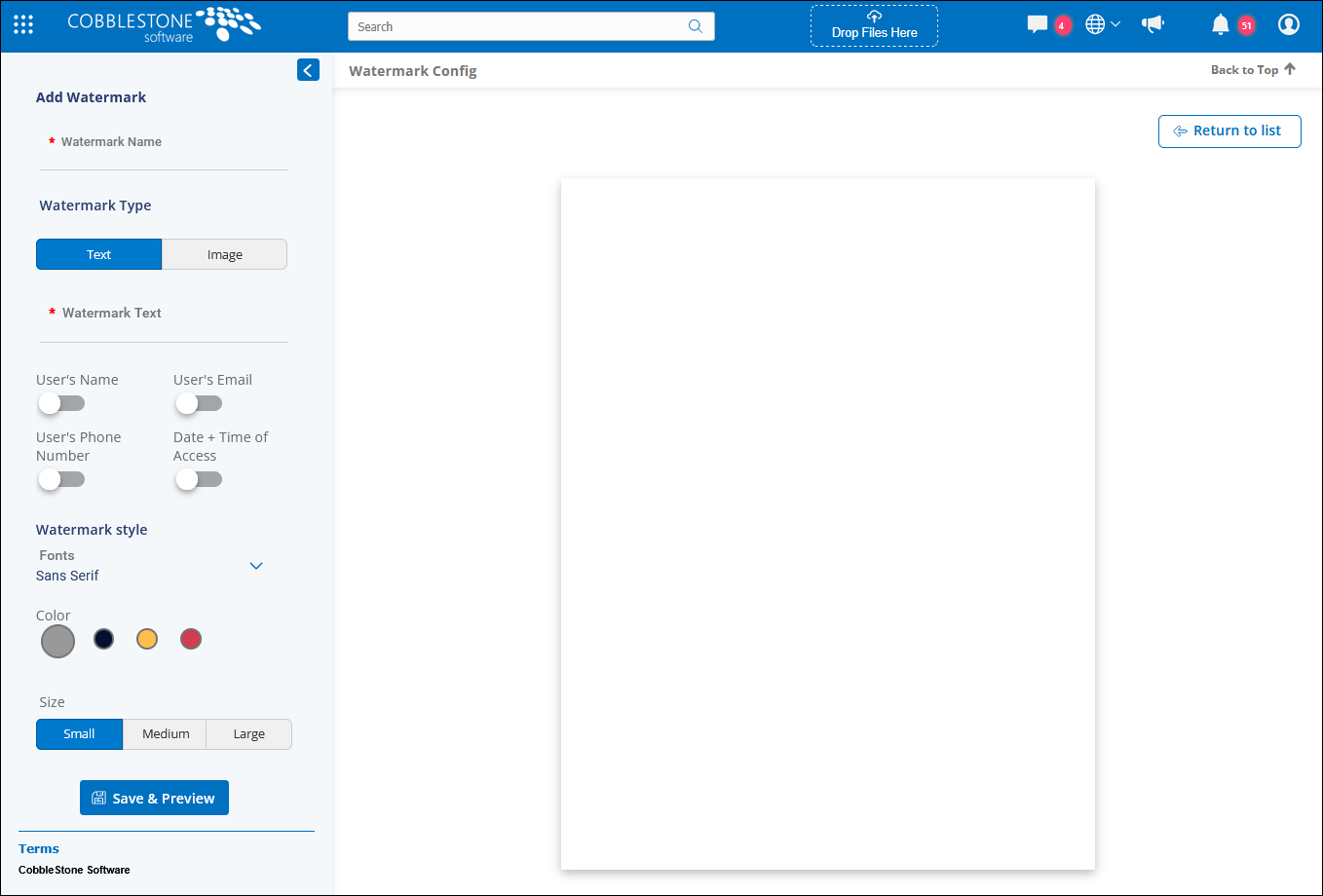
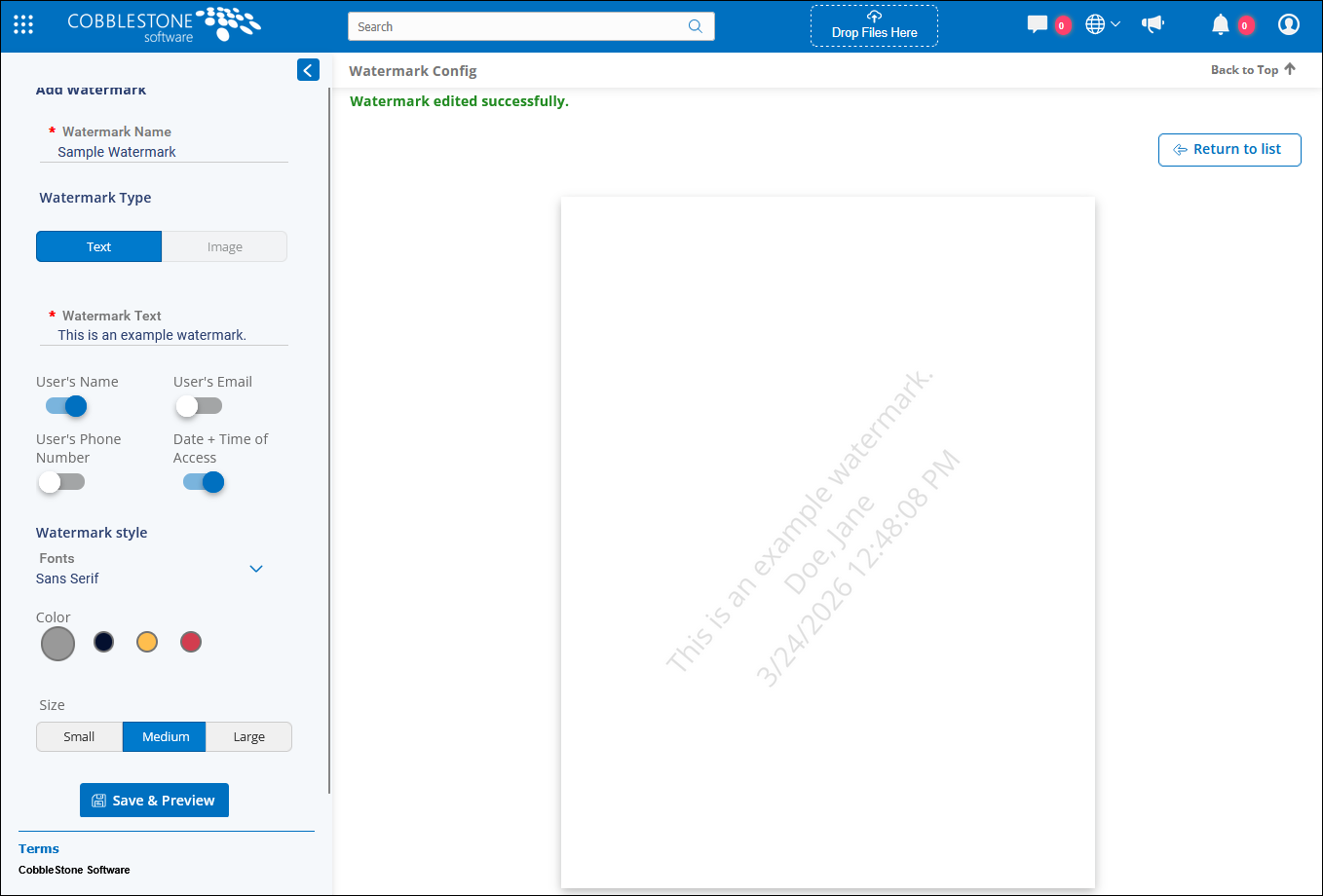
We’ve introduced a new feature that gives System Administrators the ability to manage watermarks for PDF documents directly within Contract Insight. This feature provides greater control over how sensitive documents are marked when downloaded or viewed.
With this update, System Admins can:
- Create, edit, and delete watermarks
- Choose between text‑based or image‑based watermarks
- Optionally set a single default watermark for all PDFs in the system
Watermarks are applied as an overlay when a PDF is downloaded or previewed, ensuring the original file remains unchanged. This design prevents interference with features like signing or OCR while still allowing organizations to mark documents consistently.
All watermark settings are managed in one centralized location:
Manage/Setup → Application Configuration → PDF Watermark Configuration
From there, System Administrators can review existing watermarks, create new ones, or select a default. Once a default is set, any PDF opened or downloaded in Contract Insight will automatically display the chosen watermark.
This feature helps organizations improve document control and visibility while keeping the user experience simple and efficient.
CORE SYSTEM
RESOLUTIONS
RESOLUTION: Some Users Unable to Access Survey History
Reference #: 260320.365.26304
We’ve resolved an issue that prevented some users, including Super Users, from viewing the history of surveys on Contract records. Previously, when navigating to a Contract record and opening Ratings & Surveys → Manage Survey → View History, users might have seen a red message stating they did not have permission to view the page.
With this update, the system now correctly confirms whether a user has permission to view the related Contract. If they do, the survey’s history will display as expected.
RESOLUTION: Deleted Graphical Dashboard Causing Issue Displaying Security Group Information
Reference #: 260320.1259.23570
We’ve resolved an issue that affected the display of information when opening certain security groups. Some users reported that when accessing specific security groups the page appeared to load but did not show the expected tables and details. The error message was present but hidden behind a gray panel, making it hard to identify the issue.
Users also found that if they first opened another security group that loaded correctly, then switched back, the information would display as expected. This issue occurred because the system was attempting to load a graphical dashboard that was no longer assigned.
With this update, the system now properly handles cases where a graphical dashboard is missing. Users can also safely remove dashboards from security groups without encountering display errors.
RESOLUTION: ContractTerm Field Triggering Error When Loading Contract Search Results
Reference #: 260320.365.24117
We resolved an issue where users received an error when navigating to Contracts → Find/Search Contracts. This occurred when the ContractTerm column was included in the search grid, causing the page to fail before loading results.
The system now ensures the Contract Search page loads normally. Users can once again access and use the search functionality without encountering errors.
RESOLUTION: Incorrect Field-Length Validation Causing Error When Creating New Records
Reference #: 260320.1273.25309
We resolved an issue where users encountered an error stating that a field’s value exceeded its maximum allowed range, even when the text entered was within the field’s defined limits.
The validation process has been updated and refined to correctly evaluate only the actual field value. As a result, users can now create records without receiving this incorrect error message.
RESOLUTION: Configuration‑Dependent Query Issue Causing Employee List Page Failure
Reference #: 260320.1203.29295
We resolved an issue where users encountered an error when trying to open the Employee List. This occurred only in environments where the “Employee List Screen Visible to All Employees” setting was enabled.
The system was not correctly connecting to the employee data when this setting was active, causing the page to fail before displaying results. The underlying logic has been updated to properly include employee information when needed.
With this fix, users can now access and view the Employee List without errors, and the page loads as expected.
RESOLUTION: Edge‑Case Data Handling Issues Causing Display Errors and Save Failures in Specific Field Types
Reference #: 260320.337.29335
We resolved three related issues where older versions of the system silently masked edge‑case failures, which became visible after recent platform improvements designed to load and validate data more precisely. These fixes ensure more reliable field rendering, consistent data display, and dependable saving behavior across all forms.
1. Subtable Primary Keys Displaying as Blank
Some user‑defined subtables showed blank values for their primary key column even though the data was stored correctly. This occurred because the platform identified the primary key using a universal internal name (“RecPrimaryKey”), while the display grid expected the subtable’s specific primary key field name. Older versions unintentionally hid this mismatch by always loading all fields, but the enhanced version only loaded fields defined for display, revealing the discrepancy. The system now correctly aligns the internal key with the displayed key, ensuring primary key values appear as expected.
2. Locked Email/Hyperlink Fields Preventing Save
Forms containing email or hyperlink fields marked as “locked” (non‑editable) could fail on save. Locked versions of these fields render as display‑only labels without an associated input control, and this mismatch led to a validation error during saving. The save logic has been updated to properly handle display‑only locked fields, ensuring consistent behavior across all form types.
3. Dropdown Fields With No Defined Options Blocking Save
Comma‑separated dropdown fields with no predefined options caused a hidden failure. Previously, the system silently substituted a default “Select one” option, allowing the form to function. After recent improvements, the silent failure instead blocked the save button from working. The dropdown logic has been corrected so that empty option sets are handled cleanly without blocking the ability to save the form.