COBBLESTONE SOFTWARE
Contract Insight — User Guide
Legal Hold
10. End Users: Vendors/Companies › Vendor/Company Details › Legal Hold
Note: Each procedure in this guide begins at the Contract Insight homepage, so any section can be followed on its own. Custom fields are configurable, so the exact field list on a contract category record may vary between environments.
1. Overview
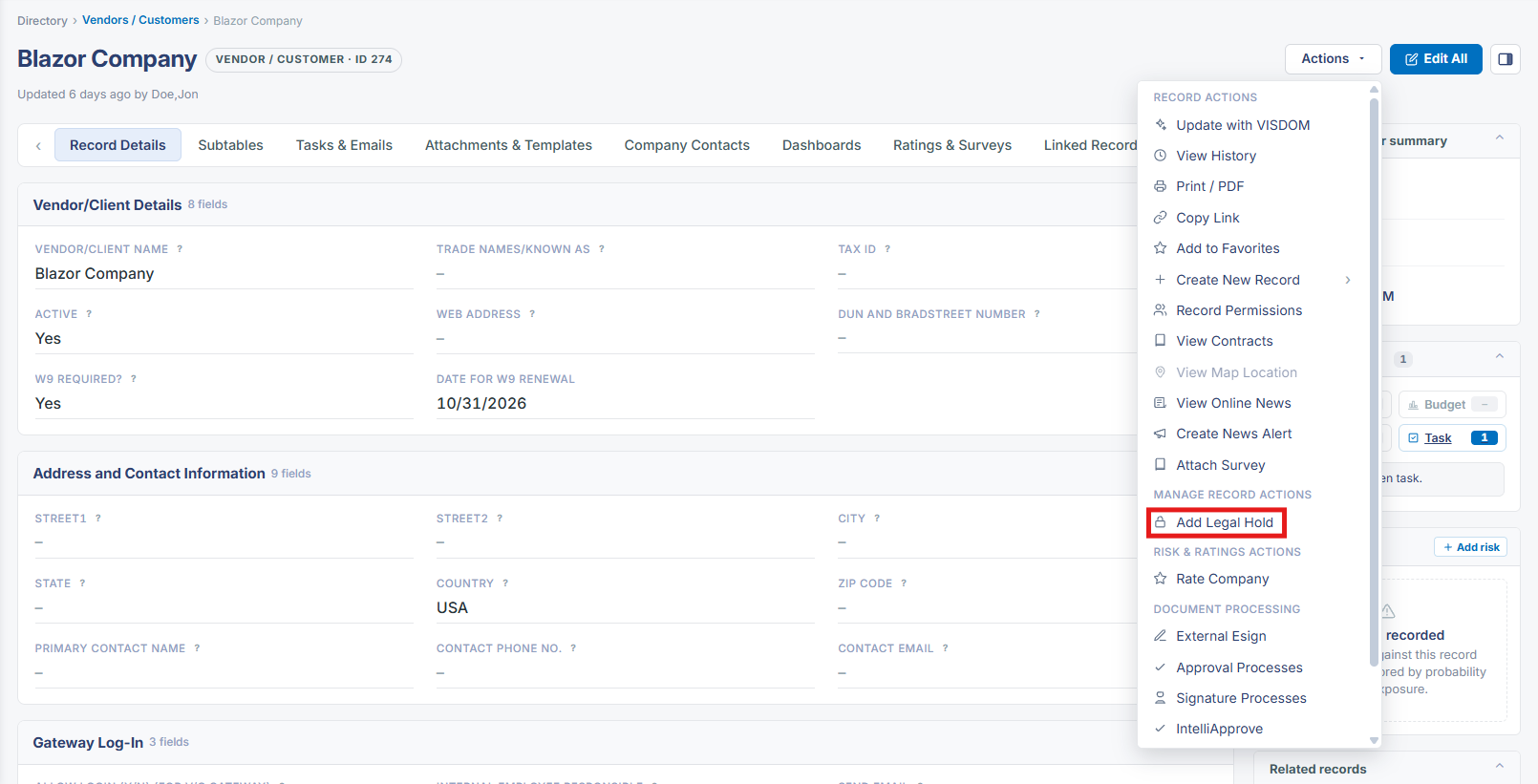
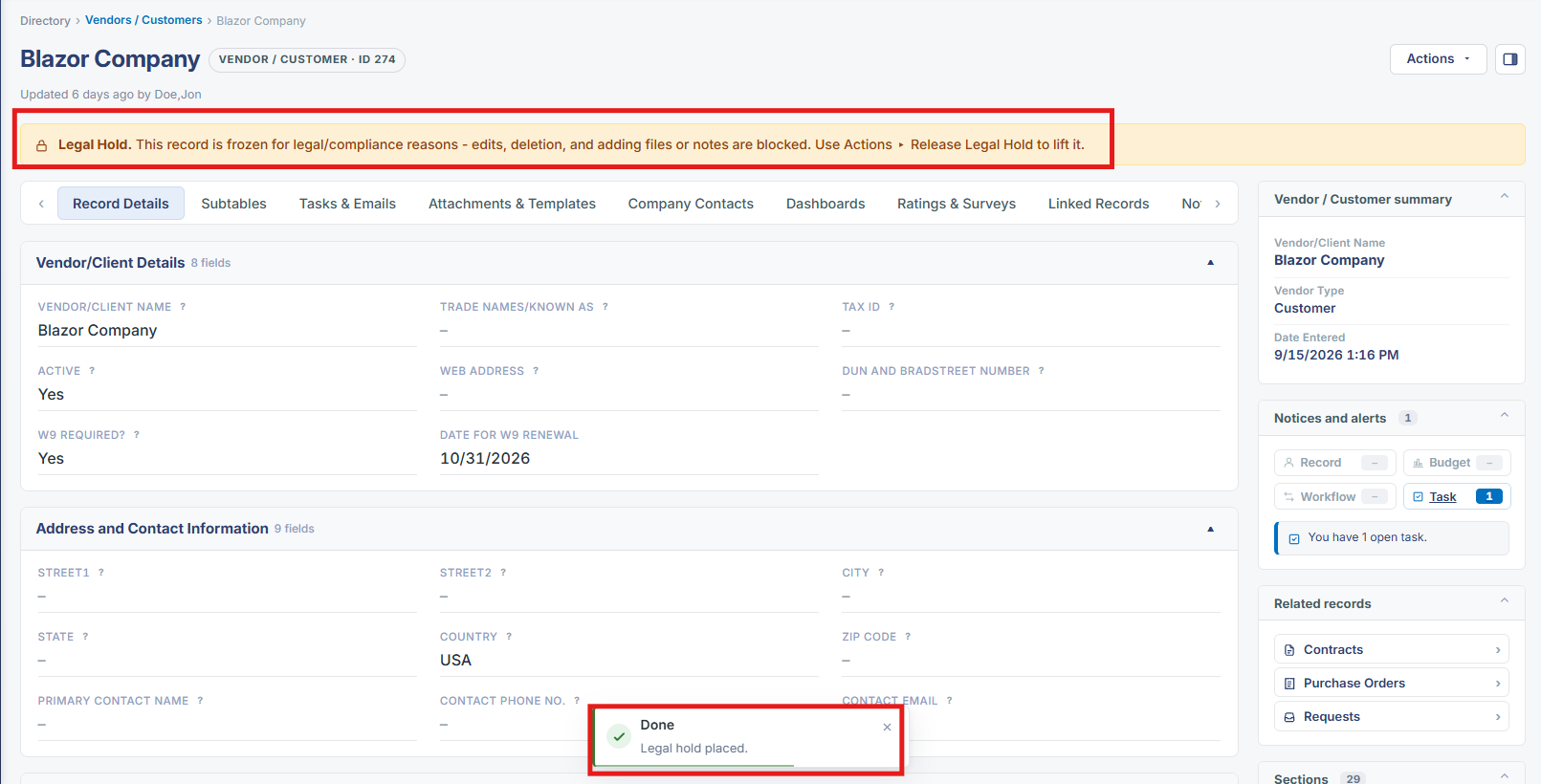
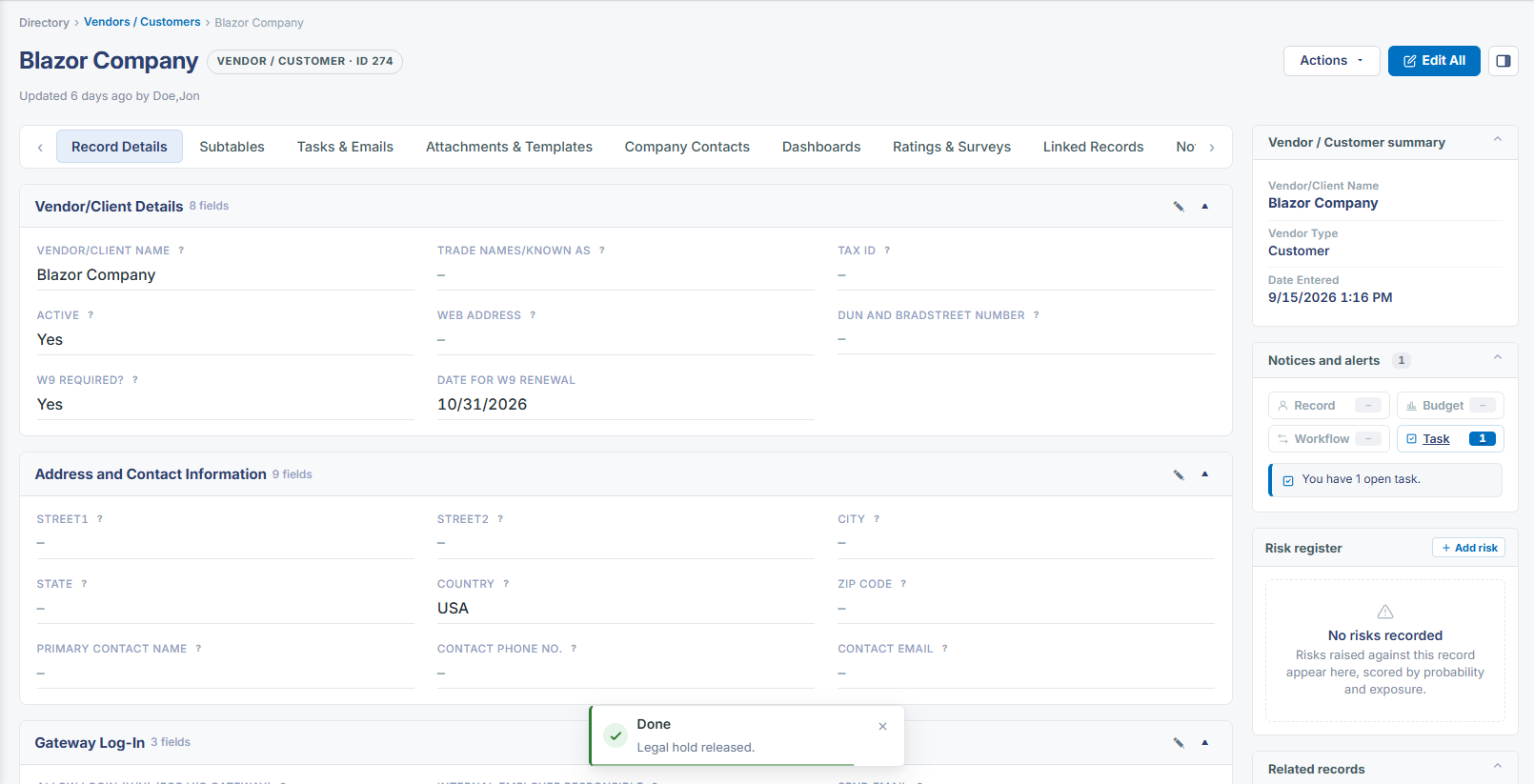
Placing a Vendor/Customer record on legal hold restricts edits and attachment changes for compliance preservation, following the same pattern confirmed live on Contract and Request records in this environment: an "Add Legal Hold" item in the record's Actions dropdown under Manage Record Actions, which applies immediately (producing the frozen-record banner and hiding Edit All) and toggles to "Remove Legal Hold" to lift it. This entry was not independently re-tested on a Vendor/Customer record specifically, but the identical Actions-menu structure was confirmed on two different record types (Contracts and Requests) in this environment, making it a reasonably confident extrapolation that Vendor/Customer records follow the same unified mechanism rather than the legacy wiki's separate "View All Actions" menu location for this record type.
2. Key Elements
- The live application's Add Legal Hold / Remove Legal Hold mechanism, confirmed on Contract and Request records, is expected to apply identically to Vendor/Customer records via that record's Actions dropdown.
- Applying the hold is expected to produce the same frozen-record banner (edits, deletion, and file/note additions blocked) and hide the Edit All button, matching the pattern seen on other record types.
- This entry was not independently re-tested on a live Vendor/Customer record; the grounding here extrapolates from the identical mechanism confirmed on two other record types rather than from a direct test of this one.
- The legacy wiki described reaching this action via "View All Actions" then "Add Legal Hold" for Vendor/Customer records specifically — in the redesigned application this is unified into the same single Actions dropdown used everywhere else.