The Core System provides Contract Insight’s core components and functionality for full lifecycle management of your organization’s contracts and committals.
CORE SYSTEM
NEW FEATURES
NEW FEATURE: Inbound Email Record Creation
Reference #: 251212.1259.14130
Authorized users can now create new records (such as Requests, Contracts, Vendors, Solicitations, and Purchase Orders) by sending an email to a designated system address. The system will read the email, identify the correct template, and automatically fill in the fields of a new record based on the information provided.
How It Works
1. Admin Templates
Administrators can now set up email parsing templates that tell the system what fields to look for in an incoming email. This can be found by going to: Main Menu -> Manage/Setup -> Application Configuration -> Inbound Record Templates.
Each template includes:
- A template name (set during creation)
- A list of fields, in the order the email should provide them
These templates allow the system to understand how to map information from the message into the correct record fields.
2. Email Matching
When an email is received:
1. The system checks if the subject line contains the template name in brackets.
Example: [contract-template-1]
2. If the subject matches a template, the system scans the body of the email for values placed inside square brackets like this: [ ].
3. The first value found is matched to the first field in the template, the second to the second field, and so on.
The system will also recognize dropdown fields (like Employee or Customer) by matching the text you provide to an existing option in the system.
3. User Requirements
For security purposes, only emails sent from valid, active system users with permission to create records will be accepted.
Where to Send Your Emails
To create a new record, send an email to one of the following addresses:
- Requests: requests@[Contract Insight URL]
- Contracts: contracts@[Contract Insight URL]
- Vendors: vendors@[Contract Insight URL]
- Solicitations (if licensed): solicitations@[Contract Insight URL]
- Purchase Orders (if licensed): purchaseorders@[Contract Insight URL]
Example: If your URL is abcwarehouse.cobblestone.software, then, to create a new Request, you would send the email to: requests@abcwarehouse.cobblestone.software
Email Formatting Guide
Subject Line
Include the template name in brackets.
Example: [contract-template-1]
Email Body Format
Each field should be written as:
Field Label: [Your Value]
Example:
Contract Title: [This is contract title]
Vendor / Client Name: [ABC Warehouse]
Contract Type: [Consulting Agreement]
Status: [Pending]
Description: [Contract Description]
Expiration Date: [09/30/2025]
Effective Date: [06/30/2025]
Employee: [Smith, John]
Formatting Tips
- Dates must use MM/DD/YYYY
- For people fields, use Lastname, Firstname
- Yes/No fields must be exactly “Yes” or “No”
- Dropdown fields must match an existing value exactly
What to Expect
If your email follows the template format, the system will automatically create a new record with the values filled in—fast and accurately.
If something doesn’t match, the system will simply skip that field or reject the email if the sender is not authorized.
CORE SYSTEM
ENHANCEMENTS
ENHANCEMENT: View History Added for Inbound Record Template Changes
Reference #: 260127.1259.21678
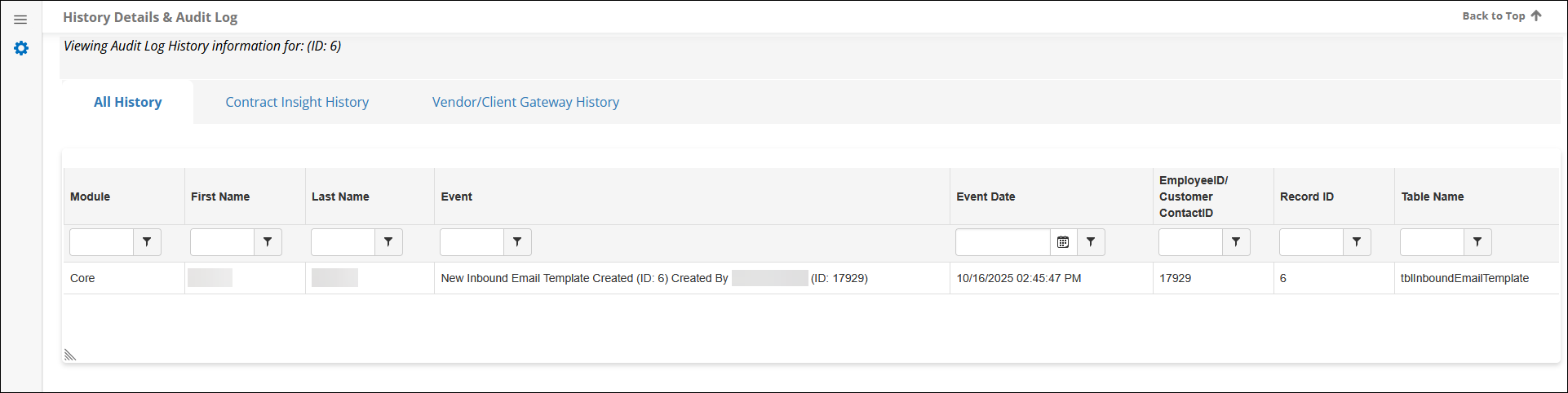
Inbound Record Templates have been enhanced to include a new View History page, giving users greater visibility into changes made within the templates. This enhancement helps teams track updates, maintain oversight, and ensure consistency.
Users can now review a complete audit history for Inbound Record Templates, including:
- Who made each change
- What action was taken (creation, edit, update, etc.)
- When the change occurred (date and time)
- Relevant IDs for reference and tracking
This new page mirrors the existing history view available on other areas.
How will this affect users?
Teams now have clearer insight into template modifications, improving transparency, collaboration, and version accountability.
ENHANCEMENT: Print and PDF Download for Email Chains
Reference #: 260127.1259.23932
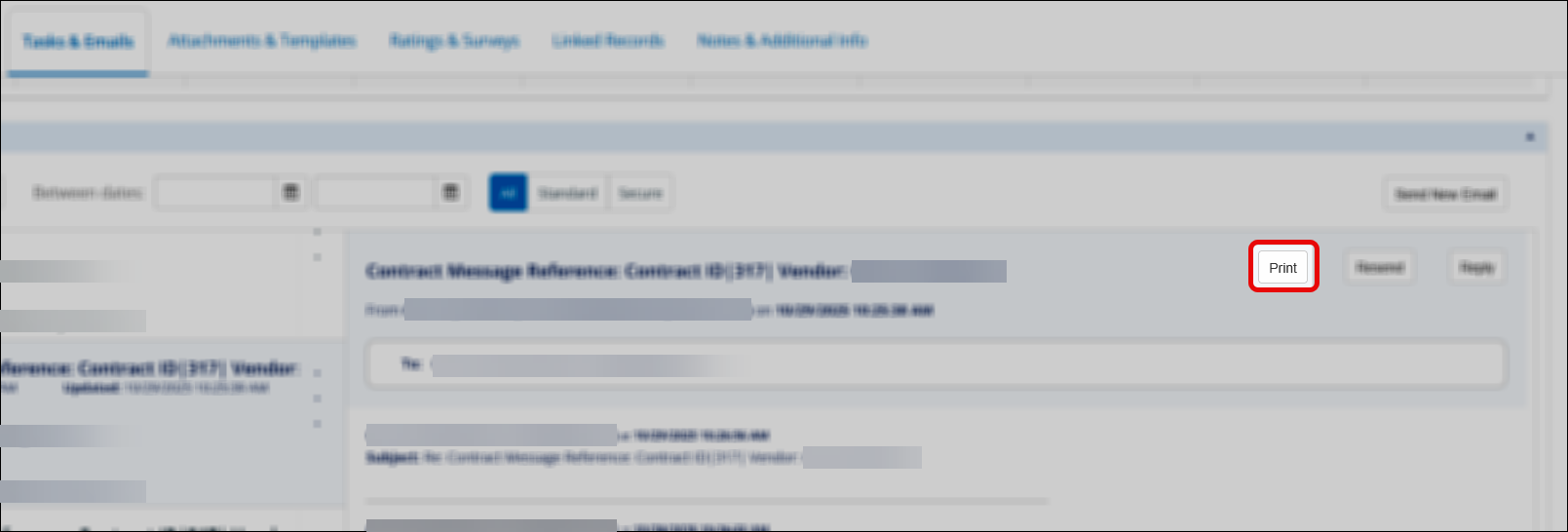
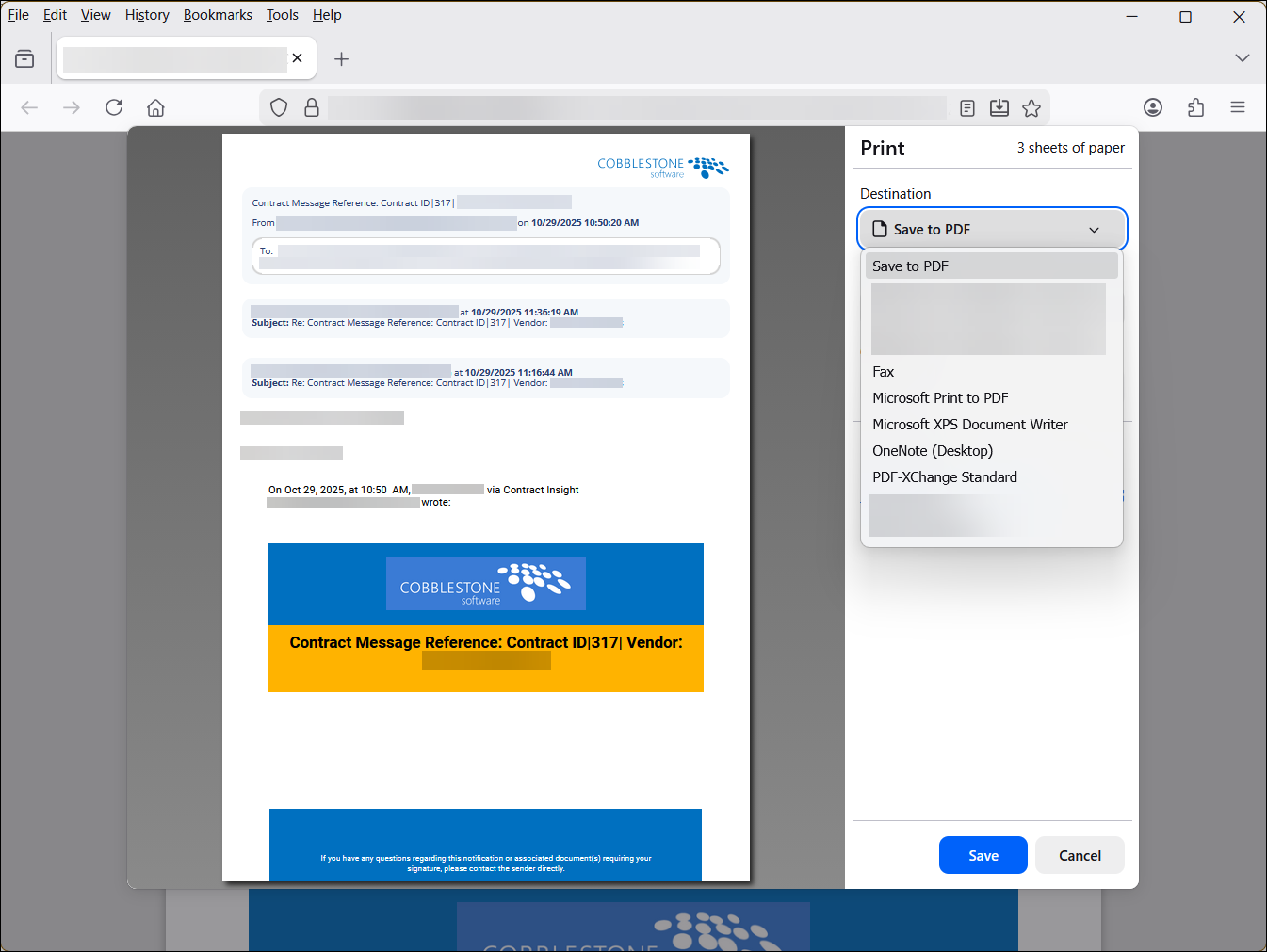
Users now have the ability to print or download a complete email chain as a PDF. This option is available on the Task & Emails tab within each record.
This enhancement provides the following benefits:
- Access to a comprehensive view of all messages within an email thread
- The ability to generate a PDF copy for compliance, auditing, or archival purposes
- A straightforward print option for maintaining physical records of communication
How will this affect users?
This update supports more efficient information management and ensures that full communication histories can be easily saved and shared as needed.
CORE SYSTEM
RESOLUTIONS
RESOLUTION: Contract Search for Assigned Parties
Reference #: 260127.1203.19007
We resolved an issue where users were unable to search for additionally assigned Vendors, Departments, Locations, and Employees on Contract records. This prevented users from locating contracts based on these assigned parties through the Find/Search screen.
With this fix, when the “Enables Expanded Contract Find by Field” configuration setting is enabled, users can once again filter and search for all additionally assigned parties as expected.
RESOLUTION: Primary Key Values Display as Standard Numbers
Reference #: 260127.1287.20843
We fixed an issue where certain ID values (Primary Keys) were being incorrectly formatted as if they were regular numbers. As a result, IDs displayed with commas (for example, “12,345” instead of “12345”) when filtering or viewing records in various grids across the system.
This formatting has now been corrected. All Primary Key values will appear as full, unformatted whole numbers, ensuring consistency and preventing confusion when searching or filtering.
RESOLUTION: One‑Off Email Reply “To” Field Not Populating as Expected
Reference #: 260127.1259.23969
We resolved an issue where replying to a one‑off email on a Contract record caused the system to replace the original recipients with the replying user in the “To” field. Although the previous email addresses were not visibly displayed, they could still receive the message, leading to confusion.
This functionality has now been corrected. The Reply option for one‑off emails works as intended, and the “To” field now accurately auto‑populates with the appropriate recipients.
RESOLUTION: Contract Links Not Accessible from Customer Records
Reference #: 260127.1203.21988
We have resolved an issue that affected the visibility of contract links associated with customers and vendors in the system. Previously, Contract links were not always appearing as expected on Vendor/Customer records. This update restores the intended functionality and provides a clearer, more dependable way to view Contract relationships within the system.
RESOLUTION: Product Service Code Descriptions Not Displaying
Reference #: 260127.1267.22754
We resolved an issue that caused Product Service Code descriptions to stop appearing when adding codes to Solicitation or Vendor records. Previously, users could type part of the description in the dropdown to quickly find the correct code, and the system displayed the code in the format “Code (Description)”. Due to the issue, only the code number appeared, and the description was missing both in the dropdown and in the subtable after the code was added.
This has now been corrected so Product Service Codes once again display in the format “Code (Description)” when selecting a code and the full Code + Description also displays properly in the subtable after the code is added.
RESOLUTION: White Space Display on Record Details Pages
Reference #: 260127.1203.24012
We have resolved an issue where extra white space remained at the bottom of a details page after users closed the “Notices and Alerts” banner located above the page tabs.
As part of this fix:
- The close (“X”) button has been moved to the left side of the Notices and Alerts bar to make it easier to access without scrolling
- The page now automatically resizes correctly when the banner is closed, preventing unnecessary white space
With this update, the details page now displays as expected once notices are closed, ensuring a cleaner and more consistent user experience.
RESOLUTION: Force Password on Reset Dropdown Duplicating "No" Option
Reference #: 260127.1203.24018
We resolved an issue where the “Force Password Reset on Login” dropdown on the Employee Details page was displaying two “No” options. With this update the dropdown now shows the correct set of options, eliminating the duplicate
RESOLUTION: Search Engine Functionality Not Responding in Reports/Searches
Reference #: 260127.360.24416
An issue affecting the Search Engine within the Reports/Searches module has been resolved. Previously, users encountered an error message when attempting to perform a search, preventing use of the search functionality. Search requests are now routed appropriately, and the system’s response time allowance has been increased to ensure results can be returned reliably. This resolution restores the expected functionality and enhances the overall user experience within the reporting and search modules.
RESOLUTION: Vendor Contracts Dock on Contracts Not Loading Correctly if Contract ID Field Not Included
Reference #: 260127.337.25114
We resolved an issue where the Vendor Contracts dock on the Contract Details page failed to load under certain conditions. This occurred when users customized the Contract Search page to display selected fields but did not include the Contract ID field. Without this required field, the dock could not load properly. With this resolution, the system will automatically include the Contract ID field when needed on the Vendor Contracts Dock.