Overview
The backup process is designed to safely extract your data and associated files (documents, attachments, etc.) from the system. It is optimized to handle both small and large datasets, ensuring reliability and completeness of the backup.
What to Expect During the Backup
The process runs in multiple stages:
1. Data Extraction
- Records are retrieved in batches (paginated)
- Data is progressively compiled into an Excel file
2. File Download
- Associated files (PDFs, images, etc.) are downloaded
- This runs in parallel to improve performance
You may notice files appearing in folders while the process is still running.
Execution Time & Processing Model
The backup process is not immediate. It is designed to run in an idempotent and controlled manner, ensuring data consistency and reliability over speed.
The process runs progressively:
- Data is retrieved in batches (paginated)
- Files are downloaded in parallel as records are processed
- Output (Excel and files) is generated incrementally
This means:
- Results are built step by step, not instantly
- The process may take longer depending on data volume
- Running the process multiple times is safe and will not duplicate structures
The backup prioritizes data integrity and completeness over real-time execution.
Estimated Duration
The total execution time depends on:
- Number of records
- Number of attached files
- File sizes
- System/API performance
Typical ranges:
- Small datasets: a few minutes
- Medium datasets: 10–25 minutes
- Large datasets: 30–90 minutes
- Large datasets with many files: up to 1–2 hours
Final Output
Once the backup is completed, you will have:
- An Excel file with all extracted data
- A structured folder containing all related files
How to Confirm Completion
The backup is considered complete when:
- The Excel file has been generated
- File downloads have stopped
- A completion log entry or notification is present
Troubleshooting Guide
If you encounter issues:
1. Check the log file
2. Verify Excel and files are created
3. Check network/system performance
4. Re-run the backup if needed
Where to Find Logs and Backup Files
Logs:
C:\ProgramData\CobbleConnectBackupJob\Logs
Files:
C:\ProgramData\CobbleConnectFiles\
or
C:\Windows\System32\CobbleConnectFiles\
Note: ProgramData may be hidden in Windows Explorer.
How You Can Help Troubleshoot
Please provide:
- Log file
- Time of issue
- Dataset size (if known)
- Error message or screenshot
- Whether the issue is reproducible
Uploads Directory Configuration
For deployed environments, please ensure that an Uploads folder exists within the application’s root directory.
This folder is used for handling file uploads and runtime storage.
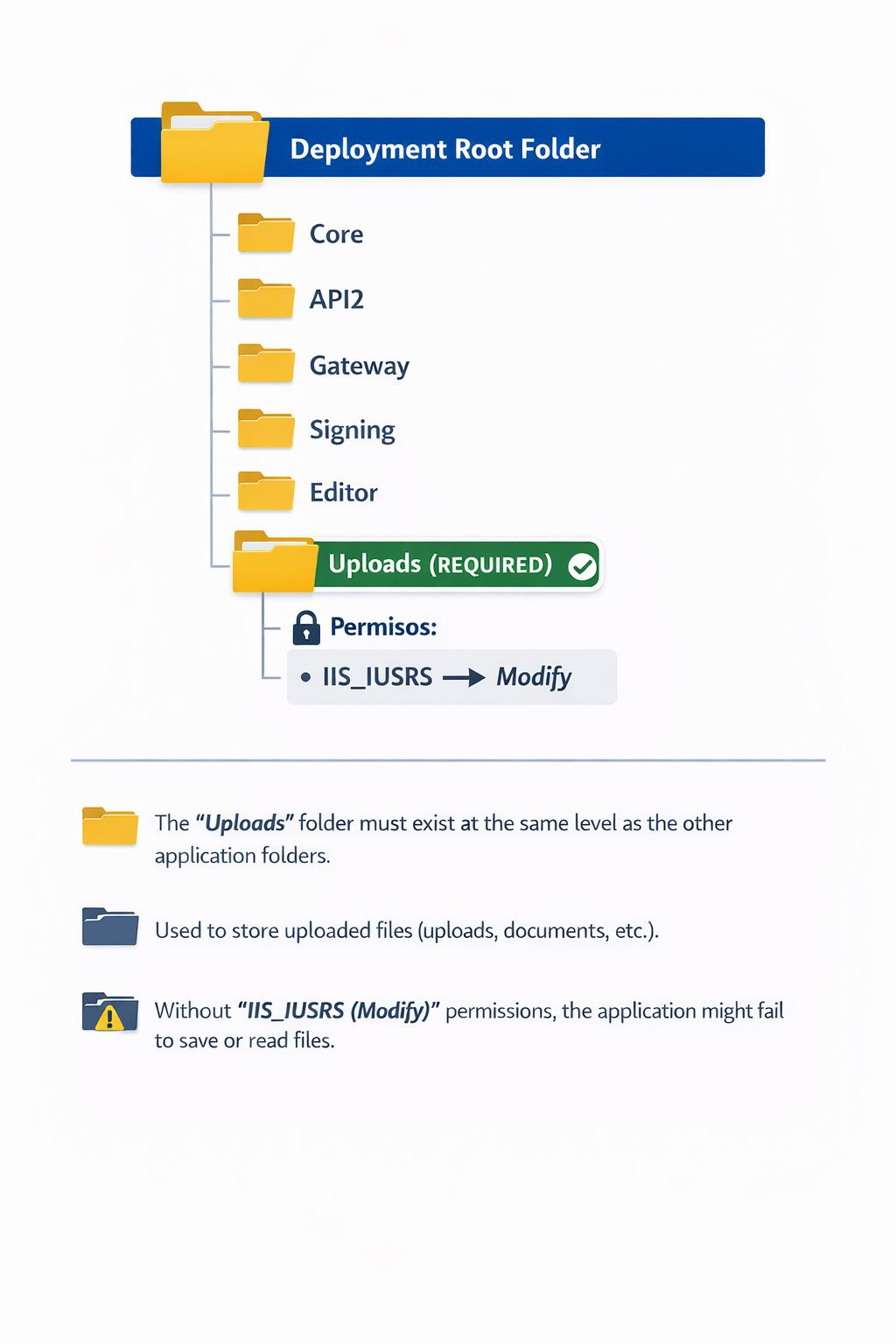
The IIS_IUSRS group must be granted Modify permissions to ensure the application can read, write, and manage files correctly.