COBBLESTONE SOFTWARE
Contract Insight — User Guide
3. Approval Groups Grid
Document Templates Management › E-Approval Flow/Groups › 3. Approval Groups Grid
Note: Each procedure in this guide begins at the Contract Insight homepage, so any section can be followed on its own. Custom fields are configurable, so the exact field list on a contract category record may vary between environments.
1. Overview
The Groups and participants section of an approval process's console is, in effect, its approval groups grid: a numbered list of every group in the flow. Each group shows its status (finalized, current group, or not yet started), when its participants were notified, and buttons to Add participant or Resend the notification. Each participant row shows that person's status (for example, Approved or In Process), when they acted or were notified, and per-participant actions.
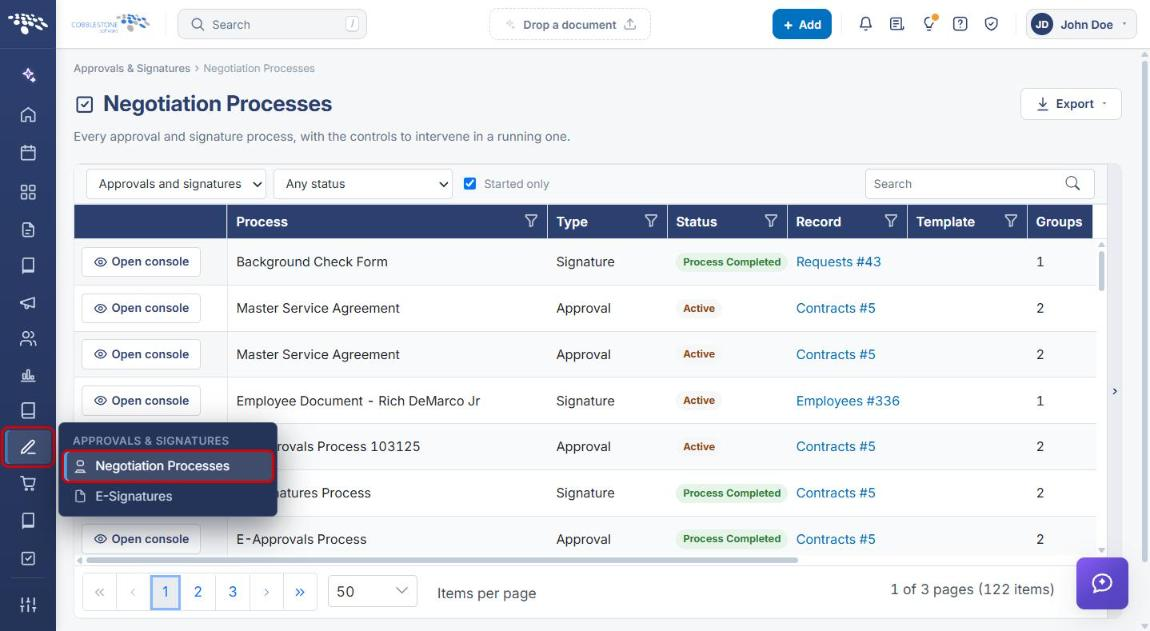
Approval process consoles are opened from Approvals & Signatures → Negotiation Processes, which lists "Every approval and signature process, with the controls to intervene in a running one."
2. Key Elements
- Groups and participants numbers every group in the flow (1, 2, …). The current group is outlined and its number is highlighted.
- Each group header shows a status tag — finalized with a date, or current group — and a notified timestamp.
- Resend re-sends the notification to the group. Only the current group can be re-notified, so it's unavailable on finalized groups.
- Add participant adds an External participant, Employee participant, or Company contact participant to a group.
- Each participant row shows a status badge, the participant's name and source (for example, FROM TEMPLATE), their role, and when they acted or were notified. Row icons let you Re-send this invitation, Replace this participant, or delete the participant, where allowed.
- The console header shows the process STATUS, how many GROUPS are finalized, and the number of PARTICIPANTS and FILES, with Pause, End process, and Finalize actions.
3. Navigating to an Approval Process Console
- From the Contract Insight homepage, click the Approvals & Signatures icon in the left navigation bar.
- Select Negotiation Processes.
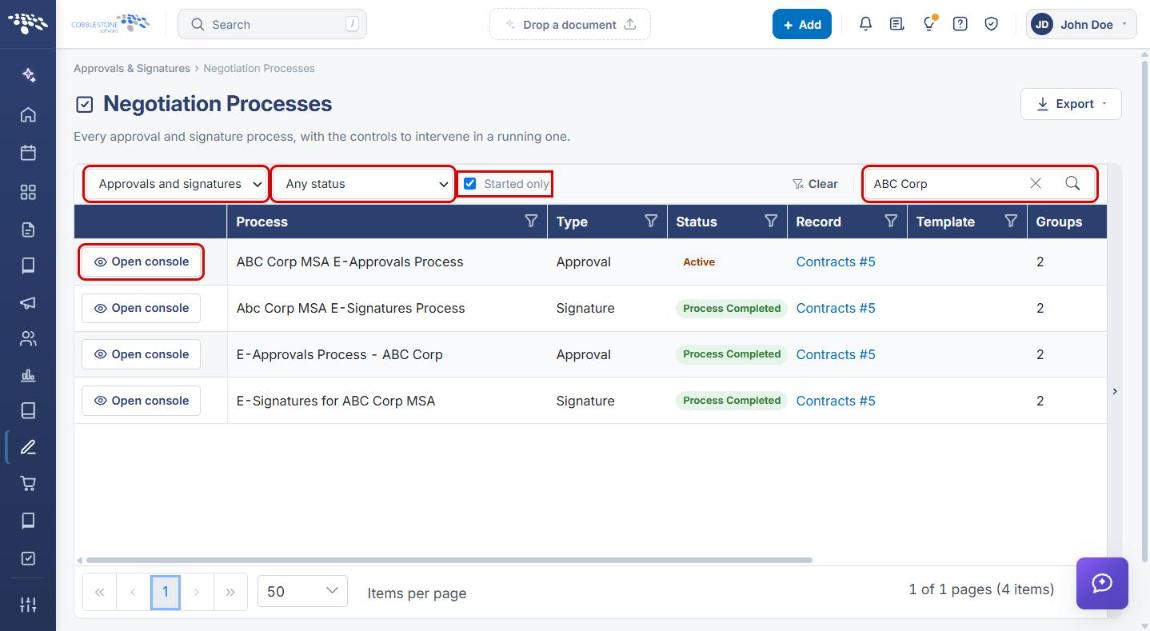
- Use the filters to narrow the list: choose Approvals and signatures, Approvals only, or Signatures only; choose a status (for example, Active); and check or clear Started only. Use Search to find a process by name.
- Click Open console on the process's row.
4. Reviewing the Process Console
The console opens with the process name, the record it belongs to, and a summary of its progress.
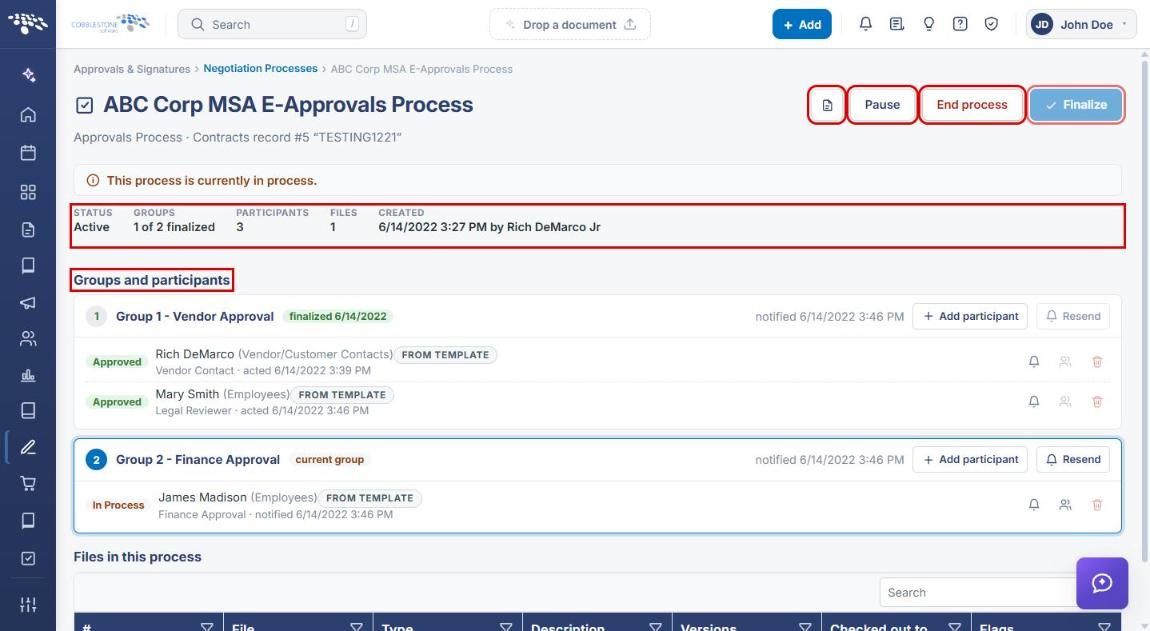
- Open record (document icon) — opens the record the process belongs to.
- Pause, End process, and Finalize — control the running process.
- STATUS, GROUPS (for example, "1 of 2 finalized"), PARTICIPANTS, FILES, and CREATED — summarize the process.
- Groups and participants — the approval groups grid (see Section 5).
5. Reading the Approval Groups Grid
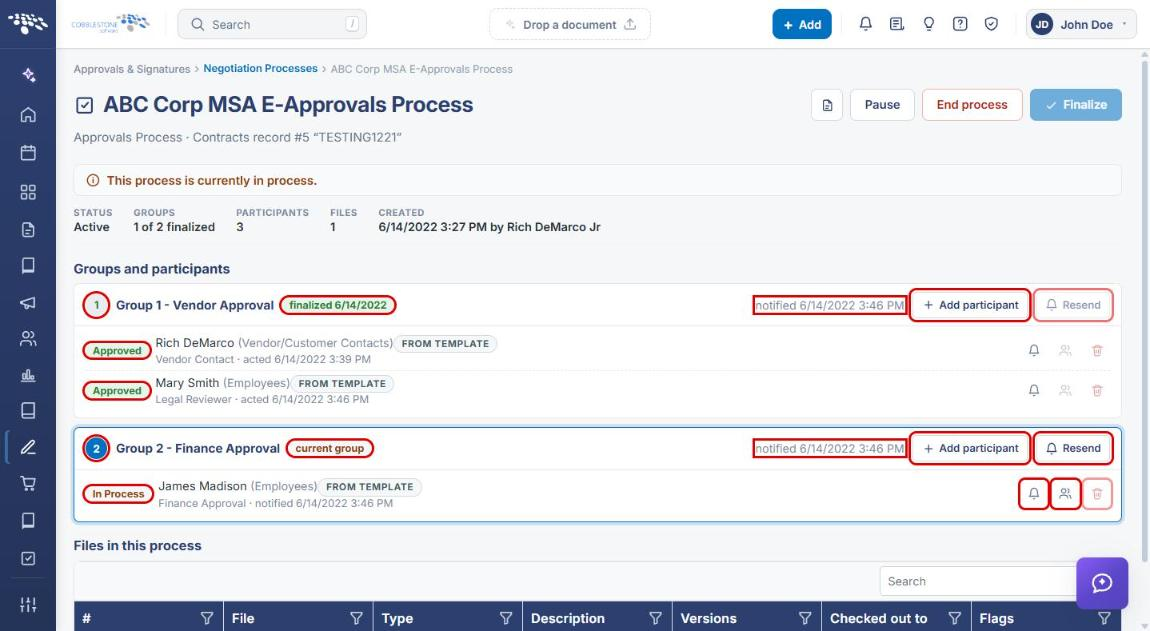
- Group number — groups run in order. The current group's number is highlighted and the group is outlined.
- Group status — finalized (with the date it finished) or current group.
- notified — when the group's participants were last notified.
- Add participant and Resend — group-level actions (see Sections 6 and 7).
- Participant status — for example, Approved (with the time they acted) or In Process (with the time they were notified).
- Row actions — Re-send this invitation (bell), Replace this participant (people icon), and delete (trash). Unavailable actions are dimmed. For example, a completed participant can't be replaced, and a participant added through the process can't be deleted.
6. Resending a Notification
- Open the process console (see Section 3).
- To re-notify the whole current group, click Resend on the group's header.
- To re-notify a single participant, click the Re-send this invitation (bell) icon on their row.
Note: Only the current group can be re-notified; Resend is dimmed on finalized groups.
7. Adding a Participant to a Group
- Open the process console (see Section 3).
- Click + Add participant on the group's header. The Add a participant to form opens below the grid.
- Choose the participant type: External participant, Employee participant, or Company contact participant.
- Enter the participant's details (for an external participant, Full name and E-mail address) and, optionally, Why are they being added?
- Click Add, or click Cancel to close the form.
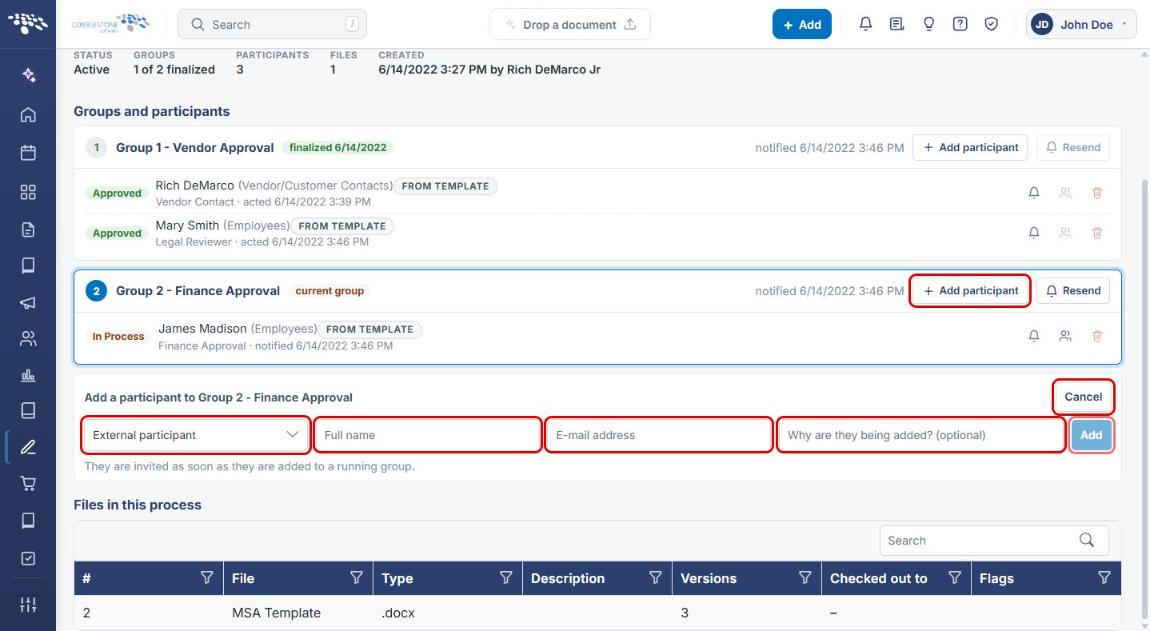
Note: Participants added to a running group are invited as soon as they are added.
8. Quick Reference Summary
| Task | How to Complete It |
|---|---|
| Find an approval process | Approvals & Signatures → Negotiation Processes → filter or Search. |
| Open the approval groups grid | Open console → Groups and participants. |
| See which group is active | Look for the current group tag and highlighted group number. |
| Re-notify the current group | Group header → Resend. |
| Re-notify one participant | Participant row → Re-send this invitation (bell). |
| Add a participant | Group header → + Add participant → choose type, enter details → Add. |
| Replace a participant | Participant row → Replace this participant (people icon). |
| Pause, end, or finalize the process | Console header → Pause, End process, or Finalize. |