COBBLESTONE SOFTWARE
Contract Insight — User Guide
Scheduled Jobs: Reports
Configuration Group: Scheduled Jobs - Reports
Note: Each procedure in this guide begins at the Contract Insight homepage, so any section can be followed on its own. This group configures the content and timing of scheduled report email; the job that sends it is managed on the Scheduled Jobs screen, as described in Section 6.
1. Overview
The Scheduled Jobs - Reports configuration group holds the settings that control the report email the system sends on a schedule. It defines the wording of those messages, whether legacy reports are included in the report scheduler, and how often reports are sent.
The settings apply to both legacy and ad-hoc reports that have been put on a schedule by a user. The group contains 4 settings, organized under two subsection headings in the settings panel: REPORTS and TIMERS.
As with every configuration group, each setting is presented as a single row containing:
- The name of the application setting
- A description of what the setting does
- An editing control holding the current value — a toggle, a text box, or an Edit content button for the rich-text message setting
- A “Last changed” line recording when the setting was last modified and by whom
Because this group is maintained from the Administration area, only Application Administrators — or other users specifically granted the appropriate permission — can view and change these values. The reports themselves, and the schedules attached to them, are created by users from the reporting area.
2. Accessing the Scheduled Jobs - Reports Group
- From the Contract Insight homepage, click Administration at the bottom of the left navigation menu.
- On the Administration page, under Configuration & Fields, select Application Settings.
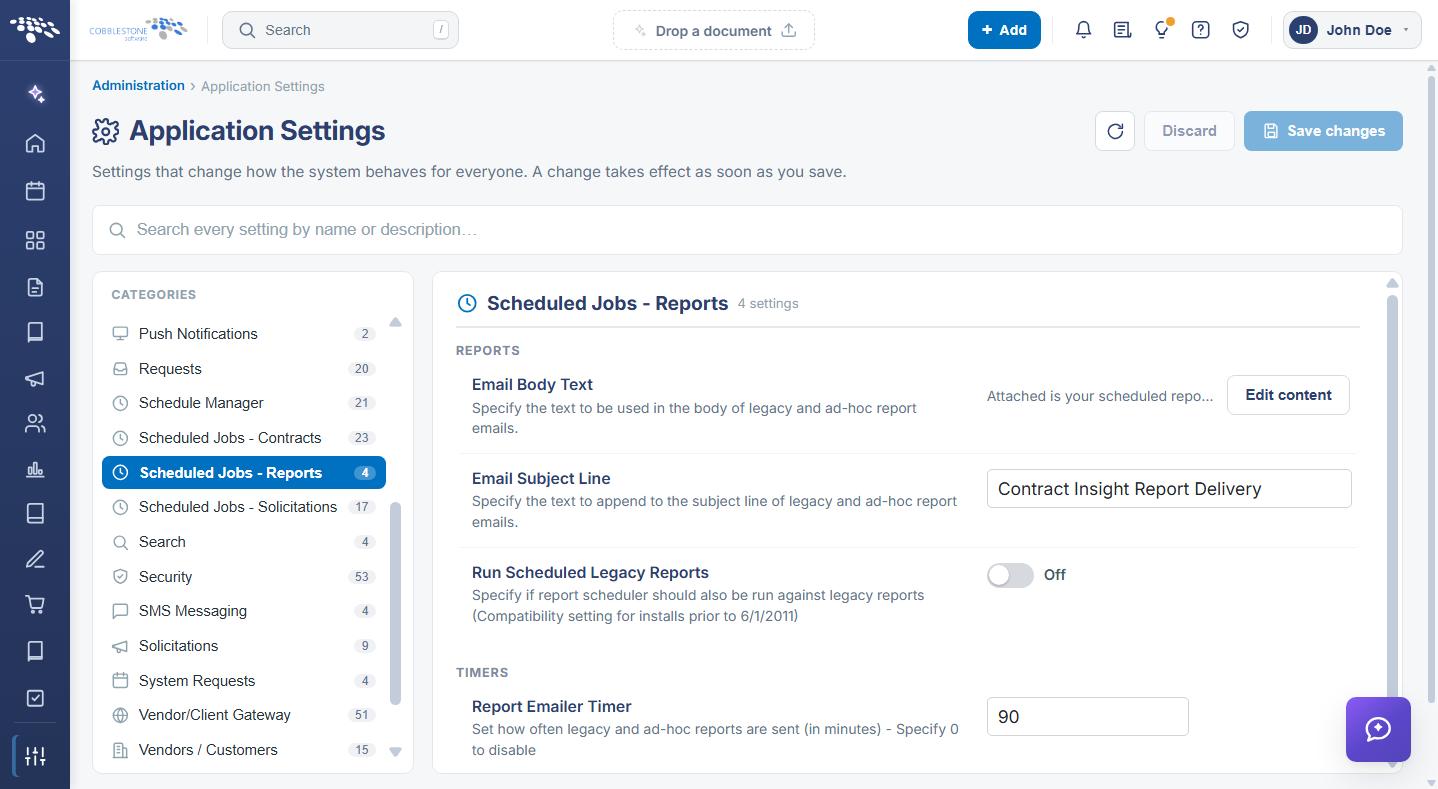
- In the CATEGORIES rail on the left, click Scheduled Jobs - Reports. The category is highlighted, and the count beside it shows the number of settings it contains.
- The settings panel on the right is headed Scheduled Jobs - Reports with its setting count, and lists the settings under the REPORTS and TIMERS subsection headings.
A specific setting can also be reached without browsing the category, by typing part of its name or description into the Search box at the top of the Application Settings screen.
3. REPORTS Settings
The REPORTS subsection controls what the scheduled report email says, and whether legacy reports are included when the report scheduler runs.
The REPORTS settings are:
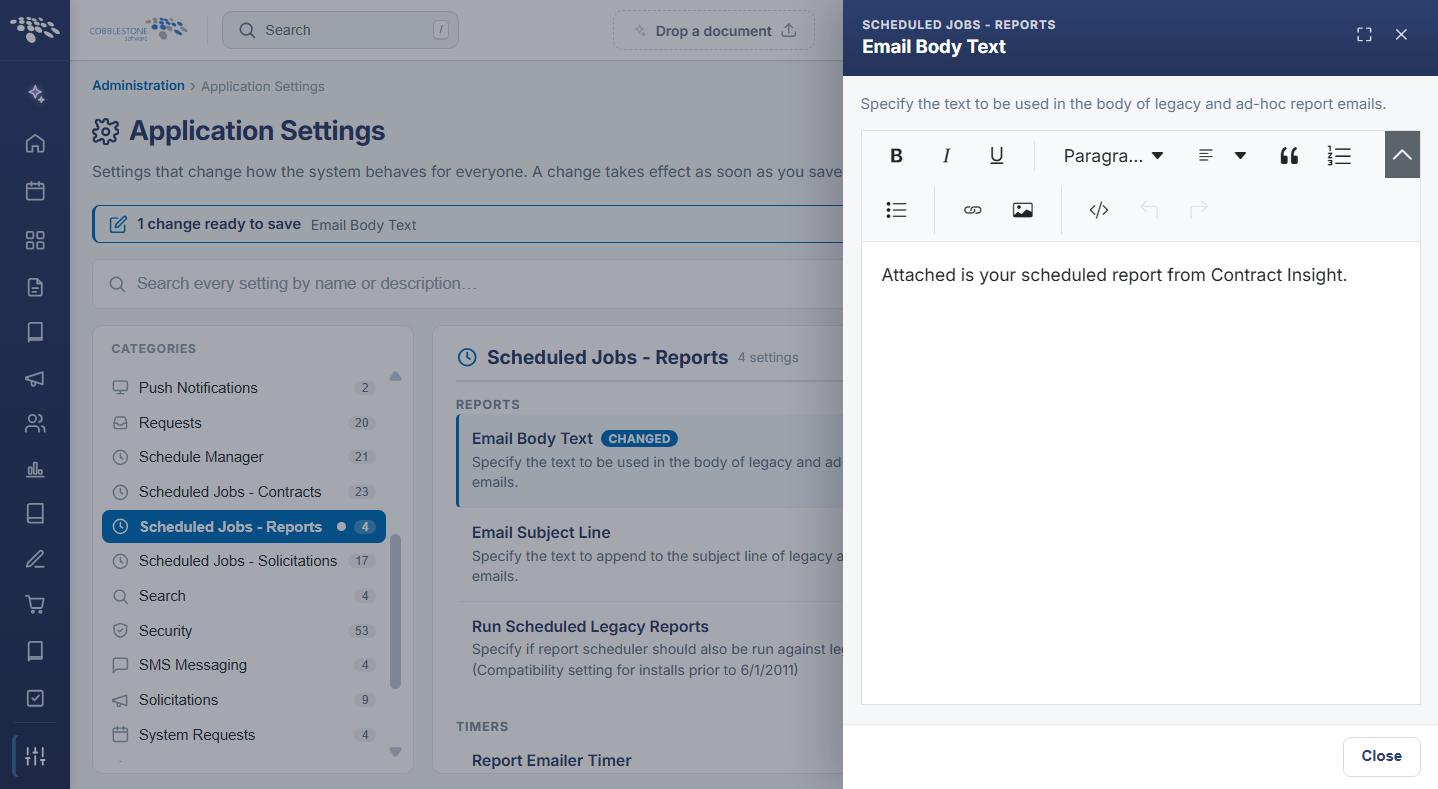
- Email Body Text — The text used in the body of legacy and ad-hoc report emails. Edited through the rich-text editor using Edit content.
- Email Subject Line — The text appended to the subject line of legacy and ad-hoc report emails. Entered in a text box.
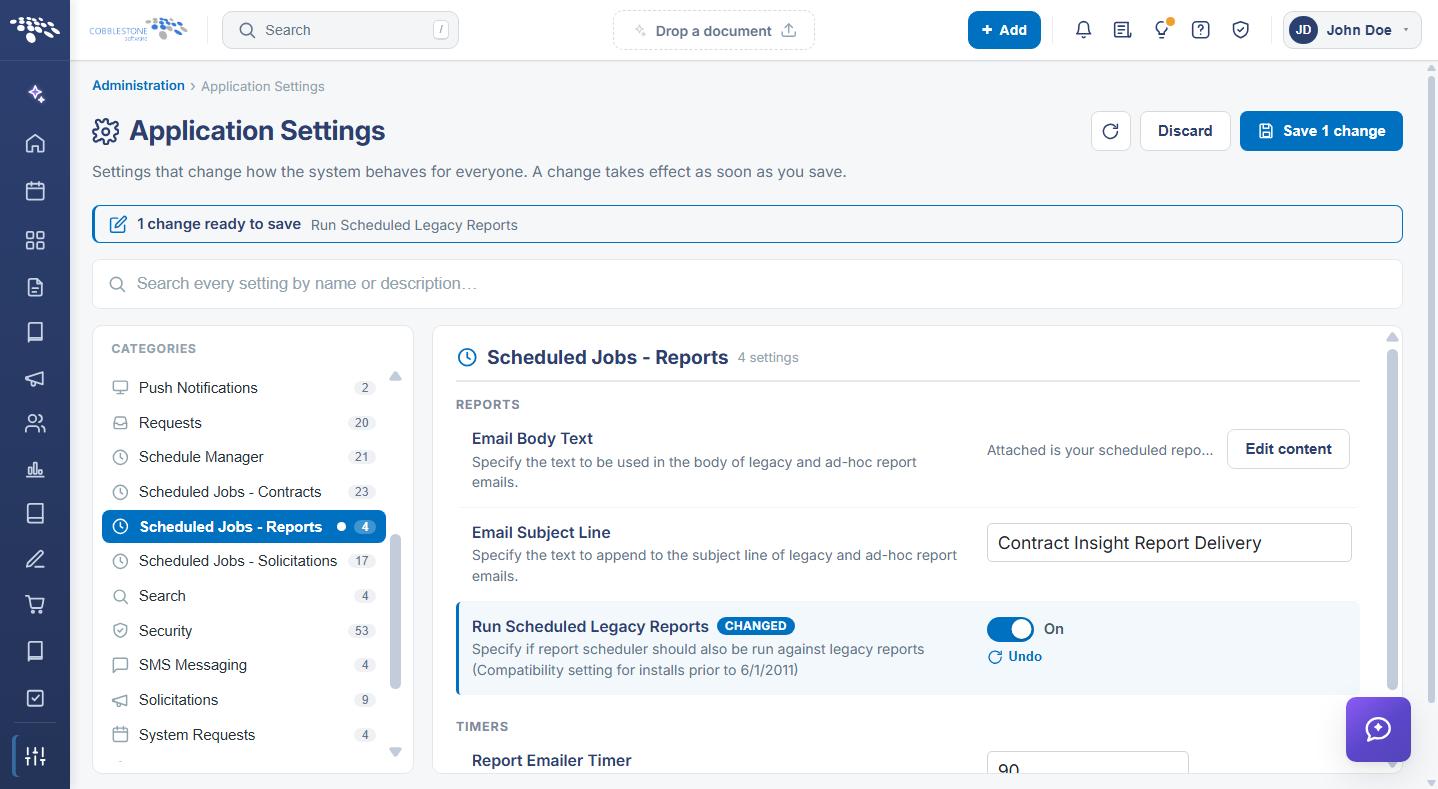
- Run Scheduled Legacy Reports — Specifies whether the report scheduler should also run against legacy reports. This is a compatibility setting for installations created prior to 1 June 2011. Toggle.
Note: The scheduled report is delivered as an attachment, so the Email Body Text setting is the covering message rather than the report content itself. Keep it short and general, since the same text is used for every scheduled report the system sends.
Caution: Leave Run Scheduled Legacy Reports on only where the environment still has legacy reports on a schedule. Turning it on in a system with no legacy reports adds work to every sweep of the report job for no benefit.
4. TIMERS Settings
The TIMERS subsection contains a single setting:
- Report Emailer Timer — How often legacy and ad-hoc reports are sent, in minutes. Specify 0 to disable. Entered in a text box.
This timer governs how frequently the system checks for scheduled reports that are due. A report is not sent at the exact moment its own schedule falls due, but on the next sweep of this job after that point — so the interval set here determines how closely delivery follows the schedule a user set on their report.
Caution: Setting this timer to 0 stops every scheduled report from being sent, and it stops silently — no error is raised and nothing is queued for later. Where users report that scheduled reports have stopped arriving, check this value first.
5. Modifying a Scheduled Jobs - Reports Setting
Function: Changes the content or timing of scheduled report email for the entire system.
Steps:
- From the Contract Insight homepage, click Administration at the bottom of the left navigation menu. On the Administration page, under Configuration & Fields, select Application Settings, then click Scheduled Jobs - Reports in the CATEGORIES rail.
- Locate the setting by name under the REPORTS or TIMERS heading, and read its description to confirm what the value controls.
- Change the value using the control on the right of the setting row — the Run Scheduled Legacy Reports toggle, a text box for Email Subject Line and Report Emailer Timer, or Edit content for Email Body Text.
- For Email Body Text, a drawer slides out from the right headed SCHEDULED JOBS - REPORTS and the setting name. Edit the content using the editor toolbar — Bold, Italic, and Underline, a Paragraph format dropdown, Blockquote and list controls, Insert Hyperlink and Insert Image, Code View for the underlying HTML, and Undo and Redo — then click Close.
- The setting is marked with a CHANGED badge, an Undo link appears beneath it, a dot appears beside Scheduled Jobs - Reports in the CATEGORIES rail, and a banner at the top of the screen reports how many changes are ready to save.
- Click Save changes in the upper right to commit the change, or Discard to put every changed setting back to its saved value. Undo on the setting row reverts that one setting only.
6. Related Report Administration
This group defines what the scheduled report email contains and how often it is sent. The job that actually sends it is managed on the Scheduled Jobs screen, reached from the Administration page under Automation & Data.
The corresponding job under the E-Mail Alerts Scheduler is Report E-Mails, driven by the Report Emailer Timer. On that screen the job can be run immediately with Run now and its outcome reviewed in its History, which is the quickest way to confirm that a change to these settings has taken effect.
Related settings in other configuration groups are:
- General System — the ad-hoc report export settings, including Data Exporting: Include Report Title Row, Use Ad-Hoc Report Legacy Export All, and Use Ad-Hoc Report Legacy for Email
- Security — Allow Export to Word or PDF on Find Pages, and the log retention settings
- Schedule Manager — the system-wide sweep frequencies that the report job runs alongside
- Scheduled Jobs - Contracts and Scheduled Jobs - Solicitations — the equivalent alert settings for those record types
Dashboards and the reports themselves are administered separately — see the System Dashboards and Dashboard Designer pages on the Administration page under Templates & Presentation.
7. Quick Reference Summary
Task | How to Complete It |
Open the group | Homepage → Administration → Configuration & Fields → Application Settings → Scheduled Jobs - Reports. |
Change the covering message | Edit content on Email Body Text, edit in the drawer, Close, then Save changes. |
Change the subject line | Email Subject Line text box under REPORTS, then Save changes. |
Include legacy reports | Run Scheduled Legacy Reports toggle, then Save changes. |
Set delivery frequency | Report Emailer Timer, in minutes, then Save changes. |
Stop all scheduled reports | Set Report Emailer Timer to 0; delivery stops with no error raised. |
Fix reports not arriving | Check Report Emailer Timer, then the Report E-Mails job and its History. |
Confirm a change took effect | Scheduled Jobs screen → Run now on Report E-Mails → its History. |
Ad-hoc export behavior | General System group — the Data Exporting and Ad-Hoc Report Legacy settings. |
Undo a change | Undo on the setting row, or Discard in the upper right, before saving. |